How to Install and Use RealVNC Viewer on Chromebook and Googlebook
 by
Juniya Sankara
Post Updated: November 3, 2026
You can install and use RealVNC Viewer on Chromebook and Googlebook through the official Android app from Google Play or as a native Linux client via the ChromeOS Linux environment. Developed by the original inventors of VNC remote access technology, RealVNC Viewer gives you responsive, encrypted remote control over Windows PCs, macOS workstations, Linux servers, and Raspberry Pi boards directly from your laptop.
Googlebook runs Android applications natively through Google Play and introduces cross-device phone app casting, giving you multiple ways to monitor home servers, troubleshoot family devices, or access office workstations on the go. This complete guide walks you through setting up Google Play installation, RealVNC Connect cloud accounts, direct IP connections, keyboard and mouse optimization, and proven troubleshooting fixes.
Have questions about setting up remote access to your computers? Contact us with your laptop model and host operating system details.
How to install RealVNC Viewer on Chromebook and Googlebook
Installing the official RealVNC Viewer application from Google Play provides a dedicated touch-and-mouse interface with automatic cloud synchronization across your ChromeOS devices:
The official Google Play listing identifies RealVNC Viewer under the package identifier com.realvnc.viewer.android. Running the Android app delivers smooth trackpad gestures, responsive on-screen keyboards, and secure cloud credentials storage.
If the Play Store is not currently enabled on your laptop, consult Google’s official Android app setup guide for Chromebook or the guide on installing apps on Googlebook. Note that on school or enterprise managed devices, administrator policies may regulate Play Store installations. For developers and system administrators requiring native desktop integration, ChromeOS also supports running the 64-bit Debian Linux package (.deb) of RealVNC Viewer inside the Linux development environment.
Cast RealVNC Viewer from your phone on Googlebook
If your Android phone already stores your saved VNC connection profiles, corporate VPN certificates, or two-factor authentication tokens, Googlebook’s Cast My Apps feature lets you stream the mobile app directly onto your laptop screen. Open the Phone Hub in the bottom-right shelf of your Googlebook, select Cast My Apps, and tap RealVNC Viewer. Your phone’s active remote session opens immediately inside an adaptive desktop window on ChromeOS, letting you monitor servers, adjust configurations, and control workstations without re-entering passwords or reconfiguring connection keys.
Organizing your remote address book and connection settings
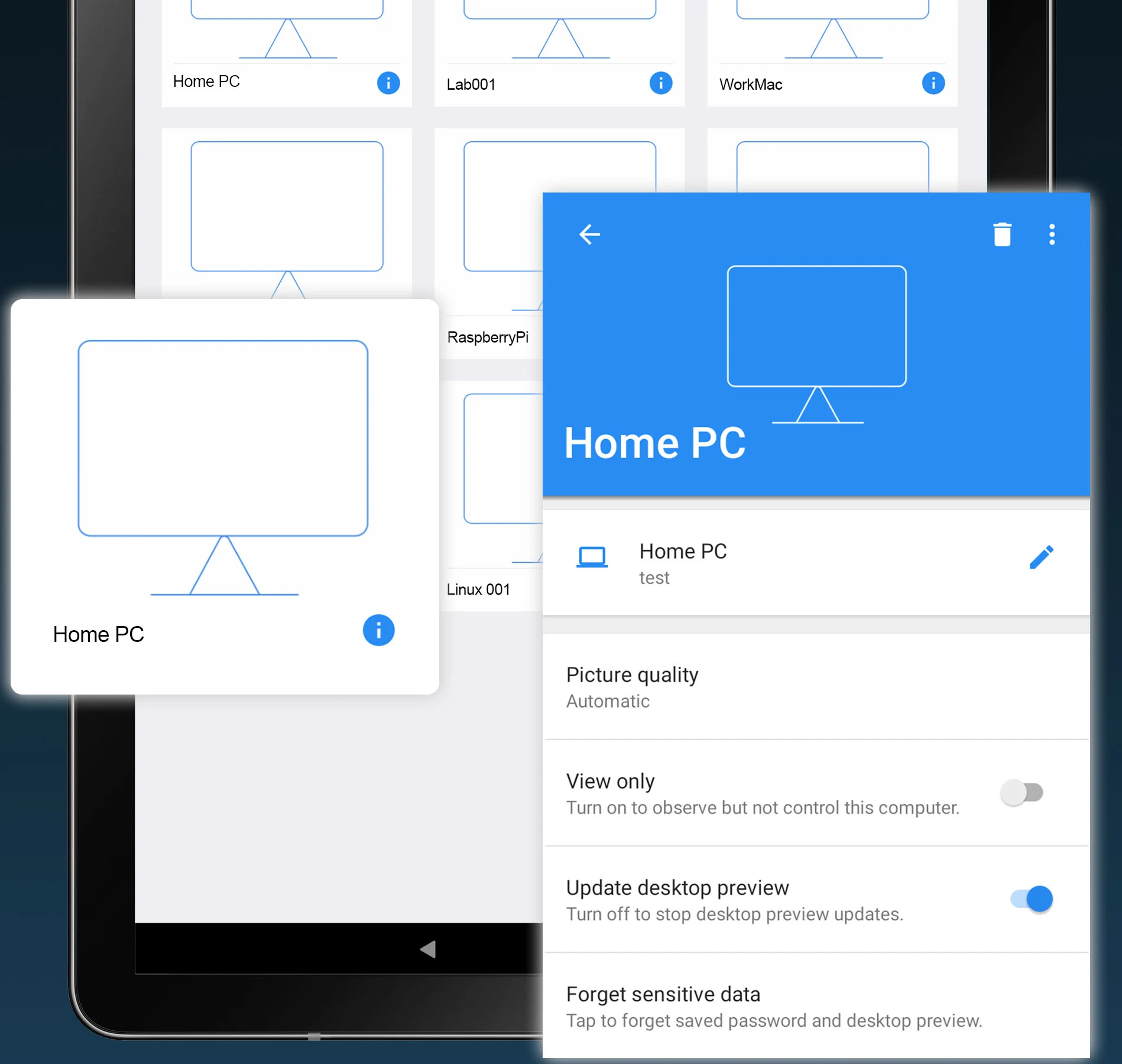
RealVNC Viewer makes managing multiple remote systems effortless through its visual address book. Whether you administer dozens of lab workstations or check in on a home office PC, every computer can be saved with custom nicknames and granular performance profiles:
Mastering in-session controls, touch gestures, and keyboard input
When connected to a high-powered workstation running video production suites, CAD modeling, or office applications, RealVNC Viewer delivers responsive interaction through flexible input modes:
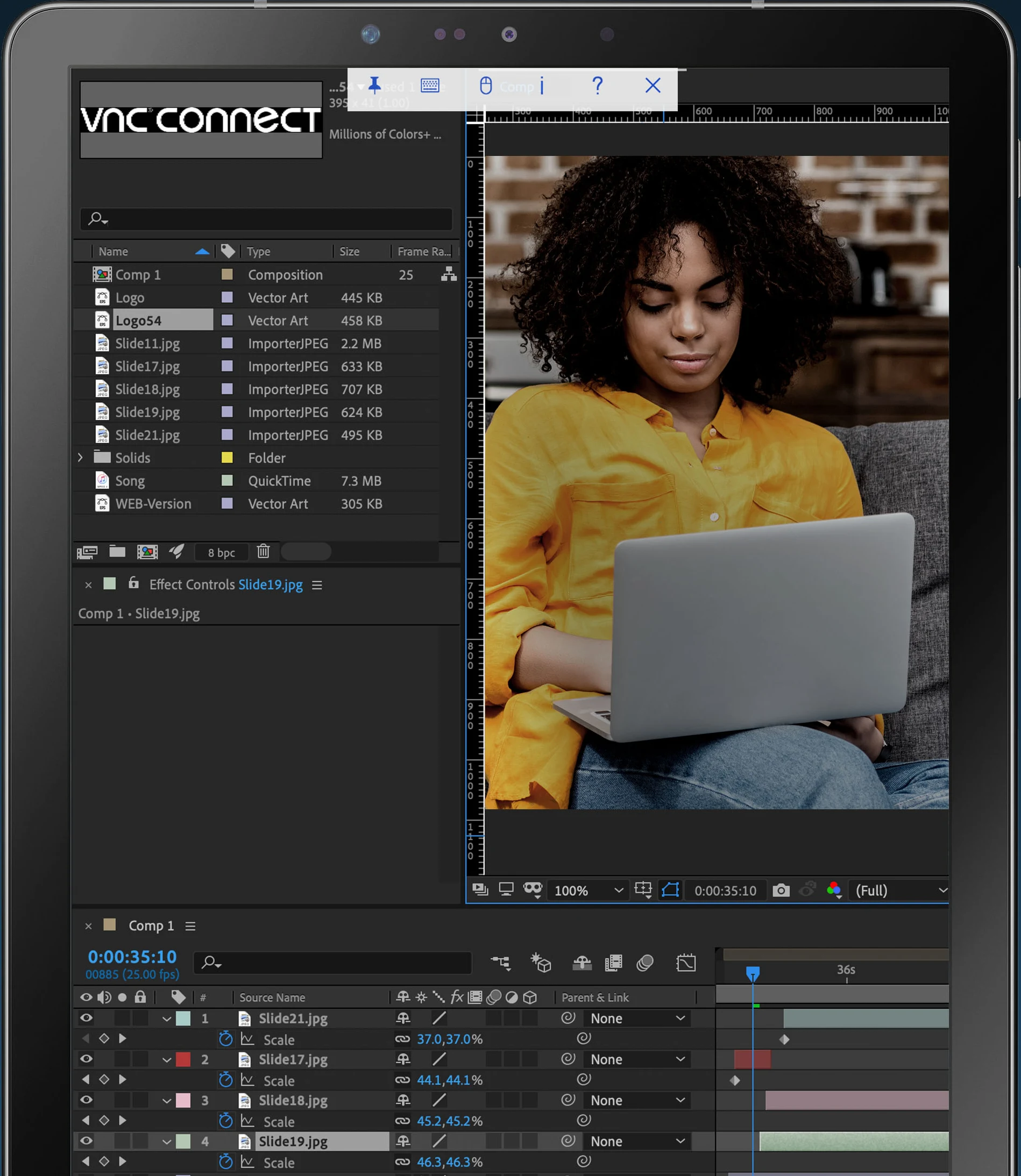
The viewer supports two distinct interaction models tailored for clamshell Chromebooks and 2-in-1 touchscreen convertibles:
- Mouse Pointer Mode: using your Chromebook’s physical trackpad or an external mouse, the remote pointer follows your cursor with zero offset. Left-click, right-click, middle-click, and smooth two-finger scrolling operate exactly like a local workstation.
- Touchscreen Trackpad Mode: on touchscreens and tablets, dragging your finger anywhere across the display moves the remote mouse pointer with precision. Tapping once sends a left-click, two-finger tapping executes a right-click, and dragging with two fingers scrolls windows vertically or horizontally.
- Expandable Key Toolbar: tap the top toolbar to reveal specialized keys that standard laptop keyboards often lack, including Windows/Super, Command, Esc, Insert, Page Up/Down, function keys (F1-F12), and a dedicated Ctrl+Alt+Del shortcut.
- Full-Screen Immersive View: press the F4 (Full Screen) key on your Chromebook keyboard to expand the remote session across your entire display, hiding local ChromeOS window borders and shelf elements.
Connecting across platforms: Windows, macOS, Linux, and Raspberry Pi
RealVNC is engineered for true cross-platform operability. You can manage heterogeneous operating systems from a single Chromebook interface with consistent security and rendering:
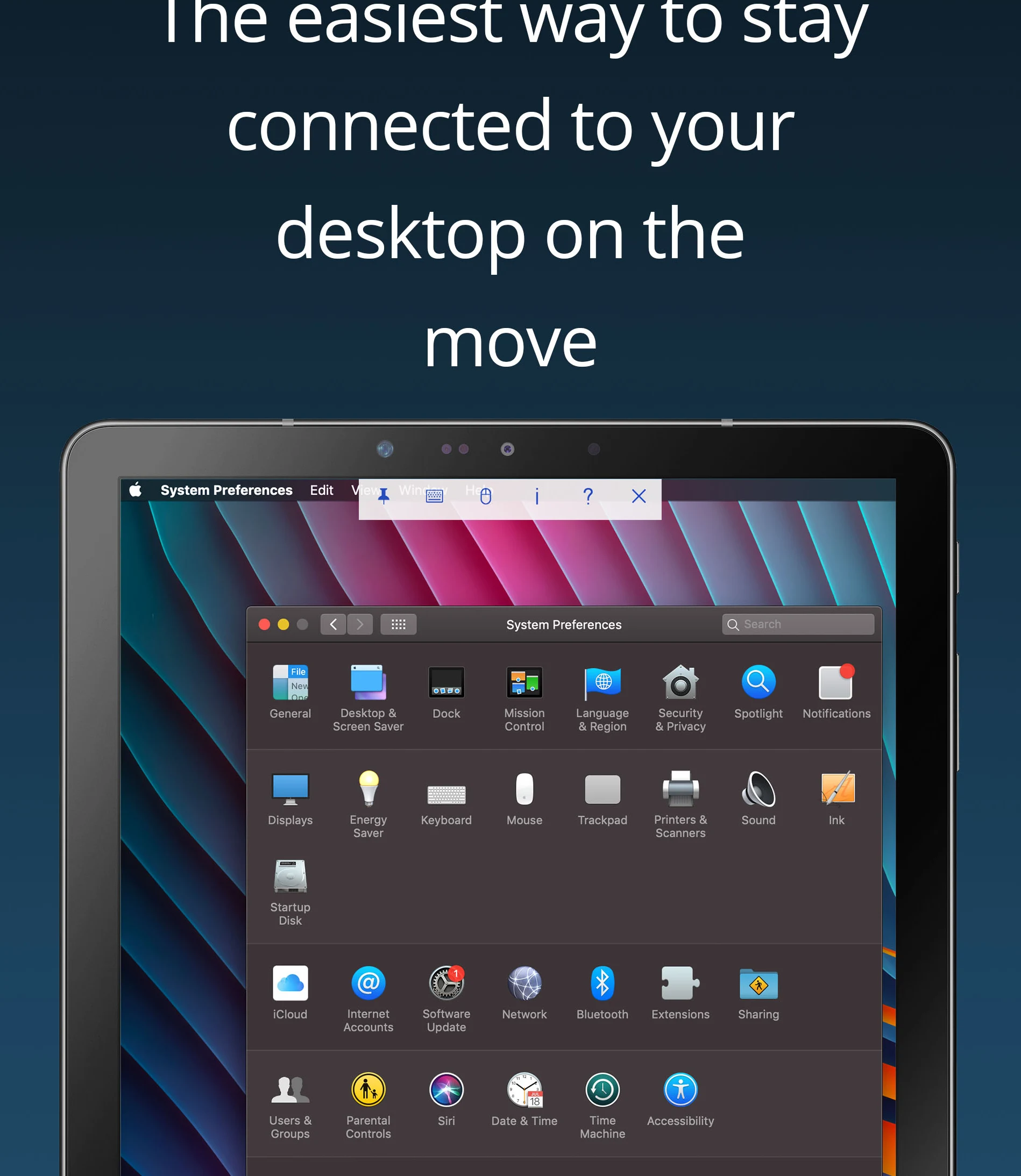
Here is how RealVNC handles different target host environments:
- Windows Workstations & Servers: supports Windows 11, 10, and Windows Server editions. Features user account control (UAC) elevation passthrough, multi-monitor switching, and clipboard text synchronization.
- Apple macOS: seamlessly maps Apple Command and Option keys to Chromebook Alt and Search/Launcher keys. Supports Retina high-resolution scaling and full display sleep wake-up.
- Enterprise Linux: connects to Ubuntu, Debian, Red Hat Enterprise Linux, CentOS, and Fedora systems running X11 or Wayland display servers.
- Raspberry Pi Single-Board Computers: Raspberry Pi OS includes RealVNC Server built-in. Enabling VNC in Raspberry Pi Configuration gives you immediate graphical desktop control from your Chromebook without installing third-party tools.
RealVNC Connect Cloud vs. Direct IP connections: security and setup
RealVNC Viewer provides two distinct methods for establishing a remote session, giving you flexibility between cloud convenience and local network control:
192.168.1.50:5900). Direct connections bypass external cloud brokers entirely for air-gapped security and ultra-low latency.Optional: Install native RealVNC Viewer via ChromeOS Linux
While the Google Play Android app serves the vast majority of Chromebook users, power users and network administrators can also run the official desktop Linux client directly on ChromeOS:
- Enable Linux on ChromeOS: open Settings > Advanced > Developers, then click Turn on next to the Linux development environment. Follow the prompts to assign storage space.
- Download the 64-bit Debian package: visit the official RealVNC website and download the
.debpackage for x86_64 or ARM64 matching your Chromebook processor architecture. - Install the package: move the downloaded file to your Linux files folder in the ChromeOS Files app. Right-click the package and select Install with Linux, or open the Terminal and run
sudo dpkg -i VNC-Viewer-*.deb && sudo apt-get install -f. - Launch native viewer: launch VNC Viewer from the Linux apps folder in your ChromeOS launcher to enjoy complete desktop X11 keyboard forwarding and advanced command-line connection arguments.
Troubleshooting RealVNC Viewer on Chromebook and Googlebook
If you experience connection failures, display delays, or authentication prompts while using RealVNC Viewer on ChromeOS, follow these practical diagnostic steps:
- Target computer shows offline or unreachable: ensure the remote computer is powered on, connected to the internet, and that the RealVNC Server service is running. Verify that the host’s operating system power management settings prevent sleep or network card power savings when idle.
- Authentication credentials rejected: verify whether your VNC Server is configured for VNC password authentication or operating system user authentication. If your server uses system authentication, enter the administrative username and password of the remote computer rather than your RealVNC cloud password.
- Black screen or blank display on connection: if connecting to a headless machine (such as a Raspberry Pi or server rack without a connected monitor), the graphics card may not generate a virtual display. On Raspberry Pi, configure a default resolution via
raspi-configunder Display Options > VNC Resolution. On Windows or Mac hosts, ensure the display is not locked by a third-party virtual screen driver. - Shortcuts intercepted by ChromeOS: if ChromeOS intercepts shortcuts like Alt+Tab or Ctrl+W instead of sending them to your remote machine, switch RealVNC Viewer to full-screen mode by pressing the F4 key, or use the dedicated keys on the viewer’s drop-down top toolbar.
- Laggy performance or video stutter over Wi-Fi: in the RealVNC Viewer address book, tap the info (i) icon next to your remote computer and change Picture quality from Automatic to Low or Medium. This compresses image streams to prioritize responsive cursor movement over high-resolution textures.
Frequently asked questions about RealVNC Viewer on Chromebook and Googlebook
Is RealVNC Viewer free to use on Chromebook and Googlebook?
Yes. The RealVNC Viewer app is free to download and use for personal, non-commercial remote access. You can connect to computers running RealVNC Connect with a free Home account, or connect directly to any VNC-compatible host across your local network via IP address. Paid RealVNC Connect subscriptions unlock advanced team management, multi-factor authentication, and centralized deployment.
Can I use RealVNC Viewer without configuring router port forwarding?
Yes. When you sign in with a RealVNC Connect cloud account, RealVNC automatically brokers peer connections between your Chromebook and remote computers over encrypted cloud relays without requiring manual router port forwarding or static public IP addresses. Port forwarding is only necessary if you choose direct IP-to-IP connections over the open internet without cloud brokering.
Does RealVNC Viewer support physical keyboard shortcuts and right-click on ChromeOS?
Yes. RealVNC Viewer fully supports external Bluetooth and USB mice, Chromebook trackpads, and physical keyboards. On ChromeOS, right-click and two-finger secondary tap work natively, and the expandable in-session top toolbar provides quick access to host-specific modifier keys including Windows/Super, Command, Alt, and Ctrl+Alt+Del.
Can I run RealVNC Viewer inside the Linux development environment on ChromeOS?
Yes. In addition to the Google Play Android app, you can enable the Linux development environment (Crostini) in ChromeOS Settings and install the official RealVNC Viewer 64-bit Debian package (.deb). This provides a native desktop Linux window with comprehensive X11 key mapping and window management controls.
How do I cast RealVNC Viewer from my phone to Googlebook?
Open the Phone Hub from the bottom-right shelf of your Googlebook and ensure your Android phone is paired. Click Cast My Apps, then select RealVNC Viewer. Your active remote session or saved address book will stream seamlessly inside an adaptive desktop window on your laptop screen without requiring you to re-authenticate.
Explore more remote desktop and productivity guides on ChromeGeek
- How to Install and Use Chrome Remote Desktop on Chromebook and Googlebook: Set up Google’s free remote desktop access, share screens securely, and cast from your phone.
- TeamViewer on Chromebook: Setup Guide & Remote Access: Connect to remote computers, transfer files, and support clients across ChromeOS.
- How to Install AnyDesk on Your Chromebook: Set up fast, lightweight remote desktop control with minimal latency on ChromeOS.
- Best Remote Desktop Apps for Chromebook: Compare top remote access solutions, VNC clients, and cloud connectivity tools.
Discover more from Chrome Geek
Subscribe to get the latest posts sent to your email.