How to Install and Use Strava on Chromebook and Googlebook
 by
Joseph Vance
Post Updated: November 17, 2026
You can install and use Strava on Chromebook and Googlebook through the official Android app from Google Play or directly in Chrome at strava.com. It brings your workout feed, route planning maps, and performance analytics to a larger laptop display.
Googlebook runs Android applications natively via Google Play alongside instant phone-app casting from the Phone Hub. This guide covers Google Play installation, the desktop web dashboard, route building, heatmaps, training analytics, and quick ChromeOS troubleshooting fixes.
Need help setting up Strava? Contact us with your laptop model and any sync or login questions.

How to install Strava on Chromebook and Googlebook
Installing the official Strava app from Google Play takes less than a minute and keeps your workouts synced across devices:
The official Google Play listing identifies Strava under the package identifier com.strava. Signing in with the same account you use on your phone or GPS watch keeps your entire workout history in sync.
If the Play Store is missing on your laptop, check Google’s Android app setup guide for Chromebook or the guide on installing apps on Googlebook. School and workplace laptops may restrict Play Store installs through administrator policies. There is no native Linux desktop package (.deb) for Strava, so if Play Store access is turned off, open strava.com in Google Chrome for the full desktop web experience.
Cast Strava from your phone on Googlebook
If you already use Strava on your Android phone for live GPS tracking and club chats, Googlebook’s Cast My Apps feature lets you open your phone’s app directly on your laptop screen. Open the Phone Hub from the bottom-right shelf of your Googlebook, click Cast My Apps, and choose Strava. Your phone’s active Strava session launches in a floating desktop window so you can check recent runs, give kudos, or message training partners without signing in again.
Strava Web vs. Android app: choosing your ChromeOS setup
Because most Chromebooks and Googlebooks do not include built-in GPS hardware, most athletes record workouts on a phone or sports watch and use their laptop for planning and review. Here is how the three ChromeOS options compare:
Plan routes and explore trails with Strava Maps and Heatmaps
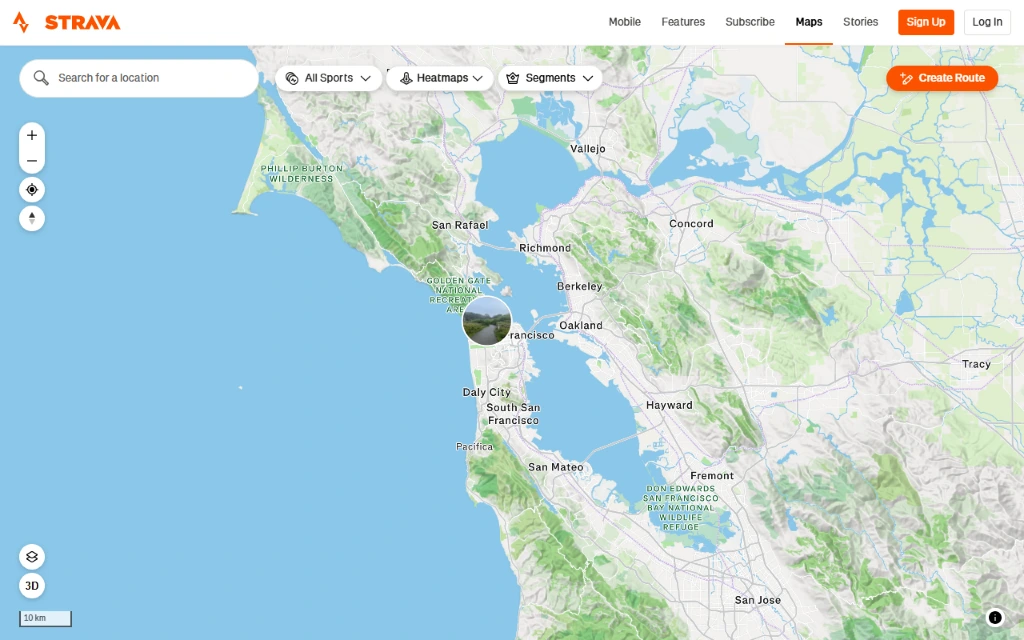
Planning a long weekend ride or a new running loop is much easier on a laptop monitor than on a phone screen:
- Custom Route Builder: Click Create Route on the Maps page to plot waypoints for more than 30 sports, toggle between popular or direct paths, and check elevation gain and surface types (paved vs. dirt).
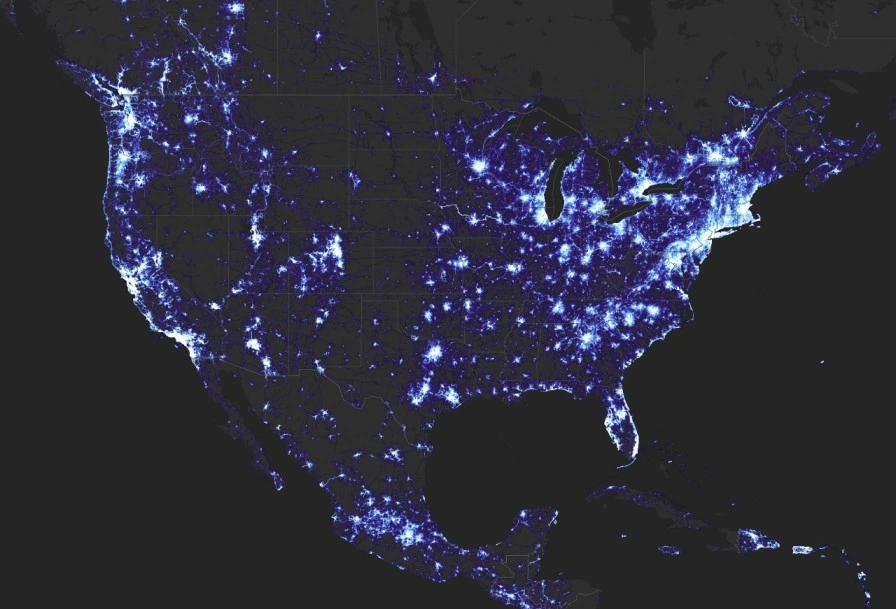
- Global and Personal Heatmaps: Turn on the Global Heatmap layer to see which roads and trails local athletes actually use, or view your Personal Heatmap to track everywhere you have trained.
- Segment discovery: Browse popular climbs, sprints, and flat time-trial stretches near your destination, then star favorites so they sync to your GPS watch or bike computer.
- Easy GPX export and upload: Export planned routes as GPX or TCX files for offline navigation devices, or upload recorded activity files directly from your Chromebook Downloads folder.
Track workouts, analyze training metrics, and join clubs
Once your phone, Garmin, Apple Watch, or Coros device syncs a workout, your Chromebook or Googlebook gives you room to dig into the numbers:
- Weekly Training Log: Review your mileage, time, and elevation trends week by week, and filter activities by sport, commute tags, or race efforts.
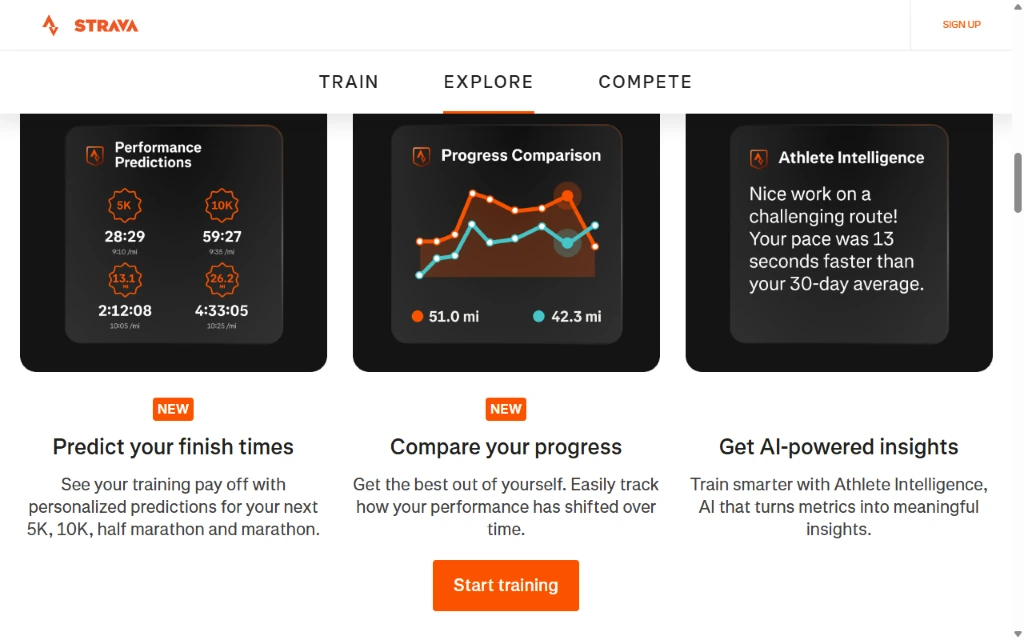
- Performance Predictions and Progress Comparison: Subscribers can track estimated finish times for 5K, 10K, half marathon, and marathon distances alongside side-by-side weekly mileage charts.
- Athlete Intelligence: View plain-English post-workout summaries that compare your latest pace, heart rate, and effort against your recent 30-day average.
- Clubs and monthly challenges: Join local running or cycling clubs, compare weekly leaderboards, and sign up for distance challenges with friends.
Troubleshooting Strava on Chromebook and Googlebook
If Strava runs into login, map loading, or sync issues on ChromeOS, try these quick fixes:
- No GPS signal on laptop: Chromebooks and Googlebooks rarely include GPS chips. Record outdoor workouts on your phone or sports watch, then open Strava on your laptop once the activity finishes syncing.
- Maps or Route Builder look blank in Chrome: Make sure hardware acceleration is enabled under Chrome Settings > System, and temporarily pause ad-blocking or privacy extensions on
strava.comif map tiles fail to load. - Cannot upload a GPX or FIT file: Confirm the file is saved locally in your Files app (Downloads) rather than sitting as a cloud-only link, and check that the file is not empty or corrupted.
- Android app freezes or fails to refresh: Open ChromeOS Settings > Apps > Manage your apps > Strava > Storage and select Clear cache, then relaunch the app.
- Google Play says the app is unavailable: Managed school or work accounts sometimes block fitness apps. Use strava.com in Chrome instead, which requires no installation.
Frequently asked questions about Strava on Chromebook and Googlebook
Can I record GPS workouts directly on a Chromebook or Googlebook with Strava?
Most Chromebooks and Googlebooks do not have built-in GPS receivers, so live outdoor GPS recording works best on your phone, smartwatch, or bike computer. Once recorded, your activities sync automatically to your Strava account so you can review maps, splits, and training logs on your laptop’s larger screen.
Should I use the Strava Android app or strava.com in Google Chrome?
For most laptop users, strava.com in Google Chrome is the better everyday option because the desktop Route Builder, Training Log, and full-screen segment leaderboards are designed for a mouse, trackpad, and wide display. The Google Play Android app is useful if you want quick mobile-style feed browsing or touch navigation on a 2-in-1 convertible.
How do I cast Strava from my Android phone to Googlebook?
Open the Phone Hub from the bottom-right shelf of your Googlebook and make sure your Android phone is linked. Click Cast My Apps and select Strava. Your phone’s active Strava session opens in a floating desktop window, letting you check recent workouts or club messages without signing in again.
Can I upload GPX, TCX, or FIT workout files to Strava from a Chromebook?
Yes. Open strava.com in Google Chrome, click the plus (+) icon in the top-right corner, and choose Upload activity. You can select GPX, TCX, or FIT files saved in your Chromebook or Googlebook Downloads folder or synced via Google Drive.
Is Strava free to use on Chromebook and Googlebook?
Yes. Strava offers a free tier that lets you track activities, follow friends, join clubs, and view basic workout stats on both the Android app and strava.com. A paid Strava subscription unlocks advanced tools such as the Route Builder, Global and Personal Heatmaps, Training Log, Performance Predictions, and segment leaderboards.
Companion music, maps, and productivity guides
Pair your training setup with music, route planning, and daily organization tools across Chromebook and Googlebook:
- Workout playlists and podcasts: Build running mixes and download audio for offline sessions with our guide to Spotify on Chromebook and Googlebook.
- Trip and trailhead planning: Organize travel stops and scenic driving directions before heading out using Google Maps trip planning with Ask Maps.
- Audio gear for training calls and music: Compare comfortable wireless and wired audio picks in our roundup of the Best Headsets for Chromebook and Googlebook.
- Training notes and race logs: Sketch workout plans, annotate PDF training schedules, and keep race-day checklists in Notability on Chromebook and Googlebook.
Discover more from Chrome Geek
Subscribe to get the latest posts sent to your email.