How to Install and Use Adobe Fill & Sign on Chromebook and Googlebook
 by
Frank Cross
Post Updated: November 3, 2026
You can install and use Adobe Fill & Sign on Chromebook and Googlebook directly through the official web platform at adobe.com, or by streaming the app from your phone. Whether you are filling out school forms, signing job contracts, or completing everyday paperwork, Adobe Fill & Sign makes it easy to type into PDF forms and add your signature without printing a single page.
You can draw your signature with a stylus, use your touchscreen or trackpad, or type your name. Our guide walks you through setting up the web app, using digital signatures, and troubleshooting common issues on ChromeOS.
Need help opening a PDF or setting up the tool on your device? Contact us and our team will be happy to assist.

How to install Adobe Fill & Sign on Chromebook and Googlebook
Adobe offers Fill & Sign as a fast web application at adobe.com, and also includes the full signing toolkit inside the Adobe Acrobat Reader app on Google Play. Installing the web app directly to your Chromebook shelf gives you one-click desktop access:
For broader operating system guidance, check Google’s Android app setup guide for Chromebook and the guide on installing apps on Googlebook. Note that the original standalone Fill & Sign mobile app was retired from Google Play as Adobe brought its e-signature workflow into Adobe Acrobat Online and the unified Adobe Acrobat Reader Android app. If your school or workplace manages your device, your administrator may manage account permissions.
Cast Adobe Fill & Sign from your phone on Googlebook
Googlebook’s Cast My Apps feature lets you stream your phone’s active document signing session directly to your laptop screen. This wireless phone hub connection makes it simple to view documents stored on your phone, sign them using your laptop trackpad or touchscreen, and finish paperwork without emailing files back and forth.
Complete PDF forms and create digital signatures
Adobe Fill & Sign turns standard PDF files into interactive documents that you can fill out and sign right away:
Click anywhere on your document to place a cursor and start typing. The tool lines up your text neatly with the form fields.
Add checkmarks, cross marks, and dots over checkboxes and multiple-choice options with a single click.
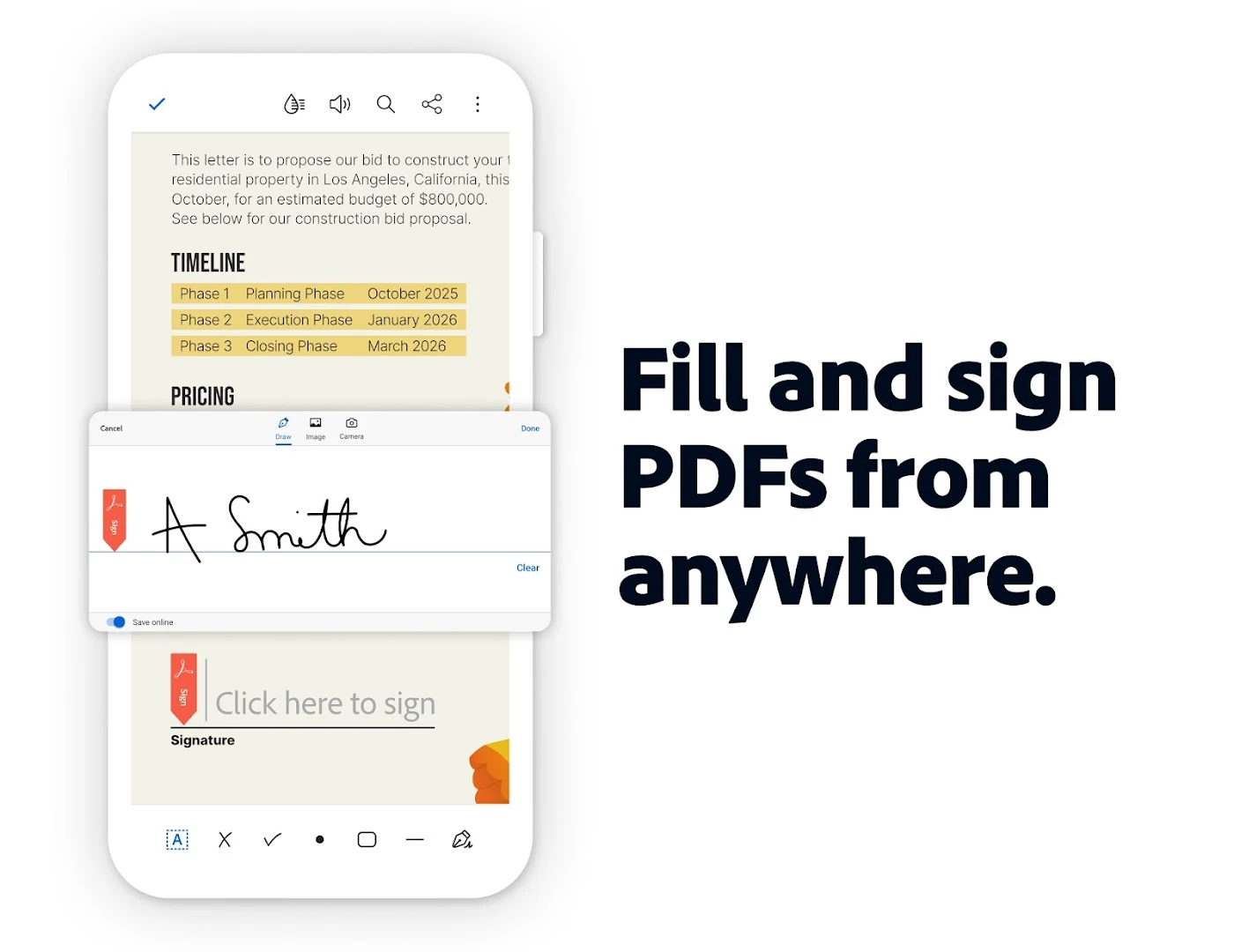
Draw your signature using a stylus, your finger on a touchscreen, or your trackpad. You can also type your name or upload a signature image.
Save your signature and initials to your account so you can insert them into future agreements with a single click.
Review documents with comments and markup tools
Along with signing, the platform includes clear markup tools to help you review documents before you finalize them:
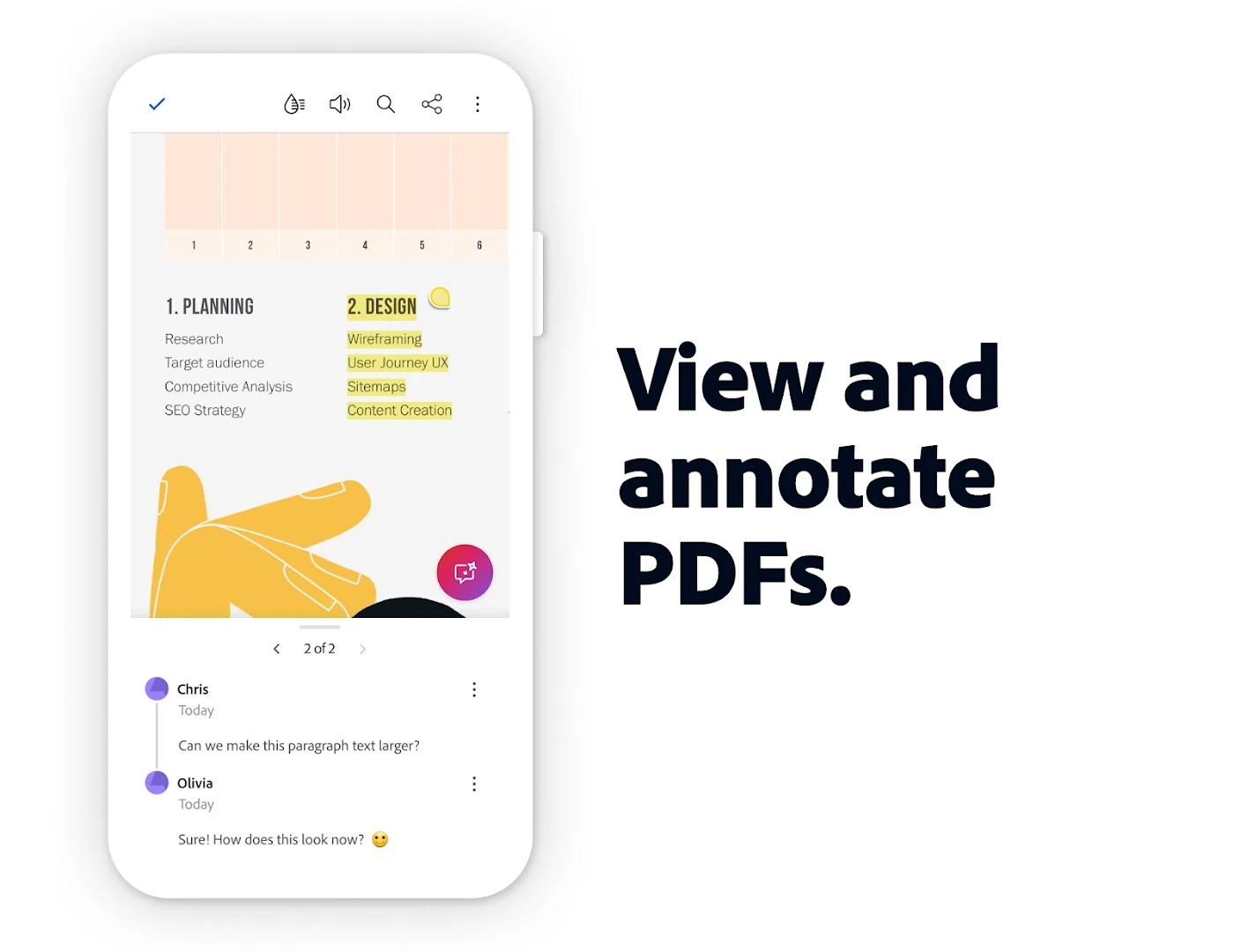
Highlight important terms, clauses, or instructions in bright colors so they stand out during review.
Add digital sticky notes anywhere on the page to leave questions, feedback, or reminders for yourself and others.
Use a stylus or your finger to sketch diagrams, underline text, or circle important sections directly on the document.
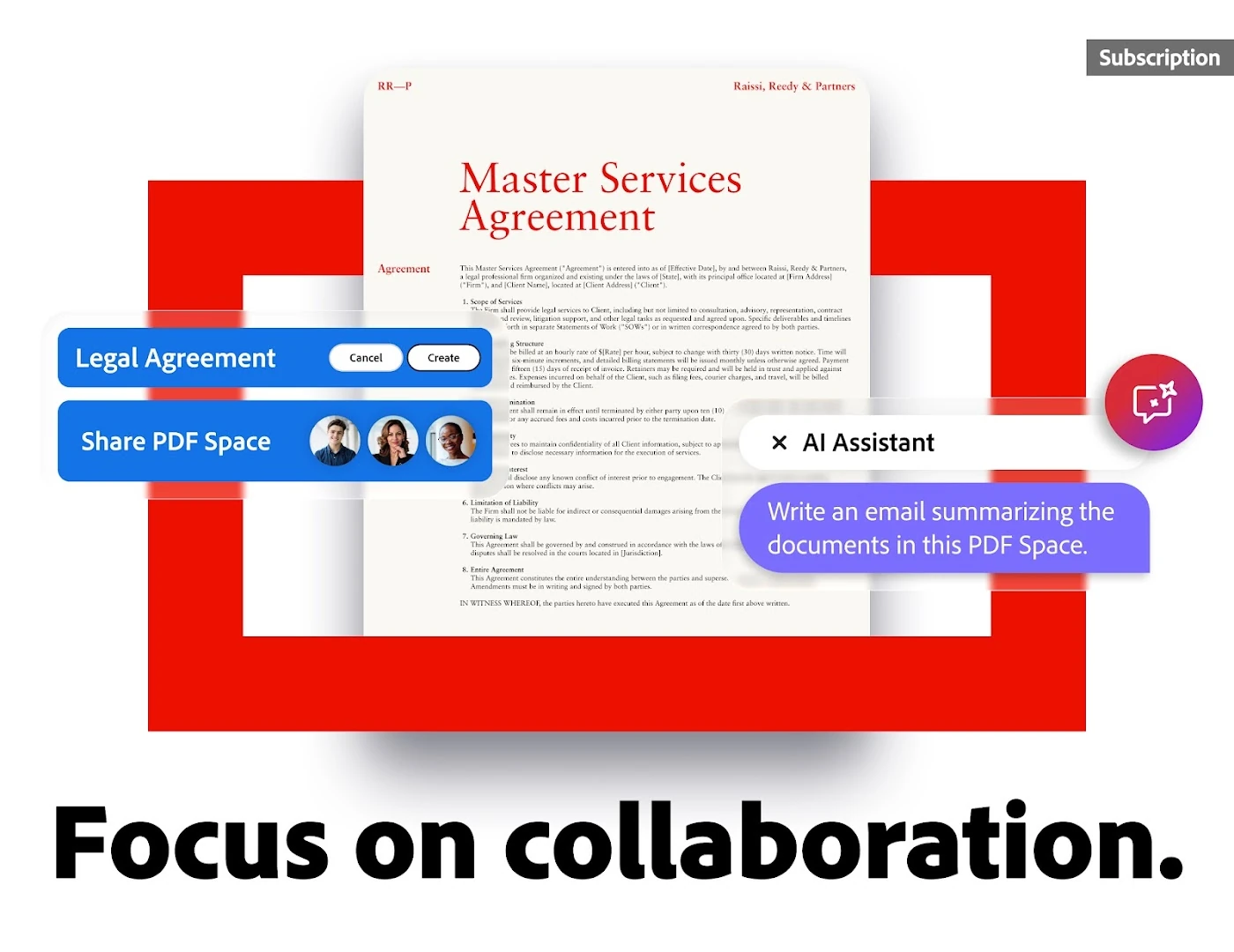
Send a secure link by email so classmates or coworkers can view the document and leave comments without needing to print.
Format text fields and organize PDF pages
Managing your forms is straightforward with Adobe’s built-in formatting tools:
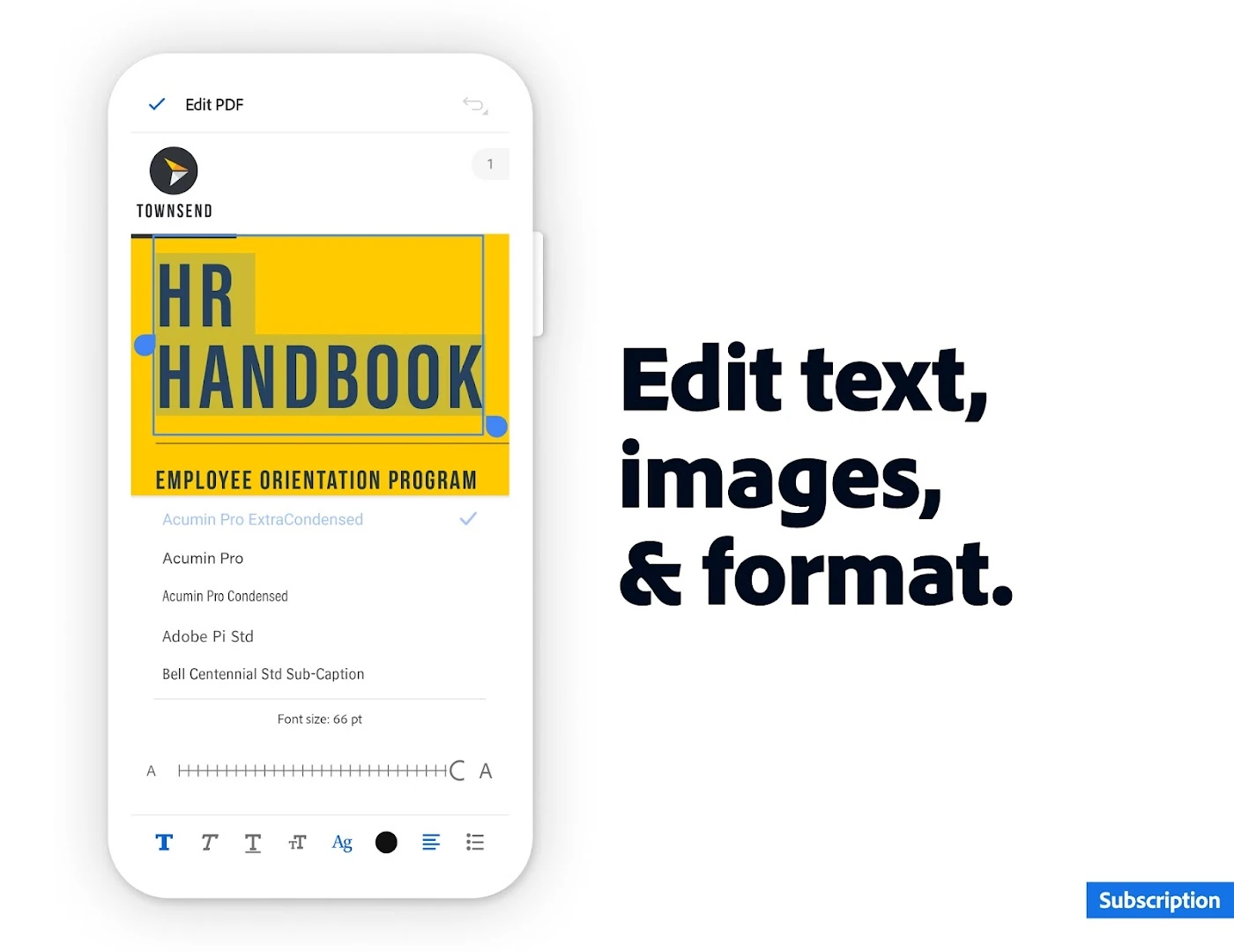
Easily increase or decrease font size with the quick toolbar so your answers fit neatly inside form boxes.
Drag and drop text boxes anywhere on the page to align your entries with printed lines.
Rotate sideways pages, zoom in on fine print, and navigate through multi-page packets with smooth scrolling.
Save your finished PDF directly to your Chromebook Files app, Google Drive, or Adobe cloud storage.
Adobe Fill & Sign Web Tool vs. Adobe Acrobat Android App vs. Phone Hub casting
Compare each access route to choose the right workflow for your Chromebook or Googlebook:
Troubleshooting common Adobe Fill & Sign issues on ChromeOS
If you run into issues while filling or signing PDFs in ChromeOS, use these quick solutions:
Make sure your PDF is under 100MB and is not password-protected. If a document hangs during upload, open it in Chrome, click Print, select Save as PDF, and upload the new version.
Click the tune icon on the left side of Chrome’s address bar. Make sure cookies and JavaScript are allowed for adobe.com, then refresh the page.
If drawing your signature feels sluggish, close extra browser tabs and verify that your USI stylus battery is charged.
If the pinned web app shortcut stops responding, right-click it on your shelf, select Uninstall, revisit the site in Chrome, and click Install again.
Frequently asked questions about Adobe Fill & Sign on Chromebook
Is Adobe Fill & Sign free to use on Chromebook and Googlebook?
Yes. Basic form filling and signing on Adobe’s web tool are completely free. You can upload any PDF, fill out form fields, add checkmarks, draw or insert your signature, and download the finished document without paying for a subscription.
Why is there no standalone Adobe Fill & Sign app on the Google Play Store?
Adobe retired the older standalone Fill & Sign mobile app and brought its features directly into the web platform and the official Adobe Acrobat Reader app. Using the web tool in Google Chrome gives you a full-screen desktop experience that is faster and easier to use on a laptop.
Can I install Adobe Fill & Sign as an app on my Chromebook?
Yes. Open the signing page in Google Chrome, click the Install icon on the right side of the address bar, and pin it to your shelf. It opens in its own window just like a regular desktop app.
Can I sign documents using a stylus or touchscreen on ChromeOS?
Yes. Adobe Fill & Sign works smoothly with USI styluses, touchscreens, and trackpads. When you click Sign, you can draw your signature with your pen or finger, type your name, or upload an image of your signature.
How do I fix file upload or sign-in errors in Adobe’s web tool?
Check that your PDF is under 100MB and is not password-protected. If the page gets stuck loading, click the site settings icon in the Chrome address bar, ensure cookies and JavaScript are allowed, and refresh the page.
Explore more document productivity tools on Chromebook
To build a complete digital office on ChromeOS, pair Adobe Fill & Sign with dedicated companion tools tailored to your daily workflow. For reading heavy research reports and offline document indexing, review our guide to Adobe Acrobat Reader for Chromebook. If you need advanced page reorganizing, redaction, and multi-file merging capabilities, explore our roundup of the Best PDF Editors on Chromebook. For visual creators formatting portfolio attachments and photographic contracts, see our setup walkthrough for Adobe Lightroom for Chromebook, or design custom certificates and branded invoice templates with Canva for Chromebook.
Discover more from Chrome Geek
Subscribe to get the latest posts sent to your email.