How to Install and Use DocuSign on Chromebook and Googlebook
 by
Frank Cross
Post Updated: November 3, 2026
You can install and use DocuSign on Chromebook and Googlebook through the official app from Google Play, its web portal, or the Chrome extension. It lets you sign PDF documents, complete digital forms, and send agreements to others directly from your laptop screen.
Googlebook runs Android apps natively alongside phone casting through Phone Hub, giving you flexible ways to manage contracts. This guide covers Google Play setup, web access, document tagging, signature drawing, and troubleshooting.
Need help setting up DocuSign? Contact us with your laptop model and we will be happy to help.

How to install DocuSign on Chromebook and Googlebook
Installing the official DocuSign app from Google Play gives you offline document access and smooth touchscreen signing:
The official Google Play listing identifies DocuSign under the package ID com.docusign.ink.
If the Play Store is not active, check Google’s Android app setup guide for Chromebook or the guide on installing apps on Googlebook. On school or workplace laptops, your administrator may manage app installations. You can also use DocuSign directly in Google Chrome at docusign.com or install it as a web app by clicking the Install icon in the address bar.
Cast DocuSign from your phone on Googlebook
Googlebook’s Cast My Apps feature lets you stream your phone’s active DocuSign app directly onto your laptop display. Open the Phone Hub in the bottom-right corner of your shelf, select Cast My Apps, and tap DocuSign. This allows you to check incoming agreements, view phone camera scans, and approve documents in a desktop window without transferring files.
Managing agreements and tracking envelope progress
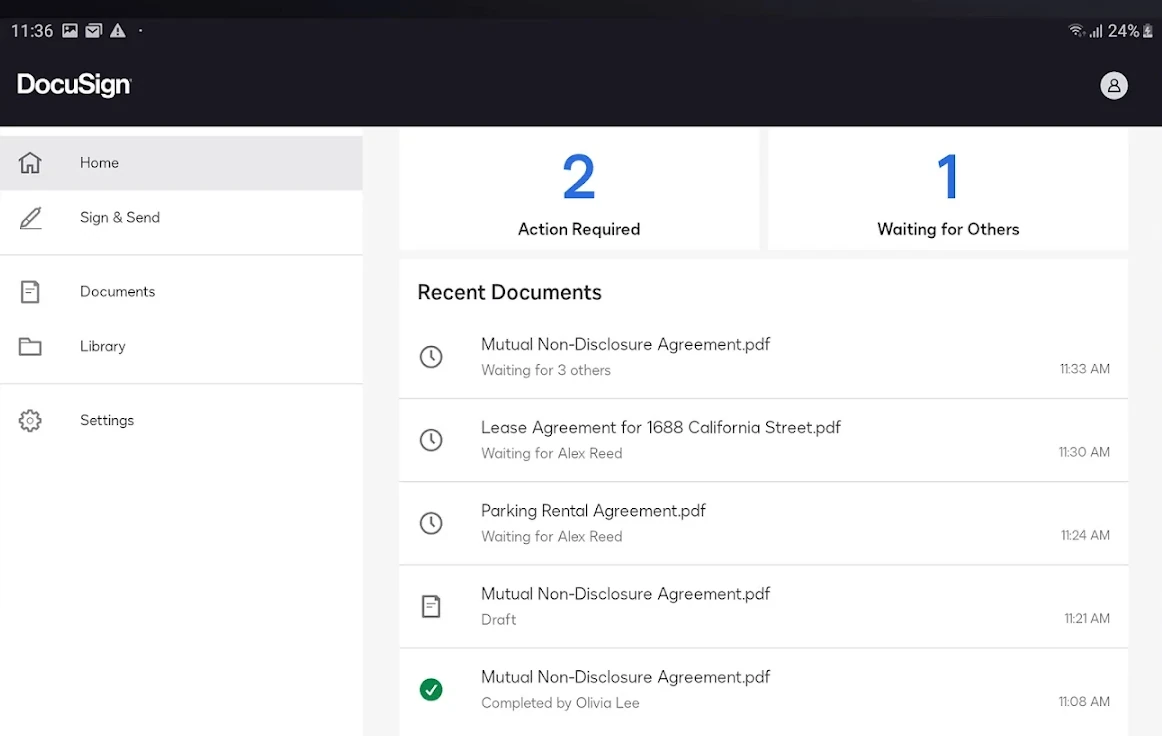
The DocuSign dashboard gives you a clear overview of all your outgoing and incoming documents:
- Action Required alerts: See documents that require your immediate signature as soon as you open the app.
- Waiting for Others status: Monitor sent agreements in real time to see which recipients have signed and who still needs to review them.
- Cloud storage links: Open files from Google Drive, Dropbox, or your local Downloads folder without converting file formats.
- Audit history: Download completed agreements with a verified record of completion timestamps and participant emails.
Adding signers and placing interactive field tags
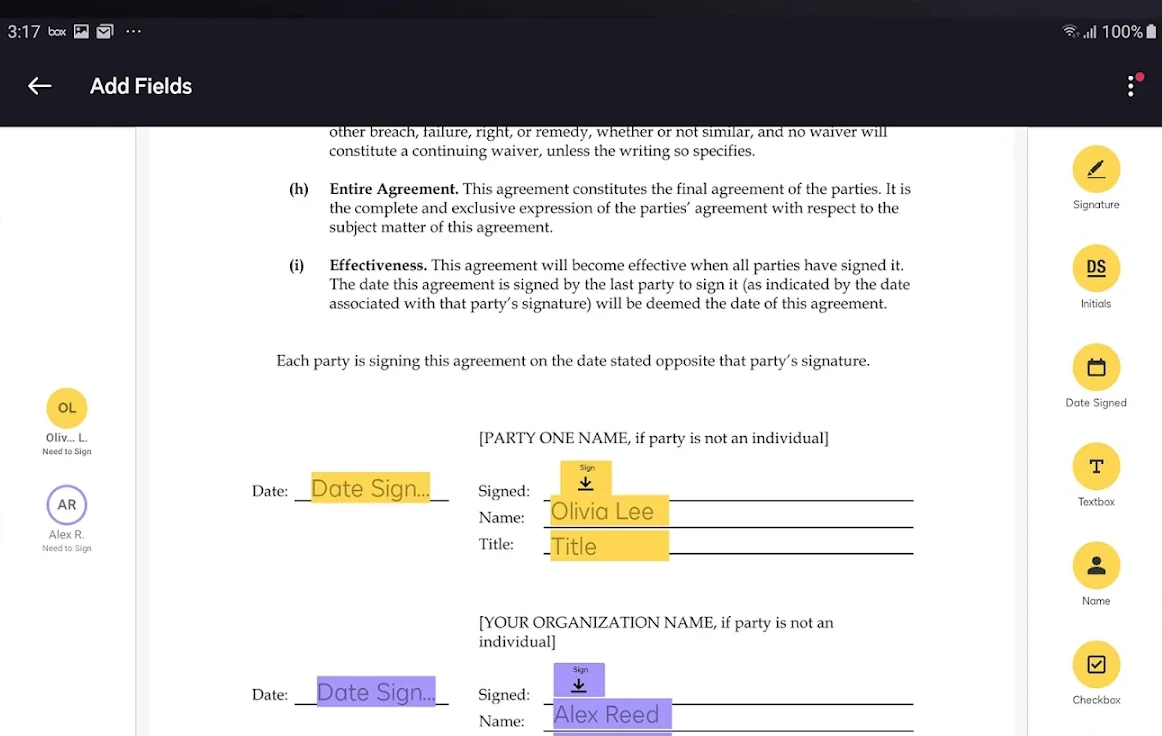
When preparing agreements for others, DocuSign lets you place tags exactly where signers need to take action:
- Color-coded recipients: Assign each signer a distinct color so you can review field placements across long documents at a glance.
- Drag-and-drop tags: Place standard Signature, Initials, Date Signed, Name, and Title boxes anywhere on the document.
- Custom text and checkboxes: Add text fields and check boxes for signers to provide additional details or select agreement options.
- Reusable templates: Save your standard contracts as templates to send repeat agreements with a single tap.
Touchscreen signing and stylus support
Chromebook touchscreens and 2-in-1 convertible laptops work naturally as digital signing pads:
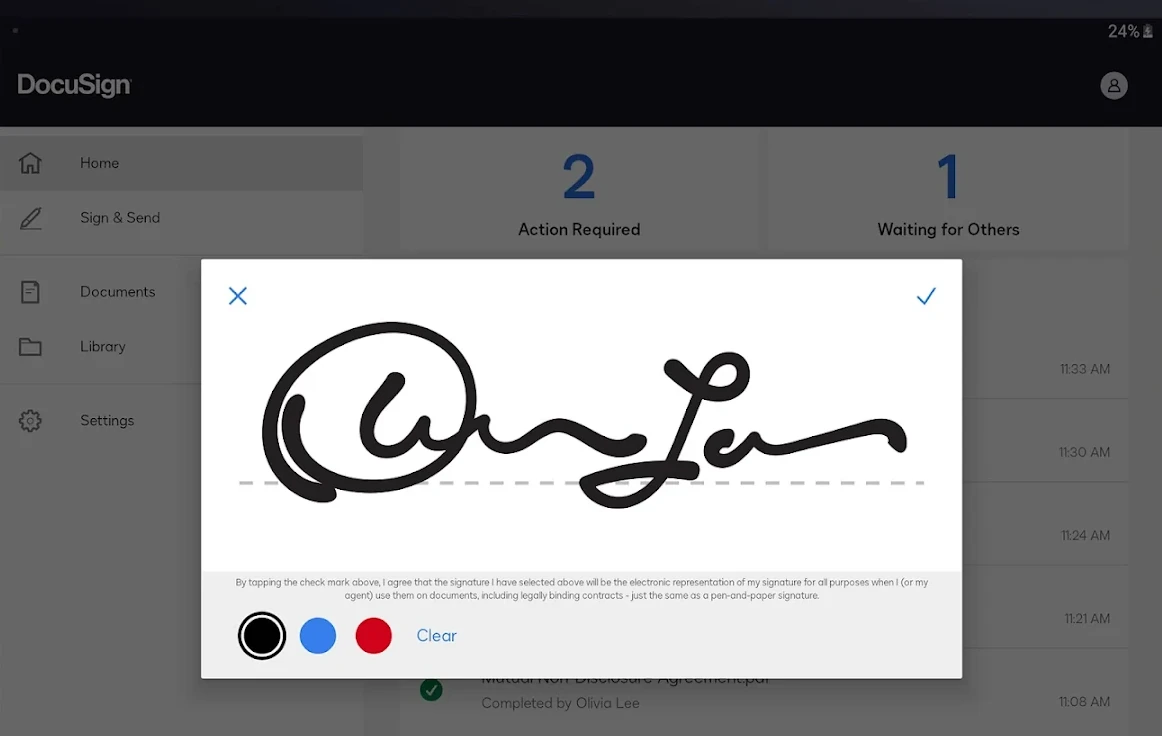
- Handwritten signatures: Draw your signature with a stylus or your finger on your laptop touchscreen for an authentic signature.
- Ink color choices: Choose between black, blue, and red digital ink to match your signing preference.
- Saved signature profiles: Save your signature to your profile so you can sign multi-page documents in a single click.
- Legal compliance: Every signature meets ESIGN and eIDAS standards for legally binding digital contracts.
Troubleshooting DocuSign issues on ChromeOS
If you run into issues while uploading, opening, or signing documents, use these practical fixes:
- Upload error or file will not open: Keep PDF files under 25MB. If a document fails to upload, open it in the Chromebook Files app, click Print, and choose Save as PDF to create a clean, uncorrupted version.
- Drawing delay on signature pad: Close unnecessary browser tabs and check your stylus battery. Restarting the DocuSign app also refreshes memory allocation.
- Play Store download pending: Go to ChromeOS Settings > Apps > Google Play Store > Manage Android preferences > Apps > Google Play Store > Storage > Clear Cache, then restart your download.
- Chrome extension login loop: Open Chrome Settings > Privacy and security > Third-party cookies, allow cookies for
docusign.com, and reopen the browser.
Frequently asked questions about DocuSign on Chromebook
Is DocuSign free to use on Chromebook and Googlebook?
Yes. Signing documents as a recipient is always free and unlimited. You do not need a paid plan to open and sign agreements sent to you. If you need to send envelopes for others to sign, DocuSign offers a free trial with three free document sends before requiring a subscription.
What is the best way to use DocuSign on a Chromebook?
The Android app from Google Play is ideal for offline signing and touchscreen pen input. For desktop typing, the web portal at docusign.com and the official Chrome extension offer the fastest way to prepare contracts and import files from Google Drive.
Can I sign documents using a stylus or touchscreen on ChromeOS?
Yes. DocuSign works with active pens, passive styluses, touchscreens, and trackpads. When you tap a signature line, you can draw your signature naturally with your pen or finger, pick a typed cursive style, or upload a saved signature image.
How do I connect DocuSign with Google Drive and Gmail?
You can install the DocuSign eSignature extension from the Chrome Web Store or link Google Drive inside the DocuSign web app. This lets you right-click PDF files in Google Drive to sign them, or send documents straight from your Gmail inbox.
Are DocuSign digital signatures legally binding on ChromeOS?
Yes. Signatures made through DocuSign comply with the US ESIGN Act, the Uniform Electronic Transactions Act, and European eIDAS rules. Every completed document includes an official certificate that records signing times, IP addresses, and email verification.
Companion document and productivity guides
Expand your digital paperwork setup, contract review, and business productivity across ChromeOS with our companion guides:
- Document reading and annotation: For reading heavy contracts, adding sticky notes, and highlighting clauses, see our guide on Adobe Acrobat Reader for Chromebook.
- Quick PDF form completion: If you need to fill out tax documents and add freehand signatures without formal envelope routing, explore Adobe Fill & Sign for Chromebook.
- Complete PDF editing suites: For reordering pages, merging multiple contracts, and redacting sensitive text, review our roundup of the Best PDF Editors on Chromebook.
- Enterprise virtual office tools: To access corporate Windows software and remote business tools on ChromeOS, check out our walkthrough for Citrix Workspace for Chromebook.
Discover more from Chrome Geek
Subscribe to get the latest posts sent to your email.