How to Install and Use Amazon Music on Chromebook and Googlebook
 by
Gloria Brown
Post Updated: October 26, 2026
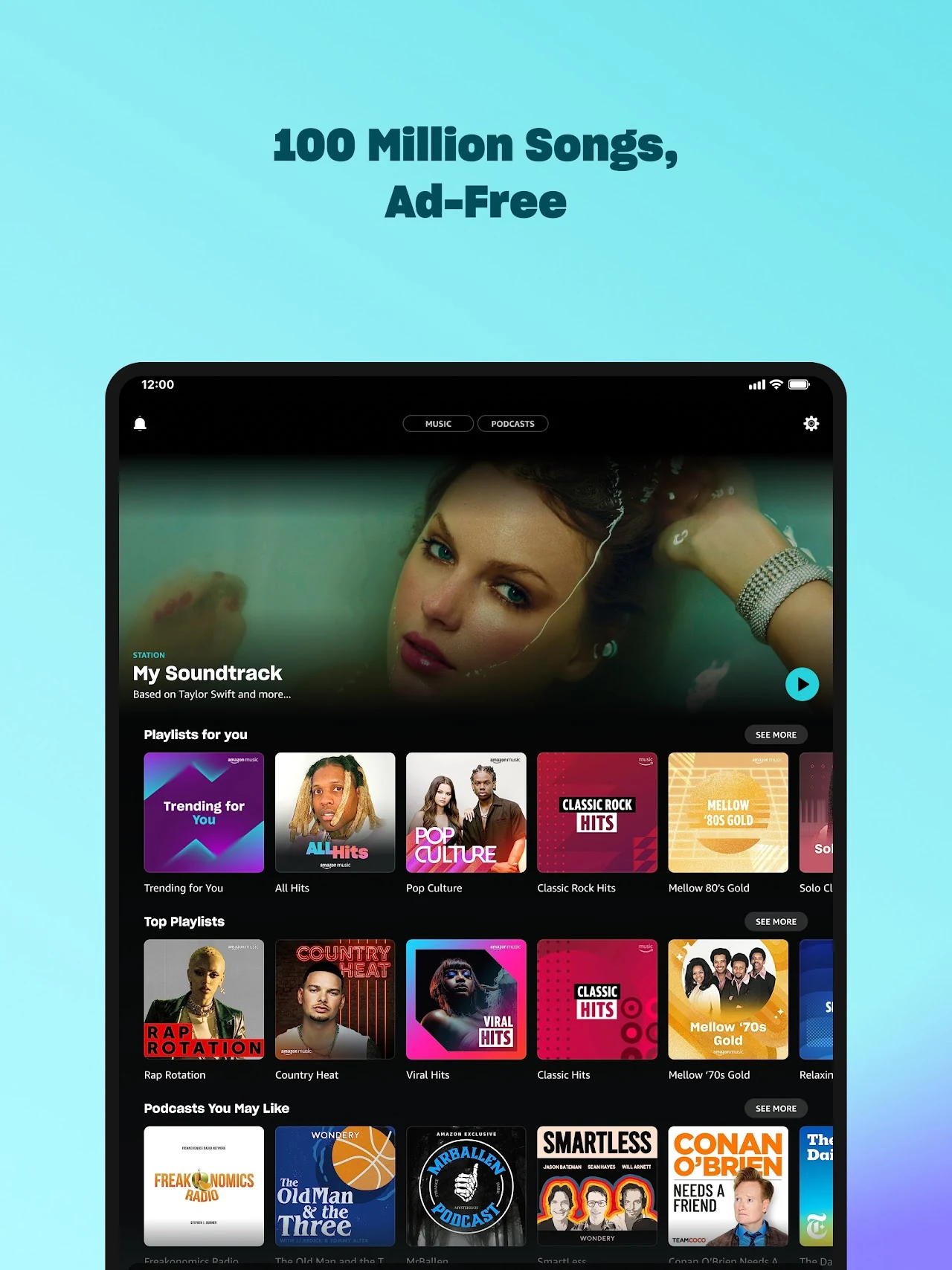
You can install and use Amazon Music on Chromebook and Googlebook through the official Android app from Google Play or directly via the web player in Google Chrome. Whether you listen through a free ad-supported account, an Amazon Prime membership, or an Amazon Music Unlimited subscription, you get instant access to 100 million songs, lossless Ultra HD audio, and top podcasts.
Modern ChromeOS laptops and Googlebooks run Android apps seamlessly alongside full-featured Chrome web applications, giving you offline download storage, background playback controls, and phone-to-laptop streaming. This guide walks you through the Google Play setup, web player shortcuts, subscription tier differences, offline song caching, and quick troubleshooting tips.
Need help setting up your audio? Contact us with your laptop model and any setup questions.
Choose Amazon Music Android app or Web player
The official Google Play listing identifies Amazon Mobile LLC as the developer under package name com.amazon.mp3. Installing the official app ensures genuine security certificates, automated updates, and full access to your cloud music locker.
How to install Amazon Music on Chromebook and Googlebook
If the Play Store is not visible, check Google’s Android app setup guide for Chromebook or the guide on installing apps on Googlebook. On school or workplace laptops, administrator policies may limit Play Store downloads. If app installs are restricted, you can always open music.amazon.com directly in Google Chrome to stream your library without installing software.
Cast Amazon Music from your phone on Googlebook
If you already have your music library, customized playlists, and offline tracks configured in Amazon Music on your Android phone, Googlebook’s Cast My Apps feature lets you control your phone’s music app directly on your laptop display. Connect your phone through the Googlebook phone hub, open Cast My Apps, and select Amazon Music. You can search albums, manage queues, and stream your phone’s active session over your laptop speakers or connected headphones without consuming Chromebook storage or signing in again.
Amazon Music streaming tiers: Free, Prime, and Unlimited
Amazon Music offers three distinct streaming options designed for different listening habits and budgets on ChromeOS:
If you have existing music purchases from Amazon (such as MP3 downloads or AutoRip CDs), they remain accessible for free in your cloud library regardless of which tier you choose. You can also import existing playlists from Spotify or Apple Music by visiting Amazon playlist import.
Downloading songs for offline listening on ChromeOS
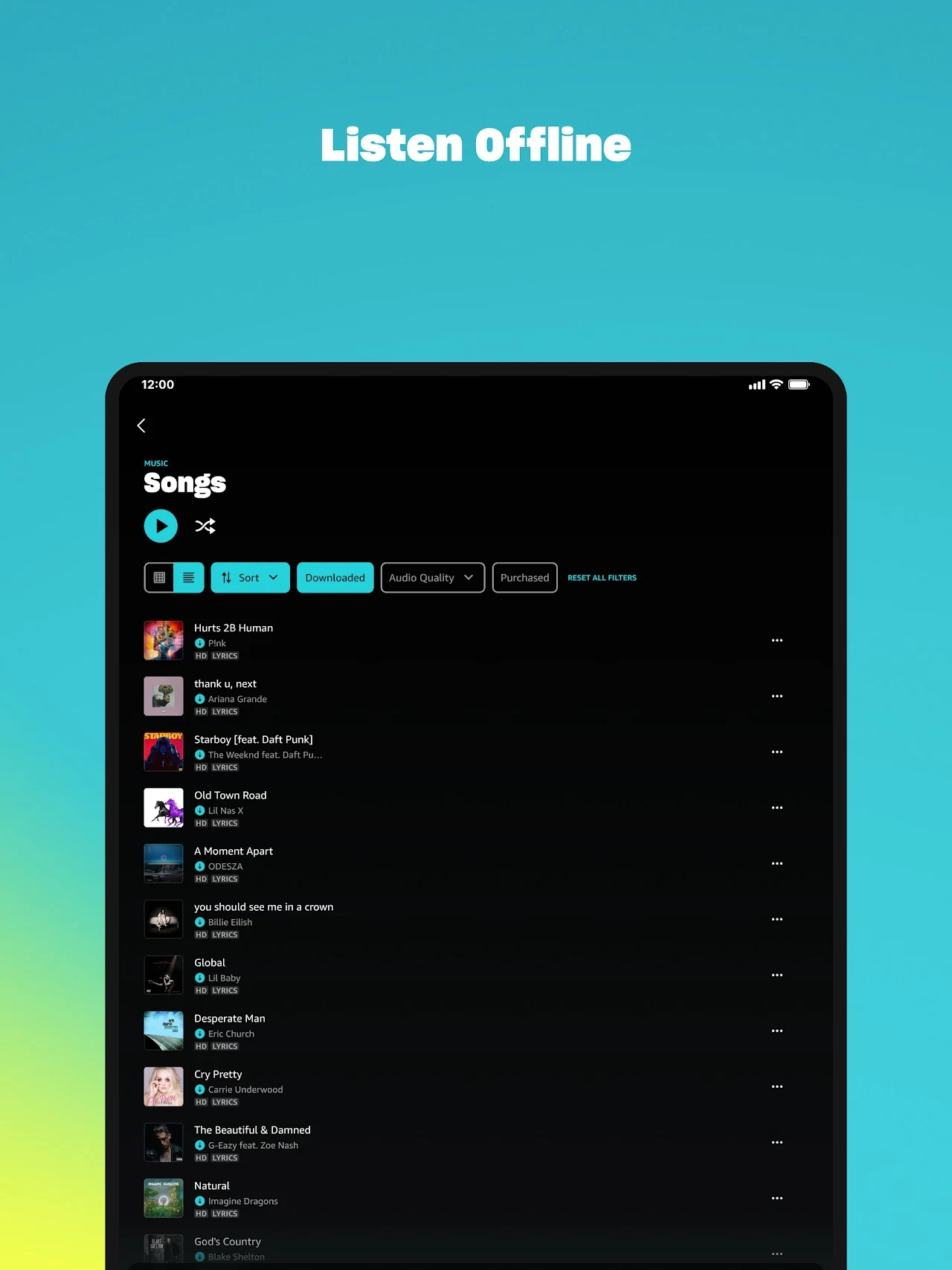
Offline downloads are exclusively available through the Amazon Music Android app on Chromebook and Googlebook with an active Amazon Music Unlimited subscription:
- Download albums and playlists: navigate to any album or playlist in the app and tap the downward arrow download icon next to the title to save tracks to local storage.
- Filter by Downloaded: tap Library > Songs and toggle the Downloaded filter button to browse songs available when flying or travelling without Wi-Fi.
- Manage storage footprint: open App Settings > Storage to review how much disk space your music library uses. You can clear downloaded cache files at any time to free up Chromebook drive space.
- Select download audio quality: choose between Standard (saves drive space) and Ultra HD (lossless studio quality) in the app audio settings depending on your storage capacity.
Optimizing audio quality and ChromeOS controls
Get the most out of your audio setup on Chromebook and Googlebook with these playback enhancements:
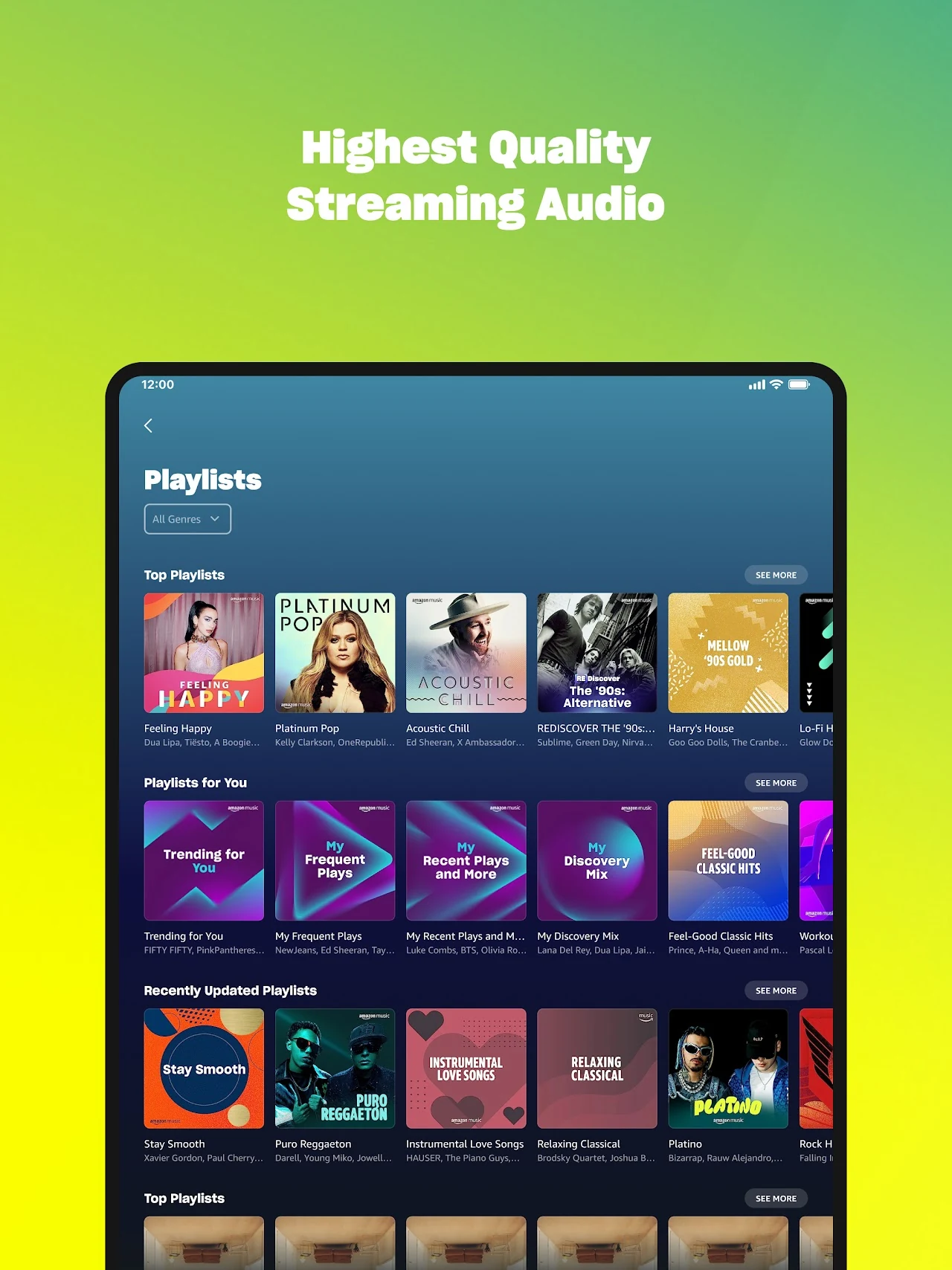
- Lossless HD and Ultra HD: Amazon Music Unlimited streams FLAC audio up to 24-bit/192kHz, preserving dynamic range and subtle instrumentation. Pair your Chromebook with high-end USB DACs or wired audiophile headphones for studio-grade reproduction.
- ChromeOS hardware media keys: use your Chromebook keyboard’s dedicated Play/Pause, Next Track, and Volume keys to control Amazon Music while working in other windows or browsing tabs.
- Quick settings media widget: ChromeOS includes a system-level media notification in the bottom-right shelf panel, allowing you to skip songs, view album art, and seek through tracks without reopening the app.
- Hands-free Alexa control: tap the Alexa icon in the Android app search bar or pair with Alexa on Chromebook to request songs, artists, or mood stations using voice commands.
Quick fixes for common Amazon Music issues on Chromebook
- Audio pauses when closing the laptop lid or switching windows: open ChromeOS Settings > Apps > Manage your apps > Amazon Music > Permissions, and ensure background activity is enabled. Avoid aggressive battery saver modes that suspend background Android processes.
- Offline download button missing: ensure you are signed into an account with an active Amazon Music Unlimited subscription and using the Android app from Google Play. The web player at music.amazon.com does not support offline caching.
- Audio stuttering or playback buffering: open Amazon Music Settings > Streaming Quality and set it to Auto or Standard if your Wi-Fi connection is unstable. If playback glitches persist, clear the app cache in ChromeOS Settings > Apps > Amazon Music > Storage & cache.
- Google Play Store restricted on managed laptop: if your school or employer disables Android app installation, launch Google Chrome and visit music.amazon.com to enjoy complete web streaming without administrator permissions.
Related audio and streaming guides
- YouTube Music for Chromebook: Stream music videos, explore personalized mixes, and set up YouTube Music on ChromeOS.
- Apple Music on Chromebook: Learn how to install Apple Music, stream lossless audio, and sync your iCloud library on your laptop.
- Alexa for Chromebook: Set up Amazon Alexa voice controls, smart home automations, and hands-free music commands on ChromeOS.
- Best Media Players for Chromebook: Discover top local video and music player apps for offline entertainment on ChromeOS.
- VLC for Chromebook and Googlebook: Play high-bitrate video and audio files with full subtitle and codec support on your laptop.
Frequently asked questions
Is Amazon Music free to use on Chromebook and Googlebook?
Can I download Amazon Music songs for offline playback on a Chromebook?
What is the difference between Prime Music and Amazon Music Unlimited?
Should I use the Amazon Music Android app or the web player?
How do I stream Amazon Music using Googlebook phone casting?
Discover more from Chrome Geek
Subscribe to get the latest posts sent to your email.