How to Install and Use YouTube Music on Chromebook and Googlebook
 by
Juniya Sankara
Post Updated: November 3, 2026
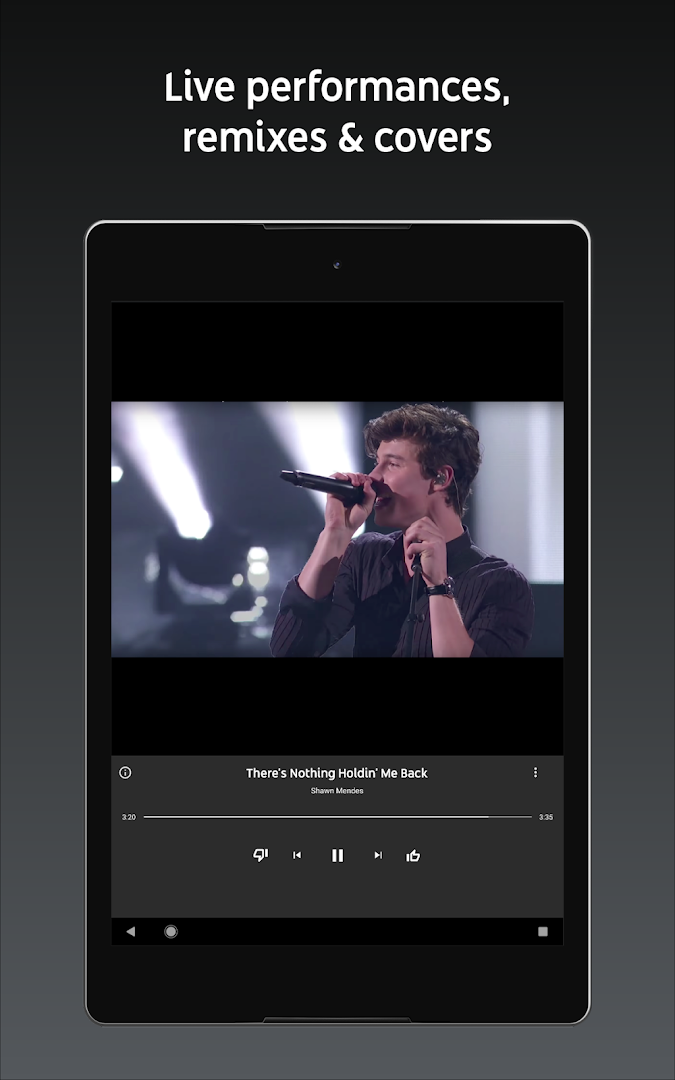
You can install and use YouTube Music on Chromebook and Googlebook through the official Android app from Google Play or the dedicated Progressive Web App (PWA). It delivers a personalized streaming service featuring official tracks, live performances, acoustic covers, and smart activity mixes powered by Google.
Googlebook and Chromebook devices support Android apps natively through Google Play, alongside seamless phone casting via Cast My Apps. This guide walks you through the Google Play installation, Chrome PWA setup, offline download management, synchronized lyrics, audio quality tuning, and handy keyboard shortcuts.
Need help streaming your playlists? Contact us with your device model and account setup.

Choose between the Android app and Chrome web player
Both options connect to your Google account, keeping your liked songs, custom playlists, and personalized radio stations perfectly synchronized. The official Google Play listing verifies Google LLC as the verified developer.
How to install YouTube Music on Chromebook and Googlebook
If the Play Store is not visible, check Google’s Android app setup guide for Chromebook or the guide on installing apps on Googlebook. On school or workplace laptops, administrator permissions may manage app installations. Alternatively, you can install the Chrome Progressive Web App by visiting music.youtube.com in Chrome and clicking the Install icon on the right side of the omnibox address bar.
Cast YouTube Music from your phone on Googlebook
If you already have your favorite playlists, albums, and queue queued up in YouTube Music on your Android phone, Googlebook’s Cast My Apps feature lets you stream the mobile player directly onto your laptop screen. Connect your phone through the Googlebook phone hub, open Cast My Apps, and select YouTube Music. This streams your mobile audio session immediately without re-downloading playlists or transferring cached files.
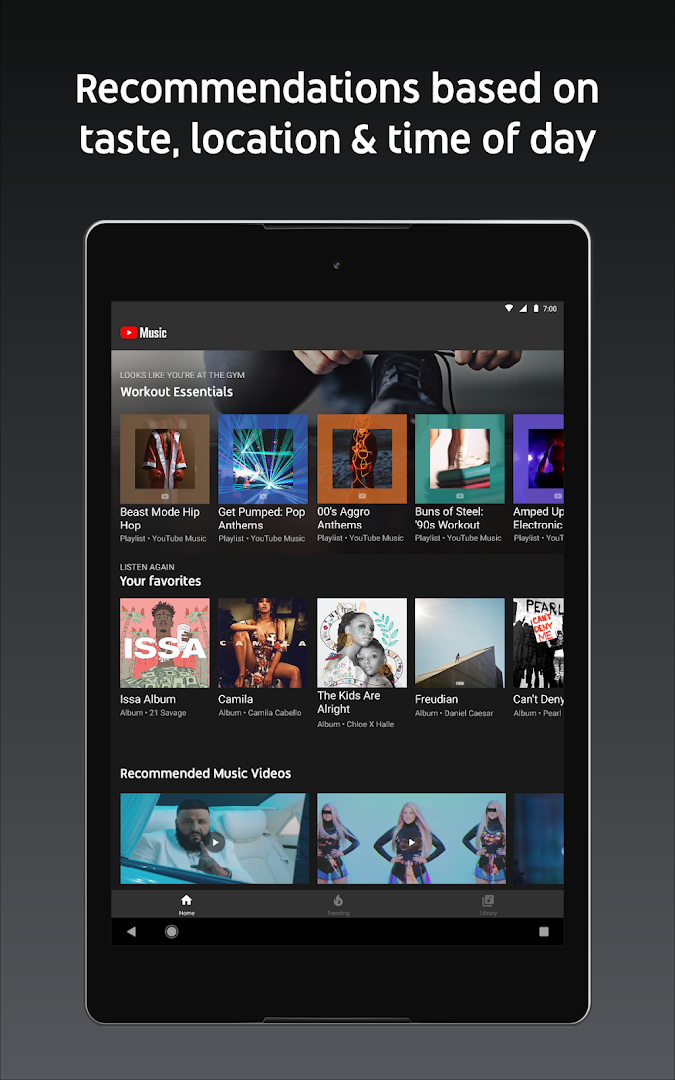
Personalized music discovery and activity mixes
YouTube Music analyzes your listening habits to generate customized playlists that adapt to your routine throughout the day:
Audio quality, offline downloads, and background play
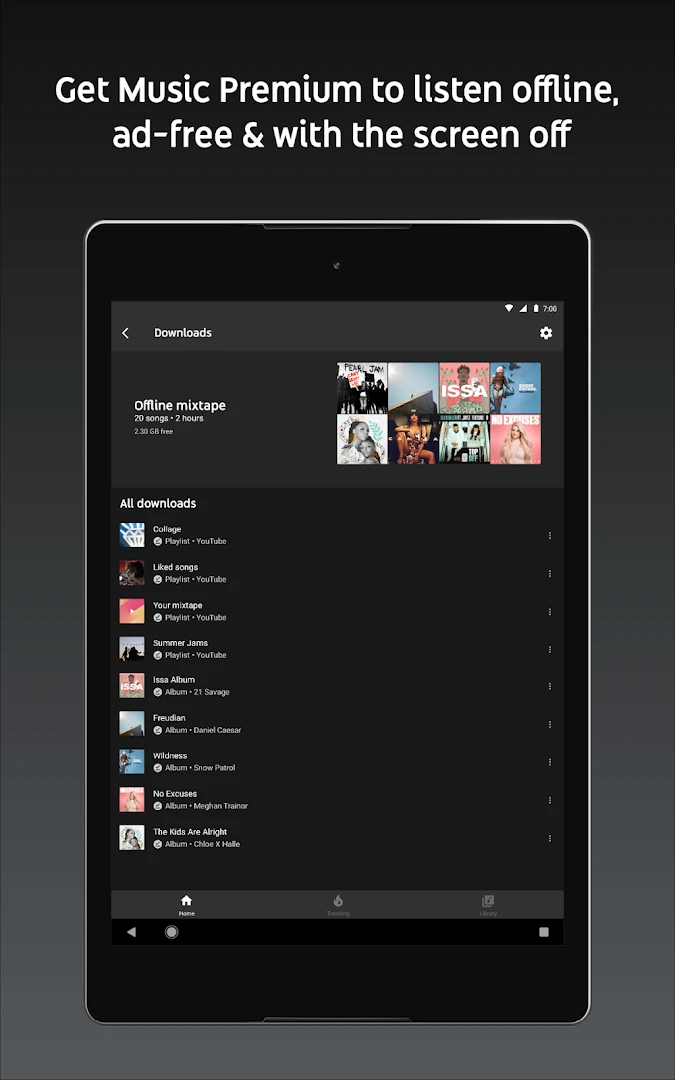
YouTube Music provides comprehensive controls over sound fidelity and storage management:
- Audio quality settings: open Settings > Playback & restrictions to select Low (48 kbps), Normal (128 kbps), or High (256 kbps AAC) audio streaming depending on your network bandwidth.
- Offline song downloads: with a YouTube Music Premium membership, click the three-dot menu next to any song, album, or playlist and select Download to store tracks locally for travel or offline study.
- Smart Downloads: enable Smart Downloads in app settings to automatically cache up to 500 of your favorite songs overnight when connected to Wi-Fi.
- Background audio: playback continues smoothly when you minimize the app, switch virtual desks, or work across multiple browser tabs.
Real-time synchronized lyrics and video switching
YouTube Music integrates interactive visual elements directly into the now playing interface:
Helpful Chromebook keyboard shortcuts
Controlling YouTube Music on a Chromebook or Googlebook is fast when using keyboard hotkeys:
Quick fixes for common YouTube Music issues
- Music pauses when closing the laptop lid: open ChromeOS Settings > Device > Power and select “Keep display on” or “Sleep only when idle”, or use YouTube Music Premium which enables screen-off background playback.
- Offline downloads not completing: open the ChromeOS Files app to verify available storage space, and ensure Battery Saver mode is not restricting background data for the YouTube Music app.
- Audio buffering or stuttering: open YouTube Music Settings, switch audio quality from Always High to Normal, or switch from the Android app to the Chrome Progressive Web App (PWA) to conserve system memory.
- App not visible in Google Play: verify that ChromeOS is updated to the latest stable release in Settings > About ChromeOS, and confirm with your school or workplace administrator that app store downloads are permitted on managed accounts.
Related audio and streaming guides
To build a complete multimedia setup on your laptop, explore our companion guides covering alternative streaming services, local audio playback, and ChromeOS media apps:
- Spotify on Chromebook and Googlebook: Stream personalized daily mixes, discover new podcasts, and build collaborative playlists.
- Amazon Music on Chromebook and Googlebook: Access lossless HD audio, millions of ad-free podcasts, and cast playlists directly from your phone.
- Apple Music on Chromebook: Enjoy lossless audio streaming, curated radio stations, and Apple Music Classical on your laptop.
- VLC on Chromebook and Googlebook: Play offline local audio and high-resolution video files with hardware-accelerated playback.
- Best Media Players on Chromebook: Compare top local players and online streaming apps across ChromeOS.
Frequently asked questions
Is YouTube Music free on Chromebook and Googlebook?
Can I download songs for offline listening on Chromebook?
Should I use the Android app or the Chrome web version?
Can I upload my own music files to YouTube Music?
How do I stream YouTube Music from my phone to Googlebook?
Discover more from Chrome Geek
Subscribe to get the latest posts sent to your email.