How to Stop Gemini Training on Your Chats Without Losing History
 by
Sophie Sullivan
Post Updated: November 25, 2026
You can now keep your Gemini chat history and still tell Google not to train its AI on your chats. The new setting is rolling out widely as of November 24. On gemini.google.com, a new Gemini History item sits at the bottom of Settings, and inside it is a separate box for AI training that is switched on by default. When Google first announced the change on November 16, we explained how the old Keep Activity switch is being split in two. Now that the option is showing up, here is exactly how to use it.
1. What is new this week
The switch is live: on the web, open Settings and you will find Gemini History at the very bottom. It opens your Gemini activity page in your Google Account, with an On or Off control for History.
The new box: under the heading “Help train generative AI models with”, there is a checkbox called “Chat content including text & attachments”. If it is checked, Google can use the content of your future chats to train generative AI models. Uncheck it and, as the setting itself says, your future chats won’t be used to train generative AI models, unless you provide feedback.
Who gets it on: Google’s Gemini History help page says the chat content box is on by default if you are over 18, while the audio and Gemini Live box is off by default. If your old Keep Activity setting was off, both new settings start off, so training is already off for you.
2. How to turn off AI training and keep your history
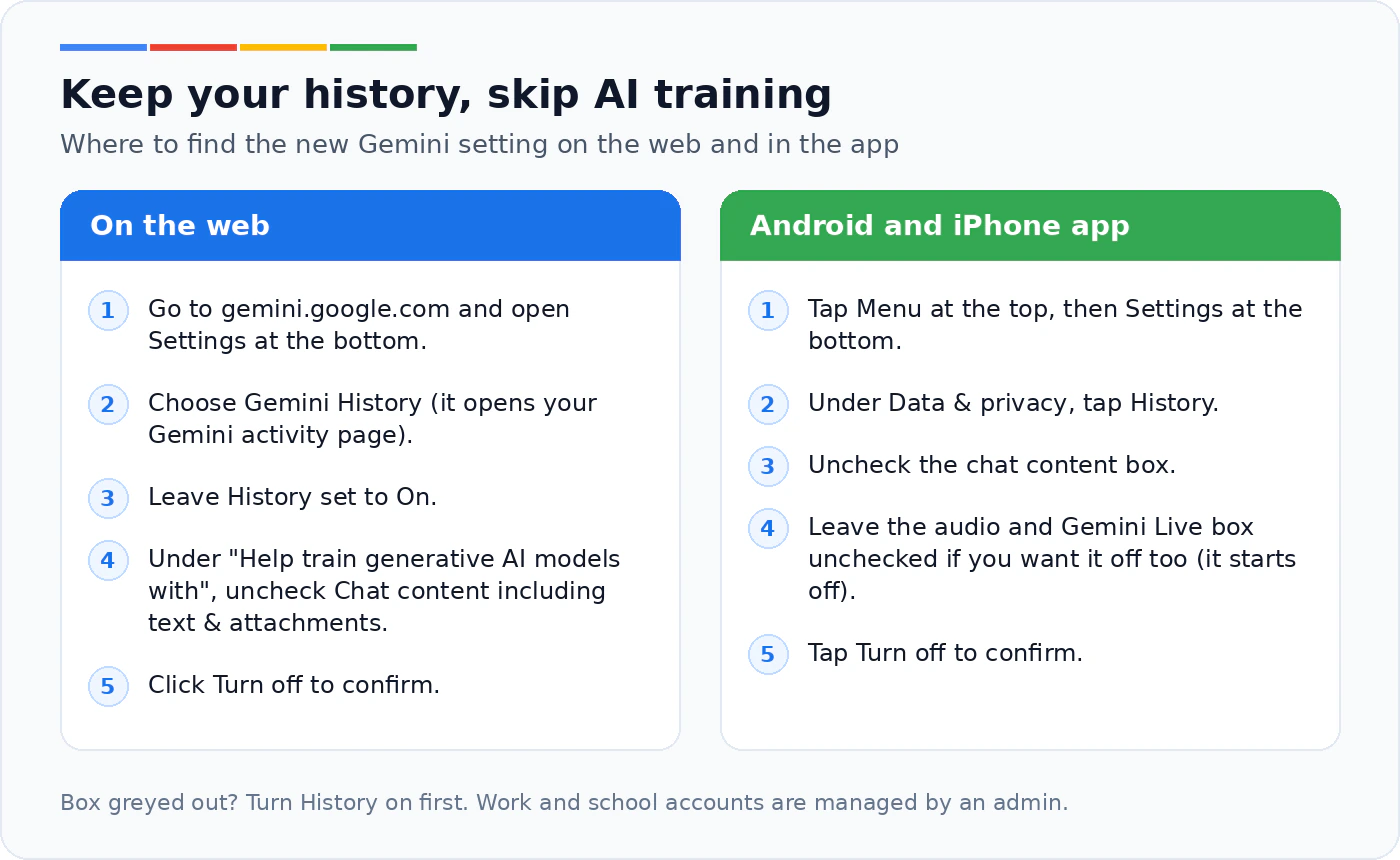
On the web (Chromebook, Googlebook or any computer):
- Go to gemini.google.com and sign in.
- Open Settings at the bottom, then choose Gemini History. You can also go straight to myactivity.google.com/product/gemini.
- Make sure History is set to On if you want to keep your chats.
- Under “Help train generative AI models with”, uncheck Chat content including text & attachments.
- Click Turn off to confirm.
In the Gemini app (Android, iPhone and iPad):
- Tap Menu at the top, then Settings at the bottom.
- Under Data & privacy, tap History.
- Uncheck the chat content box.
- Tap Turn off.
Box greyed out? Google says you need History on to turn these settings on. If you can’t check either box, History is probably off. On some steps Google’s help page calls the option “Chat content including text & uploads”, so the wording may differ slightly on your account.
Work or school account: Gemini History for work and school accounts is managed by your Google Workspace admin, so you may not be able to change it yourself.
3. What changes, and what does not
Only future chats: the box controls your future chats. Google’s Gemini Apps Privacy Hub says chats that were already reviewed are kept for up to 3 years, even if you delete them or turn this setting off later.
Still reviewed: with the box unchecked, Google says your future chats will still be reviewed and used to improve its services in other ways, and to protect Google, its users and the public. Reviewed chats are separated from your account first.
Gemini only: the setting covers your Gemini history. It doesn’t change activity saved by other Google services, including data shared when you connect Gemini to those services.
4. Why keeping History on is the better choice for most people
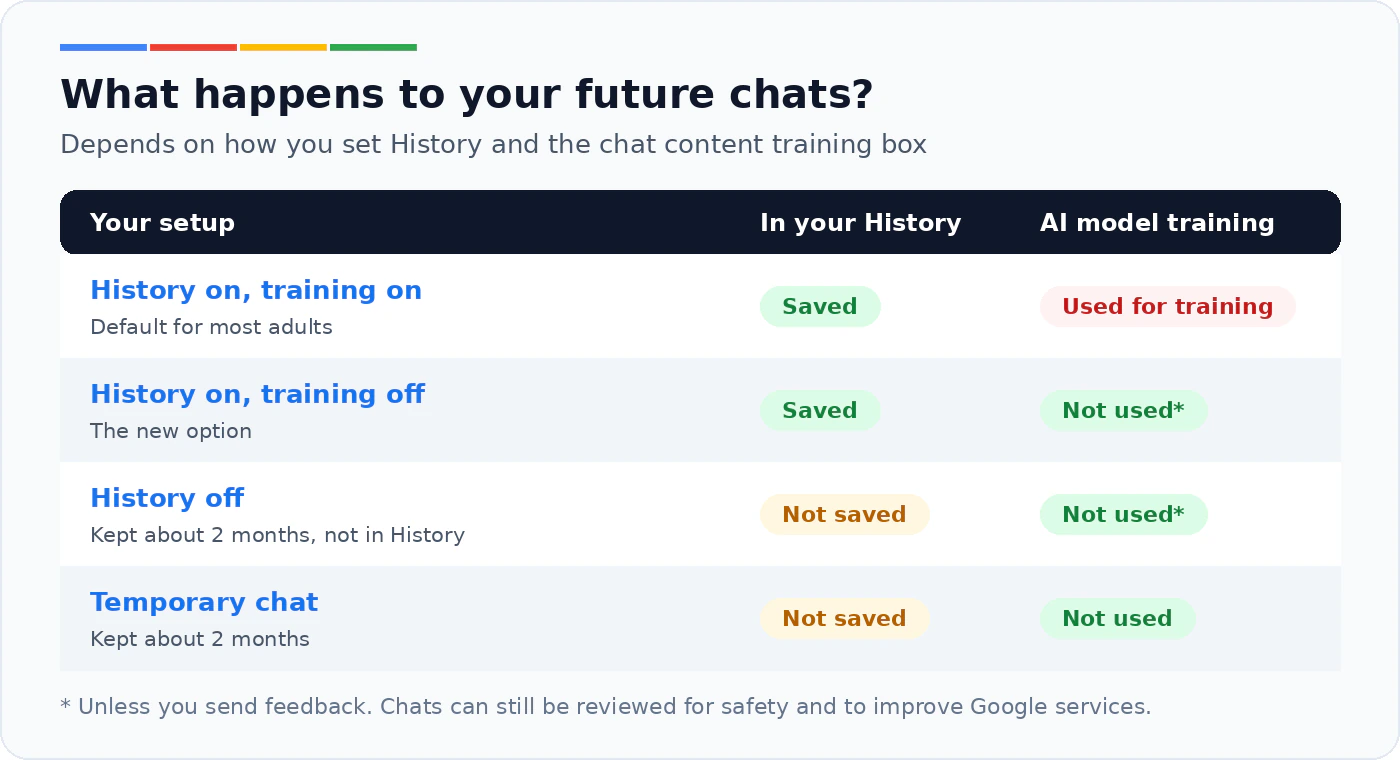
History off has costs: turning History off now means your future chats are still kept for around 2 months to respond to you, process feedback and for safety, with help from human reviewers. Some Connected Apps also stop working, and you can’t connect Gemini chats to Personal Intelligence in AI Mode while History is off.
The new middle ground: before this change, the only way to keep your chats out of training was to give up your history. Now you can keep History on, search back through your chats and still keep them out of training.
Check the voice box too: if you use Gemini Live, take a look at “Audio and Gemini Live videos & screenshares”. It starts off, but if you turned it on in the past, Google can use those recordings to improve its services, including AI models. Transcripts of your voice chats fall under the chat content box.
Our take
This is the Gemini privacy setting most people should change today. It takes under a minute on a Chromebook, it doesn’t cost you your chat history, and it closes the gap that made many people turn History off. Just remember that it is switched on by default, that Google still keeps reviewed chats for up to 3 years, and that it only covers chats from now on.
More on AI privacy: what Gemini’s memory summary knows about you, AgentCloak for Chrome and the shared AI training opt-out for websites.
Discover more from Chrome Geek
Subscribe to get the latest posts sent to your email.