Gemini Memory Summary Shows Everything Gemini Remembers About You
 by
Sophie Sullivan
Post Updated: November 9, 2026
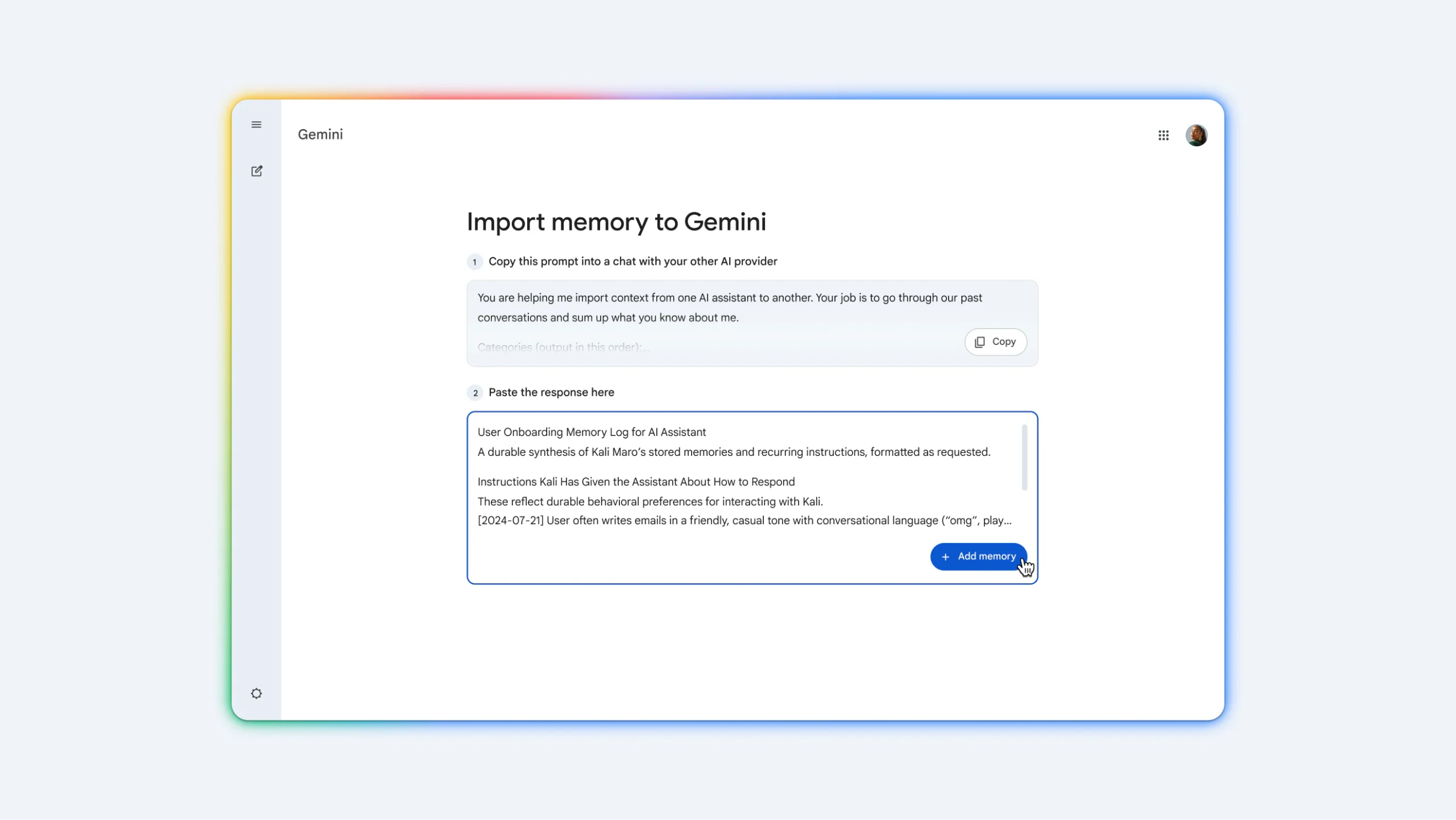
Gemini now shows you what it remembers about you. Google is rolling out a new Memory summary in the Gemini app that collects everything Gemini has learned about you into one readable page. You can check it, add to it, fix mistakes or delete details you would rather it forgot, as 9to5Google spotted today.
1. What the Memory summary shows
A profile of you, written by Gemini: the summary is split into categories. The Essentials gives a snapshot of your background, location and key relationships. Other sections cover Career and Professional Projects, Travel and Daily Gear, Media and Entertainment, and Fitness and Lifestyle. Each one holds a few bullet points with specific details Gemini has picked up from your chats.
Why it matters: Gemini’s Memory feature has been learning from your past chats for a while, but until now there was no simple way to see the full picture. The summary turns that hidden profile into something you can actually read and check.

2. How to view and edit it
- Open gemini.google.com in Chrome on your Chromebook, Googlebook or any computer.
- Open Settings, then choose Personal Intelligence to find your Memory summary.
- Use the text box at the bottom to add or remove details in plain words. Gemini may ask a follow-up question if your request is unclear.
- Tap the pencil icon in the top corner for bigger edits.
- Open the three-dot menu and pick Memory history to see when each detail was added or changed.
Shortcut: Google’s Gemini privacy help page says you can also see your summary by asking Gemini “What do you know about me?” in a chat. The same page says you can turn Memory summary on or off at any time.
3. Who can use it right now
Not seeing it? Google is rolling the feature out gradually, so it may take a few days to reach your account even if you meet every requirement. Work and school accounts are not part of Gemini’s Memory feature.
Our take
This is a smart and overdue move. An assistant that remembers you is only useful if you can trust what it remembers, and a readable summary with a change history makes that much easier. If you use Gemini a lot on your Chromebook, take two minutes to open the summary once it reaches you, delete anything outdated or too personal, and add the details you actually want it to use.
Discover more from Chrome Geek
Subscribe to get the latest posts sent to your email.