How to Install and Use BentoBar on Googlebook
 by
Joseph Vance
Post Updated: November 8, 2026
You can install and use BentoBar on Googlebook through Google Play to add live system monitors, timers, and custom shortcuts directly into your top Status bar. It places your items right next to the system icons in the same font and color, while tucking extra items behind a collapsible ‹ button like compartments in a bento box.
Built specifically for Googlebook OS (distributed by Fika Labs and open-sourced by Meridian11 LLC), BentoBar runs as a standard Android app with no root, no ADB, and zero ads. Our guide covers Google Play installation, enabling its status bar accessibility service, configuring live items, and using Show when active rules.
Need help setting up BentoBar on your laptop? Contact us with your Googlebook model and we will help you get started.
How to install BentoBar on Googlebook
BentoBar installs from Google Play like any ordinary Android app and uses about half a percent of one CPU core while active (and zero battery while your screen is off):
The official Google Play listing identifies BentoBar under the package ID io.github.kuscher.bentobar. Because Googlebook OS keeps its own system icons (clock, Wi-Fi, battery, notifications) fixed in place, BentoBar neatly arranges your custom items right beside them and automatically moves aside when system chips change or hides when a window goes full screen.
If you need help managing Play Store downloads or learning your laptop’s desktop layout, see Google’s guide on installing apps on Googlebook and the Get started with your Googlebook overview. You can also inspect the MIT-licensed source code or download standalone releases from the BentoBar GitHub repository.
What you can add to your Googlebook OS Status bar
BentoBar turns the unused space along the top edge of your Googlebook screen into a customizable information bar where every item matches the system font and clock color:
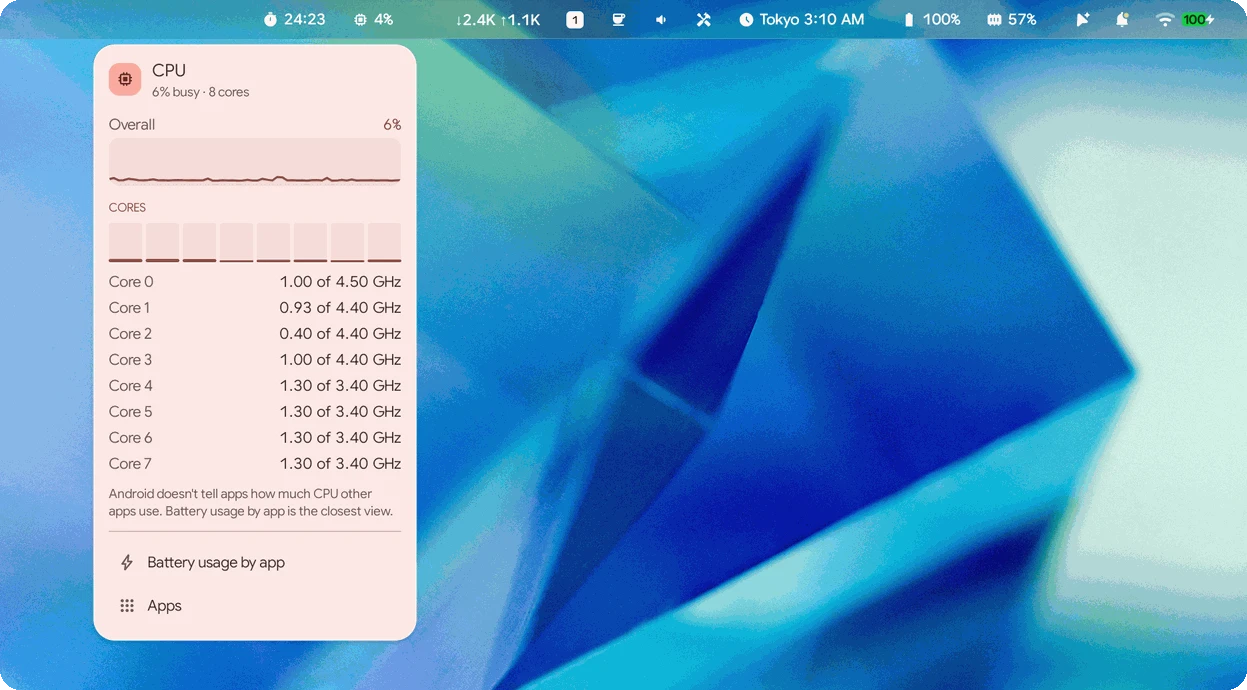
4K 60Hz, HDR, and Keep awake while docked).Interactive dropdown menus, trackpad scroll, and the bento chevron
Every item in BentoBar responds to left-clicks, right-clicks, and two-finger trackpad or mouse-wheel scrolling so you can inspect data or adjust controls without opening a full window:
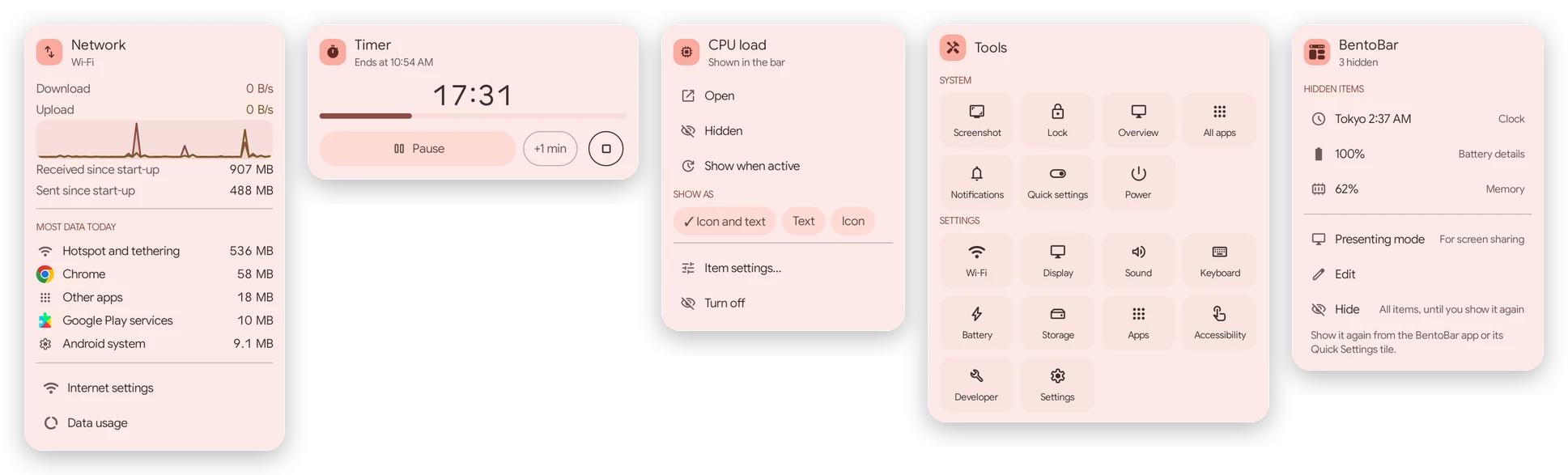
- Left-click for rich menus: click any status bar item to open its dropdown card—including live download/upload graphs and top data-using apps under Network, pause and
+1 minbuttons under Timer, or one-click system shortcuts (Screenshot, Lock, Overview, All apps, Quick settings, Power) under Tools. - Right-click for quick item controls: right-click any item directly in the Status bar to switch its style between Icon and text, Text, or Icon, toggle Show when active, hide it, or open its settings.
- Scroll over items to adjust values: scroll your mouse wheel or two fingers on your Googlebook trackpad directly over the Sound item to raise or lower system volume, or scroll over a running Timer to add minutes on the fly.
- Fold items behind the
‹button: items you only check occasionally can wait behind the‹chevron button. One click slides them out into the Status bar (or opens them in a tidy dropdown list), and another click folds them back away. - One-click clipboard paste: open the Clipboard & scratchpad item to view up to 8 pinned snippets and recent in-memory session clips (automatically skipping sensitive password clips), and click any row to copy or paste it straight into your active text field.
Live bar preview, drag-to-reorder, and Show when active rules
When you open the BentoBar app window on your Googlebook, a live interactive preview of your Status bar sits right at the top so every change you make applies immediately:
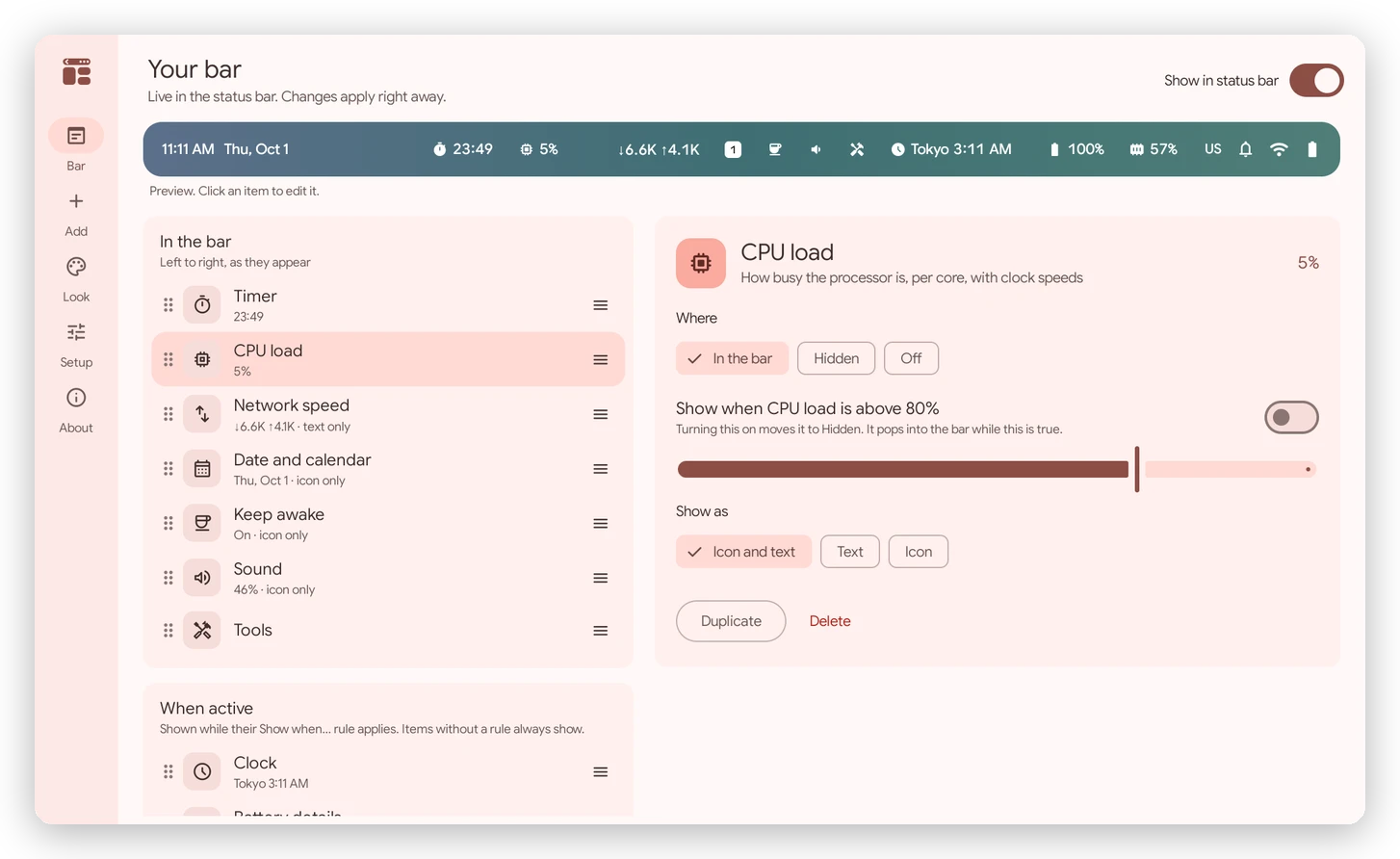
- Organize in three clear groups: drag items by their handle to reorder them left-to-right across In the bar, Hidden (or When active), and Off, or click any item directly inside the top preview bar to edit its options.
- Smart Show when active rules: instead of cluttering your Status bar 24/7, toggle on Show when active so a hidden item pops out on its own only when needed—such as when CPU load is above 80%, a Timer is running, your Next meeting is about to start, an External display is plugged in, or outdoor AQI / UV is high.
- Duplicate items for multiple views: click Duplicate on items like Clock, Weather, Countdown, or App shortcut to track multiple time zones, cities, or project deadlines side by side.
- Cross-device phone workflows with Better Together: while BentoBar monitors your laptop’s hardware and schedule in the top Status bar, you can still use Cast My Apps and Better Together on your bottom Googlebook Taskbar to stream live Android 17+ phone apps and sync notifications without overlap.
Customizing bar placement, Presenting mode, and online data sources
The Add, Look, and Setup tabs let you fine-tune where BentoBar sits in your Status bar, how it behaves during screen sharing, and which optional online feeds are active:
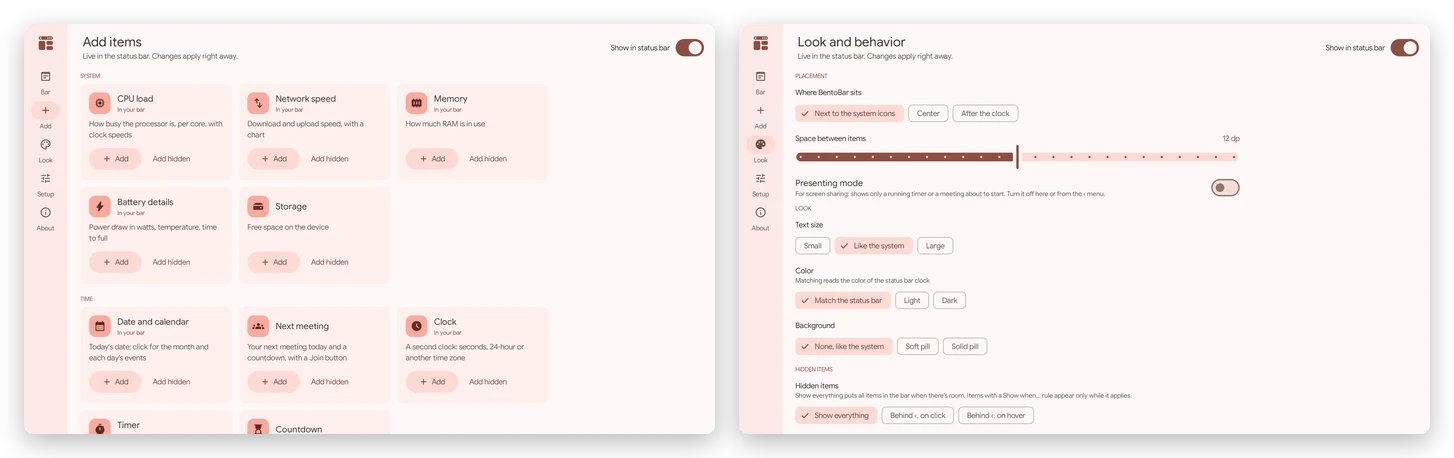
- Choose where BentoBar sits: under Look, place your items Next to the system icons (right side), in the Center of the Status bar, or After the clock (left side), and adjust item spacing in
dp, text size (Small, Like the system, Large), color, and background style (None, Soft pill, or Solid pill). - Presenting mode & Quick Settings tiles: turn on Presenting mode from the
‹menu or Look tab when sharing your screen so only a running timer or imminent meeting appears. You can also add BentoBar’s three Quick Settings tiles to switch the bar off, toggle Keep awake, or start a 25-minute timer—and when BentoBar is off, an active timer still shows as Android’s native Live Update chip. - Keyless Weather, AQI/UV, and Exchange rates: when enabled in Setup, Weather and Air quality & UV query Open-Meteo (rounding approximate location to ~10 km if you pick My location), while Exchange rates queries Frankfurter for European Central Bank reference rates and an inline currency converter with no API key required.
- Optional Flight and US stocks keys: enter your own free AirLabs key in Setup to see live flight departure/landing countdowns, terminals, gates, and baggage belts, or add a free Finnhub key to rotate live US stock tickers and daily percentage moves in your bar.
Troubleshooting BentoBar on Googlebook OS
If your custom items disappear from the top Status bar or a specific menu asks for an optional permission, check these practical fixes on your Googlebook:
- Items do not appear in the Status bar: open the BentoBar app and verify the top-right Show in status bar toggle is on, then check Googlebook OS Settings > Accessibility to confirm the BentoBar service is enabled. Note that turning on Android 17’s Advanced Protection disables non-assistive accessibility services, leaving only BentoBar’s Quick Settings tiles and Live Update chip active.
- Now playing shows playback controls but no song title: Android only shares media track titles, artists, and album art with apps that hold notification access. Open BentoBar’s Setup tab and grant optional Notification access (BentoBar configures Android to send it zero actual notifications).
- Network or Storage menu does not list top apps: per-app data and storage rankings require Android’s optional Usage access permission, which is off by default. Open Setup > Usage access > Open setting in BentoBar to turn it on (or off anytime).
- Next meeting or Calendar events are missing: open BentoBar’s Setup tab and grant optional Calendar permission so the Date and Next meeting items can display your daily schedule and video call Join buttons (synced Todoist tasks are automatically filtered out to prevent clutter).
- BentoBar hides when opening a video or game: this is normal behavior—BentoBar automatically steps aside whenever an app enters full-screen mode or when your Googlebook screen locks, and reappears as soon as you return to the desktop.
Frequently asked questions about BentoBar on Googlebook
What is BentoBar on Googlebook OS?
BentoBar: Customized Statusbar (package ID io.github.kuscher.bentobar) is an open-source status bar utility built for Googlebooks and distributed on Google Play by Fika Labs (developed by Meridian11 LLC). It places custom live indicators—such as CPU load, network speed, timers, world clocks, weather, and clipboard history—into the empty part of the top Googlebook OS Status bar next to the system icons without requiring root or ADB.
Is BentoBar free and private to use on Googlebook?
Yes. BentoBar is completely free and MIT-licensed with no account sign-in, zero ads, and zero analytics. It stays offline by default and only connects to the internet if you explicitly turn on optional online items in Setup (Open-Meteo for Weather and Air quality & UV, Frankfurter for European Central Bank exchange rates, AirLabs for flights, or Finnhub for US stocks).
Why does BentoBar ask for an Accessibility service on Googlebook?
Googlebook OS and Android only allow an installed app to draw custom items over the top Status bar through an accessibility service. BentoBar uses this permission strictly to draw its status bar items, run system actions from the Tools menu, and optionally paste clicked clipboard snippets into the active text field; it never reads window content, keystrokes, or mouse movements.
How do I hide items behind the bento chevron button or set them to Show when active?
You can right-click any status bar item and select Hide behind ‹, or move items into the Hidden section inside the BentoBar settings window. If you toggle on ‘Show when active’ for an item—such as CPU load above 80%, a running timer, a meeting about to start, or a connected external display—it stays tucked away until that condition happens and pops into the bar automatically.
Can I open BentoBar from the keyboard or hide it while sharing my screen?
Yes. You can bind a custom key combination (such as Action + T) to the ‘BentoBar menu’ launcher entry inside Googlebook OS Keyboard shortcuts to browse all status bar items with your arrow keys. When presenting or sharing your screen, click Presenting mode inside the ‹ menu or toggle the BentoBar Quick Settings tile to hide custom items while keeping any active timer visible as a standard Android status bar chip.
Explore more Googlebook apps and guides
Pair BentoBar with our companion guides covering Googlebook OS launchers, tabbed file managers, pre-installed tools, and AI coding utilities:
- Keyboard command launcher: Open apps, snap windows, calculate sums, and send prompts to Gemini with one shortcut using our guide on How to Install and Use Booklight on Googlebook.
- Tabbed desktop file manager: Browse folders in title-bar tabs, Miller columns, and a dual-pane commander view with our walkthrough of How to Install and Use Wayfinder on Googlebook.
- Built-in tutorials and free perks: Set up Better Together phone casting and claim bundled trial subscriptions in our guide on How to Install and Use My Googlebook on Googlebook.
- Build your own Googlebook apps: Create custom Android desktop utilities from plain English using Google’s pre-installed coding agent in our guide to Google Antigravity for Googlebook.
- Protect phone app casting: See why BentoBar uses standard Android permissions instead of root access by reading why rooting a Googlebook breaks Cast My Apps.
Discover more from Chrome Geek
Subscribe to get the latest posts sent to your email.