How to Install and Use Booklight on Googlebook
 by
Joseph Vance
Post Updated: November 8, 2026
You can install and use Booklight on Googlebook through Google Play to add a fast keyboard command launcher to your desktop. Pressing your shortcut opens a floating glass panel where you can launch apps, jump to system settings, snap windows, and run calculations.
Built specifically for Googlebook OS by Fika Labs, Booklight learns your typing shorthand and runs entirely on your device with no account or ads. Our guide covers Google Play setup, configuring the Action + Quick Insert shortcut, and using one-line commands.
Need help setting up Booklight on your laptop? Contact us with your Googlebook model and we will help you get started.
How to install Booklight and set your shortcut on Googlebook
Installing Booklight from Google Play takes less than a minute, and its built-in setup screen walks you right through binding your desktop keyboard shortcut:
The official Google Play listing identifies Booklight under the package ID io.github.kuscher.booklight. Once your shortcut is set, pressing that key combination brings up the launcher over any open window, while clicking the Booklight app icon on your Taskbar or app drawer opens its settings window.
If you need help enabling Play Store downloads or learning your laptop’s layout, see Google’s guide on installing apps on Googlebook and the Get started with your Googlebook overview. On school or enterprise Googlebooks, administrator policies may restrict third-party Play Store installs.
What Booklight finds: apps, settings, sums, and scoped web search
When you press your shortcut key, Booklight unfolds a clean glass panel in the upper-middle of your Googlebook screen. Type a few letters and press Enter to open what you need right away:
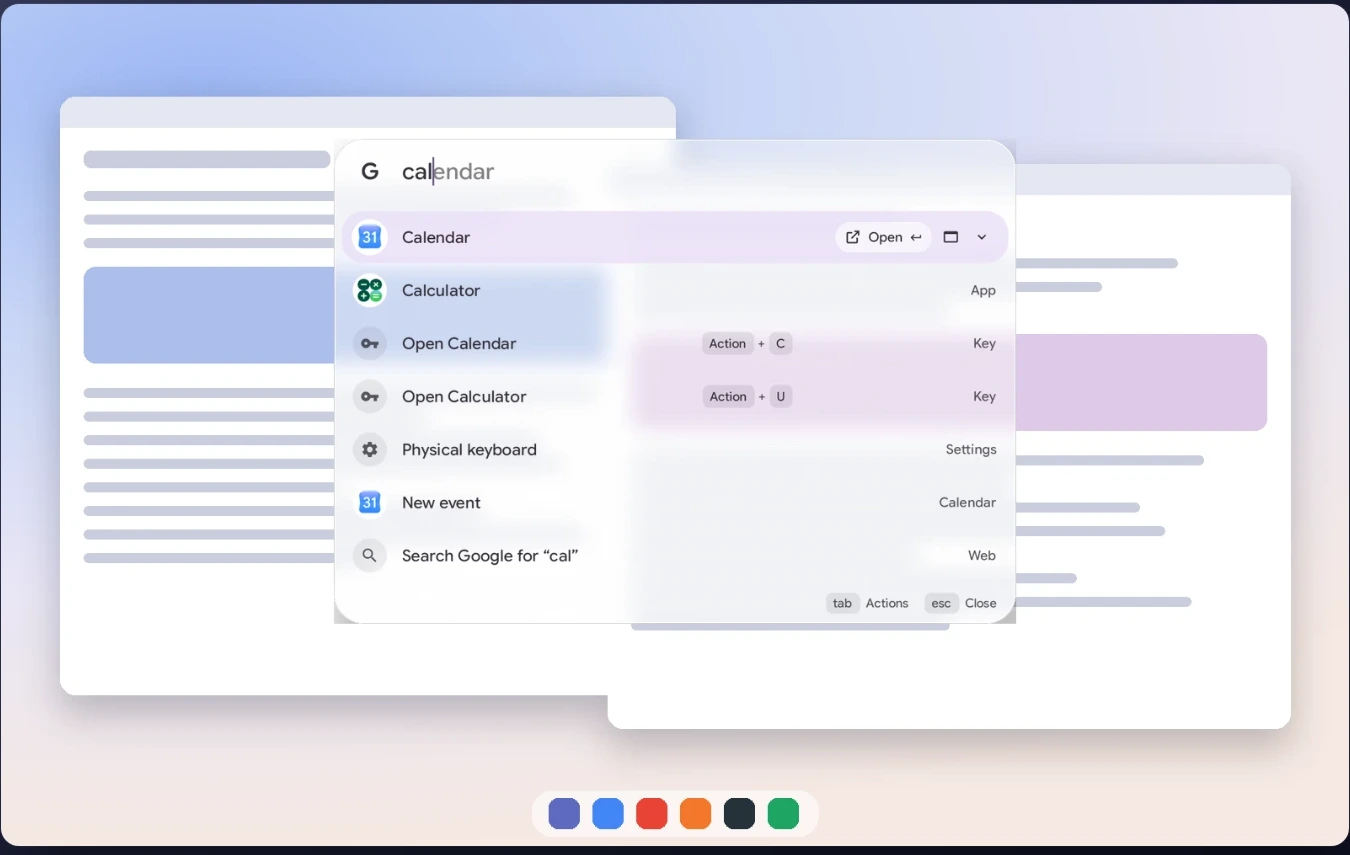
dark, pair, or printer.150 + 20%, 12 * 3.5, or sqrt(2) right in the search bar. Pressing Enter copies the calculated answer straight to your clipboard.yt lofi beats) to search inside that specific site or app immediately.In-app actions, window snapping, and adaptive shorthand
Beyond launching apps, Booklight lets you perform actions inside your apps, snap desktop windows, and navigate entirely from your keyboard without touching the trackpad:
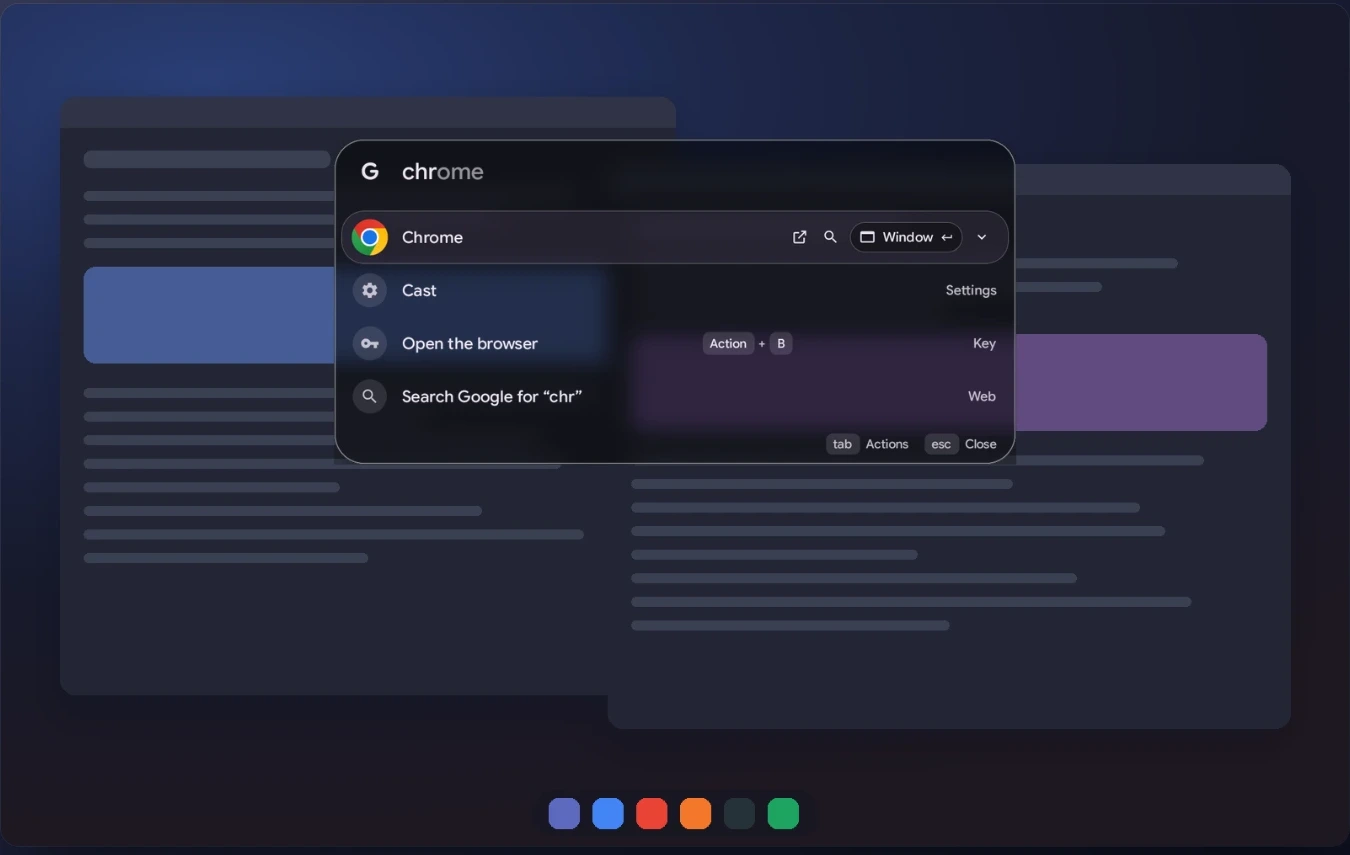
- Do things inside your apps: each app row displays action icons on the right for Open, Search, Play, and Window. Type an app name, press Tab to select Search or Play, press Enter, and type your words.
- Snap windows with a command: type
chrome left(or use the Window action on any row) to place and tile an app window on your Googlebook desktop right away. - Learns your personal shorthand: whatever result you pick for the letters you typed automatically moves to the first row the next time you type that same shorthand.
- Fast keyboard controls: press Up and Down to glide between rows, Enter to run the highlighted row, Tab to cycle row actions, Ctrl + Number to run a numbered row directly, and Esc to close the panel.
- Customizable glass appearance: choose between your Googlebook wallpaper colors or Booklight’s own palette in light or dark mode, and adjust panel transparency and opening speed in settings.
One-line emails, notes, timers, calendar events, and Gemini prompts
Booklight turns common everyday tasks into single-line commands that hand your text directly to the right app on your Googlebook:
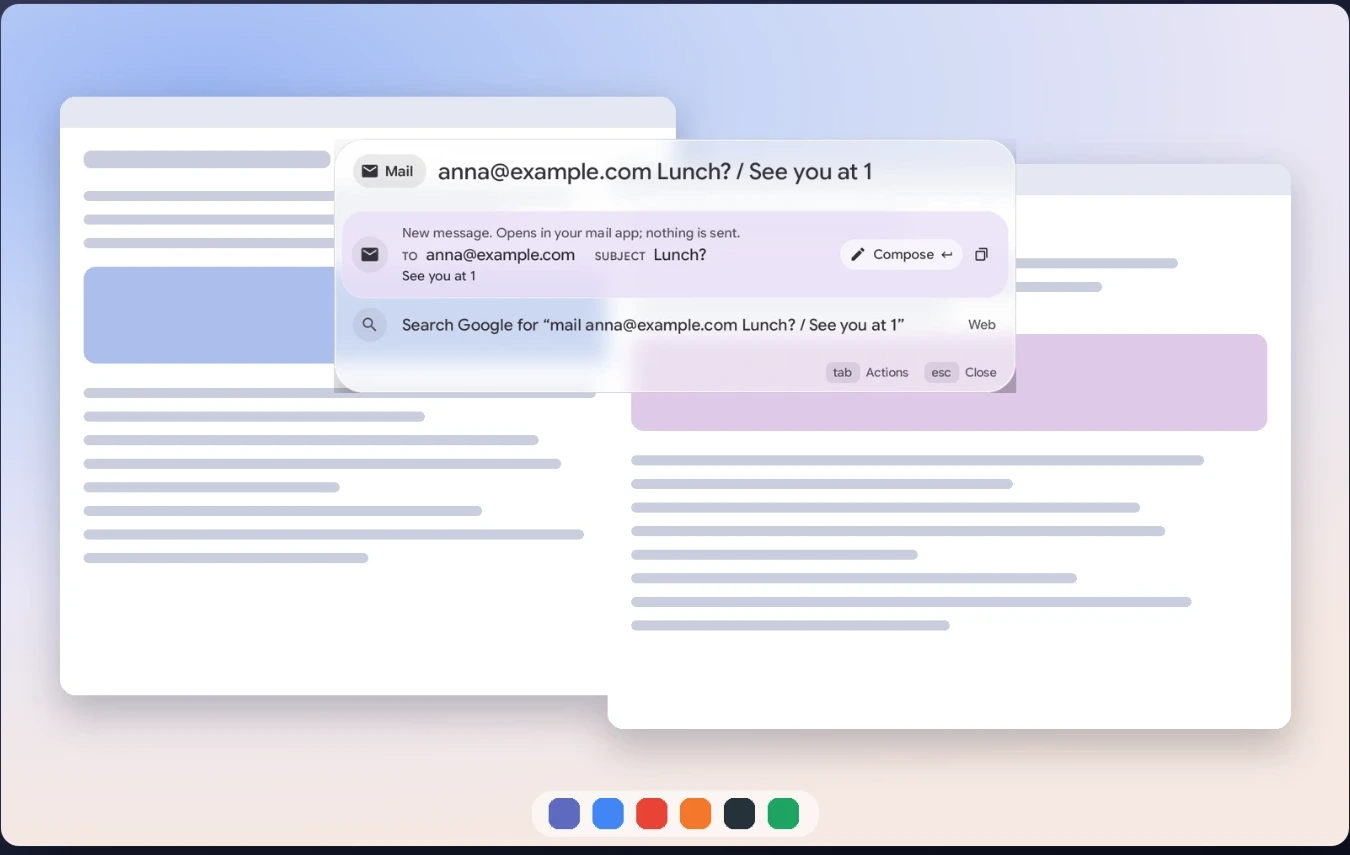
- Draft emails in one line: type
mail [email protected] Lunch? / See you at 1and press Enter to open your mail app’s compose window with the address, subject line, and message pre-filled. - Quick notes, timers, and alarms: use
note,remind,timer 10m tea,alarm, andnew filethe exact same way to capture thoughts or start countdowns without breaking focus. - Plain-English calendar events: type a natural sentence like Add dinner with Sam tomorrow at 7pm to the Team calendar to open your calendar app pre-filled, or save the event directly if you enable calendar access in Booklight settings.
- Send questions to Gemini: type a question or longer text and select the Gemini option to open the Googlebook Gemini app with your prompt already typed in for you.
- Act on clipboard text: copy a link, date, or paragraph anywhere on your Googlebook, open Booklight, and press Tab to open the copied link, add the date as an event, translate the text, or run an on-device AI prompt on it.
Emoji grid, symbols, QR codes, hardware controls, and API keys
Booklight also packs built-in copy utilities, quick hardware sliders, and optional live integrations for travelers and music fans:
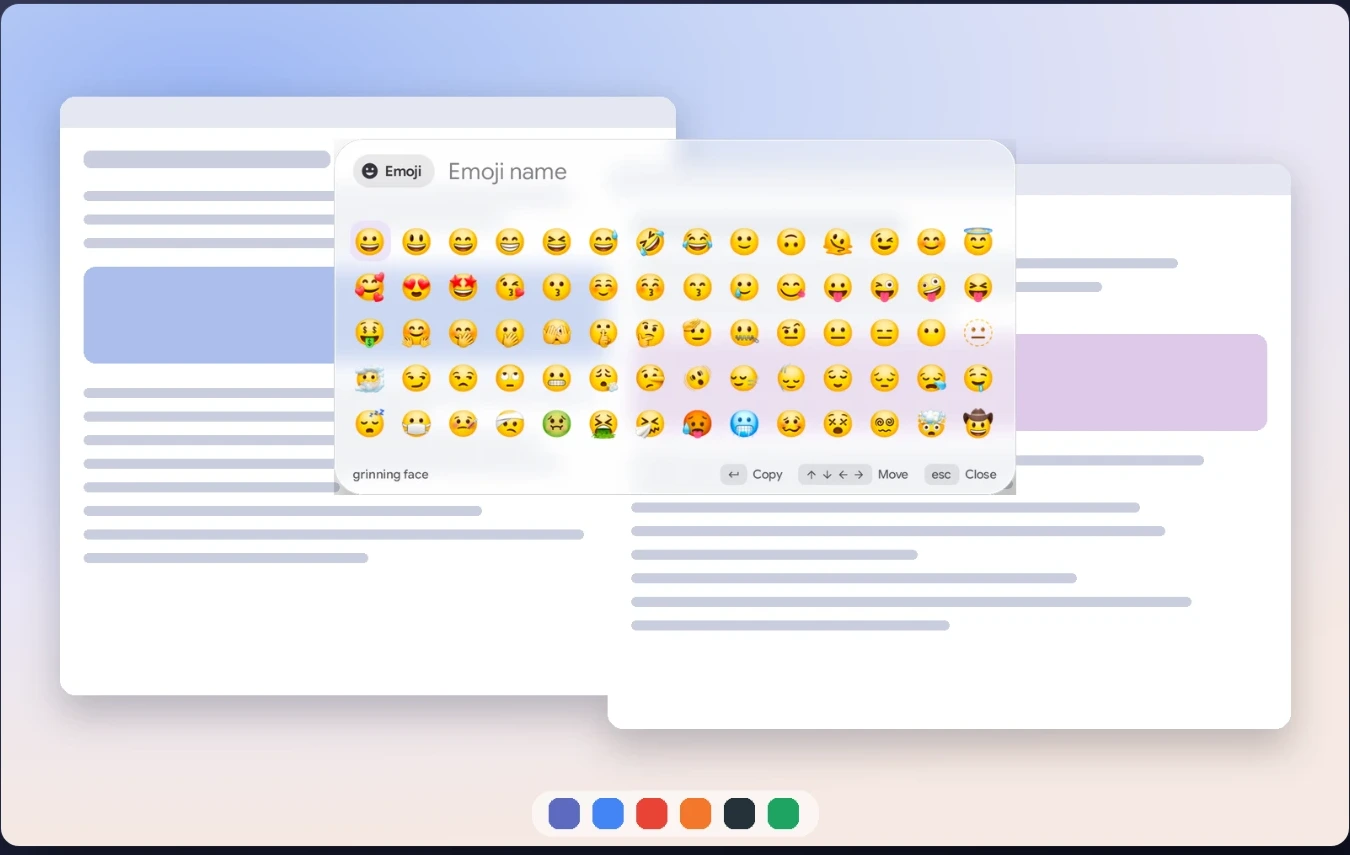
- Emoji, symbols, and accented letters: open an interactive grid to copy emojis, currency and math symbols, or accented letters from other languages (such as
ä ö ü ß,ñ, andç). - Color values, QR codes, and passwords: generate hex and RGB color codes, create instant QR codes from URLs or text, and generate random passwords ready to paste.
- Volume, brightness, and media playback: type
volorbrightnessand press the left or right arrow keys to adjust levels, or typepauseandnextto control your music. - Live flight tracking and Spotify playback: enter your own free AirLabs key in Booklight settings to check flight times, gates, and on-time status by flight number (such as
LH454), or add a free Spotify key to play songs, albums, and artists by name. - Custom commands and multi-step recipes: create your own reusable text snippets, placeholder links, and multi-action recipes that launch several workspace tools at once.
Troubleshooting Booklight on Googlebook OS
If your keyboard shortcut does not summon the Booklight panel or a specific command asks for permissions, check these quick fixes on your Googlebook:
- Keyboard shortcut does not open the panel: launch the Booklight app icon from your Googlebook app drawer to open its First steps window, then verify that Action + Quick Insert (or your custom key combo) is bound inside Googlebook OS Keyboard shortcuts.
- Brightness command does not change screen level: Android requires explicit permission before an app can modify system display brightness. Open Booklight settings, click the brightness toggle, and allow system settings modification when prompted.
- Calendar events open pre-filled instead of saving directly: by default, Booklight never touches your calendar without permission. To save events in one step, open Booklight settings and grant calendar access so it can list your calendars and save entries directly.
- Wrong app appears first when typing shorthand: Booklight ranks results based on what you previously selected for those letters. You can reset learned shorthand anytime inside the Booklight settings window.
- Web search suggestions are not appearing: live search suggestions are turned off by default for privacy. Open Booklight settings to toggle search suggestions on and pick your preferred search engine (Google, DuckDuckGo, Bing, Brave Search, or Ecosia).
Frequently asked questions about Booklight on Googlebook
What is Booklight on Googlebook OS?
Booklight: Delightful Launcher (package ID io.github.kuscher.booklight) is a keyboard-driven command launcher built specifically for Googlebooks by Fika Labs. Pressing your shortcut opens a floating glass panel where you can launch apps, open system settings, calculate sums, snap windows, compose one-line emails, and send prompts to Gemini.
Is Booklight free and private to use on Googlebook?
Yes. Booklight is completely free on Google Play with no account required and zero ads. What Booklight learns from your typing shorthand stays locally on your Googlebook, and on-device AI prompts run through the system’s own local model without sending your text to outside servers.
What keyboard shortcut opens Booklight on a Googlebook?
The first time you launch Booklight, its First steps guide recommends assigning Action + Quick Insert and opens Googlebook OS Keyboard shortcuts directly so you can bind that key combination (or any custom shortcut you prefer).
How do I snap windows or search inside an app with Booklight?
Type an app name in Booklight to see its action icons on the right: Open, Search, Play, and Window. Press Tab to highlight Search, Play, or Window, then press Enter. You can also type direct commands like ‘chrome left’ to snap a window immediately.
Can Booklight check live flight status and play Spotify songs?
Yes. If you add your own free AirLabs API key in Booklight’s settings window, typing a flight number like LH454 displays live departure and arrival times, gate info, and on-time status. Adding your own free Spotify key lets you play songs, albums, and artists by name directly from the launcher.
Explore more Googlebook apps and guides
Build out your Googlebook OS workflow with our companion guides covering pre-installed tools, AI coding agents, and laptop hardware:
- Built-in tutorials and free perks: Learn how to set up Better Together phone casting and claim bundled trial subscriptions in our guide on How to Install and Use My Googlebook on Googlebook.
- Build your own Googlebook apps: Booklight was created with the help of Google’s AI coding agent; see how to build your own Android utilities in our walkthrough of Google Antigravity for Googlebook.
- AI prompts and research: Pair Booklight’s quick Gemini handoff with Google’s flagship model in our guide to Gemini 4 Argon on Googlebook.
- Compare all Googlebook laptops: Check display, keyboard, and battery life ratings across the launch lineup in our roundup of All 5 Googlebooks Reviewed and Compared.
- Organize local folders, ZIP archives, and SMB network shares in tabs with our Wayfinder tabbed file manager guide for Googlebook.
Discover more from Chrome Geek
Subscribe to get the latest posts sent to your email.