How to Install and Use Wayfinder on Googlebook
 by
Joseph Vance
Post Updated: November 8, 2026
Knowing how to install and use Wayfinder on Googlebook gives your laptop a tabbed desktop file manager built for a keyboard and trackpad. Instead of stepping through folders one screen at a time, you can open multiple tabs in the title bar, switch between four desktop layouts, and preview files with the Space bar.
Built exclusively for Googlebook OS, Wayfinder lets you open ZIP and TAR archives like normal folders, copy files across a dual-pane commander view, and mount SMB, WebDAV, FTP, or Google Drive folders in the sidebar. This guide covers installing the app, granting file permissions, using its desktop views, and connecting external storage.
Need help setting up Wayfinder? Contact us with your Googlebook model and what you are trying to organize, and our team will help you out.
Wayfinder: Tabbed File Manager
Open-source tabbed file manager for Googlebooks with Details, Grid, Miller columns, and Dual-pane commander views, Spacebar Quick Look, and network share support.
How to install Wayfinder on Googlebook
Wayfinder is distributed on Google Play by Fika Labs specifically for Googlebooks and requires no user account, subscription, or background analytics permissions.
Open Google Play from your Googlebook Taskbar
Click the Google Play icon on your Taskbar or press the Action key and search for Play Store, then sign in with your Google account.
Install Wayfinder: Tabbed File Manager
Search for Wayfinder: Tabbed File Manager (package ID com.droid.wayfinder) and click Install to download the app onto your Googlebook.
Grant All files access and pin Wayfinder to your Taskbar
Open Wayfinder and approve the All files access prompt in system settings so it can read, move, and rename files across your internal storage. Right-click its Taskbar icon and select Pin for instant access.
For general app installation settings on Googlebook OS, see Google’s official guide on installing apps on Googlebook. If you use a work or school laptop where Google Play is restricted by an administrator, you can also inspect or build the Apache 2.0 source code directly from the Wayfinder GitHub repository.
Switch between four desktop views and title-bar tabs
Wayfinder replaces mobile-style folder lists with a desktop window layout designed for a physical keyboard, mouse, and multi-touch trackpad. You can switch between four view modes from the top-right toolbar depending on what you are sorting.
Title-Bar Tabs & Tear-Off Windows
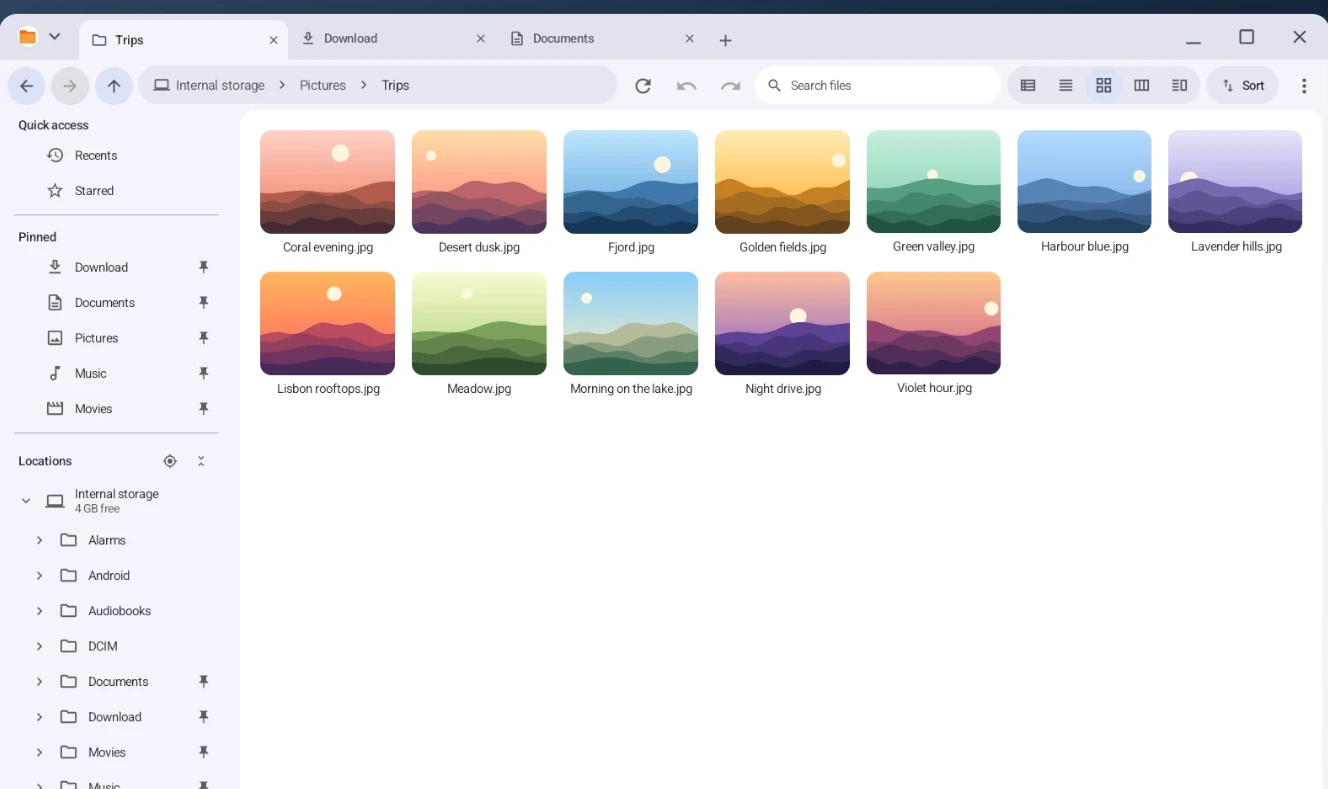
Open new folder tabs right in the window title bar, cycle or reopen closed tabs from the keyboard, or drag a tab out of the bar to tear it off into its own separate Googlebook window.
Details & Zoomable Thumbnail Grid
Use Details view to sort and resize columns by name, date modified, type, and file size, or switch to the Grid view to inspect large, zoomable photo and video thumbnails.
Miller Columns & Dual-Pane Commander
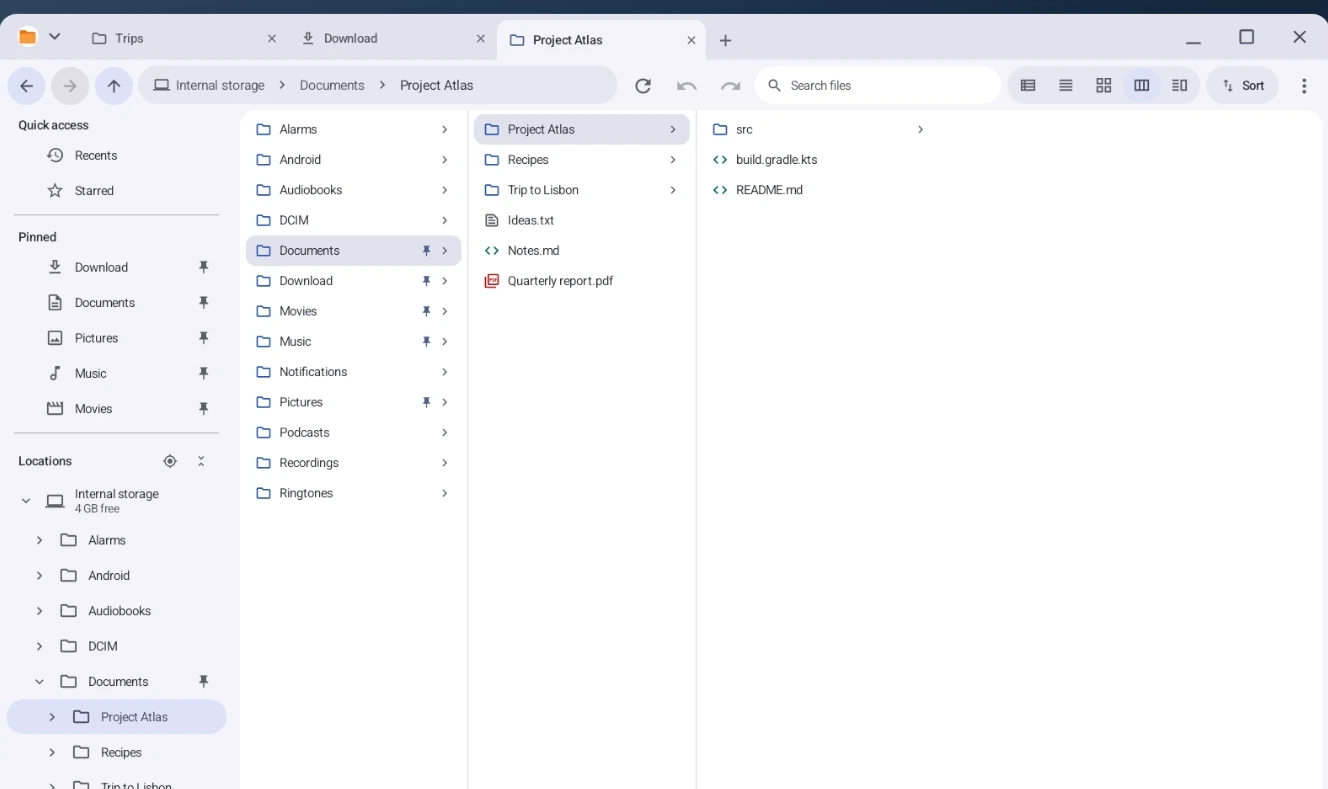
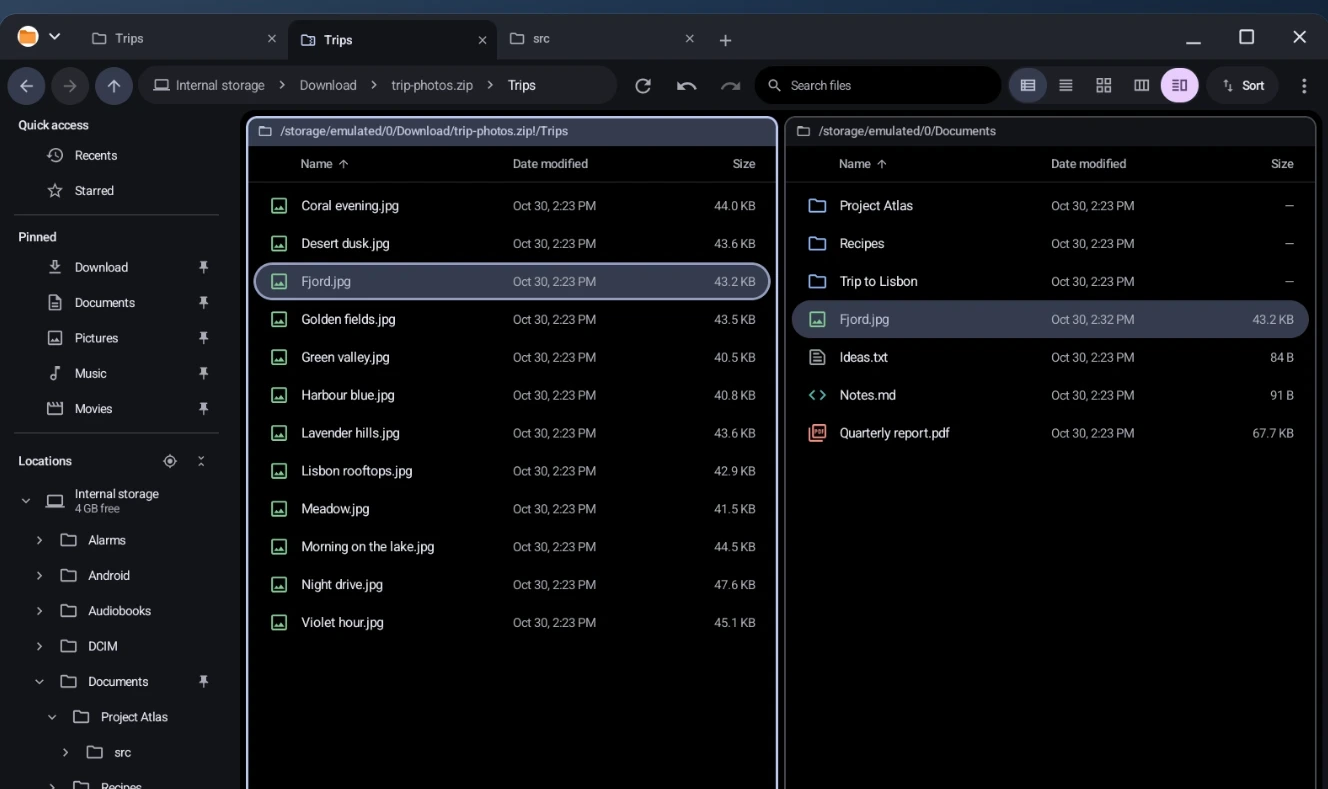
Pick Miller columns to drill into nested project folders one click per column, or press F3 to open the Dual-pane commander view for side-by-side file transfers.
Browse archives, preview files with Quick Look, and use keyboard shortcuts
Wayfinder includes desktop file utilities that save you from launching separate viewer or extractor apps while cleaning up your downloads and project directories:
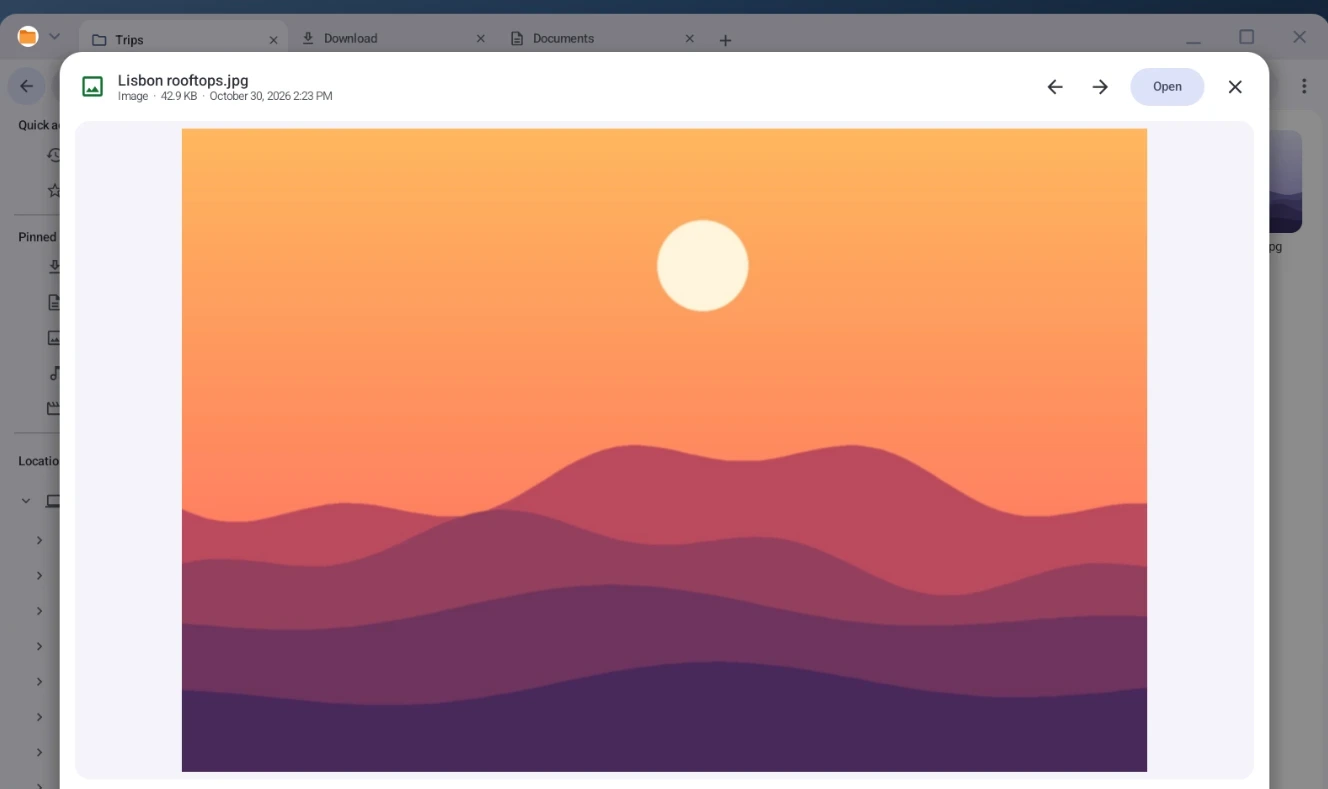
- Spacebar Quick Look: Highlight any image, video frame, PDF document, audio track, or source code file and press
Spaceto inspect it immediately in a floating preview modal, then use the arrow keys to step through the rest of the folder. - Open Archives Like Folders: Double-click
.zip,.tar,.tar.gz, and.tgzarchives to browse inside them just like a normal directory. You can copy individual files straight out of an archive or compress a multi-file selection from the right-click menu. - Dual-Pane Commander Shortcuts: In the split commander view (
F3), browse two locations side by side—such as an open ZIP archive on the left and your Documents folder on the right—and pressF5to copy orF6to move selected items across panes. - Desktop Selection & Command Palette: Single-click to select, double-click to open, drag a rubber-band box across multiple files, or right-click for context actions. Press
Ctrl + Kto open the command palette,F1to view the full keyboard shortcut reference, or use batch rename and undo to fix file names in bulk. - Color Tags, Checksums & System File Picker: Assign color tags to important items, pin frequent folders to the left sidebar, inspect file checksums in the properties dialog, and choose Wayfinder as the file picker when other Googlebook apps ask you to attach or open a file.
Connect network shares, Google Drive, and phone folders on Googlebook
Beyond your internal SSD, Wayfinder brings your remote servers, cloud folders, and external drives into the left Locations sidebar. You can connect directly to SMB 2/3 local network shares, WebDAV servers, and FTP/FTPS hosts; saved server passwords are encrypted locally using the Android Keystore and only establish network connections when you actively open a remote location. Through Android’s system folder picker, you can also mount Google Drive folders, USB flash drives, SD cards, and folders from your paired or USB-connected Android phone so all of your storage sits in one tabbed window.
Fix common Wayfinder issues on Googlebook
- Internal storage folders appear empty: Open your Googlebook Settings > Apps > Special app access > All files access, select Wayfinder, and make sure the permission toggle is enabled.
- SMB or FTP server fails to connect: Verify that your Googlebook is on the same local Wi-Fi or VPN subnet as your NAS or file server, confirm the share supports SMB 2 or SMB 3 (legacy SMBv1 is not used), and check your username and port settings.
- USB drive or Google Drive folder is missing from the sidebar: Click the add location option in the left Locations sidebar and select the drive or cloud directory through the system folder picker to grant persistent read/write access.
- Spacebar does not trigger Quick Look: Make sure the file list pane—rather than the top search box or inline rename field—currently has keyboard focus, then click a file once to highlight it and press
Space. - Need to check a keyboard shortcut: Press
F1anywhere inside Wayfinder to display the built-in shortcut cheat sheet, or pressCtrl + Kto search commands by name.
Frequently Asked Questions
Is Wayfinder free and ad-free on Googlebook?
Yes. Wayfinder is a free, open-source file manager licensed under Apache 2.0 with zero ads, zero analytics, no trackers, and no account sign-in required.
Why does Wayfinder ask for All files access on Googlebook?
Googlebook OS requires full file managers to hold the All files access permission so they can browse, move, rename, and archive folders across your internal storage outside of media-only directories.
How do I use dual-pane commander view in Wayfinder?
Press F3 or click the dual-pane icon in the top-right toolbar to split the window into two side-by-side folder panes, then press F5 to copy or F6 to move selected files between them.
Can Wayfinder open ZIP and TAR archives without extracting them first?
Yes. You can double-click .zip, .tar, .tar.gz, and .tgz archives to browse their contents just like a normal folder and copy individual files out whenever you need them.
Can Wayfinder connect to NAS shares and Google Drive on Googlebook?
Yes. Wayfinder connects directly to SMB 2/3, WebDAV, and FTP/FTPS network servers from the sidebar with Android Keystore password encryption, and mounts Google Drive or USB drives via the system folder picker.
Related Googlebook guides
- Jump directly to any local folder or launch Wayfinder from the keyboard using our Booklight launcher guide for Googlebook.
- Tour Googlebook OS window snapping, Workspaces, and hardware keyboard shortcuts in our My Googlebook companion app guide.
- Manage code repositories and project folders alongside an agentic coding environment in our Google Antigravity for Googlebook setup guide.
- Compare how storage-heavy desktop Android apps perform across chipsets in our Intel vs. Snapdragon Googlebook Android app comparison.
- Keep wireless phone file access and app streaming working properly by reading why rooting a Googlebook breaks Cast My Apps.
Discover more from Chrome Geek
Subscribe to get the latest posts sent to your email.