How to Install and Use My Googlebook on Googlebook
 by
Joseph Vance
Post Updated: November 8, 2026
You can install and use My Googlebook on Googlebook through Google Play to explore built-in tips, cross-device setup tools, and free software perks. Published by Google LLC as the official companion app for Googlebook OS, it walks you through your laptop’s desktop interface and unlocks bundled trial subscriptions.
My Googlebook comes pre-installed on every Googlebook and receives new feature guides and promotional offers directly through the Play Store. This guide covers how to update or reinstall the app, use interactive Taskbar tutorials, connect your Android phone with Better Together, and redeem free Perks.
Need help setting up My Googlebook or claiming a bundled offer? Contact us with your Googlebook model and we will help you get started.
How to install and update My Googlebook on Googlebook
My Googlebook comes pre-installed on Googlebook OS and updates through Google Play so you always have the newest device tutorials and promotional perks:
The official Google Play listing identifies My Googlebook under the package name com.google.android.desktop.tips. Keeping the app updated ensures you receive new Googlebook OS walkthroughs and seasonal software perks as Google releases them.
For more help managing Play Store downloads and desktop navigation on your laptop, check Google’s official guide on installing apps on Googlebook and the Get started with your Googlebook overview. On school or workplace Googlebooks, network administrators may restrict Play Store updates or promotional perk redemptions.
Exploring the Welcome dashboard and featured collections
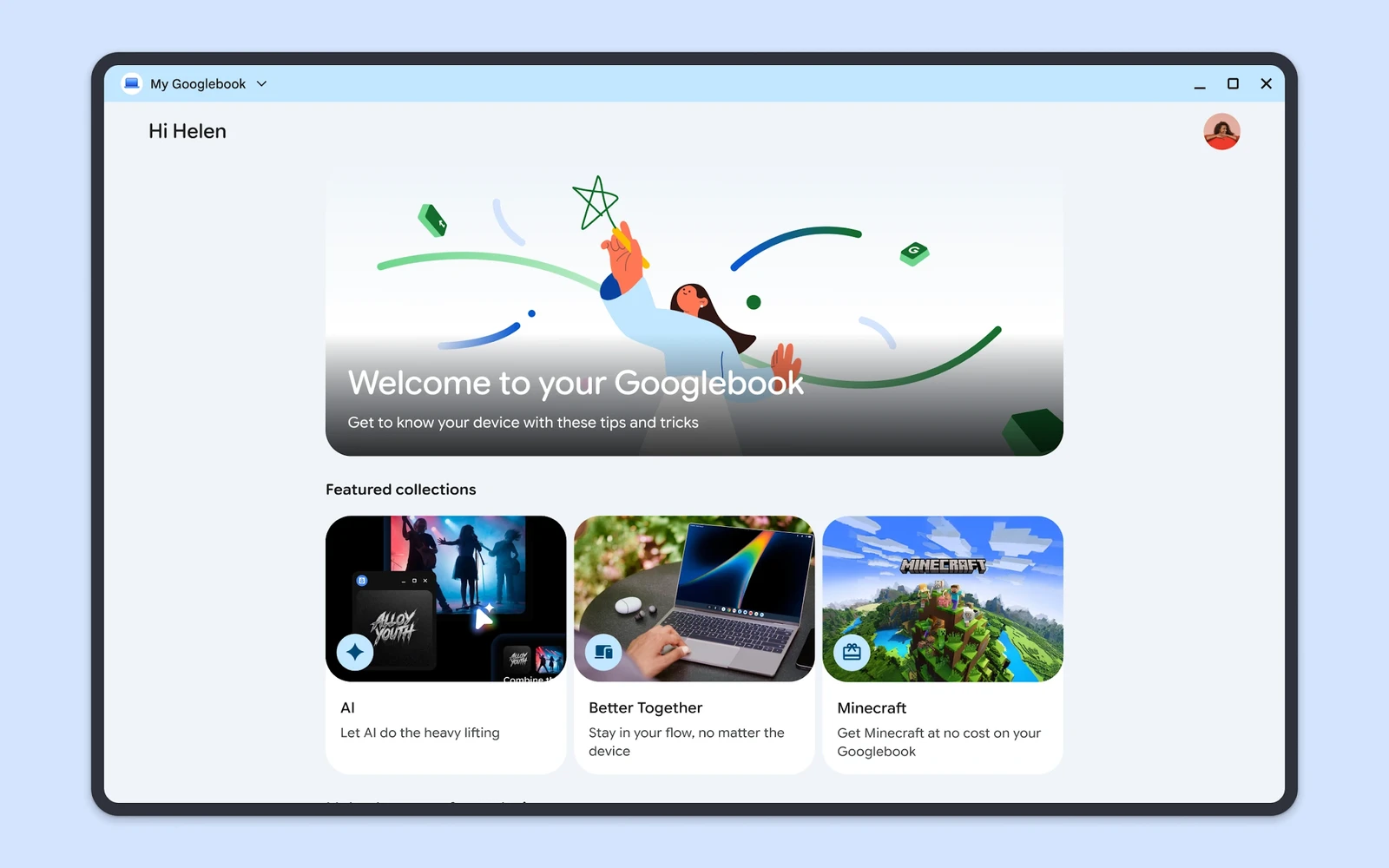
When you open My Googlebook, the home screen greets you with a personalized welcome banner and curated card collections designed to help you get comfortable with Googlebook OS right away:
Interactive tutorials for the Googlebook OS Taskbar and desktop
If you are switching to Googlebook OS from Windows, macOS, or an Android tablet, My Googlebook includes visual step-by-step lessons that teach you how to navigate your new desktop layout:
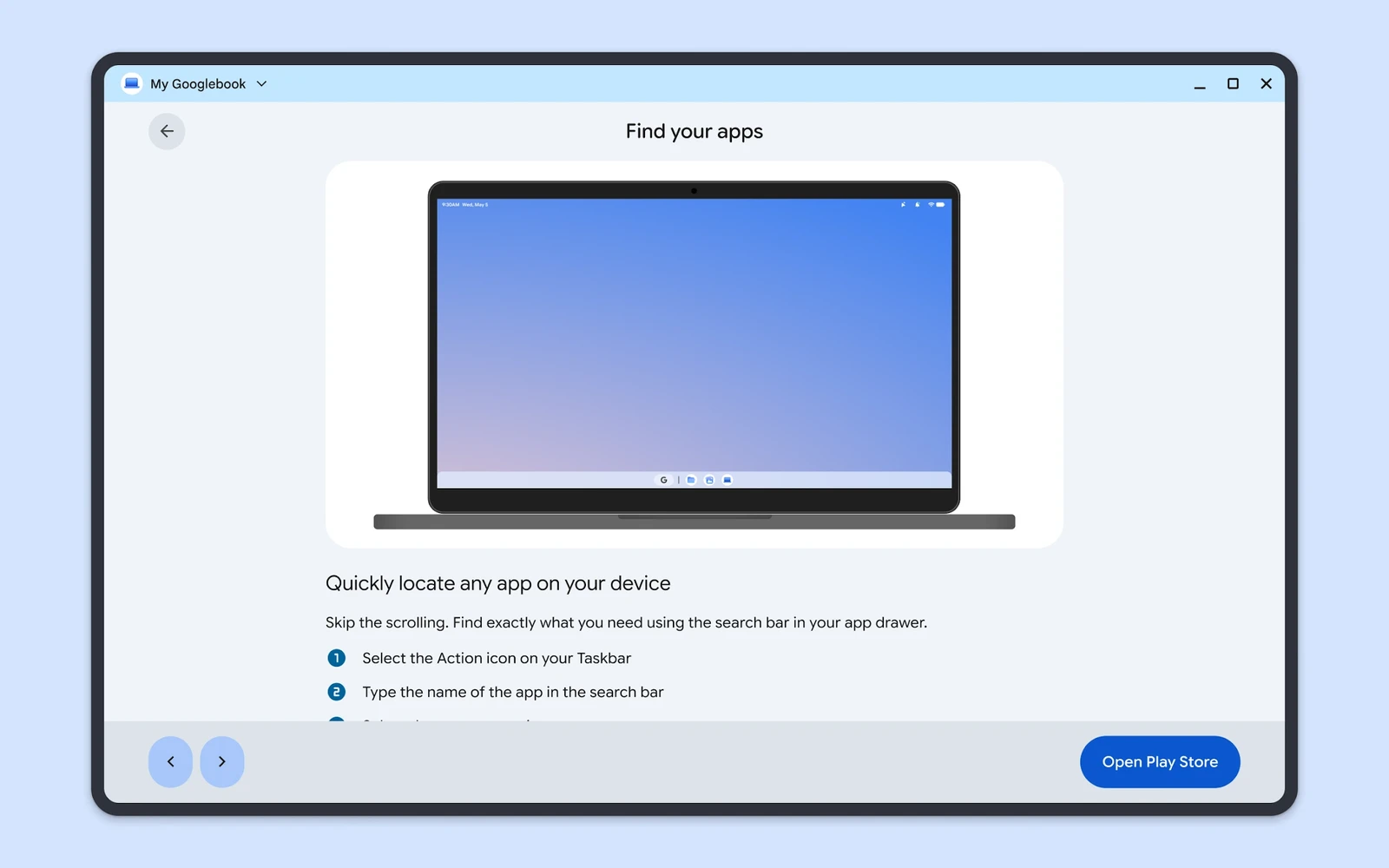
- Quickly locate apps with the Action icon: instead of scrolling through pages of icons, select the Action icon on your bottom Taskbar and type the name of any app into the search bar.
- Organize your Home screen and Taskbar: learn how to place widgets and folders on your Googlebook Home screen, pin your favorite apps or files to the bottom Taskbar, and switch between open windows.
- Manage the top Status bar and Quick Settings: explore the top Status bar to view your Calendar and notifications, or open Quick Settings to adjust Wi-Fi, Bluetooth, audio output, and screen brightness.
- Multitask across Workspaces: set up dedicated desktop Workspaces to keep work documents, study notes, and entertainment apps neatly separated.
- One-click launcher buttons: tutorial screens include a blue shortcut button in the bottom corner (such as Open Play Store) so you can test the feature immediately.
Setting up Better Together and Cast My Apps on Googlebook
One of the most useful sections inside My Googlebook is the Better Together hub, which guides you through connecting your Android phone (running Android 17 or higher) to your laptop for cross-device workflows:
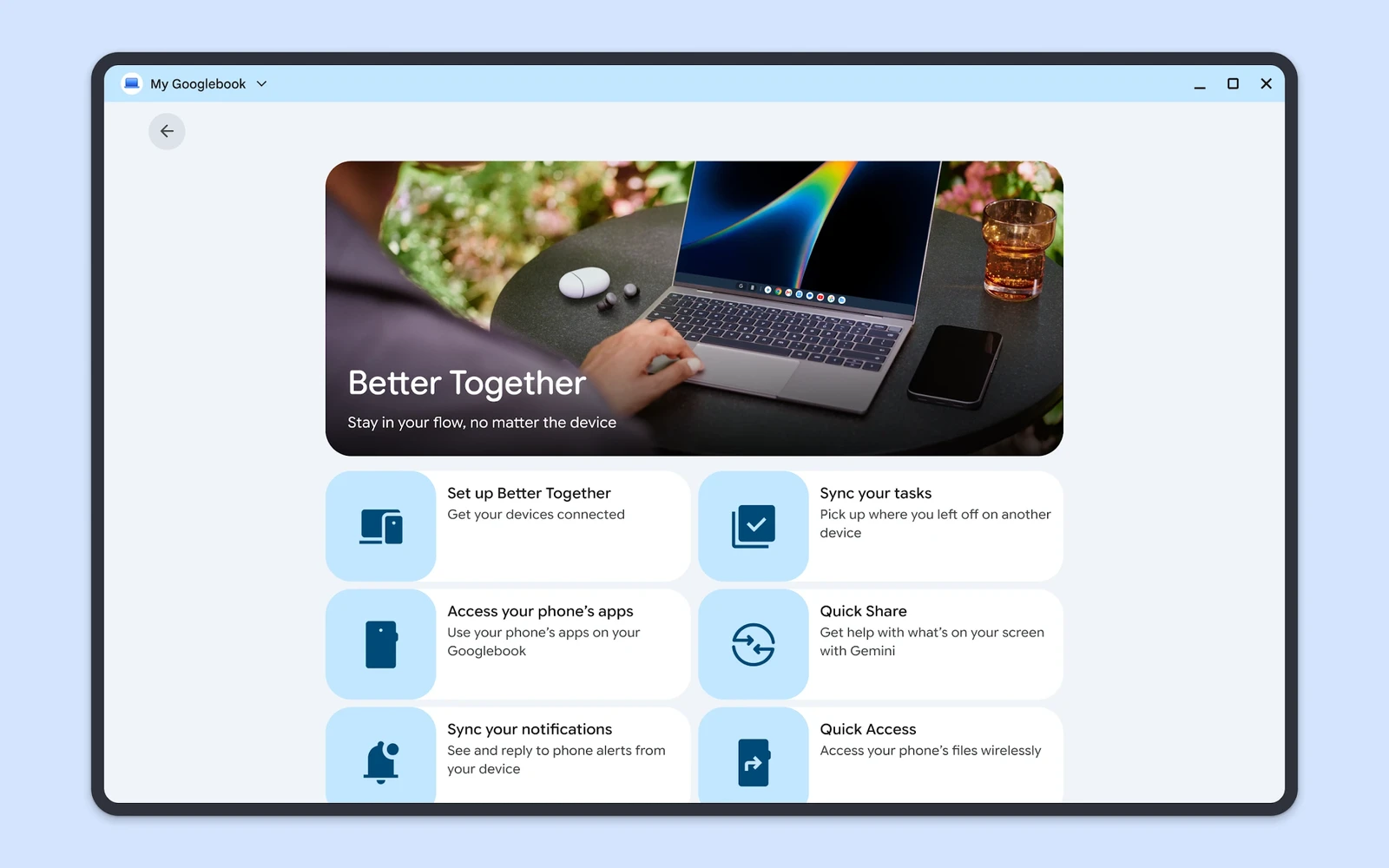
- Set up Better Together: link your Googlebook and Android phone by signing in to the same personal Google Account with Wi-Fi, Bluetooth, and Cross-device services turned on.
- Access your phone’s apps (Cast My Apps): select your phone’s apps icon on the Googlebook Taskbar to open and interact with mobile apps in a live desktop window on your laptop screen.
- Sync your tasks: use Continue On to pick up active browsing tabs, notes, and tasks right where you left off when switching between your phone and Googlebook.
- Sync your notifications: read and reply to incoming phone alerts and text messages directly from your Googlebook without picking up your phone.
- Quick Share & Gemini screen help: send files wirelessly between nearby devices or ask Gemini for help with whatever is currently displayed on your screen.
- Quick Access wireless files: browse and open photos, downloads, and documents stored on your phone wirelessly from your Googlebook desktop.
How to claim free Googlebook Perks and trial subscriptions
Under the Make the most of your device section in My Googlebook, the Perks page lets you redeem discounted apps, complimentary trial subscriptions, and bonus software bundled with your laptop:
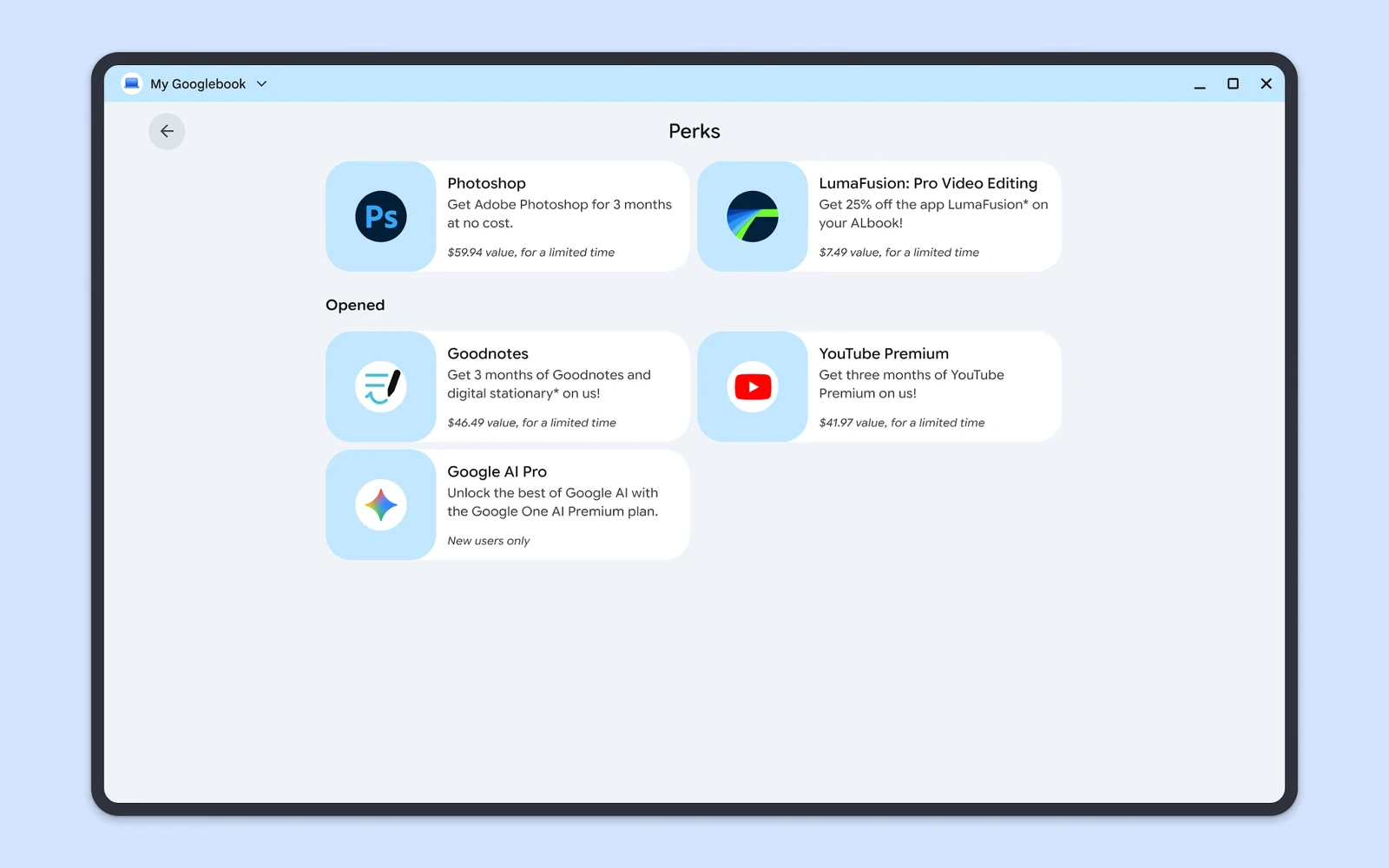
According to Google’s official Redeem perks on your Googlebook guide, you can claim your offers in a few clicks:
- Open and redeem a perk: select Perks inside the My Googlebook app, choose an eligible offer, and click Open perk.
- Copy and apply promo codes: if a promotion provides a discount code, click Copy code to save it to your clipboard, then select Use code to paste it during checkout on the partner’s website or in Google Play.
- Featured creative and AI perks: depending on your region and eligibility, offers include 3 months of Adobe Photoshop at no cost, 25% off LumaFusion: Pro Video Editing, 3 months of Goodnotes, 3 months of YouTube Premium, and the Google AI Pro (Google One AI Premium) plan for new subscribers.
- Track opened perks: any offer you have already viewed or claimed moves into the Opened list so you can easily tell which perks are still waiting to be redeemed.
Troubleshooting My Googlebook and Perks on Googlebook OS
If the My Googlebook app fails to load new collections, shows missing perks, or runs into phone connection issues, try these fixes on Googlebook OS:
- Perks page shows “No new perks”: promotional offers depend on your region, account history, and device eligibility. Make sure you are signed in with a personal Google Account (not a school or work account) and update My Googlebook in the Google Play Store.
- Promo code fails during partner checkout: many trial perks (such as YouTube Premium or Google AI Pro) are restricted to new subscribers only and require a valid payment method on file. Double-check the terms on the perk card before checking out.
- Better Together or Cast My Apps will not connect: verify that your phone runs Android 17 or higher and that both devices use the same Google Account and Wi-Fi network. On your phone, open Settings > Connected devices > Connection preferences > Cross-device services (or Settings > Google > All services > Cross-device services) and turn on Continue activity and Apps.
- My Googlebook freezes or displays blank cards: open your Googlebook Settings > Apps, select My Googlebook, open Storage & cache, and click Clear cache. Relaunch the app from your Taskbar.
- Tutorial shortcut buttons do not open system menus: install any pending Googlebook OS system updates under Settings > System > System update and restart your laptop so all desktop shortcuts link properly.
Frequently asked questions about My Googlebook
What is the My Googlebook app on Googlebook OS?
My Googlebook (package ID com.google.android.desktop.tips) is Google’s official built-in companion app for Googlebook laptops. It provides interactive tutorials for the Googlebook OS interface, setup guides for Better Together phone integration, and a Perks hub where you can redeem free trials and discounted software.
Is My Googlebook free to install and use?
Yes. My Googlebook comes pre-installed at no cost on every Googlebook and receives free updates through the Google Play Store. While browsing tutorials and claiming perks is completely free, some trial subscriptions inside the Perks tab may require a payment method during activation.
How do I redeem free perks in the My Googlebook app?
Open the My Googlebook app, look under ‘Make the most of your device,’ and select Perks. Choose the offer you want to claim, click Open perk, and select Copy code and Use code to apply the promotion on Google Play or the partner’s checkout page.
What phones work with Better Together and Cast My Apps on Googlebook?
Better Together and Cast My Apps require a compatible Android phone running Android 17 or higher (such as supported Google Pixel and Samsung Galaxy devices). Both your phone and your Googlebook must be signed in to the same Google Account with Wi-Fi, Bluetooth, and Cross-device services enabled.
Can I reinstall My Googlebook if I accidentally removed or disabled it?
Yes. Open the Google Play Store from your Googlebook Taskbar, search for ‘My Googlebook’ by Google LLC, and click Install or Enable. Once updated, you can launch it from your app drawer and pin it back to your Taskbar.
Explore more Googlebook apps and guides
Get even more out of Googlebook OS with our dedicated guides to pre-installed AI tools, hardware comparisons, and Android app performance:
- Keyboard command launcher: Open apps, snap windows, calculate sums, and send prompts to Gemini with one shortcut using our guide on How to Install and Use Booklight on Googlebook.
- Build Android apps with AI: Learn how to create custom Android utilities from plain English using another pre-installed Googlebook app in our guide to Google Antigravity for Googlebook.
- Master Gemini 4 Argon: Put your Google AI Pro perk to work for coding, research, and document editing with our walkthrough of Gemini 4 Argon on Googlebook.
- Android app chip compatibility: See how processor architecture affects Play Store apps and games on Googlebook OS in our comparison of Intel vs. Snapdragon Googlebooks for Android Apps.
- Compare all Googlebook models: If you are choosing your next laptop or comparing display and battery specs, read our breakdown of All 5 Googlebooks Reviewed and Compared.
Discover more from Chrome Geek
Subscribe to get the latest posts sent to your email.