Gemini’s Floating Overlay Now Compares Prices in Shopping Apps
 by
Sophie Sullivan
Post Updated: November 25, 2026
Gemini on Android can now help you shop right from the app you are already browsing. When you open Gemini’s floating overlay over a product page in a shopping app, it now suggests three shopping prompts: Help me pick, Compare prices and Check warranty and returns. The feature was spotted by Android Authority in version 17.78.13 of the Google app and looks like a server-side rollout. Google has not announced it yet, but the timing, right before Black Friday, is hard to miss.
1. What the new shopping prompts do
Help me pick: asks Gemini whether the product in front of you is worth considering, which is handy when you are stuck between a few options.
Compare prices: checks the current listing against other online stores. Android Authority’s example compares an Amazon listing with Walmart and Target, so you can see if the same item is cheaper somewhere else.
Check warranty and returns: looks at the warranty and return terms, one of the dull but important parts of a big purchase that most of us skip.
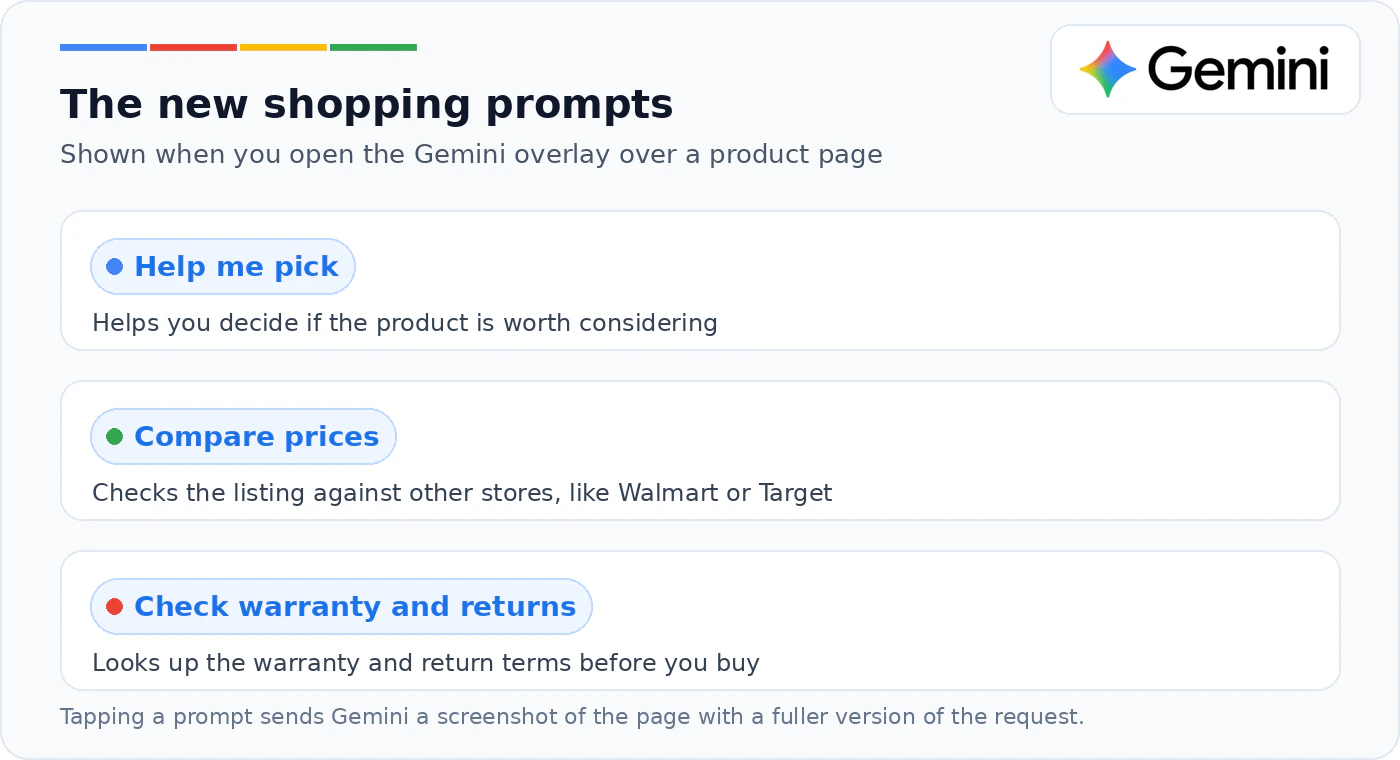
What happens behind the scenes: when you tap a prompt, Gemini takes a screenshot of the product page and sends it along with a longer, more detailed version of the prompt. The answer appears in the overlay like any other Gemini chat.
2. How it works, and its one big limit
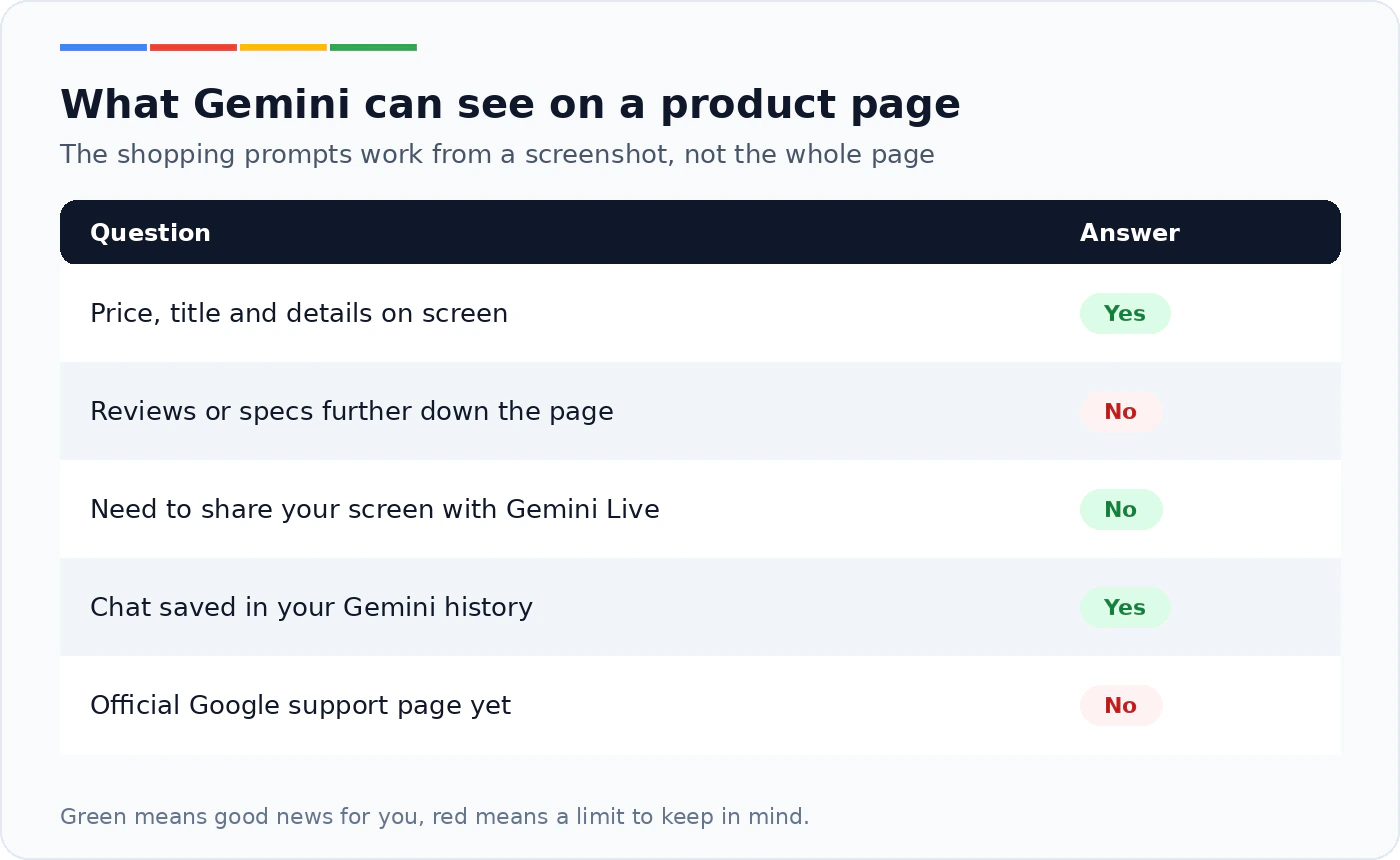
No Gemini Live needed: Gemini has been able to look at your screen for over two years, and last December Google let it read what is on screen without sharing your screen through Gemini Live. What is new here is that the overlay now offers shopping prompts on its own when it sees a product page.
The catch: with PDFs, web pages and YouTube videos, Gemini can take in the whole thing. With these shopping prompts, it only sees what is on your screen at that moment. Reviews, specs or return details further down the page are left out unless you scroll to them first.
3. Which apps it works with
Confirmed so far: Android Authority confirmed the prompts work in Amazon, Flipkart and even quick delivery apps such as Blinkit. It expects them to work across many other shopping apps too.
Not everyone has it yet: because this looks like a server-side rollout, updating the Google app alone may not switch it on. Mark Jansen at Android Police says he does not have it yet in the UK and wonders if the US is getting it first. Android Authority’s testing included Flipkart and Blinkit, which serve shoppers in India, so it is not a US-only feature. If you do not see the prompts yet, give it a few days.
4. How to try it
- Make sure Gemini is your assistant on Android and the Google app is up to date.
- Open a product page in a shopping app such as Amazon.
- Bring up Gemini the way you usually do, such as saying Hey Google or long-pressing the power button.
- Look for Help me pick, Compare prices or Check warranty and returns in the overlay and tap one.
- Scroll to the part of the page you care about first, since Gemini only sees what is on screen.
Check before you buy: AI can get prices and terms wrong, so treat Gemini’s answer as a starting point and confirm the price and return policy on the store’s own page before you pay.

Our take
This is a small change that could save real money this week. Comparing prices across stores is exactly the kind of chore people skip during a Black Friday rush, and having Gemini do it from the app you are already in makes it far more likely you will check. The screenshot limit is worth remembering, though: scroll to the details that matter before you tap, and double-check anything Gemini tells you about price or returns.
More on Gemini and Google shopping: Google’s Universal Cart, the Gemini Live Plus button and how to stop Gemini training on your chats.
Discover more from Chrome Geek
Subscribe to get the latest posts sent to your email.