Googlebook Play/Pause Keyboard Shortcuts Are in the Works
 by
Sophie Sullivan
Post Updated: November 26, 2026
Google is working on keyboard shortcuts to play, pause and skip tracks on Googlebooks. As GbookHub reports, Google’s Mishaal Rahman said on Reddit that shortcuts for play/pause, previous track and next track are in development and planned for a future Googlebook OS release. He did not give a date or say which keys they will use. Until they arrive, there is already a quick way to pause music from the status bar.
1. Why this matters
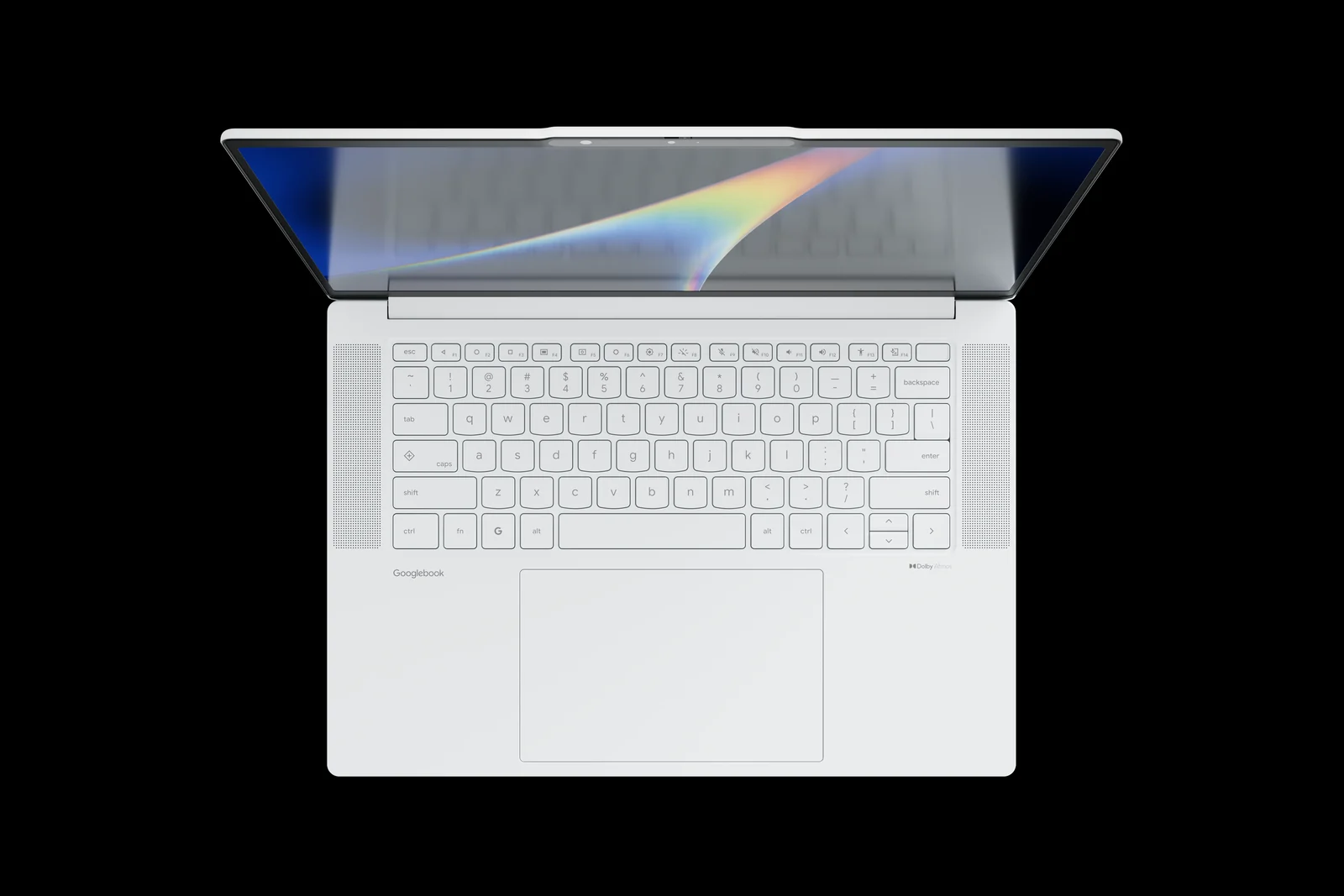
The question: a Lenovo Googlebook 15 owner asked on Reddit how to pause audio, since the keyboard has a mute key but no pause key. That is a common problem. If music or a podcast is playing in a browser tab, pressing Space only pauses it when that tab is in front of you. Working in another app or tab means switching back first.
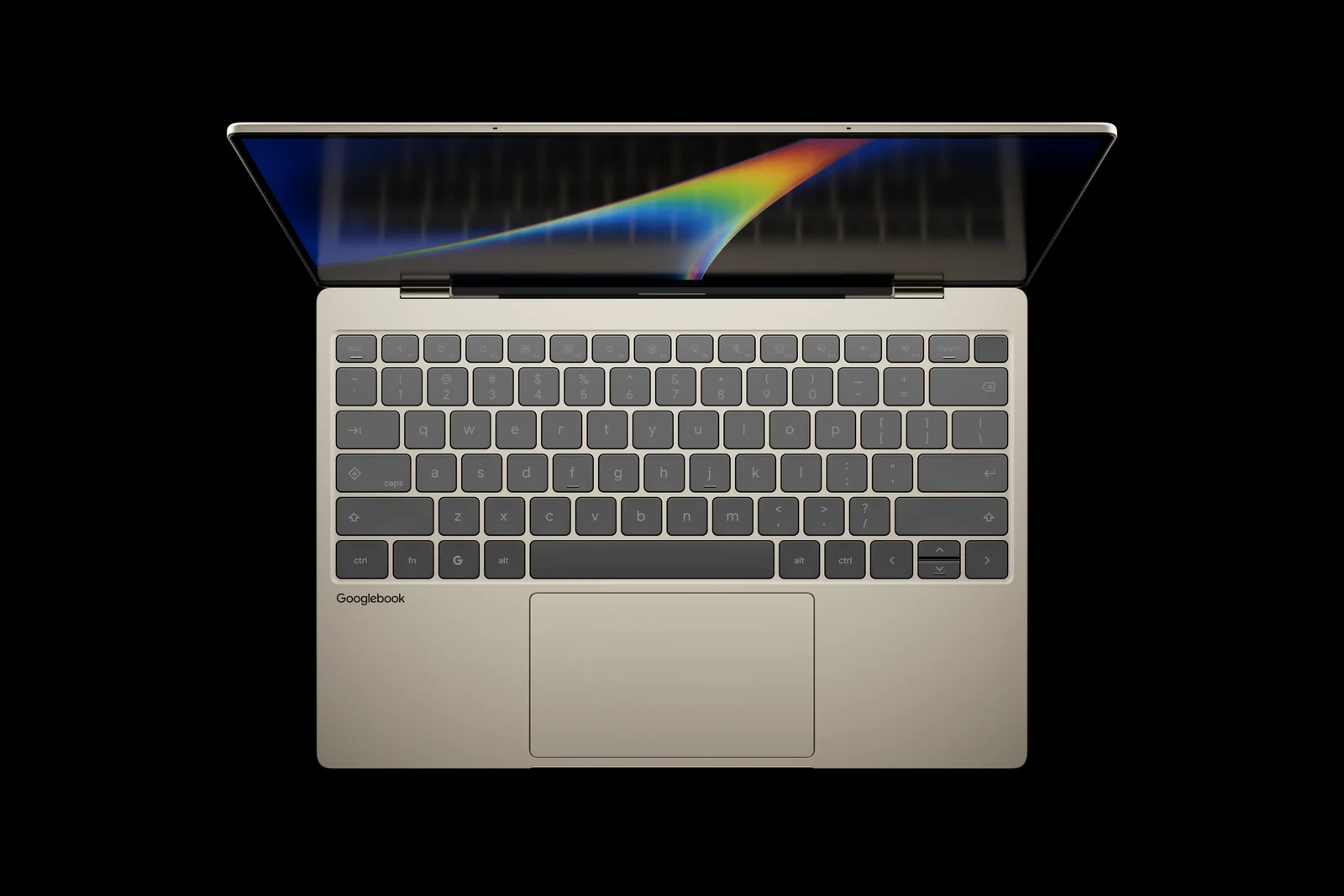
Which Googlebooks have a pause key: GbookHub says the ASUS Googlebook 14 is the only one of the first wave with a dedicated play/pause key. The Lenovo Googlebook 15, Dell XPS Googlebook, HP Googlebook 14 and Acer Googlebook 14 don’t have one. You can see how the five compare in our roundup of all five Googlebook reviews.
2. What Google is building
Three shortcuts: Rahman said Google is working on keyboard shortcuts for play/pause, previous track and next track. Since they are software shortcuts, they should work on any Googlebook keyboard once they arrive, not just models with media keys. Google has not shared the key combinations or a release window, so we have marked them as coming soon.
3. The workaround: pause from the status bar
Now Playing chip: when music or video is playing, Googlebook OS shows a small chip in the status bar at the top right with the app icon and the track name. As 9to5Google noted in its Googlebook OS review, hovering over the icon turns it into a play/pause button.
- Start playing music or a video in any app or Chrome tab.
- Look for the small media chip in the status bar near the notification area.
- Move your pointer over the app icon in the chip. It changes into a play/pause button.
- Click it to pause. Click again to resume.
- For more controls, such as skipping tracks, click the chip itself to open the full media controls. They are also in the notification shade.
Why it helps: this works without switching away from the window you are using, which is the main thing the missing pause key makes harder. If you like adding extra tools up there, BentoBar adds more items to the Googlebook status bar.
Our take
This is a small fix, but it is the kind of thing you notice every day. A laptop that is great for music, video and podcasts should let you pause from the keyboard, and it is good to hear Google is on it. The status bar trick works well in the meantime, and we will update this post when the shortcuts show up in a Googlebook OS release.
More Googlebook news: Googlebook November update fixes, Chrome 157 for Googlebook and Pocket Casts on Chromebook and Googlebook.
Discover more from Chrome Geek
Subscribe to get the latest posts sent to your email.