How to Install and Use Pocket Casts on Chromebook and Googlebook
 by
Joseph Vance
November 18, 2026
You can install and use Pocket Casts on Chromebook and Googlebook through the official Google Play Android app or the Pocket Casts Web Player. Built by Automattic, Pocket Casts is a popular podcast player with smart episode filters, variable playback speeds, and cross-device cloud sync.
Googlebook runs Android audio apps natively from Google Play and supports phone app casting, giving you flexible ways to listen while working. This guide covers Google Play setup, smart playlists, audio trim tools, web access, and troubleshooting fixes.
Need help setting up Pocket Casts? Contact us with your laptop model and ChromeOS version details.
How to install Pocket Casts on Chromebook and Googlebook
Installing the official Pocket Casts Android app from Google Play gives you a full widescreen library view, keyboard media controls, and offline episode downloads on ChromeOS:
The official Google Play listing identifies Pocket Casts under the package ID au.com.shiftyjelly.pocketcasts. Running the native Android app lets you store downloaded episodes locally and use free playback tools like Trim Silence without a paid plan.
If the Play Store is missing from your launcher, check Google’s official Android app setup guide for Chromebook or the guide on installing apps on Googlebook. School or work-managed laptops may restrict Play Store access through administrator policies. If Google Play is disabled, Pocket Casts Plus subscribers can install the Pocket Casts Web Player in Chrome as a Progressive Web App (PWA).
Cast Pocket Casts from your phone on Googlebook
If your Android phone already holds your downloaded shows or an active episode queue, Googlebook’s Cast My Apps feature lets you stream the phone app straight to your laptop screen. Open Phone Hub on the bottom-right shelf of your Googlebook, click Cast My Apps, and choose Pocket Casts. Your phone’s current listening session opens in a desktop window so you can pause, skip chapters, or queue new episodes without transferring audio files.
Navigating your podcast library on a widescreen display
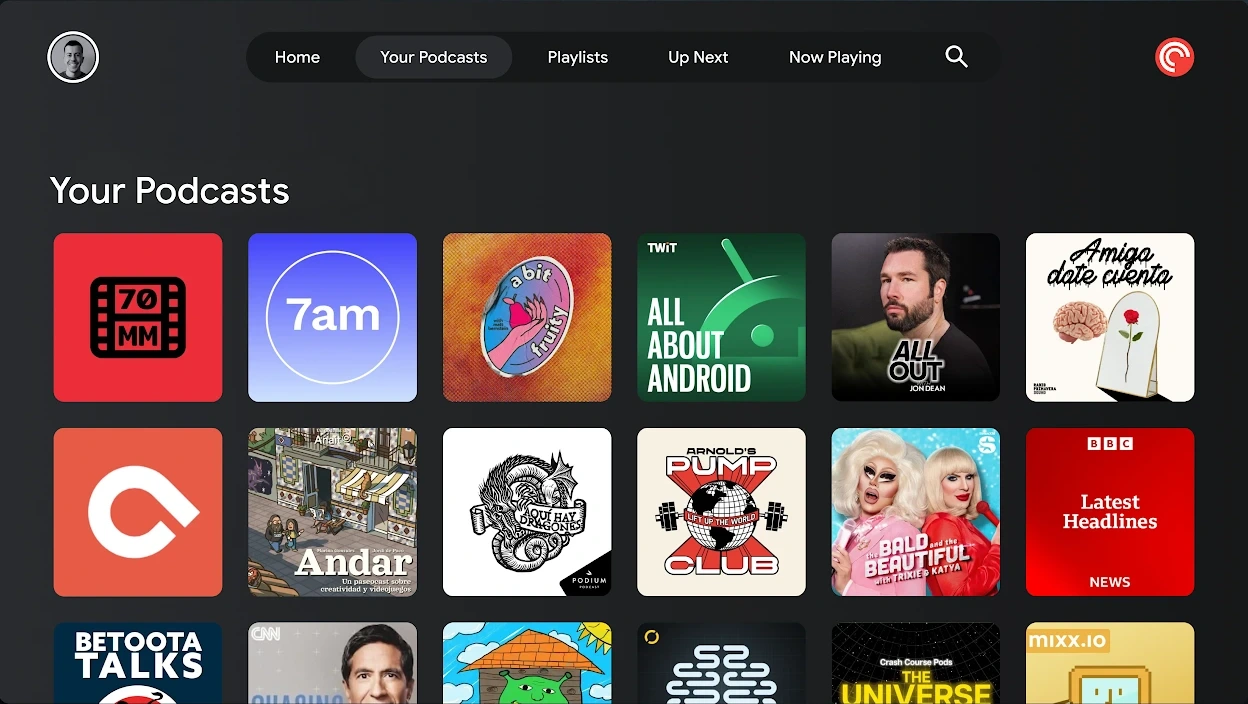
On Chromebooks and Googlebooks, Pocket Casts scales into a wide multi-column layout with top navigation tabs for Home, Your Podcasts, Playlists, Up Next, and Now Playing:
Organizing episodes with smart playlists and filters
Instead of hunting through individual show feeds every morning, you can group episodes automatically using Pocket Casts Smart Playlists:
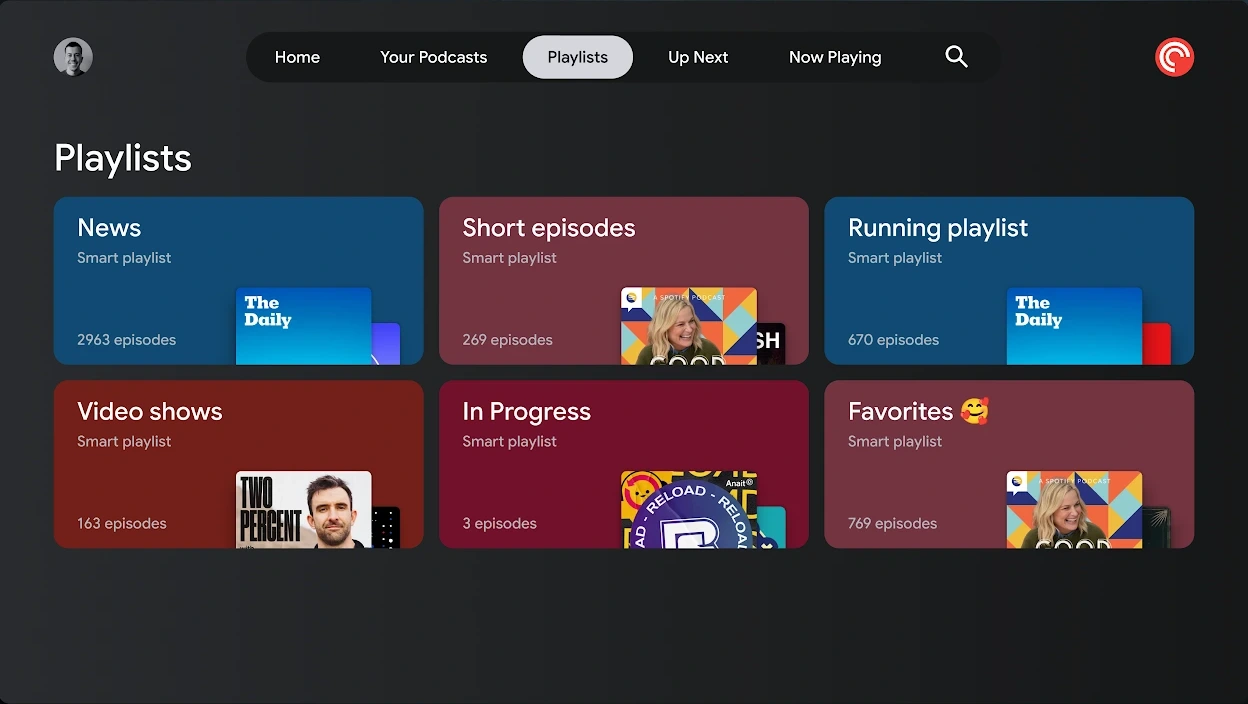
Use these organization tools to keep long podcast queues tidy:
- Rule-Based Smart Playlists: create custom playlists for daily news briefings, short episodes under 20 minutes, or starred favorites that update whenever new episodes arrive.
- Auto-Download & Archiving: configure Pocket Casts to download new episodes on Wi-Fi and automatically archive finished episodes so your ChromeOS storage stays clear.
- Custom Intro & Outro Skipping: set per-podcast skip timers to jump past recurring sponsor reads or theme music at the start and end of every episode.
- Custom Folders (Plus): group related podcasts into dedicated folders like Tech, History, or Comedy inside the main library grid.
Browsing show catalogs, episode notes, and video podcasts
Opening any show displays a two-pane detail screen with show artwork, subscription controls, and a searchable episode list on the right:
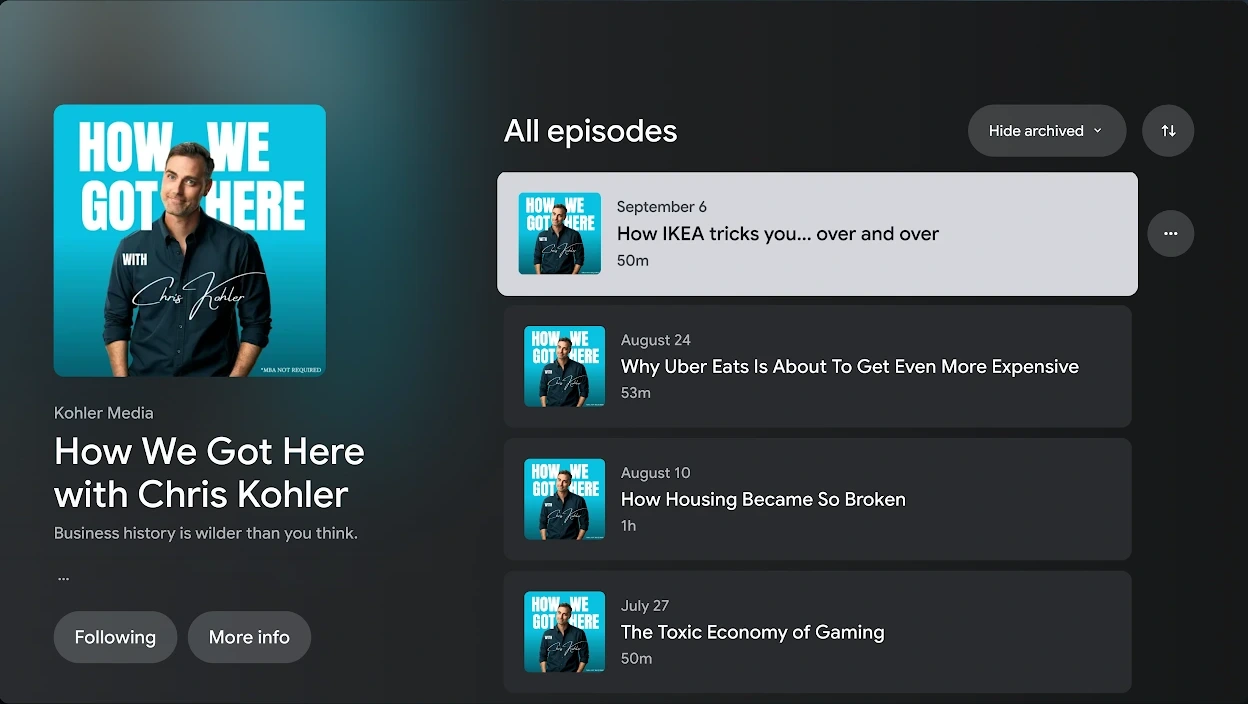
Shows that publish video feeds also play directly inside the widescreen player without switching to another app:
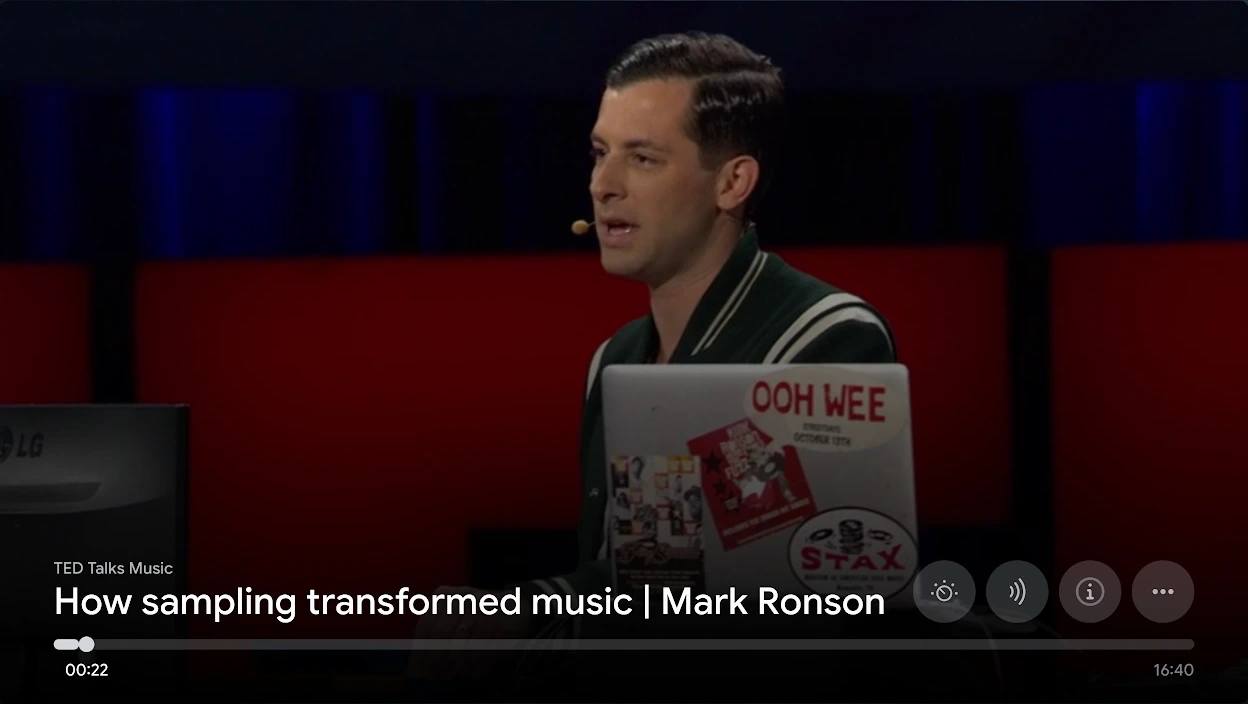
Customizing playback speed, Trim Silence, and Volume Boost
Pocket Casts includes built-in audio processing tools inside the Now Playing screen that improve speech clarity on laptop speakers:
Using the Pocket Casts Web Player in Chrome
If you have a Pocket Casts Plus or Patron subscription and want to save disk space, you can run Pocket Casts directly in Google Chrome:
- Open Google Chrome and visit play.pocketcasts.com, then sign in with your Pocket Casts account.
- Click the install icon in the Chrome address bar (or open the three-dot menu and choose Cast, save, and share > Install Pocket Casts) to add it as a standalone Progressive Web App.
- Use the Web Player for synced playback, chapter navigation, and personal cloud file uploads without installing Android packages.
Troubleshooting Pocket Casts on Chromebook and Googlebook
If episodes stop playing in the background or downloads stall on ChromeOS, try these quick fixes:
- Playback stops when switching windows: ChromeOS can pause background Android apps to save battery. Open Settings > Apps > Manage your apps > Pocket Casts > More settings and permissions > Battery, and set usage to Unrestricted.
- Downloads fill up local storage: in Pocket Casts, open Profile > Settings > Storage & data use, lower your auto-download episode limit, and enable Delete played episodes.
- Media keys do not pause or skip: open Chrome, go to
chrome://flags/#hardware-media-key-handling, set it to Enabled, and click Relaunch so your keyboard media row controls playback. - Subscription list is out of sync: pull down on the Your Podcasts screen or open Profile > Settings > Account and tap Refresh to sync episode progress across devices.
- App freezes or fails to load artwork: go to ChromeOS Settings > Apps > Manage your apps > Pocket Casts > Storage & cache and tap Clear cache.
Frequently asked questions about Pocket Casts on Chromebook and Googlebook
Is Pocket Casts free to use on Chromebook and Googlebook?
Yes. The Pocket Casts Android app on Google Play is free to install and includes podcast subscriptions, smart playlists, Trim Silence, Volume Boost, Up Next queuing, and cross-device cloud sync. Upgrading to Pocket Casts Plus adds access to the Web Player, desktop apps, custom folders, and cloud file storage.
Can I download podcast episodes for offline listening on my Chromebook?
Yes. When you install the Pocket Casts Android app from Google Play, you can tap the download button on any episode or configure automatic downloads for new releases. Episodes are stored locally on your Chromebook or Googlebook so you can listen without an internet connection.
Does the Pocket Casts Web Player work on ChromeOS without Google Play?
Yes, you can stream episodes in Google Chrome at play.pocketcasts.com and install the site as a Progressive Web App (PWA) for a standalone window. However, full access to the Pocket Casts Web Player requires a Pocket Casts Plus or Patron subscription, whereas the Google Play Android app is free.
Why does Pocket Casts stop playing audio when I minimize the window or switch tabs?
ChromeOS battery optimization can pause background Android apps when system memory is busy. To keep podcasts playing continuously while you work, open ChromeOS Settings > Apps > Manage your apps > Pocket Casts > More settings and permissions > Battery, then switch background usage to Unrestricted.
How do I cast Pocket Casts from my phone to Googlebook?
Open Phone Hub from the bottom-right shelf on your Googlebook and make sure your Android phone is connected. Select Cast My Apps and tap Pocket Casts to open your phone’s active listening queue, downloaded episodes, and playback controls in a desktop window on your laptop.
Explore more audio and media guides on ChromeGeek
Pair Pocket Casts with our companion ChromeOS guides for music streaming, high-resolution audio, and local media playback:
- How to Install and Use Spotify on Chromebook and Googlebook: Stream music, curated playlists, and exclusive podcasts via Google Play, the Web Player PWA, or Linux.
- How to Install and Use Qobuz on Chromebook and Googlebook: Listen to hi-res lossless albums and editorial liner notes on ChromeOS.
- How to Install and Use Amazon Music on Chromebook and Googlebook: Access ad-free podcasts and HD music streaming on your laptop.
- How to Install and Use VLC on Chromebook and Googlebook: Play downloaded audio files and local video formats with hardware acceleration.
- 10 Best Media Players for Chromebook and Googlebook: Compare the top audio and video players available for ChromeOS.
Discover more from Chrome Geek
Subscribe to get the latest posts sent to your email.