How to Install and Use Wispr Flow on Chromebook and Googlebook
 by
Joseph Vance
November 18, 2026
You can install and use Wispr Flow on Chromebook and Googlebook through the official Android app on Google Play. It turns natural speech into clean, punctuated text by removing filler words, fixing self-corrections on the fly, and formatting messages or notes automatically.
Googlebook runs Android apps natively from Google Play alongside instant phone-app casting from the Phone Hub. This guide covers Google Play installation, Android keyboard and floating mic setup, custom snippets, synced dictionaries, and troubleshooting fixes.
Need help setting up Wispr Flow? Contact us with your laptop model and any microphone or permission questions.

How to install Wispr Flow on Chromebook and Googlebook
Installing Wispr Flow from Google Play takes just a couple of minutes and gives you access to voice dictation, snippets, and your synced dictionary:
The official Google Play listing uses the package ID com.wispr.flowapp. Installing the Android app gives you full access to Wispr Flow’s cleaned-up dictation, personal dictionary, and snippets inside Android apps on your laptop.
If the Play Store is missing on your device, check Google’s Android app setup guide for Chromebook or the guide on installing apps on Googlebook. School and workplace laptops may restrict Play Store access through administrator policies. Wispr Flow does not offer a ChromeOS browser extension or a Linux Debian package (.deb), so if you only need simple browser dictation in Google Chrome without Google Play, you can turn on ChromeOS’s built-in dictation feature in Accessibility settings.
Cast Wispr Flow from your phone on Googlebook
If you already dictate messages and notes on your Android phone, Googlebook’s Cast My Apps feature lets you mirror your phone’s Wispr Flow app directly onto your laptop screen. Open the Phone Hub from the bottom-right shelf of your Googlebook, click Cast My Apps, and choose Wispr Flow. Your phone’s active session opens in a floating desktop window so you can review recent transcripts, manage snippets, or capture voice notes without transferring files or signing in again.
Ways to dictate with Wispr Flow on ChromeOS
Depending on whether you use a clamshell laptop or a 2-in-1 convertible in tablet mode, you can pick the dictation workflow that fits your setup best:
AI editing, auto-formatting, and 100+ languages
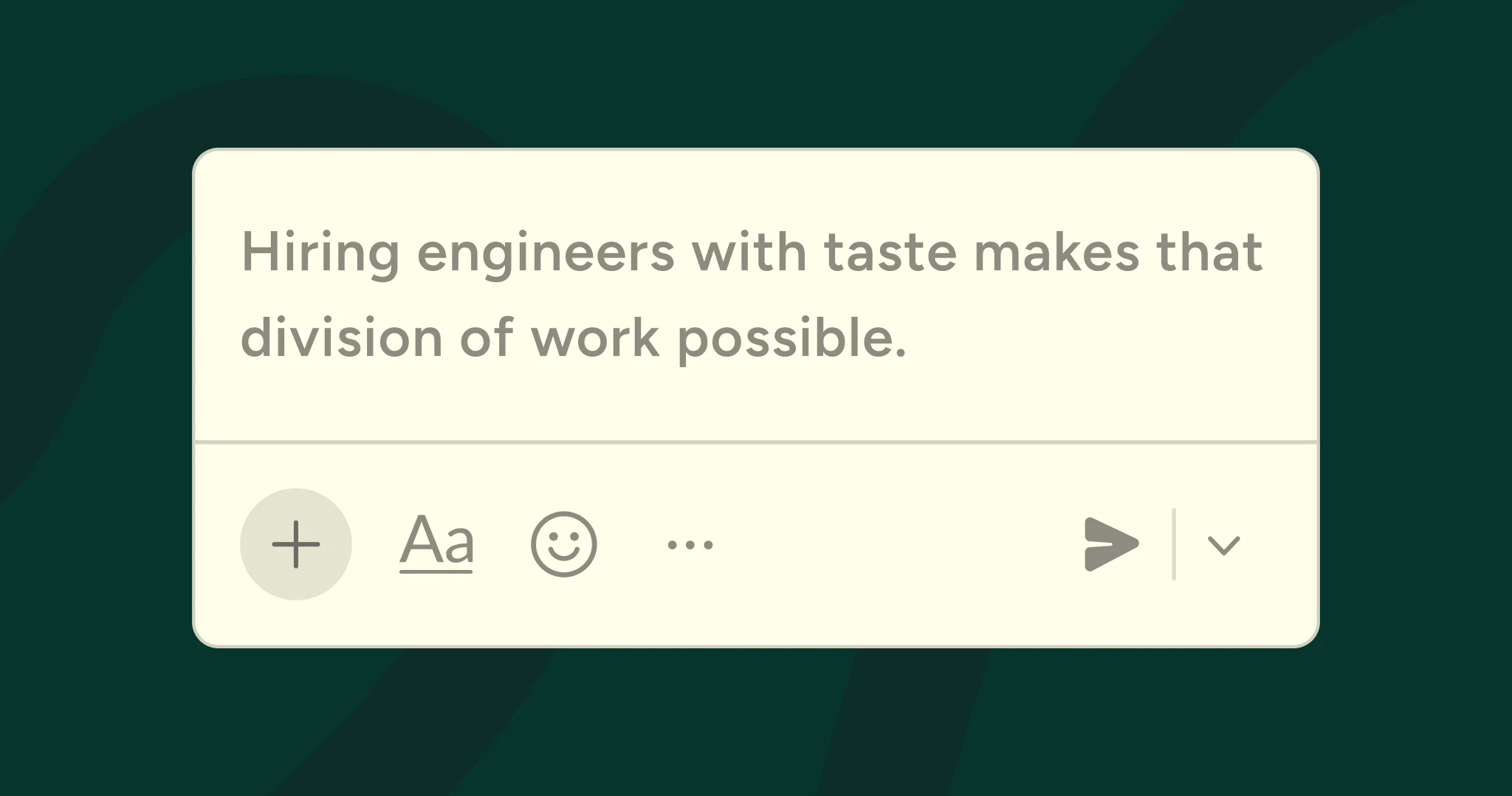
Unlike basic voice typing that prints every hesitation word-for-word, Wispr Flow edits your speech as you talk so the output reads like finished writing:
- Filler word removal: Automatically strips out verbal pauses such as um, uh, and repeated false starts before pasting the text.
- Live self-corrections: If you change your mind mid-sentence—for example, saying “Let’s meet Tuesday, actually Wednesday at 3 PM”—Flow keeps only the final correction.
- Smart punctuation and lists: Adds commas, periods, paragraph breaks, and numbered lists naturally based on your pacing and structure.
- Multilingual dictation: Supports over 100 languages, letting you switch languages or mix common terms without changing system keyboards.
Custom dictionary, voice snippets, and meeting notes
Personalizing Wispr Flow saves time on repetitive replies and specialized vocabulary across all your linked devices:
- Personal Dictionary: Add teammate names, project codenames, acronyms, and technical jargon so Flow spells them accurately every time you dictate.
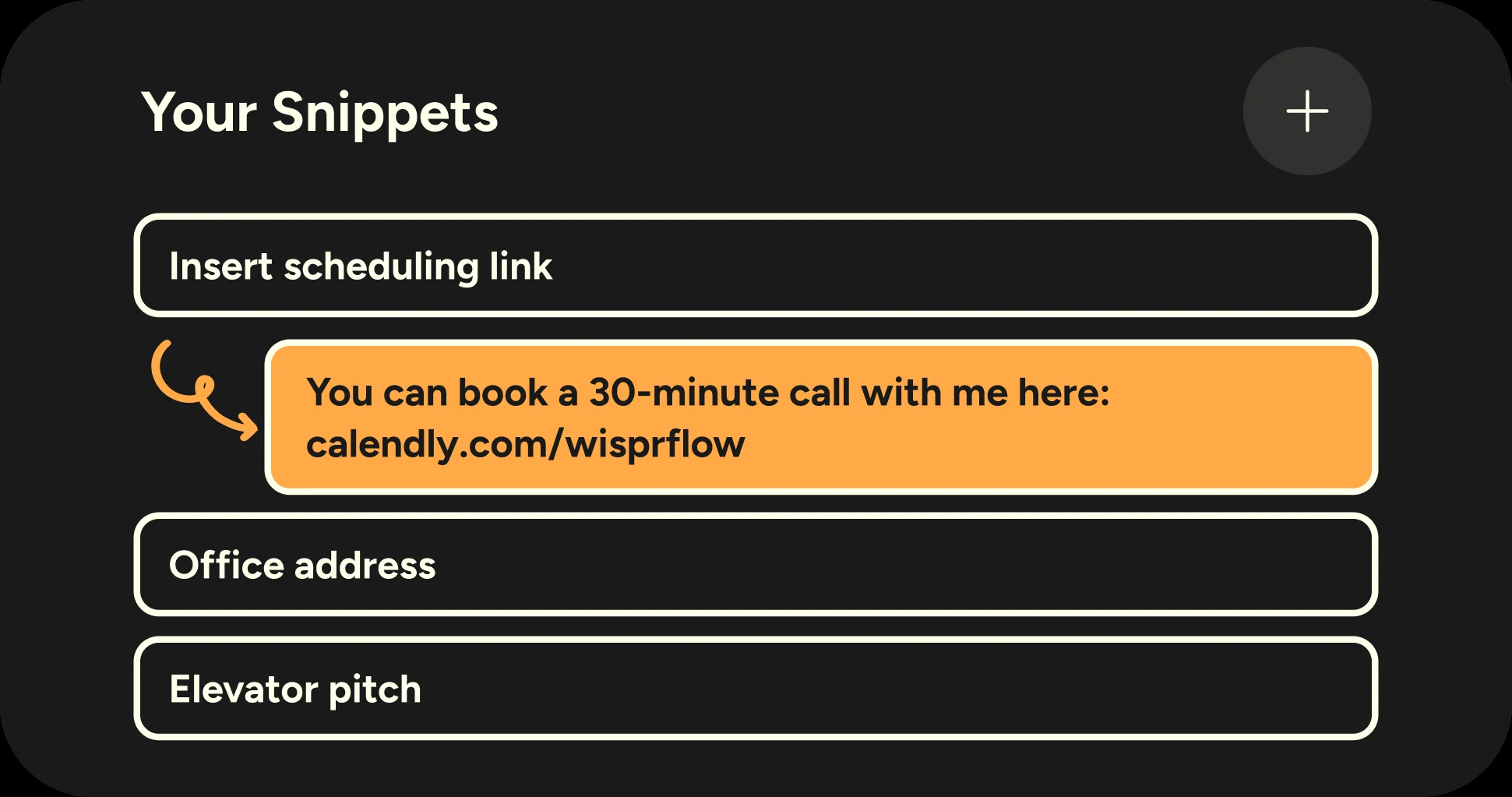
- Voice Snippets: Map short spoken cues—like “insert scheduling link” or “office address”—to full formatted blocks of text, links, or email templates.
- Synced transcripts and notes: Review your recent dictations and meeting notes across Chromebook, Googlebook, and Android from your account history.
- Free and Pro plans: Start with Flow Basic for free with a weekly word limit, or upgrade to Flow Pro for unlimited dictation and advanced formatting styles.
Troubleshooting Wispr Flow on ChromeOS
If Wispr Flow does not record audio, paste text, or stay active in the background on your Chromebook or Googlebook, try these quick fixes:
- Microphone not detecting voice: Open ChromeOS Settings > Apps > Manage your apps > Wispr Flow > Permissions and verify that Microphone is enabled. Check the ChromeOS quick settings audio menu to confirm the right input device is selected.
- Floating mic bubble not appearing: Open ChromeOS Settings > Apps > Manage your apps > Wispr Flow > More settings and permissions, and make sure Display over other apps is turned on.
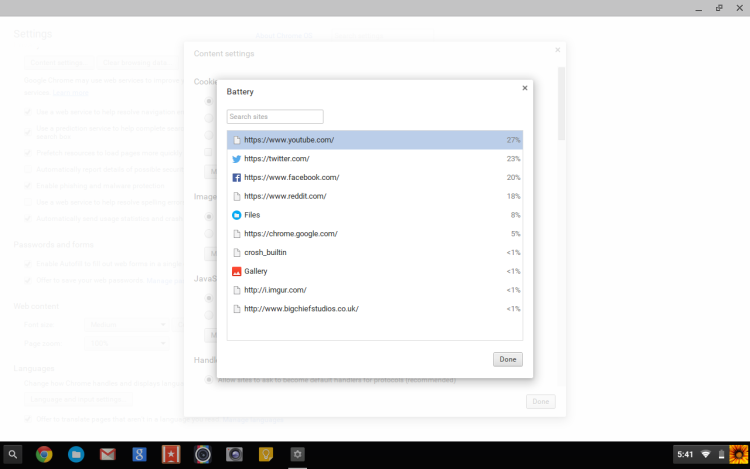
- App closes in the background: Under the same app settings page, open Battery and set background usage to Unrestricted so ChromeOS does not pause the service while you switch windows.
- Bluetooth headset mic issues: Disconnect and reconnect your Bluetooth earbuds, or switch the input source back to the built-in laptop microphone if audio sounds muffled.
- App freezes or sign-in loops: Clear the app cache in ChromeOS Settings > Apps > Manage your apps > Wispr Flow > Storage > Clear cache, then relaunch the app.
Frequently asked questions about Wispr Flow on Chromebook and Googlebook
Is Wispr Flow free to use on Chromebook and Googlebook?
Yes. Wispr Flow offers a free Flow Basic plan with a weekly word allowance, custom dictionary support, and over 100 languages. If you dictate heavily every day, Flow Pro removes word limits and adds unlimited access across your devices.
Does Wispr Flow require a Chrome extension on ChromeOS?
No. Wispr Flow does not use a separate Chrome browser extension on ChromeOS. You install the official Android app from Google Play on your Chromebook or Googlebook, or cast the app from your Android phone on Googlebook.
How do I cast Wispr Flow from my Android phone to Googlebook?
Open the Phone Hub from the bottom-right shelf of your Googlebook and make sure your Android phone is linked. Click Cast My Apps, then select Wispr Flow to open your phone session in a desktop window without re-entering your login details.
Why is Wispr Flow not picking up my microphone on Chromebook?
Open ChromeOS Settings, go to Apps, select Manage your apps, choose Wispr Flow, and open Permissions to confirm Microphone access is allowed. Also check the ChromeOS quick settings audio panel to make sure the right internal or headset mic is selected.
Can Wispr Flow sync my custom dictionary across devices?
Yes. Any custom names, technical terms, acronyms, and voice snippets you save to your Wispr Flow account sync automatically across your Chromebook, Googlebook, and Android phone whenever you sign in with the same account.
Companion writing, AI, and accessibility guides
Pair Wispr Flow with these writing, note-taking, and AI tools on your Chromebook or Googlebook:
- Built-in and third-party accessibility tools: Explore screen readers, voice typing helpers, and focus utilities in our 15 Best Chromebook Accessibility Apps & Tools guide.
- AI writing and research assistant: Speak long prompts with Wispr Flow and paste them straight into your workspace by learning How to Install and Use ChatGPT on Chromebook and Googlebook.
- Grammar and tone polishing: Double-check spelling, clarity, and style on your dictated drafts with our walkthrough for Grammarly on Chromebook and Googlebook.
- Audio-synced class and meeting notes: Organize handwritten sketches, PDFs, and recorded lectures alongside your transcripts by setting up Notability on Chromebook and Googlebook.
Discover more from Chrome Geek
Subscribe to get the latest posts sent to your email.