How to Install and Use ChatGPT on Chromebook and Googlebook
 by
Juniya Sankara
Post Updated: November 18, 2026
You can install and use ChatGPT on Chromebook and Googlebook through the official Android app from Google Play or directly in Chrome at chatgpt.com. OpenAI’s conversational assistant helps you draft emails and essays, write and debug code, summarize PDFs, generate images, and search live web sources on your laptop.
Googlebook runs Android apps natively via Google Play alongside instant phone-app casting from the Phone Hub. This guide covers Google Play installation, pinning the Chrome web app, using ChatGPT Search, Canvas, and Advanced Voice Mode, and fixing common ChromeOS issues.
Need help setting up ChatGPT? Contact us with your laptop model and any sign-in or app questions.

How to install ChatGPT on Chromebook and Googlebook
Installing the official ChatGPT app from Google Play takes less than a minute and gives you a standalone window with voice input and synced chat history:
The official Google Play listing identifies OpenAI’s app under the package ID com.openai.chatgpt. Checking the developer name and package identifier helps you avoid third-party lookalike clones in the Play Store.
If the Play Store is not enabled on your laptop yet, follow Google’s Android app setup guide for Chromebook or the guide on installing apps on Googlebook. Note that school or workplace administrators sometimes restrict Google Play downloads on managed devices. Because OpenAI does not distribute a native Debian Linux (.deb) desktop client, anyone without Play Store access can open chatgpt.com directly in Google Chrome for the complete widescreen experience.
Cast ChatGPT from your phone on Googlebook
If you already have an active ChatGPT conversation, uploaded camera photo, or custom voice thread open on your Android phone, Googlebook’s Cast My Apps feature lets you stream that mobile session straight onto your laptop screen. Open the Phone Hub from the bottom-right corner of your Googlebook shelf, select Cast My Apps, and tap ChatGPT. Your phone’s active app window appears in a movable desktop window so you can type follow-up prompts with your laptop keyboard and copy responses without signing in again or transferring files.
ChatGPT Web (chatgpt.com) vs. Android app: choosing your ChromeOS setup
On Chromebooks and Googlebooks, you can run ChatGPT in Google Chrome, as a pinned Progressive Web App (PWA), or as the Google Play Android app. All three stay in sync with your OpenAI account:
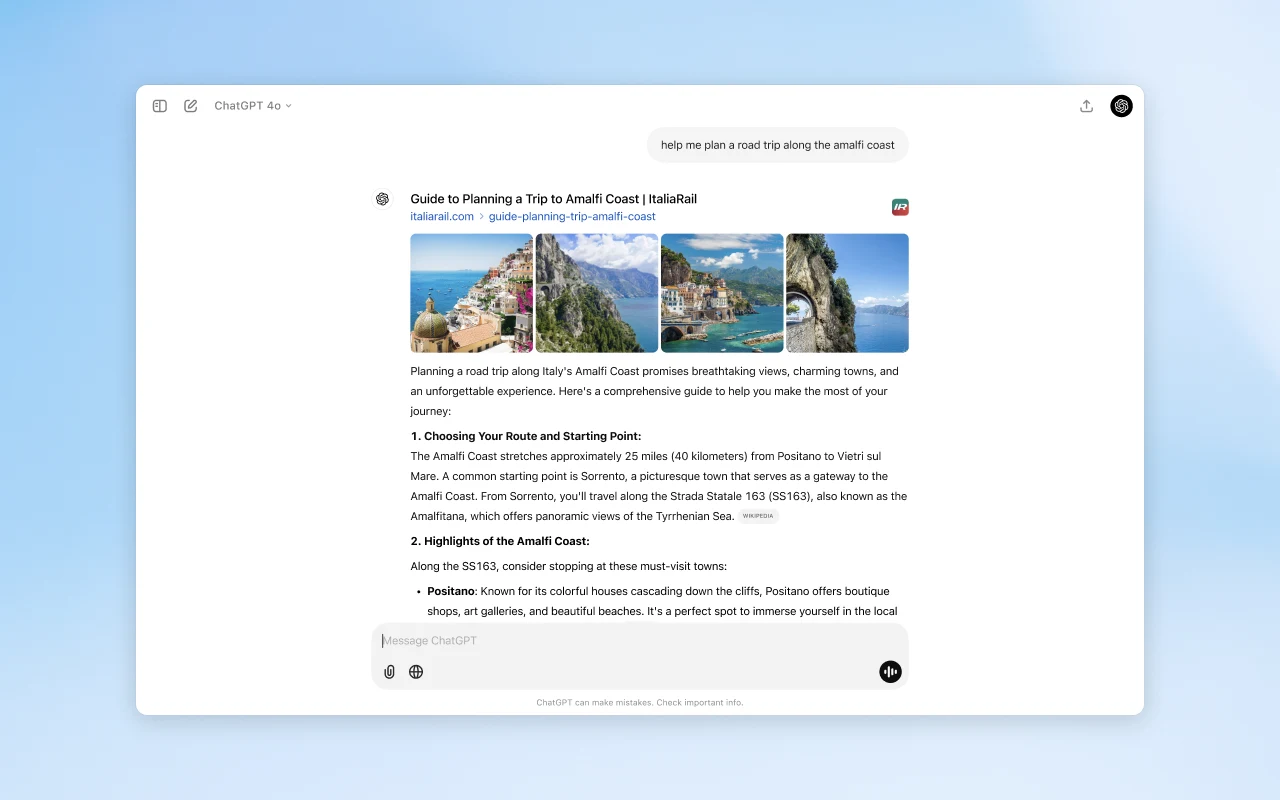
Using ChatGPT Search, Canvas editing, and coding tools
A laptop screen gives you room to pair conversational prompts with live web citations, side-by-side document revisions, and code debugging:
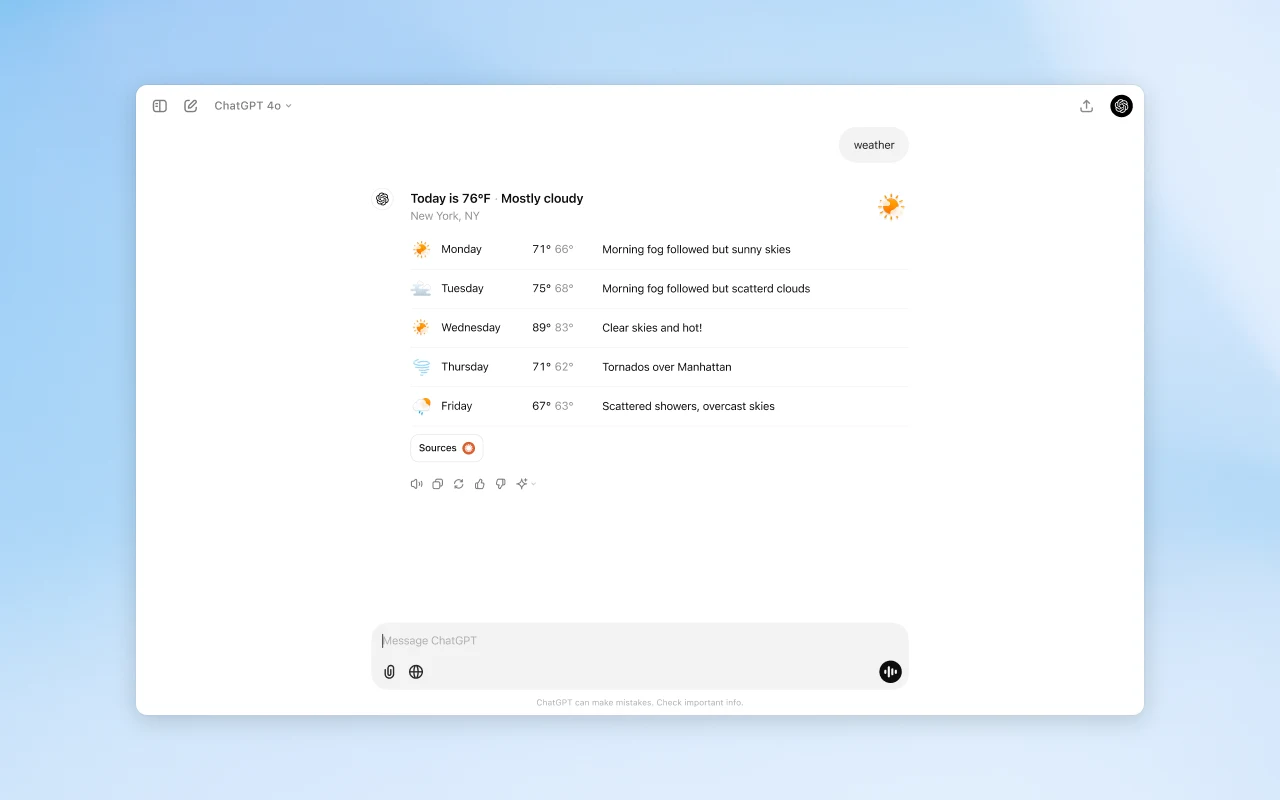
- Live ChatGPT Search with cited sources: Click the Search globe icon in the prompt bar to look up current news, weather, sports scores, product comparisons, or technical documentation. Click the Sources button beneath any reply to inspect the linked web pages in a side panel.
- Canvas for side-by-side writing and code: On widescreen displays, ask ChatGPT to open a draft or script in Canvas. Your document or code opens in a dedicated right-hand editor where you can highlight specific paragraphs, adjust reading levels, add inline comments, or fix bugs without regenerating the entire chat.
- Reasoning models for math, logic, and coding: Switch the top-left model selector to OpenAI’s reasoning mode when tackling multi-step math problems, algorithm architecture, Python or JavaScript debugging, and Linux terminal scripts.
- Keyboard shortcuts on chatgpt.com: Press Ctrl + Shift + O to start a new chat, Ctrl + Shift + S to toggle the history sidebar, and Ctrl + Shift + C to copy the latest code block or response.
Voice Mode, file uploads, Custom GPTs, and image generation
Beyond text prompts, ChatGPT works with your laptop microphone, local ChromeOS files, and Google Drive documents:
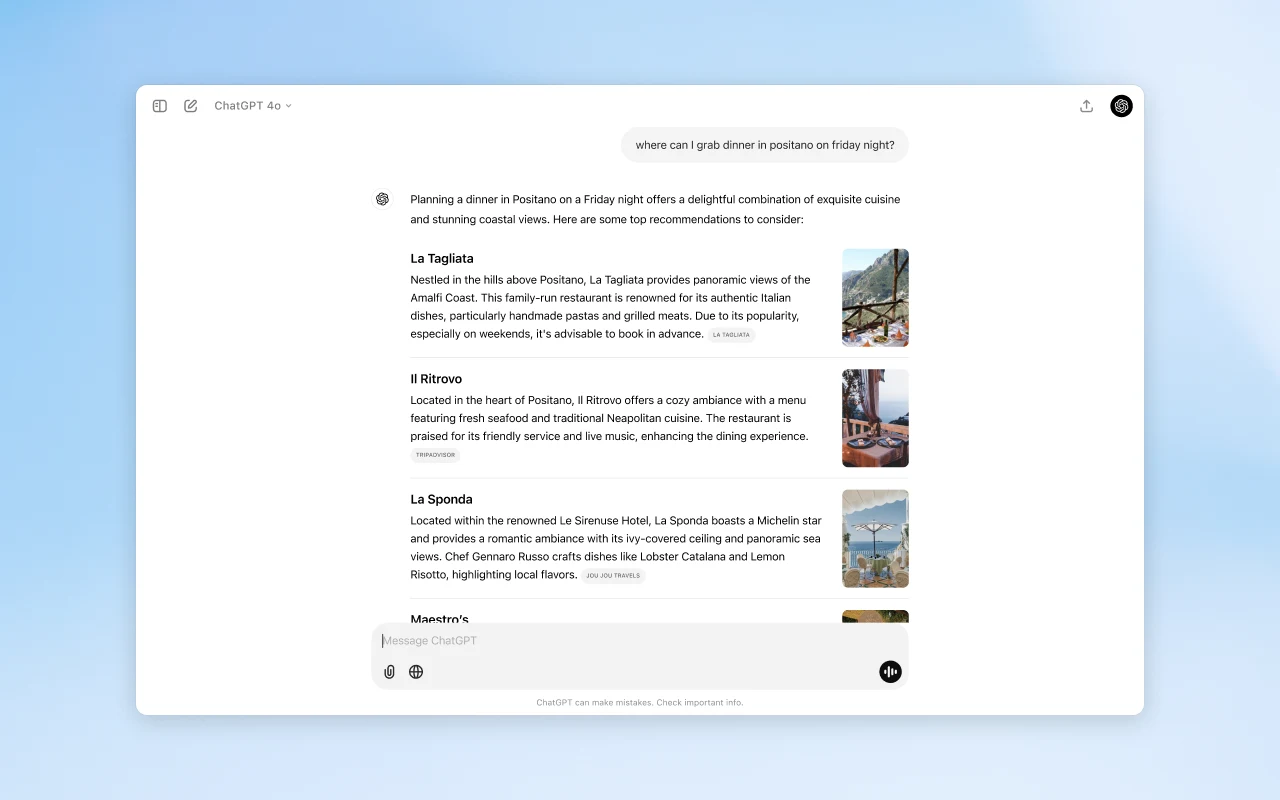
- Hands-free Voice Mode: Click the waveform icon on the right side of the prompt bar to talk out loud with ChatGPT. Use it to practice foreign languages, rehearse interview questions, or brainstorm ideas while taking notes in another window.
- PDF, spreadsheet, and image uploads: Click the attachment icon to upload files from your Chromebook’s Files app or connect directly to Google Drive. ChatGPT can summarize long PDFs, chart CSV spreadsheet numbers, and read screenshots or handwritten notes.
- Image creation and editing: Describe an illustration, diagram, or slide graphic in plain English to generate custom images right inside your conversation thread and download them to your local Downloads folder.
- Projects and Custom GPTs: Group related chats, reference files, and custom instructions inside Projects folders in your left sidebar, or browse the GPT Store for specialized study tutors, citation helpers, and coding assistants.
Troubleshooting ChatGPT on Chromebook and Googlebook
If ChatGPT stalls during login, stops streaming replies, or cannot access your microphone on ChromeOS, try these fixes:
- Login loop or verification screen stuck in Chrome: Strict script-blocking, ad-blocking, or VPN extensions can interrupt OpenAI authentication checks. Pause extensions on
chatgpt.comandauth.openai.com, ensure your ChromeOS clock is set to automatic time, and reload the tab. - Android app freezes or opens to a blank screen: Open ChromeOS Settings > Apps > Manage your apps > ChatGPT > Storage and click Clear cache, then relaunch the app.
- Voice Mode cannot hear your microphone: On the web app, click the tune/site-settings icon on the left of the Chrome address bar and set Microphone to Allow. For the Google Play app, check Settings > Apps > Manage your apps > ChatGPT > Permissions.
- File upload fails from Google Drive in the Files app: If an offline cloud shortcut fails to attach, copy the PDF or spreadsheet into your local Downloads folder first or connect Google Drive directly from the ChatGPT attachment menu.
- “Play Store disabled by administrator” on school or work laptops: Managed ChromeOS profiles frequently block Android app downloads. Open chatgpt.com in Google Chrome instead—no local installation is required.
Frequently asked questions about ChatGPT on Chromebook and Googlebook
Is ChatGPT free to install and use on Chromebook and Googlebook?
Yes. ChatGPT is free to install from the Google Play Store and free to open in Google Chrome at chatgpt.com. Free accounts include everyday writing and coding help, live ChatGPT Search, file and image uploads, Custom GPT browsing, and standard Voice Mode. Optional ChatGPT Plus and Pro plans unlock higher message limits, extended reasoning models, Canvas project workflows, and expanded Advanced Voice and image generation capacity.
Should I use the ChatGPT Android app or chatgpt.com in Google Chrome?
Both options connect to the same OpenAI account and sync your conversation history automatically. Opening chatgpt.com in Google Chrome (or installing it as a Chrome PWA) is best for physical keyboard workflows, side-by-side Canvas editing, and zero local storage usage. The Google Play Android app is great for 2-in-1 touchscreen convertibles and quick hands-free voice conversations.
How do I cast ChatGPT from my Android phone to Googlebook?
Open the Phone Hub from the bottom-right corner of your Googlebook shelf and confirm your Android phone is connected. Click Cast My Apps and select ChatGPT from the app list. Your phone’s active ChatGPT thread opens in a floating desktop window on your laptop screen so you can read answers, copy code snippets, or continue chatting without signing in again.
Can ChatGPT read PDFs, spreadsheets, and screenshots on a Chromebook?
Yes. Click the attachment icon in the ChatGPT prompt bar on either chatgpt.com or the Android app to upload PDFs, Word documents, CSV spreadsheets, code files, or screenshots from your ChromeOS Files app or Google Drive. You can ask ChatGPT to summarize long reports, extract tables, explain charts, or debug error messages.
Does ChatGPT work offline on ChromeOS?
No. ChatGPT processes prompts, live web searches, voice conversations, and document analysis on OpenAI cloud servers, so both the Google Play Android app and the chatgpt.com web app require an active Wi-Fi or mobile hotspot internet connection.
Companion AI and productivity guides for ChromeOS
Compare other AI assistants, writing tools, and browser add-ons that pair well with ChatGPT on Chromebook and Googlebook:
- Microsoft 365 AI companion: Draft documents, summarize web pages, and generate Designer images with our guide to Microsoft Copilot on Chromebook and Googlebook.
- Step-by-step math and coding reasoning: Explore DeepThink chain-of-thought reasoning and document analysis in DeepSeek on Chromebook and Googlebook.
- Real-time proofreading and tone checks: Polish essays, emails, and Google Docs drafts directly inside your browser using Grammarly on Chromebook and Googlebook.
- Side-panel Chrome summarizers: Compare top browser-aware assistants and YouTube transcript tools in our roundup of the Best AI Extensions for Chrome.
- Play Store hardware compatibility: Check whether an older laptop supports Google Play downloads in our list of Chromebooks that run Android apps.
Discover more from Chrome Geek
Subscribe to get the latest posts sent to your email.