Steam on Chromebook and Googlebook: How to Play in 2026
 by
Frank Cross
Post Updated: November 17, 2026
Native Steam support for Chromebooks ended on January 1, 2026, so you can no longer install and use the local Steam beta on Chromebook and Googlebook. Instead, cloud gaming services like NVIDIA GeForce NOW and Boosteroid let you stream your Steam library right in Chrome.
Googlebook also runs Android apps natively via Google Play alongside phone-app casting. This guide covers the shutdown, how to stream Steam games in the cloud, Steam Link setup, and Linux limits.
Need help setting up Steam Link or cloud gaming? Contact us with your laptop model and the games you play.

Stream on GeForce NOW →Get Steam Link on Google Play →Open Steam Store →
Is Steam still available on Chromebook and Googlebook? (2026 Shutdown Explained)
Google and Valve officially ended the Steam for Chromebook Beta (codenamed Project Borealis) on January 1, 2026. Searching for Steam Installer in the launcher no longer installs a native PC gaming client, and titles installed through that beta can no longer be launched locally on ChromeOS.
The native client was retired because local PC games demanded higher-tier Intel Core i3 or AMD Ryzen processors, 8 GB or more RAM, and 128 GB+ SSD storage, whereas most Chromebooks and Googlebooks prioritize battery life, quiet fanless designs, and fast browser performance. Today, cloud gaming is the standard way to play Steam games on both devices:
com.valvesoftware.steamlink) that streams Steam games over local Wi-Fi from a gaming PC you already own.
Best way to play Steam games on Chromebook and Googlebook: Cloud Gaming
Cloud gaming works well on both Chromebook and Googlebook because remote data-center servers handle all graphics rendering and game storage. Even lightweight or budget laptops can play demanding Steam releases at 1080p to 4K and smooth frame rates right inside Google Chrome without overheating or filling your SSD:
- NVIDIA GeForce NOW (
play.geforcenow.com): Links directly to your Steam account to sync and stream more than 2,000 supported games you already own, plus major free-to-play Steam titles like Counter-Strike 2, Apex Legends, and Dota 2. Choose between a free ad-supported tier and paid RTX membership tiers in Chrome or the Android app. - Boosteroid (
cloud.boosteroid.com): Connects to your Steam library directly in Google Chrome or its Android app to stream owned PC titles on remote hardware with no hourly playtime limits. - Xbox Cloud Gaming & Amazon Luna: Browser-first cloud gaming services that stream console and PC catalogs smoothly on Chromebook and Googlebook if you want an all-in-one subscription library alongside Steam.
- How to link your Steam library: Open GeForce NOW or Boosteroid in Chrome, sign in to your account, visit Settings > Connections, connect your Steam profile, and click Sync. Your supported Steam games appear automatically so you can launch them with a controller or mouse and keyboard.
How to install Steam Link and Steam Mobile on Chromebook and Googlebook
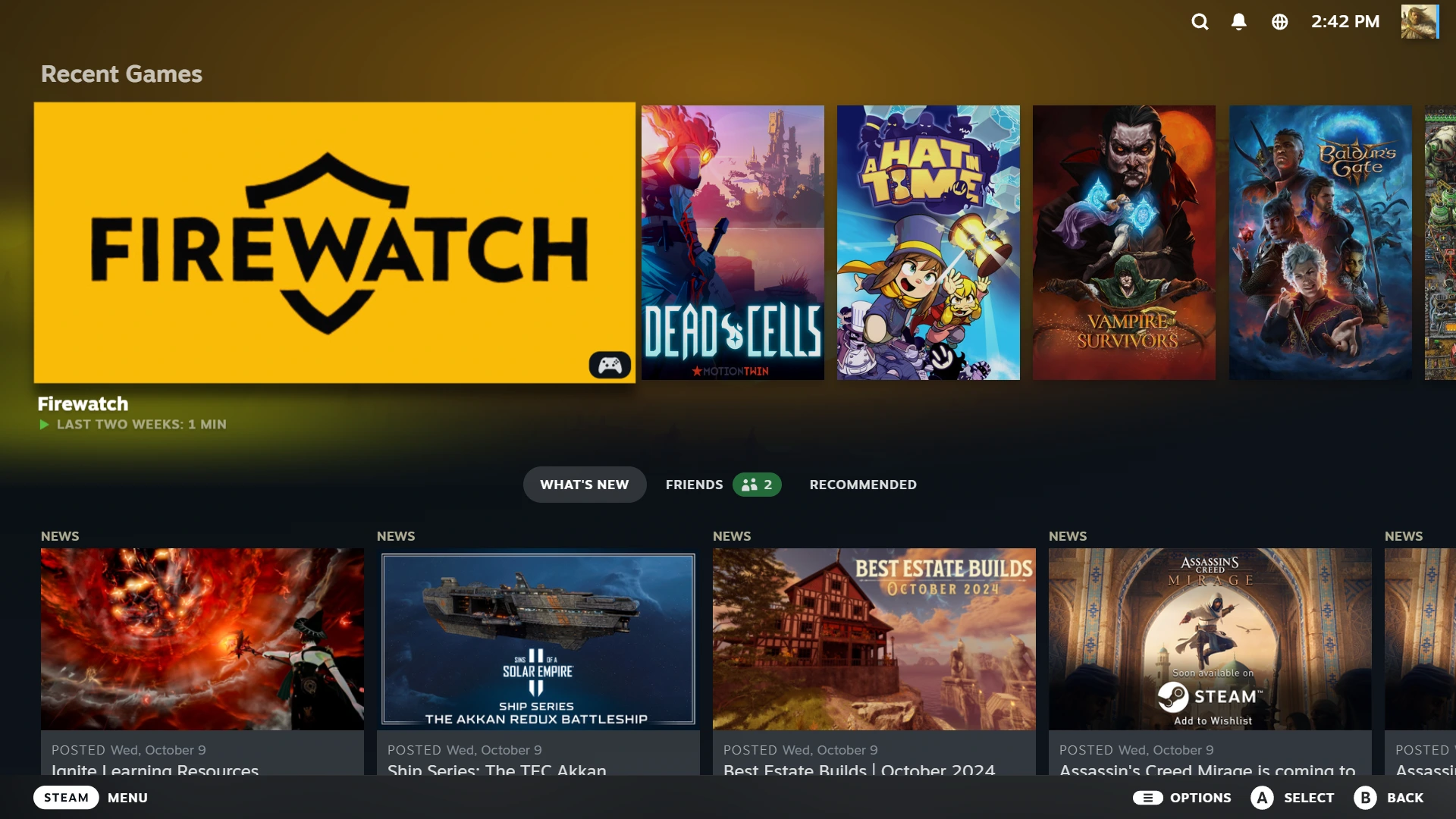
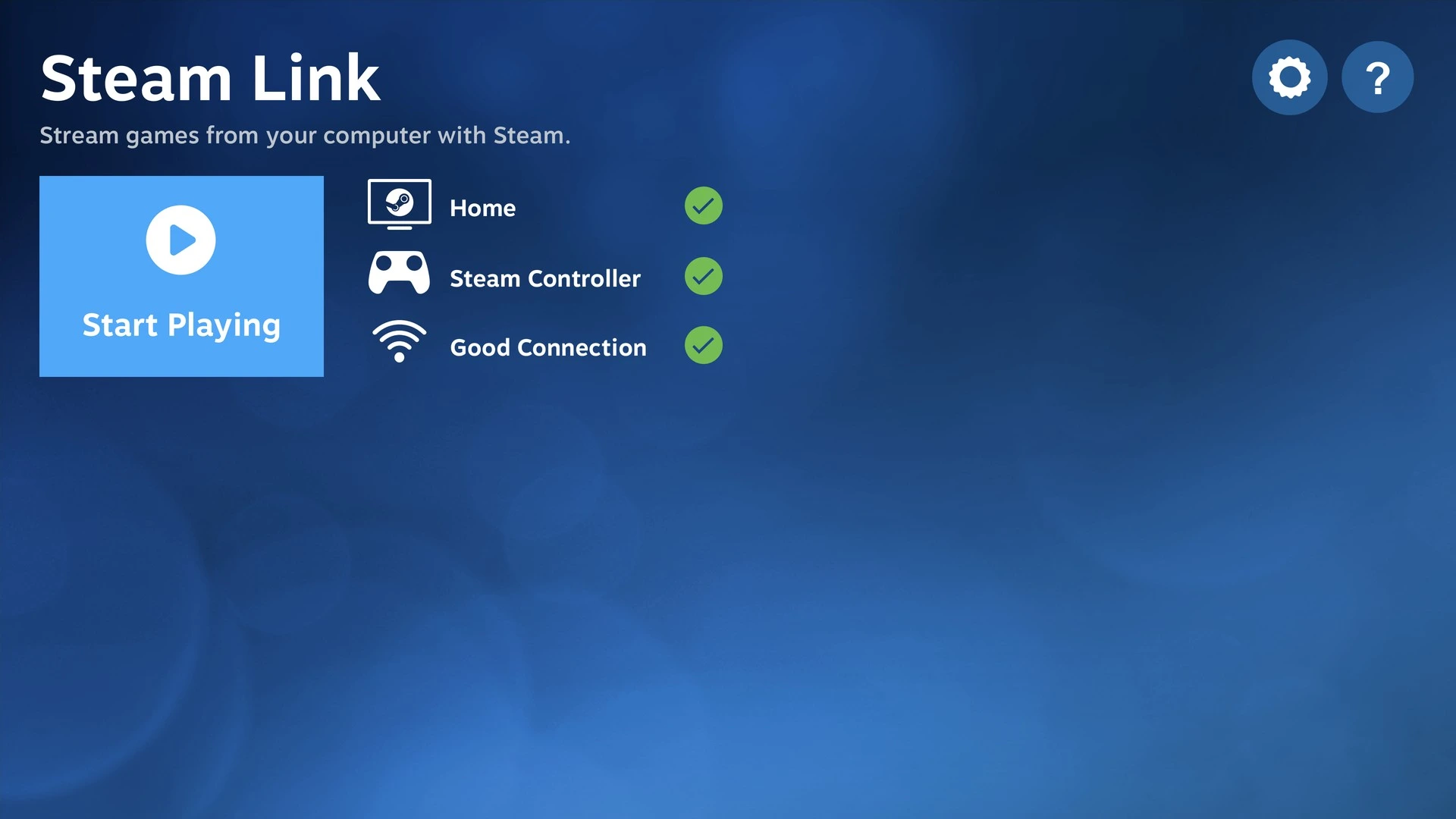
If you already own a Windows, Mac, or Linux gaming PC at home, Valve offers two official apps on Google Play: Steam Link streams your PC’s Steam library over your home network for free, and Steam Mobile lets you browse sales, chat with friends, and approve Steam Guard sign-ins:
On Google Play, Steam Link uses the package identifier com.valvesoftware.steamlink, while the official Steam Mobile app uses com.valvesoftware.android.steam.community.
If the Play Store is not enabled on your laptop yet, check Google’s Android app setup guide for Chromebook or the guide on installing apps on Googlebook. School or workplace administrators may restrict Play Store downloads and gaming sites, though you can always browse store.steampowered.com directly in Google Chrome.
Cast Steam Mobile from your phone on Googlebook
If you already use Steam Mobile on your Android phone for Steam Guard codes, wishlist alerts, or friend chat, Googlebook’s Cast My Apps feature lets you open that active phone app straight onto your laptop screen. Open the Phone Hub in the bottom-right corner of your Googlebook shelf, select Cast My Apps, and choose Steam to approve two-factor logins or browse store deals in a desktop window without signing in again.
Can you still install Steam via Linux (Crostini) on a Chromebook?
Although some older guides suggest enabling the ChromeOS Linux development environment (Crostini) and running sudo apt install steam, that workaround comes with major drawbacks now that Borealis has ended:
- No Borealis GPU optimizations: Standard ChromeOS Linux runs inside a virtualized container without the custom graphics drivers and Vulkan plumbing that powered the Steam for Chromebook Beta, leading to poor frame rates in 3D games.
- Intel and AMD x86_64 laptops only: The Debian Linux Steam client requires an x86_64 Intel Core i3/i5 or AMD Ryzen processor with at least 8 GB of RAM; ARM-based MediaTek and Snapdragon laptops are not supported.
- Restricted to lightweight 2D indie titles: Only older 2D games and low-demand native Linux releases run acceptably, while modern 3D and AAA games regularly stutter or fail to launch.
- Heavy local storage usage: Setting up Linux and installing PC games locally quickly consumes 30 GB to 100 GB+ of internal storage that cloud gaming saves completely.
Tips for smooth Steam cloud gaming and controller setup on ChromeOS
Whether you stream Steam titles through GeForce NOW, Boosteroid, or Steam Link, a few quick tweaks keep input lag low and video sharp:
- Use 5 GHz Wi-Fi, Wi-Fi 6/7, or USB-C Ethernet: A fast 5 GHz wireless band or wired USB-C Ethernet adapter minimizes packet loss and keeps cloud frame pacing steady.
- Install cloud services as Chrome PWAs: Click the Install icon in the Google Chrome address bar on
play.geforcenow.comorcloud.boosteroid.comto launch your cloud library in a dedicated app window without browser tabs. - Connect Xbox, PlayStation DualSense, or USB gamepads: Wired USB-C controllers deliver the lowest latency, while Bluetooth controllers pair quickly from ChromeOS Quick Settings.
- Close heavy background tabs and pause VPNs: Routing traffic through a VPN adds latency to cloud streams, and closing unused video or download tabs frees up decoding memory.
- Use full-screen mode for mouse and keyboard games: Press the full-screen key at the top of your keyboard so the ChromeOS shelf and top bar do not interrupt camera turns in shooters and action games.
Frequently asked questions about Steam on Chromebook and Googlebook
Why is the Steam Installer no longer working on my Chromebook?
Google and Valve officially ended the Steam for Chromebook Beta (codenamed Borealis) on January 1, 2026. Because the native client has been discontinued, searching for Steam Installer in the launcher no longer installs Steam, and games installed during the beta can no longer run locally on ChromeOS.
Can I still play my Steam games on a Chromebook and Googlebook?
Yes. The standard way to play Steam games on both Chromebook and Googlebook today is through cloud gaming services like NVIDIA GeForce NOW and Boosteroid, or by streaming games from a home gaming PC over your local network using the Steam Link app from Google Play.
Does NVIDIA GeForce NOW work with my existing Steam library on ChromeOS?
Yes. You can connect your Steam account inside GeForce NOW settings and sync your library directly in Google Chrome or the Android app. Supported games you already own on Steam, along with popular free-to-play Steam titles, stream from NVIDIA servers straight to your laptop.
What is the difference between Steam Link and cloud gaming on Chromebook?
Cloud gaming services such as GeForce NOW and Boosteroid run your Steam games on remote data-center hardware over the internet, so you do not need a gaming PC at home. Steam Link is a free Valve app that streams games over your home Wi-Fi or Ethernet from a Windows, Mac, or Linux PC you already own.
Is installing Steam through Linux on ChromeOS still worth it?
For most users, no. Installing the standard Linux Steam package inside ChromeOS Crostini lacks the retired Borealis graphics optimizations, requires an Intel Core i3 or AMD Ryzen processor with at least 8 GB of RAM, consumes 30 GB to 100 GB+ of storage, and only runs lightweight 2D indie games reliably.
Companion cloud gaming and Chromebook gaming guides
Set up cloud gaming platforms and pick high-refresh-rate hardware for streaming your Steam library across ChromeOS:
- Top Steam cloud streaming: Sync your existing Steam library and play PC games up to 4K with our setup walkthrough for NVIDIA GeForce NOW on Chromebook.
- Unlimited cloud sessions: Stream your Steam and Epic PC titles right inside Google Chrome by following our guide to Boosteroid Cloud Gaming on Chromebook.
- Console cloud library: Play Game Pass titles in your browser alongside your PC library with our Xbox Cloud Gaming on Chromebook guide.
- Browser cloud alternative: Check game channels, controller tips, and Prime perks in our walkthrough for Amazon Luna on Chromebook.
- Gaming laptop hardware: Upgrade to 120Hz or 144Hz displays and fast Wi-Fi for low-latency streams in our roundup of the best Chromebooks for gaming.
Discover more from Chrome Geek
Subscribe to get the latest posts sent to your email.