Gemini Can Now Make Its Own GIFs With Omni 1.2 Flash
 by
Sophie Sullivan
Post Updated: November 22, 2026
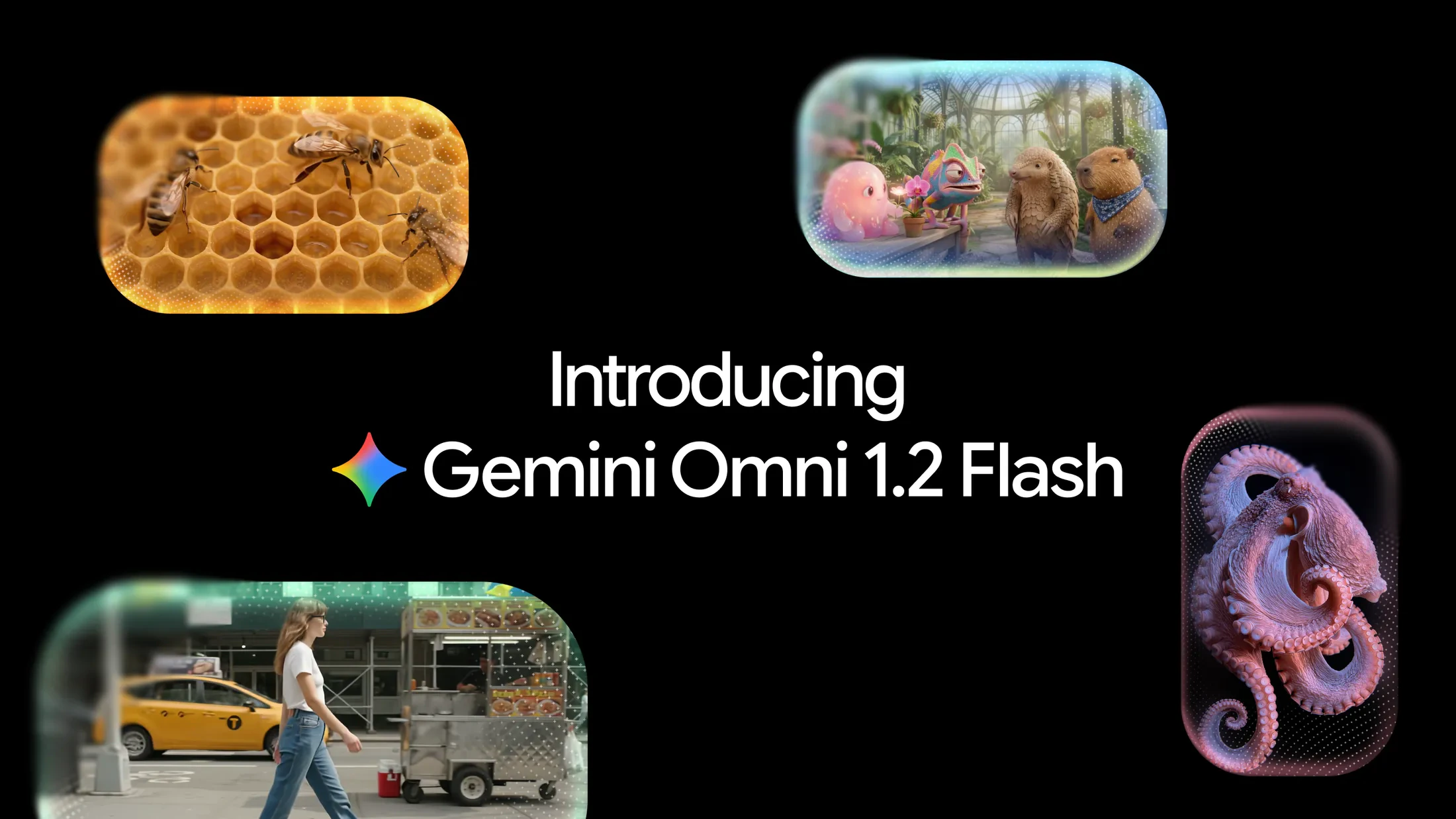
The Gemini app can now create animated GIFs from a short text prompt, your own photos or a video clip. Google announced the feature on the Gemini app’s X account on November 20, and it runs on Gemini Omni 1.2 Flash, Google’s latest video model. Each GIF loops for about three seconds and can be copied straight into a chat, an email or a doc.
1. How GIF creation works
Make it, don’t search for it: Google pitches GIFs in Gemini as an alternative to digging through GIF search. You describe what you want, such as a looping photo effect or a meme, and Gemini builds it.
Short loops: Google’s help page says GIFs are about three seconds long. When one is ready, you can copy and paste it into many apps, where it shows up as an animated GIF, or download it as a .gif file.
Edit with a follow-up: just like Gemini videos, you can keep refining a GIF in the same chat with another prompt, for example to swap an object or change the scene.
2. Who can use it
Worth knowing: Google’s post says GIFs come at no extra charge for all Google AI subscribers. Free Gemini accounts are not listed, so if you do not see the GIF option, check your plan first. Google also says the rollout is gradual, so it may take a few days to reach you.
3. How to make a GIF on a Chromebook
- Open Chrome and go to gemini.google.com.
- Open the sidebar and pick Create video, or type “Create a GIF of…” in a normal chat.
- Choose GIF in the format picker.
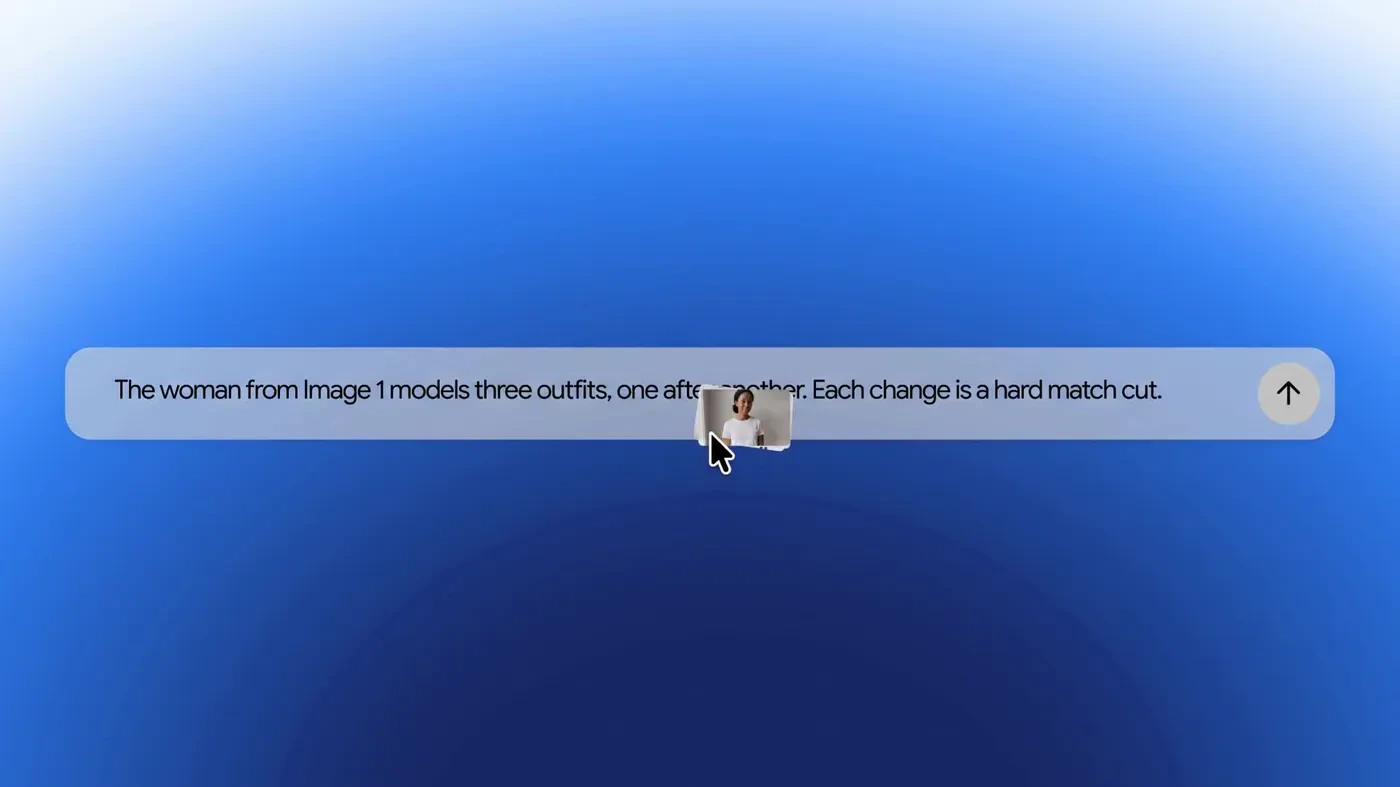
- Describe your GIF. To animate your own pictures, click Add image or Add video (up to five images or one video).
- Submit and wait. It can take a few minutes, and you can start a new chat while it works.
- Copy the GIF to paste it, or download it as a .gif file.
New to Omni? Our Gemini Omni 1.2 Flash explainer covers what the model can do, including 15-second videos and multi-turn edits.
4. Gemini’s camera also gets a redesign on Android
A slicker viewfinder: as 9to5Google spotted, the camera you open from the plus menu in Gemini for Android is now a bottom sheet that sits inline on the home screen or in a chat. You can drag it up to fill most of the screen, and a menu next to the shutter holds the flash and front camera controls.
Who has it: it launched on iOS first and is now widely available on Android in version 17.76 and later. The camera you open from the Gemini overlay still uses the old design. This one is a phone feature, so it does not change Gemini on the web.
Our take
GIFs sound like a small thing, but they may be one of the most used Gemini tools for everyday people, since a custom reaction GIF is far more fun than the tenth result in GIF search. It also works fully in the browser, which makes it an easy win for Chromebook and Googlebook owners. The catch is the paywall, so free users will have to keep searching for now.
Want more Google AI video tools? See Flow’s five new AI tools and Genie 4 in Project Genie.
Discover more from Chrome Geek
Subscribe to get the latest posts sent to your email.