How to Install and Play Warframe on Chromebook and Googlebook
 by
Joseph Vance
November 21, 2026
You can install and play Warframe on Chromebook and Googlebook through the official Android app on Google Play or by streaming the PC version in Google Chrome via GeForce NOW and Boosteroid. Developed by Digital Extremes, this free-to-play sci-fi action RPG lets you master more than 57 bio-metal Warframes and team up in four-player co-op missions across the Origin System.
Googlebook runs Android games natively from Google Play alongside instant phone-app casting. This guide covers Google Play installation, cloud streaming routes, Cross Platform Save linking, controller and keyboard setup, graphics tuning, and quick fixes.
Need help getting into the Origin System? Contact us with your laptop model and any setup questions.
Get on Google Play →Play on GeForce NOW →Visit Official Site →
How to install and play Warframe on Chromebook and Googlebook
Installing Warframe from Google Play gives you the native Android client on your laptop. Make sure you have a 64-bit Chromebook or Googlebook with at least 4 GB of RAM (8 GB recommended) and 14 GB to 16 GB of free storage space before starting the download:
The official Google Play listing distributes Warframe under the package identifier com.digitalextremes.warframemobile. Installing through Google Play ensures you receive hotfixes, Prime Access updates, and new story quests in step with PC and console players.
If the Play Store is not active on your laptop, check Google’s Android app setup guide for Chromebook or the guide on installing apps on Googlebook. On school or workplace laptops, administrator policies may restrict Play Store downloads. If your device has limited local storage or managed restrictions, you can also stream the full PC edition directly inside Google Chrome using the cloud gaming services covered below.
How to play Warframe on Googlebook from your phone (Cast My Apps)
If Warframe is already installed and patched on your Android phone, you can jump into your Orbiter on a larger screen right away without waiting for a second 15 GB download. Googlebook’s Cast My Apps feature mirrors your phone’s live session onto your laptop display. Open Phone Hub in the bottom-right corner of your Googlebook shelf, click Cast My Apps, and select Warframe to claim finished Foundry weapons, check Baro Ki’Teer’s Void Trader inventory, or run quick alerts in a movable desktop window.
Cloud streaming routes: play Warframe in Chrome via GeForce NOW or Boosteroid
Because Warframe is a visually rich 3D action game, ChromeOS players have two great ways to play: running the native Android app locally or streaming the full Windows PC build in a browser tab. Here is how the main routes compare:
- Setting up GeForce NOW in Chrome: open play.geforcenow.com in Google Chrome, sign in with a free or paid NVIDIA account, search for Warframe, and choose either the standalone Digital Extremes launcher or Steam to start playing immediately.
- Best route for budget Chromebooks: if your laptop has 4 GB of RAM or 32 GB to 64 GB of eMMC storage, cloud streaming via GeForce NOW or Boosteroid lets you experience maximum PC graphics settings without filling up your local drive.
- Seamless switching between cloud and local: once you enable Cross Platform Save on your Warframe account, you can play with keyboard and mouse on GeForce NOW at home and switch to the local Google Play app with a controller when traveling.
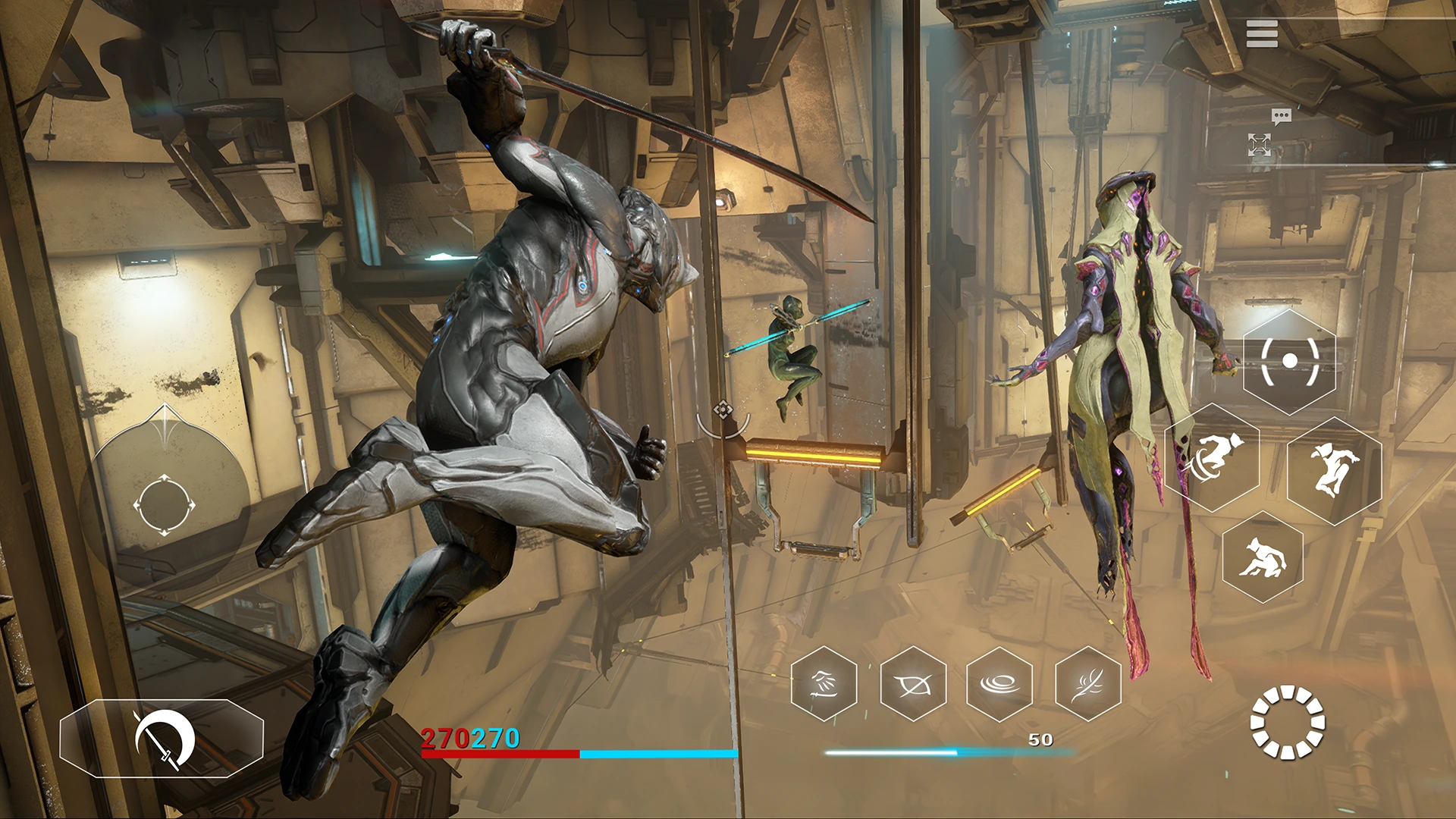
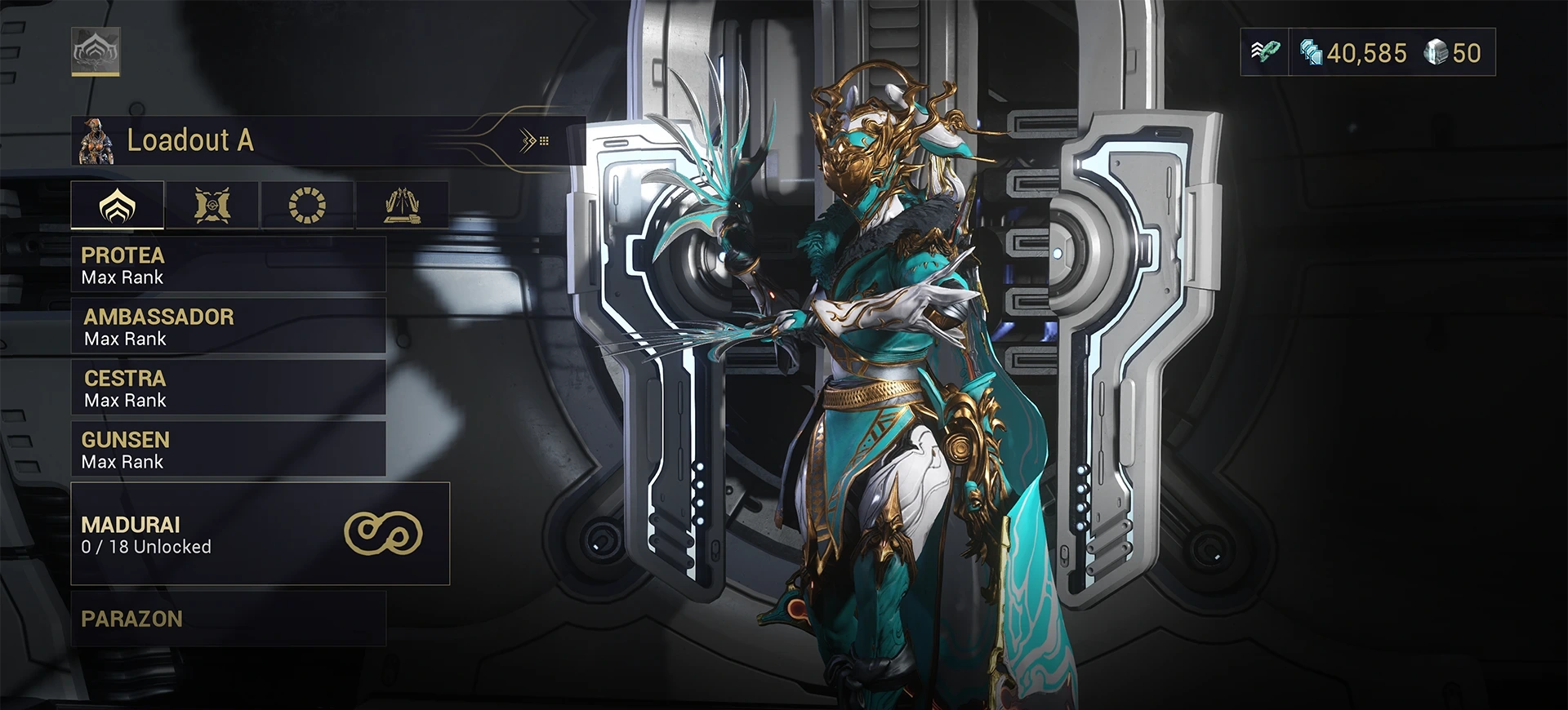
Co-op Origin System missions, 57+ Warframes, and Cross Platform Save
The Google Play version of Warframe is not a watered-down spin-off. It connects to the exact same live servers, story expansions, and co-op matchmaking pool as PC and console players:
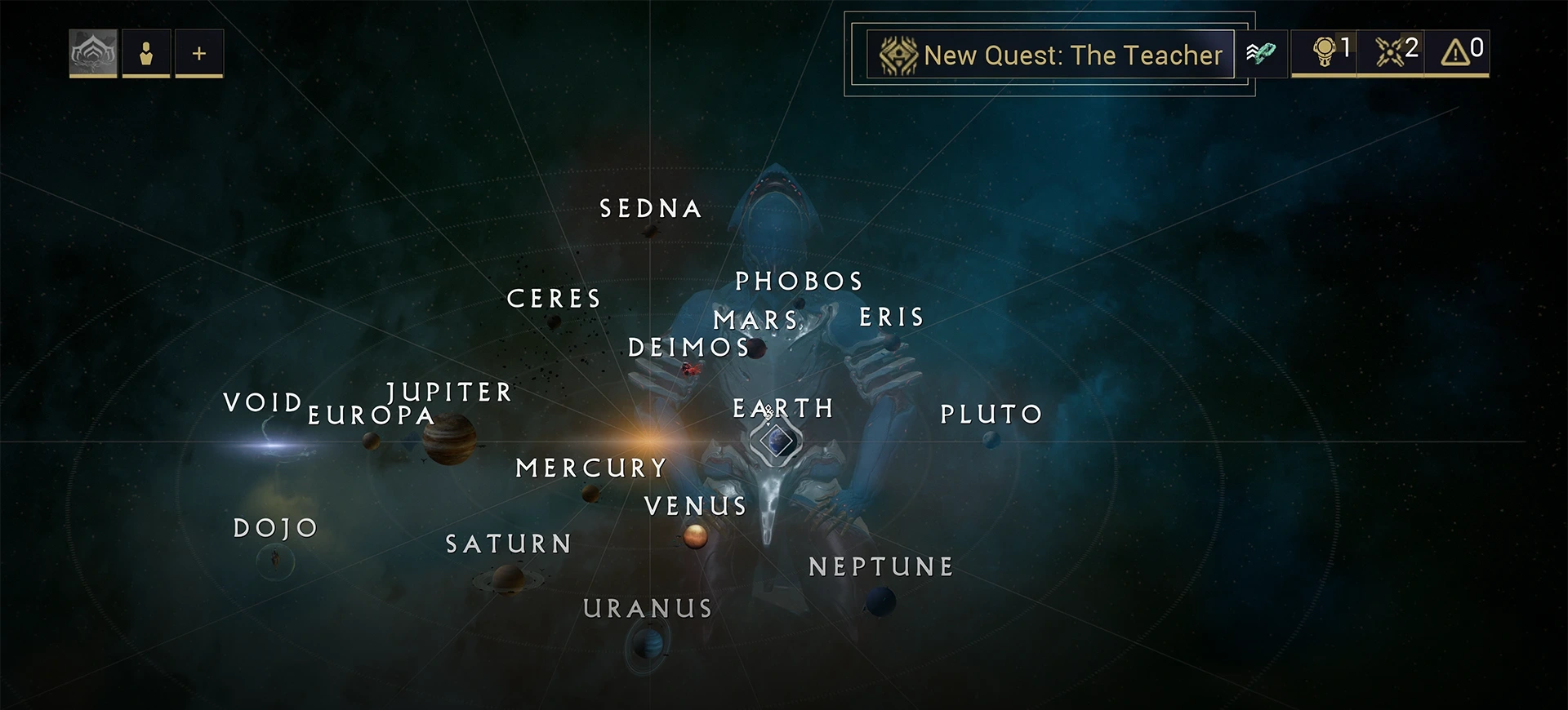
- Cinematic story quests: work your way across the Star Chart junctions to experience acclaimed narrative quests including The Second Dream, The War Within, The New War, The Duviri Paradox, and Whispers in the Walls.
- 100% free-to-play progression: every functional Warframe, weapon, companion, and story expansion can be earned by farming blueprints and resources in-game, and players can trade Prime parts with other Tenno for Platinum.
- How to link Cross Platform Save: sign into your primary account at
warframe.com, open Account Management, and link your Google Play account so your PC, console, and Chromebook sessions share one unified inventory.
Controller, keyboard, and graphics tips for Chromebook and Googlebook
Fast movement, bullet-jumping, and aim-gliding are central to Warframe combat. Choosing the right input method and display settings makes a big difference on ChromeOS:
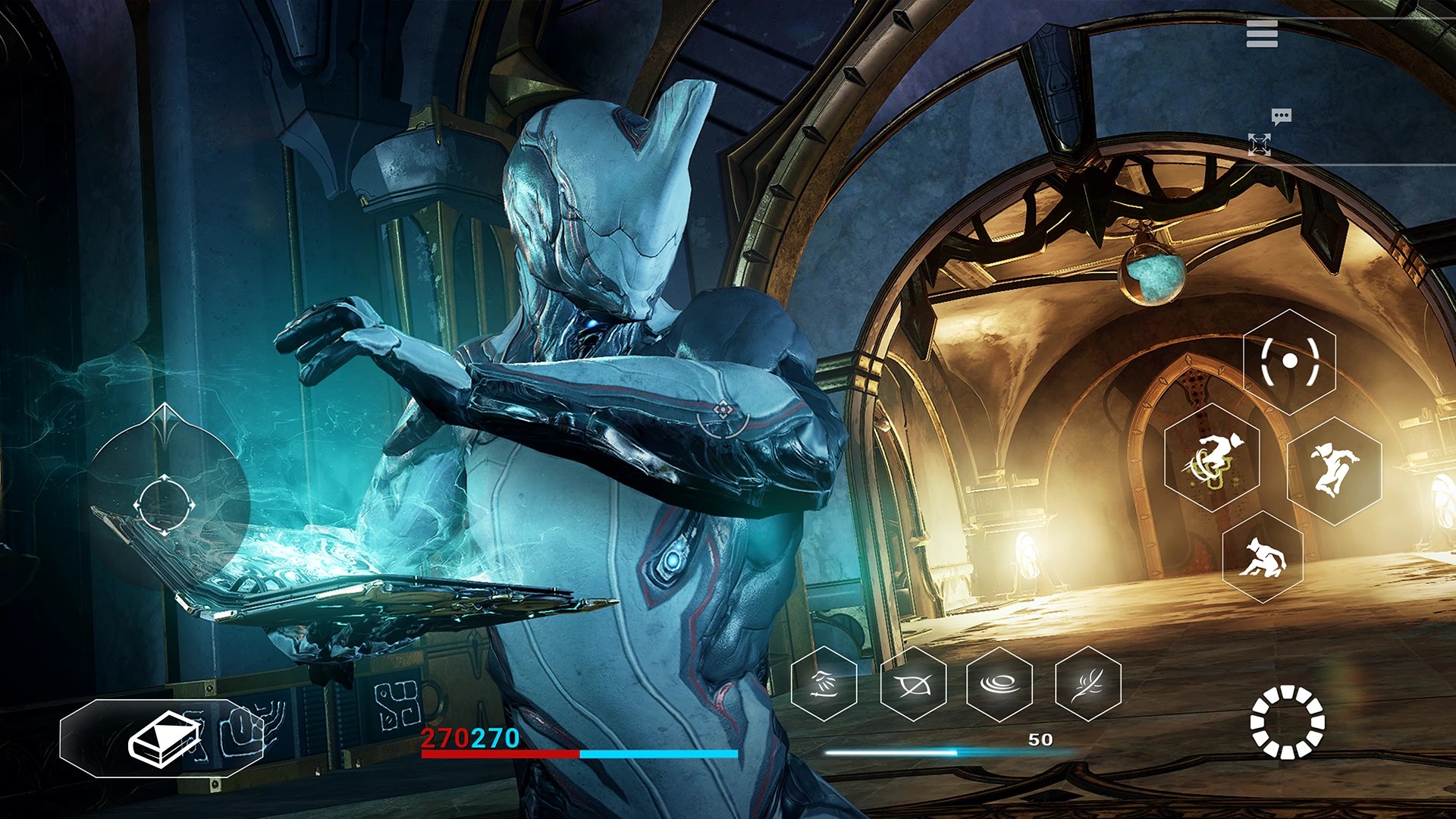
- Bluetooth or USB controller (recommended for Google Play): the Android version natively supports Xbox Wireless, Xbox Elite, PlayStation DualSense, and DUALSHOCK 4 gamepads. Once paired in ChromeOS Bluetooth settings, press any controller button in your Orbiter to switch the HUD to gamepad prompts, using the left bumper for crouch/slide bullet-jumps and the right bumper for the Ability Menu.
- Keyboard and mouse tips (Cloud vs. Android app): if you prefer classic PC keyboard-and-mouse controls (WASD movement, Ctrl + Space bullet-jumping, and raw mouse look), play Warframe through GeForce NOW or Boosteroid in Google Chrome. The Google Play Android app is built primarily for gamepads and touchscreens and does not provide full raw desktop mouse capture out of the box.
- Touchscreen & auto-attack assists: when playing on a 2-in-1 convertible Chromebook in tablet mode, enable automatic gunfire and auto-melee in the Touch Controls settings so you can focus on movement, dodging, and casting abilities.
- Graphics tuning for steady frame rates: in the Google Play app’s Video tab, turn on Dynamic Resolution, lower GPU Particle Quality and Shadow Quality to Medium or Low, and use a 30 FPS cap on battery or 60 FPS while plugged into USB-C wall power.
Troubleshooting Warframe on Chromebook and Googlebook
If the launcher stalls during patching, your controller does not register, or open-world hubs stutter on ChromeOS, apply these practical fixes:
- In-game patcher stops or reports insufficient storage: Warframe downloads several gigabytes of high-resolution mission assets after first launch. Clear old files in your ChromeOS Downloads folder and unused Android apps so at least 16 GB remains free, and keep the app window focused on stable Wi-Fi until patching completes.
- Controller inputs do not respond: connect your Xbox or PlayStation controller in ChromeOS Bluetooth settings before opening Warframe. If touch icons remain on screen, tap a face button or restart the app with the controller awake.
- Frame drops in open worlds (Plains of Eidolon or Duviri): open the in-game Options menu, lower GPU Particles, Bloom, and Distortions, enable Dynamic Resolution, and close background Chrome browser tabs to free up system RAM.
- Wrong account loaded instead of your main PC or console save: log out of the new mobile profile, sign into your main Warframe account at
warframe.com/userin Chrome, and complete the Cross Platform Save account link with your Google Play account before relaunching. - Black screen or crash on startup: open ChromeOS Settings > Apps > Manage your apps > Warframe > Storage & cache, click Clear cache (do not clear storage unless you want to re-download patches), and check Google Play for client updates.
Frequently asked questions about Warframe on Chromebook and Googlebook
Can you play Warframe on a Chromebook?
Yes. You can install the official Warframe Android app by Digital Extremes from the Google Play Store on supported Chromebooks, or stream the full PC version in Google Chrome through NVIDIA GeForce NOW and Boosteroid.
Does Warframe on Chromebook support Cross Platform Save and cross-play?
Yes. By linking your Google Play Warframe account with your PC, PlayStation, Xbox, Nintendo Switch, or iOS profile at warframe.com, your Mastery Rank, Warframes, Platinum, Mods, and quest progress stay synced across every platform.
Should I play Warframe via Google Play or GeForce NOW on ChromeOS?
The Google Play app runs locally on your Chromebook or Googlebook and includes helpful mobile features like optional auto-fire and touch or gamepad controls. GeForce NOW streams the desktop PC build in Chrome at up to 60 or 120 FPS with full keyboard-and-mouse support and zero local storage required.
Does Warframe support controllers and keyboard controls on Chromebook?
Yes. Both the Google Play app and cloud streaming services natively support Xbox Wireless, PlayStation DualSense, and DUALSHOCK 4 controllers over Bluetooth or USB. For full desktop keyboard-and-mouse aiming, streaming the PC version via GeForce NOW or Boosteroid works best.
Can I play Warframe on Googlebook?
Yes. You can download Warframe natively from Google Play on your Googlebook, stream it in Chrome via GeForce NOW, or use Cast My Apps in the Phone Hub to mirror your Android phone session onto your laptop display.
Companion gaming guides on ChromeGeek
Looking for more sci-fi action RPGs, open-world adventures, and capable hardware for ChromeOS gaming? Explore these related guides:
- Sci-fi squad strategy RPG: Command four-Operator teams and build automated frontier bases in our setup guide for Arknights: Endfield on Chromebook and Googlebook.
- Top role-playing picks: Discover more deep character progression and co-op loot games in our roundup of the Best RPG Games for Chromebook.
- Expansive worlds to explore: Find massive frontier maps and sandbox adventures in our guide to the Best Open-World Games for Chromebook.
- Gaming laptop upgrades: Compare ChromeOS laptops with 8 GB+ RAM, fast processors, and high-refresh screens in our guide to the Best Chromebooks for Gaming.
- Cross-platform social play: Jump into thousands of community-made action and multiplayer games with our walkthrough for Roblox on Chromebook and Googlebook.
Discover more from Chrome Geek
Subscribe to get the latest posts sent to your email.