How to Install and Play Roblox on Chromebook and Googlebook
 by
Juniya Sankara
Post Updated: November 14, 2026
You can install and play Roblox on Chromebook and Googlebook through the official Roblox app from Google Play. Roblox is a free platform with millions of games made by its community, from horror and racing to role-play and building, all on one account.
Googlebook runs Android apps natively through Google Play and can also cast the Roblox app from your phone. This guide covers installation, the status of Roblox in the Chrome browser, controls, parental controls and quick fixes.
Stuck on setup? Contact us with your laptop model and ChromeOS version details.

How to install Roblox on Chromebook and Googlebook
On ChromeOS, Roblox runs as an Android app. Install it once and every Roblox game opens inside it:
The official Google Play listing identifies Roblox under the package name com.roblox.client. Roblox updates through Google Play, so keep automatic app updates on to avoid version errors when you join a game.
If the Play Store is not enabled on your laptop, follow Google’s Android app setup guide for Chromebook or the guide on installing apps on Googlebook. On school or work Chromebooks, administrator controls decide whether Google Play and Roblox are allowed.
Can you play Roblox in the Chrome browser?
Not as a regular player yet. Roblox.com in Chrome lets you browse games, manage your account and shop for avatar items, but pressing Play sends you to the app. Roblox is testing an official browser player called Web Play. For now the test only lets creators run games they own, it lists Chrome on Windows, macOS and Android, and ChromeOS is not on that list. Roblox has said it plans to open Web Play to all players, so this may change. Until then, the Google Play app is the way to play on a Chromebook.
Be careful with websites that claim to run Roblox in your browser. Many are not run by Roblox, so never enter your Roblox password on a site other than roblox.com or the official app.
Cast Roblox from your phone on Googlebook
If Roblox is already set up on your Android phone, Googlebook’s Cast My Apps feature can show it on your laptop screen. Open the Phone Hub in the bottom-right shelf of your Googlebook, select Cast My Apps and tap Roblox. Your phone’s Roblox session opens in a window on the desktop, which is handy for checking messages or your avatar. For full keyboard and mouse play, install the app from Google Play.
Finding games to play on Roblox
Every Roblox experience is made by a creator or studio, so the range is huge. Horror, survival, pet raising, racing, shooters and role-play all sit side by side:
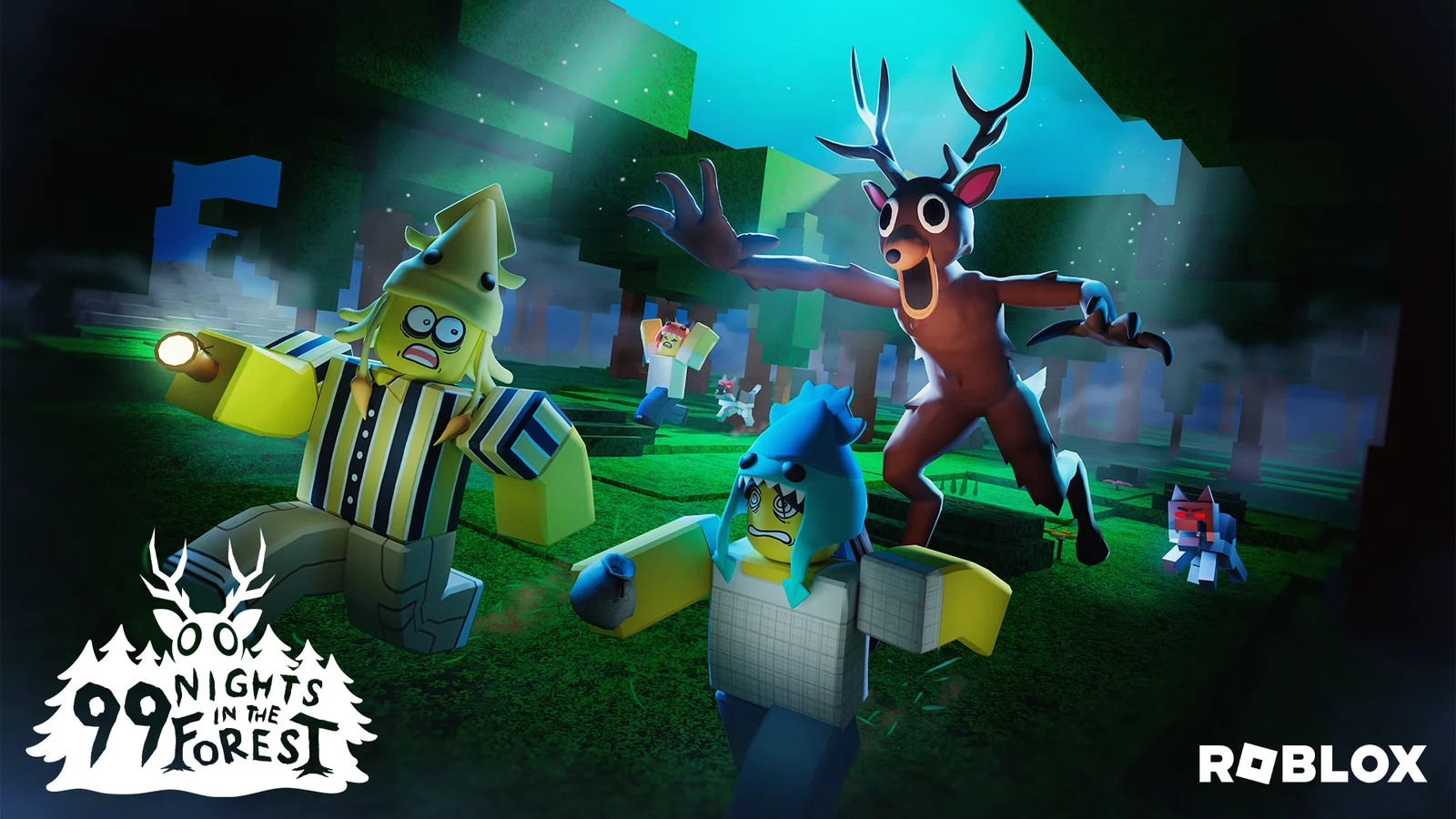
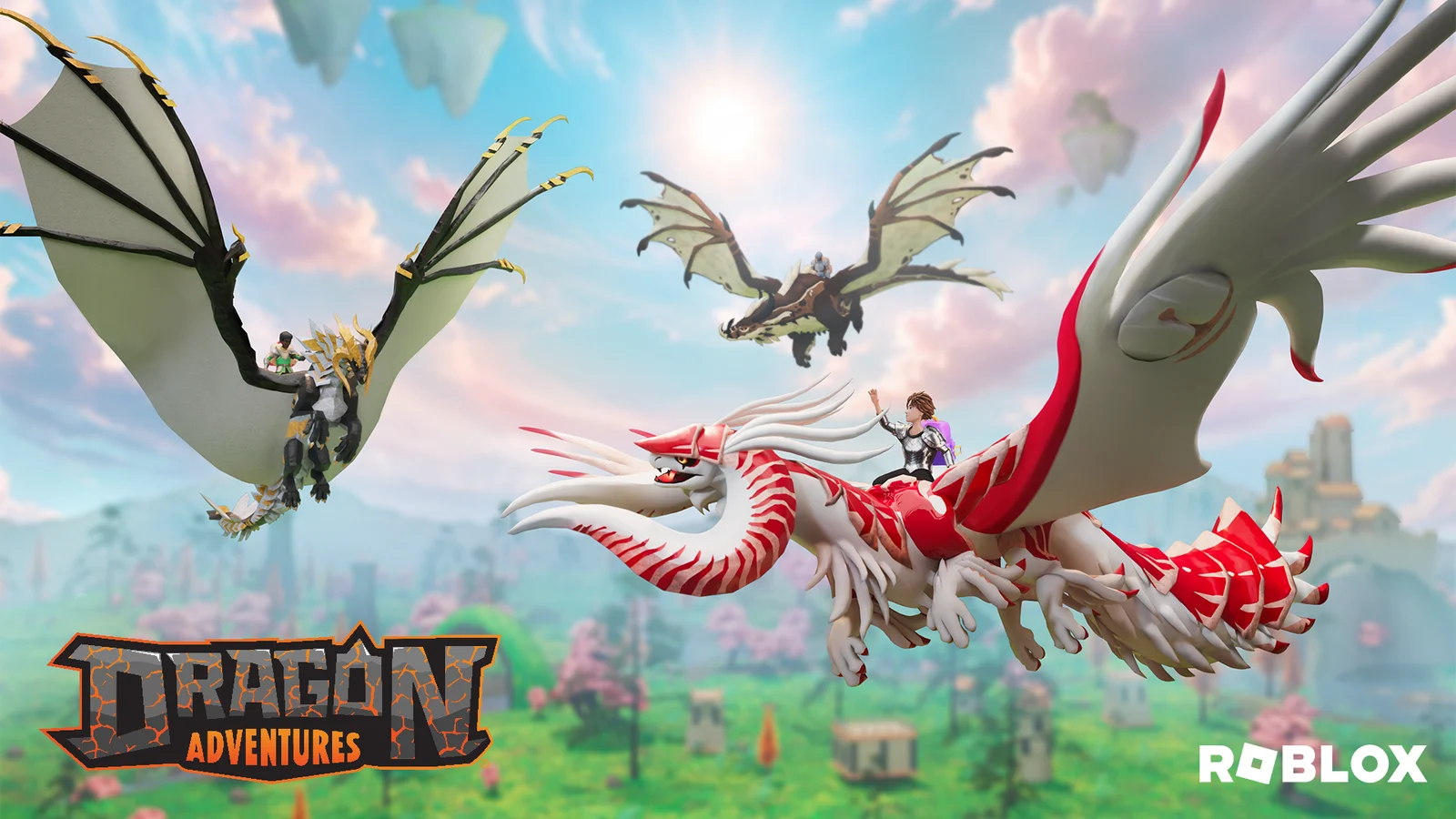
If you like a scare, our guide on how to play Dandy’s World on Chromebook and Googlebook walks through one of the most popular Roblox horror games, from finishing machines to escaping the Twisteds.
Roblox controls on a Chromebook keyboard, touchpad and touchscreen
The Roblox app supports your Chromebook keyboard and touchpad, and it switches to touch controls in tablet mode:
- Move and jump: use W, A, S and D or the arrow keys to move, and Space to jump.
- Camera: drag with the right mouse button, or two-finger drag on the touchpad, to turn the camera. Scroll to zoom.
- Menu and chat: press Esc for the Roblox menu and settings, and / to start typing in chat where a game allows it.
- Game actions: each game sets its own keys for actions and items, and most show them on screen.
- Touchscreen: tablet mode shows a virtual joystick and jump button, which suits 2-in-1 Chromebooks.
A USB or Bluetooth mouse makes the camera much easier to control than a touchpad, especially in fast games.
Avatars, Robux and parental controls
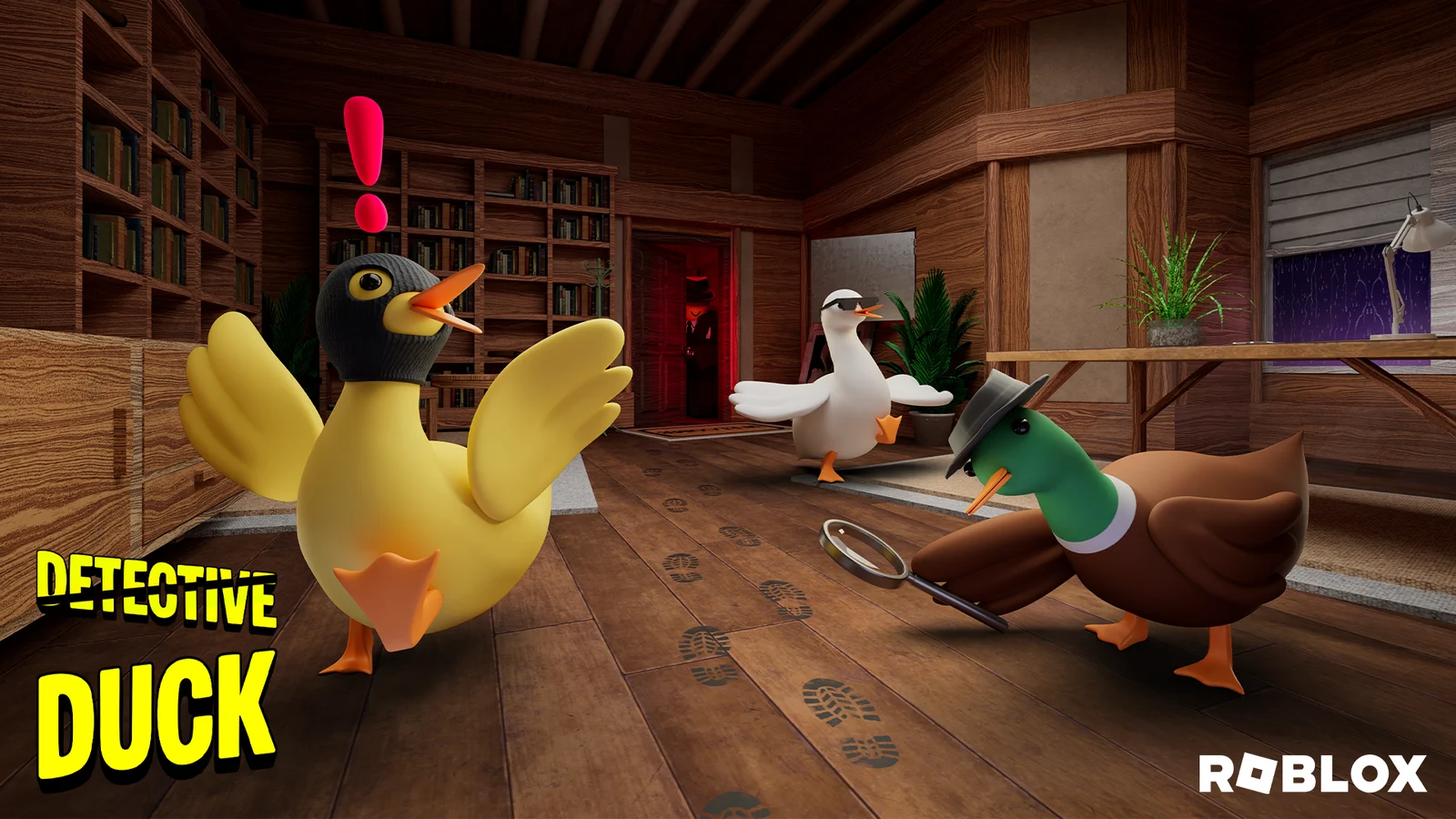
- Avatar: dress your character with free and paid items from the Roblox Marketplace. Your avatar follows you into every game.
- Robux: Robux is Roblox’s in-game currency, sold as an optional in-app purchase. Games use it for extras such as passes and items.
- Parental controls: parents can link their own Roblox account to a child’s account to manage spending limits, chat and which experiences are allowed, from the account’s Parental Controls settings.
- Chromebook controls: Google Family Link can require approval before a child installs apps such as Roblox from Google Play.
Watch the official Roblox trailer
Roblox’s own trailer gives a quick look at the variety of games and the community behind them.
Troubleshooting Roblox on Chromebook and Googlebook
If Roblox will not install, open or run smoothly, try these fixes:
- Google Play is missing: open Settings > Apps and turn on Google Play Store. If the option is not there, your device or administrator does not allow Android apps.
- Games lag or stutter: close other apps and Chrome tabs, then open the Roblox menu, go to Settings, set Graphics Mode to Manual and lower Graphics Quality.
- Roblox crashes or shows a black screen: go to Settings > Apps > Manage your apps > Roblox > Storage & cache and select Clear cache, then check Google Play for a Roblox update.
- Pressing Play on Roblox.com does nothing: Roblox games do not run in the browser for regular players. Install the app from Google Play and open the game inside it.
- Roblox is blocked on a school Chromebook: your administrator controls which apps are allowed. Use a personal device or ask the administrator.
Frequently asked questions about Roblox on Chromebook and Googlebook
Can you play Roblox on a Chromebook?
Yes. Install the official Roblox app by Roblox Corporation from Google Play on your Chromebook, sign in and pick a game. Your Chromebook needs Google Play enabled, and school or work devices may block it.
Is Roblox free on Chromebook?
Yes. The Roblox app and most Roblox games are free to play. Robux, the in-game currency, is an optional purchase used for avatar items and extras inside games.
Can I play Roblox in Chrome without installing the app?
Not yet. Roblox is testing an official browser player called Web Play, but the test only lets creators run games they own, and ChromeOS is not on its supported list. Until Web Play opens to all players, use the Roblox app from Google Play.
Can I play Roblox on Googlebook?
Yes. Open Google Play on your Googlebook, install Roblox and sign in. You can also cast the Roblox app from your Android phone with Cast My Apps in the Phone Hub.
Can Chromebook players join friends on other devices?
Yes. Roblox accounts work across phones, tablets, computers and consoles, so you can join friends in the same game from your Chromebook. Some games or features can be limited by the creator or by account settings.
Explore more game guides on ChromeGeek
Once Roblox is running, these guides help you find more to play on your laptop:
- How to Play Minecraft on Chromebook and Googlebook: Build and survive in Bedrock Edition and join friends on other devices.
- Fortnite for Chromebook: Another free game you can play with friends across devices.
- Best Multiplayer Games for Chromebook: Online games to jump into with friends or strangers.
- Best Chromebooks for Gaming: Laptops with the power and screens to run games like Roblox smoothly.
Discover more from Chrome Geek
Subscribe to get the latest posts sent to your email.