How to Install and Play Moonlight Peaks on Chromebook and Googlebook
 by
Joseph Vance
November 21, 2026
You can install and play Moonlight Peaks on Chromebook and Googlebook through the official Android app on Google Play. Developed by Little Chicken Game Company and published by XSEED Games, this cozy gothic farming and life-simulation RPG lets you step out of Count Dracula’s shadow to grow enchanted crops, brew potions, and build a wholesome undead life.
Googlebook runs Android games natively via Google Play alongside instant phone-app casting. This guide covers Google Play installation, cross-device save sync, controller and keyboard controls, performance tips, and quick ChromeOS fixes.
Need help getting started? Contact us with your Chromebook or Googlebook model and any setup questions.
How to install Moonlight Peaks on Chromebook and Googlebook
Installing Moonlight Peaks from Google Play gives you the full native Android game on ChromeOS. Connect to Wi-Fi and make sure you have a few gigabytes of free storage before you begin:
The official Google Play listing uses the package identifier com.xseed.moonlightpeaks. Installing from Google Play delivers automatic patches and seasonal festival updates without manual file management.
If the Play Store is missing on your laptop, check Google’s Android app setup guide for Chromebook or the guide on installing apps on Googlebook. Managed school or work devices may restrict Play Store purchases or game installs. There is no standalone ChromeOS browser version or Linux Debian (.deb) package, so Google Play is the primary local route.
Cast Moonlight Peaks from your phone on Googlebook
If Moonlight Peaks is already installed on your Android phone, you can start playing immediately without waiting for a laptop download. Googlebook’s Cast My Apps feature mirrors your phone’s active session onto your desktop screen. Open Phone Hub in the bottom-right corner of your Googlebook shelf, select Cast My Apps, and pick Moonlight Peaks to harvest night-blooming crops, brew potions, or catch up on town events in a desktop window.
Magical farming, potion brewing, and gothic town life
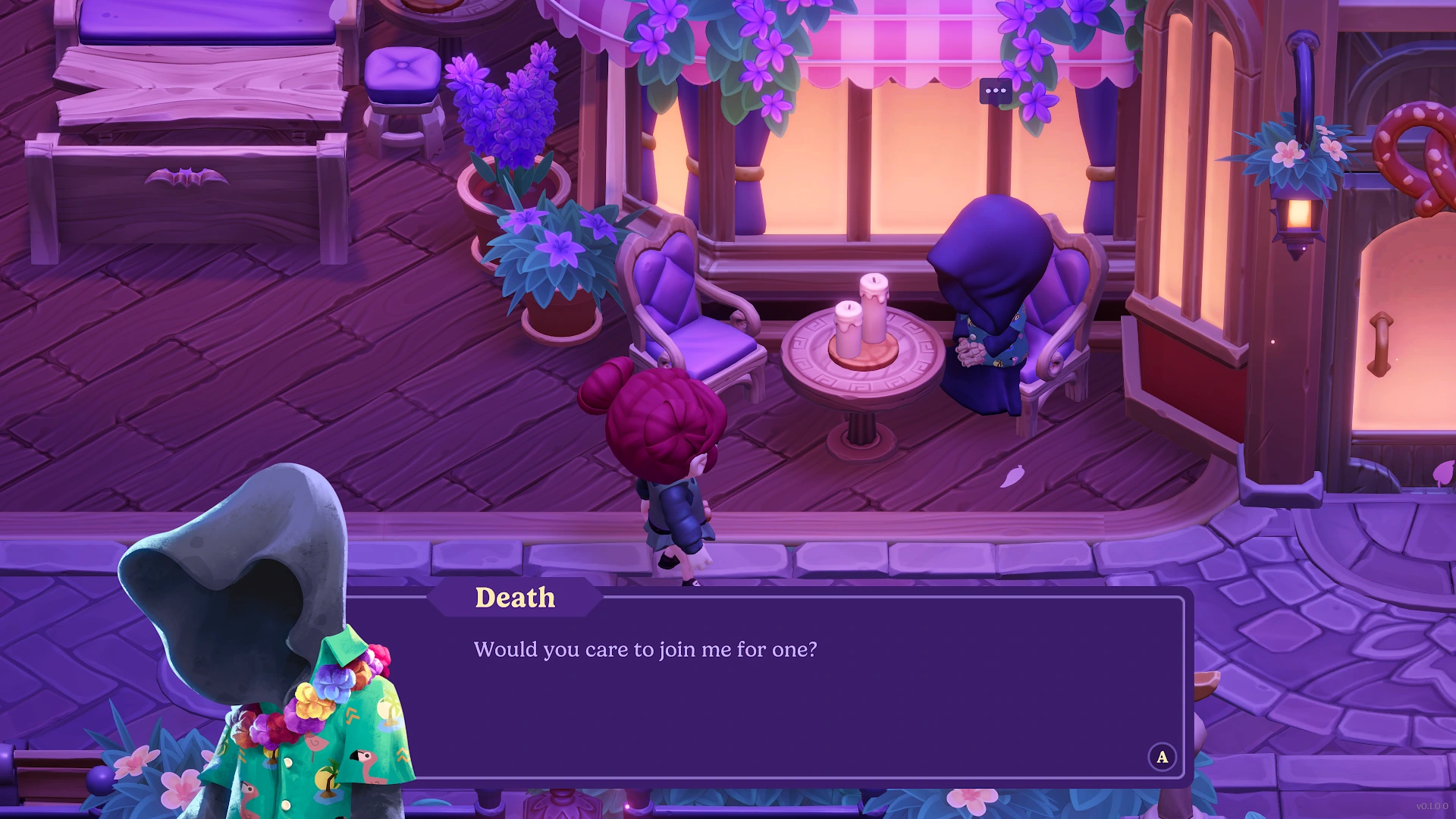
Moonlight Peaks blends classic cozy farming routines with supernatural charm, letting you shape your own nocturnal homestead while getting to know an eccentric cast of townsfolk:
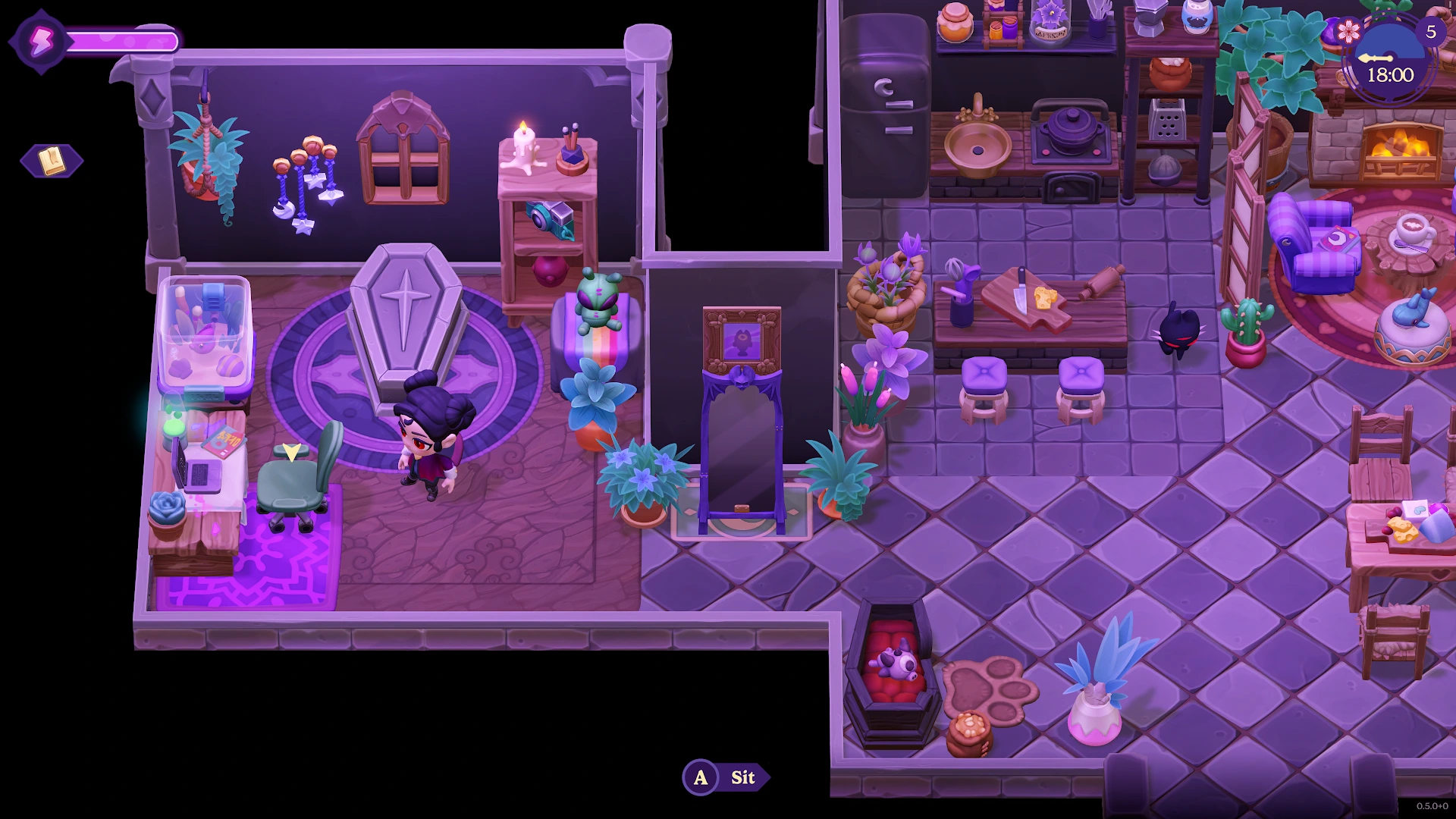
- Build your gothic homestead: decorate your cottage and surrounding land with customizable furniture, pathways, and spooky seasonal accents.
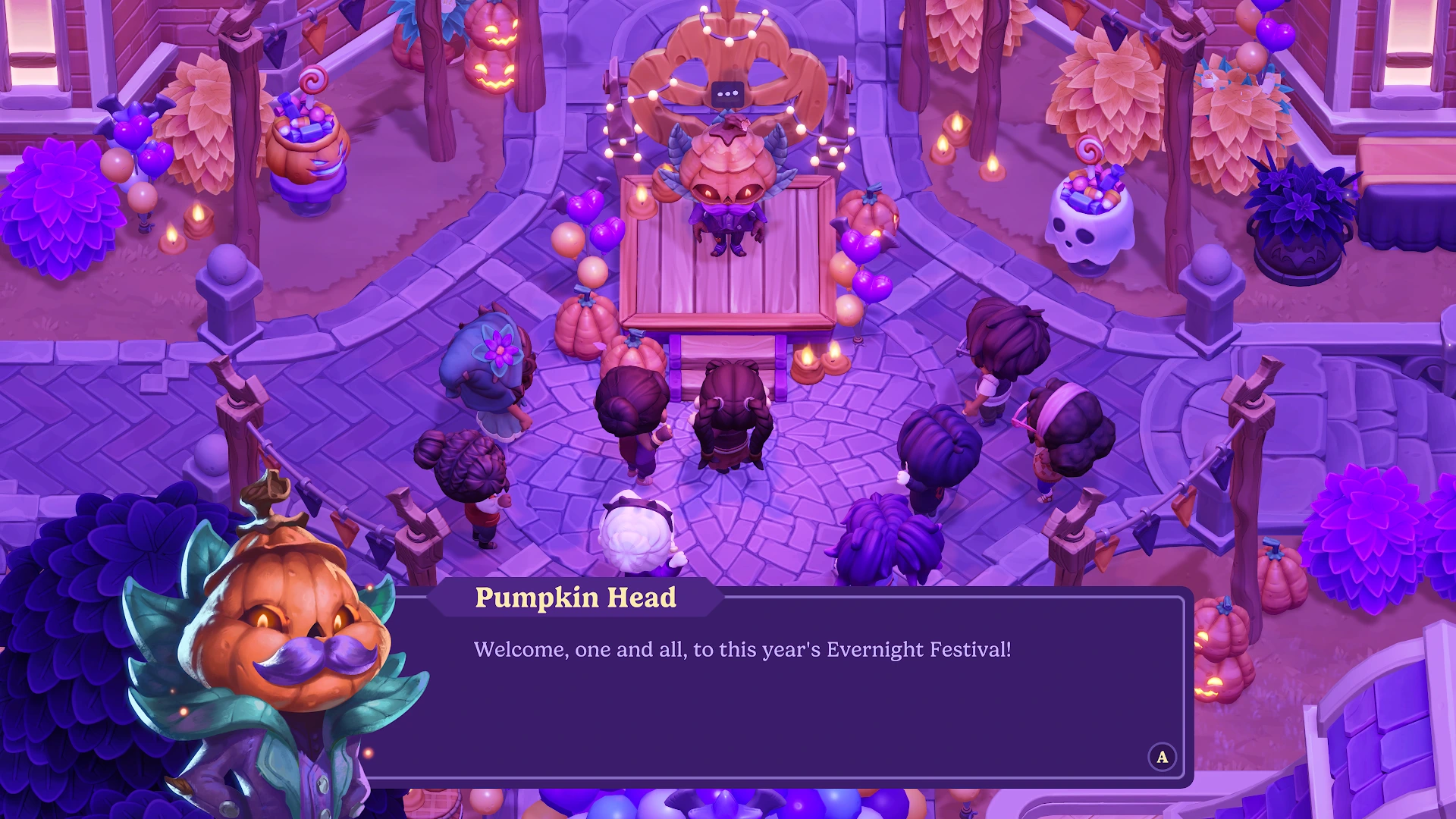
- Seasonal town festivals: attend gatherings like the Evernight Festival to meet neighbors, play mini-events, and unlock unique rewards.
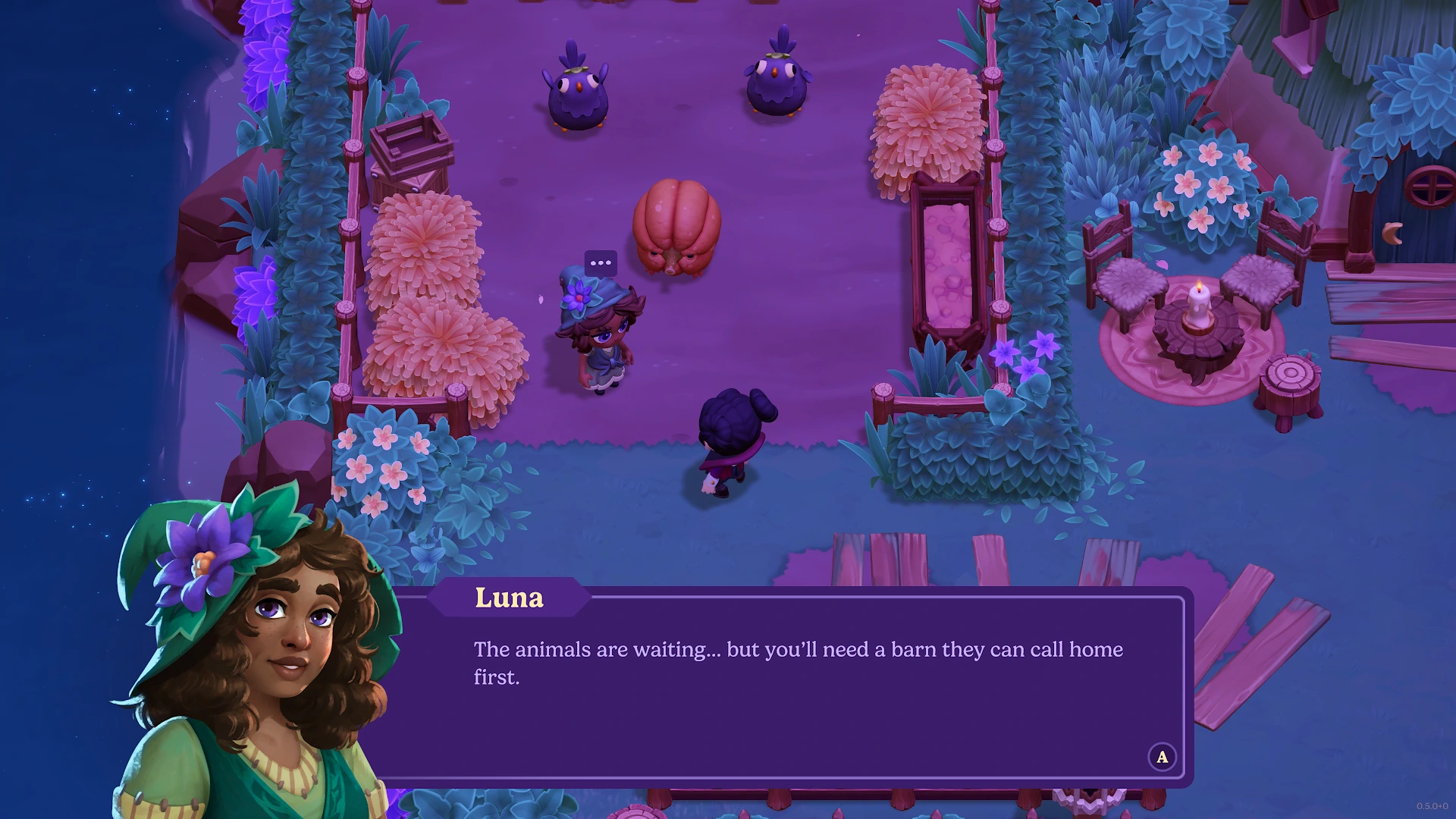
- Cozy pacing at your own speed: balance crop care, animal barns, and town gossip without harsh stamina penalties or stressful combat timers.
Cross-device saves and controls on Chromebook and Googlebook
Moonlight Peaks earned recognition as Google Play’s Best Cross-device Game for how smoothly it transitions between small and large screens. Use these tips to keep your saves synced and pick the best control setup on ChromeOS:
- Keep Google Play Games signed in for cloud saves: log into the same Google account and Google Play Games profile on your phone, Chromebook, Googlebook, and Google Play Games on PC. Give the game a few seconds on the title screen or after sleeping in your coffin to finish uploading your latest save before switching devices.
- Bluetooth or USB controller (recommended): pairing an Xbox Wireless, PlayStation DualSense, or DUALSHOCK 4 controller makes farming and town exploration effortless. Holding the shoulder bumper opens the Radial Tool Wheel so you can swap watering cans, scythes, spells, and bat form without clicking tiny icons.
- Keyboard and mouse tips: in desktop window mode, WASD or arrow keys move your character while the mouse handles menus and dialogue choices. For faster tool swapping on a keyboard, keep your Radial Tool Wheel shortcut handy instead of relying solely on trackpad clicks.
- Touchscreen tablet mode: on convertible 2-in-1 Chromebooks, folding the keyboard back switches comfortably to touch prompts for decorating rooms and tapping dialogue options.
Troubleshooting Moonlight Peaks on Chromebook and Googlebook
If your cloud save is slow to appear, your controller does not respond, or the game window feels sluggish, try these quick ChromeOS fixes:
- Save progress missing after switching devices: verify you are signed into the exact same Google Play Games account on both devices, reopen Moonlight Peaks on the previous device with Wi-Fi enabled, and wait for the cloud sync to complete before closing the app.
- Controller inputs not registering: pair your gamepad in ChromeOS Bluetooth settings before launching Moonlight Peaks, then press any face button on the title screen so the Android client switches out of touch mode.
- Window sizing or blurry scaling: click the maximize button on the Android app title bar to run Moonlight Peaks in full-screen widescreen rather than a narrow portrait phone window.
- Google Play Store missing or purchase blocked: open ChromeOS Settings > Apps and confirm Google Play Store is turned on. If the toggle is locked, your school or workplace administrator manages Play Store access.
- Startup crash or audio glitch: go to ChromeOS Settings > Apps > Manage your apps > Moonlight Peaks > Storage & cache, choose Clear cache, and check Google Play for the latest game patch.
Frequently asked questions about Moonlight Peaks on Chromebook and Googlebook
Can you play Moonlight Peaks on a Chromebook?
Yes. You can install the official Moonlight Peaks app published by XSEED Games from the Google Play Store on any Chromebook that supports Android apps.
What genre is Moonlight Peaks?
Moonlight Peaks is a cozy gothic farming and life-simulation RPG where you play as a young vampire building a homestead, growing enchanted crops, brewing potions, and befriending or romancing supernatural townsfolk.
Does Moonlight Peaks support cross-device saves on Chromebook and Googlebook?
Yes. Named Google Play’s Best Cross-device Game, Moonlight Peaks syncs your farm and story progress through your Google Play Games profile across Android phones, tablets, Chromebooks, Googlebooks, and Google Play Games on PC.
Does Moonlight Peaks work with a controller or keyboard on ChromeOS?
Yes. You can play with touchscreen controls on 2-in-1 Chromebooks, keyboard and mouse in desktop mode, or a paired Bluetooth or USB Xbox or PlayStation controller for quick radial tool wheel access.
Can I cast Moonlight Peaks from my phone to a Googlebook?
Yes. If Moonlight Peaks is already installed on your Android phone, open Phone Hub on your Googlebook and select Cast My Apps to stream your active game session in a desktop window without transferring save files manually.
Companion gaming guides on ChromeGeek
Looking for more cozy RPGs, open-world adventures, and capable laptops for ChromeOS gaming? Explore these related guides:
- Action RPG and base building: Dive into 3D squad combat and automated factory design with our guide to Arknights: Endfield on Chromebook and Googlebook.
- More role-playing adventures: Browse top turn-based and real-time role-playing picks in our roundup of the Best RPG Games for Chromebook.
- Expansive worlds to explore: Discover sandbox maps and exploration-driven titles in our guide to the Best Open-World Games for Chromebook.
- Hardware upgrades: Compare laptops with 8 GB+ RAM and sharp displays in our guide to the Best Chromebooks for Gaming.
- Social sandbox worlds: Jump into thousands of community-made games with our walkthrough for Roblox on Chromebook and Googlebook.
Discover more from Chrome Geek
Subscribe to get the latest posts sent to your email.