How to Install and Use MLB App on Chromebook and Googlebook
 by
Joseph Vance
Post Updated: November 20, 2026
You can install and use the MLB app on Chromebook and Googlebook through Google Play or stream directly in Chrome at mlb.com. Follow pitch-by-pitch Gameday play-by-play, stream live MLB.TV broadcasts, check box scores, and listen to home or away radio calls on your laptop.
Googlebook runs Android applications natively through Google Play, giving you the same reliable live coverage alongside instant phone-app casting. This guide walks through Google Play setup, browser and PWA options, live video and radio feeds, personalized team alerts, and common playback fixes.
Need help setting up the MLB app on your laptop? Contact us with your Chromebook or Googlebook model and any sign-in or streaming questions.
How to install the MLB app on Chromebook and Googlebook
Installing the official MLB app from Google Play takes less than a minute and gives you full access to Gameday stats, alerts, and live streams:
The official Google Play listing uses the package identifier com.bamnetworks.mobile.android.gameday.atbat. Running the Android app gives you native desktop notifications for game starts, scoring plays, and pitching changes.
If Google Play is not enabled on your laptop, check Google’s Android app setup guide for Chromebook or the guide on installing apps on Googlebook. Managed school or work devices may restrict Play Store downloads. There is no standalone Linux (.deb) package for MLB, so you can always open mlb.com in Google Chrome to watch games and check standings without installing anything.
Cast the MLB app from your phone on Googlebook
If you already follow your favorite clubs and keep your MLB.TV login active on your Android phone, Googlebook’s Cast My Apps feature lets you open your phone’s MLB session straight onto your laptop screen. Open the Phone Hub in the bottom-right corner of your Googlebook shelf, select Cast My Apps, and choose MLB. Your phone’s active app window opens immediately on the desktop so you can check live scores, listen to radio calls, or follow Gameday without signing in again.
MLB Web vs. Android app: choosing the right setup
On Chromebooks and Googlebooks, you can switch between the Google Play Android app and the full web experience in Google Chrome depending on how you watch:
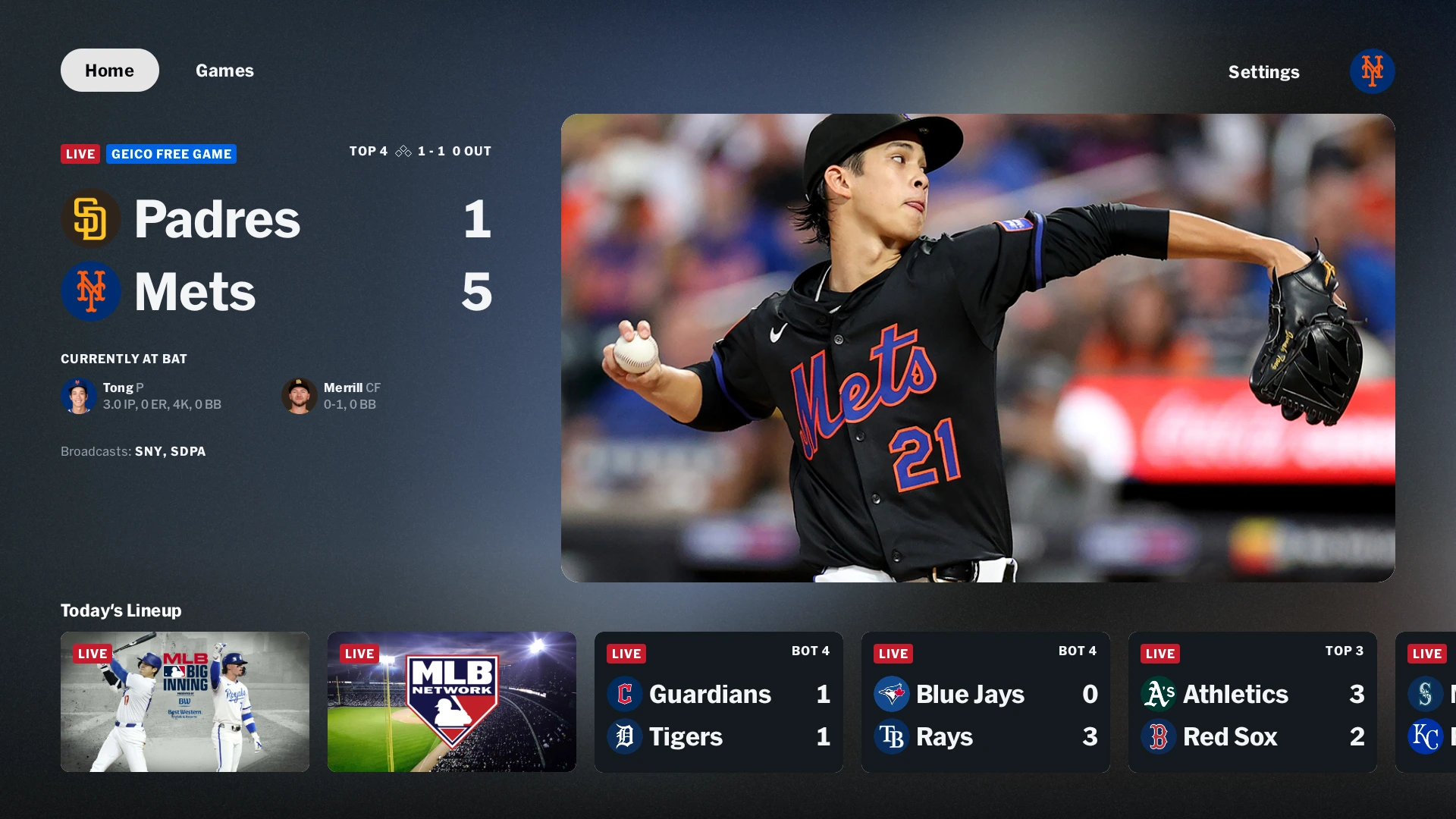
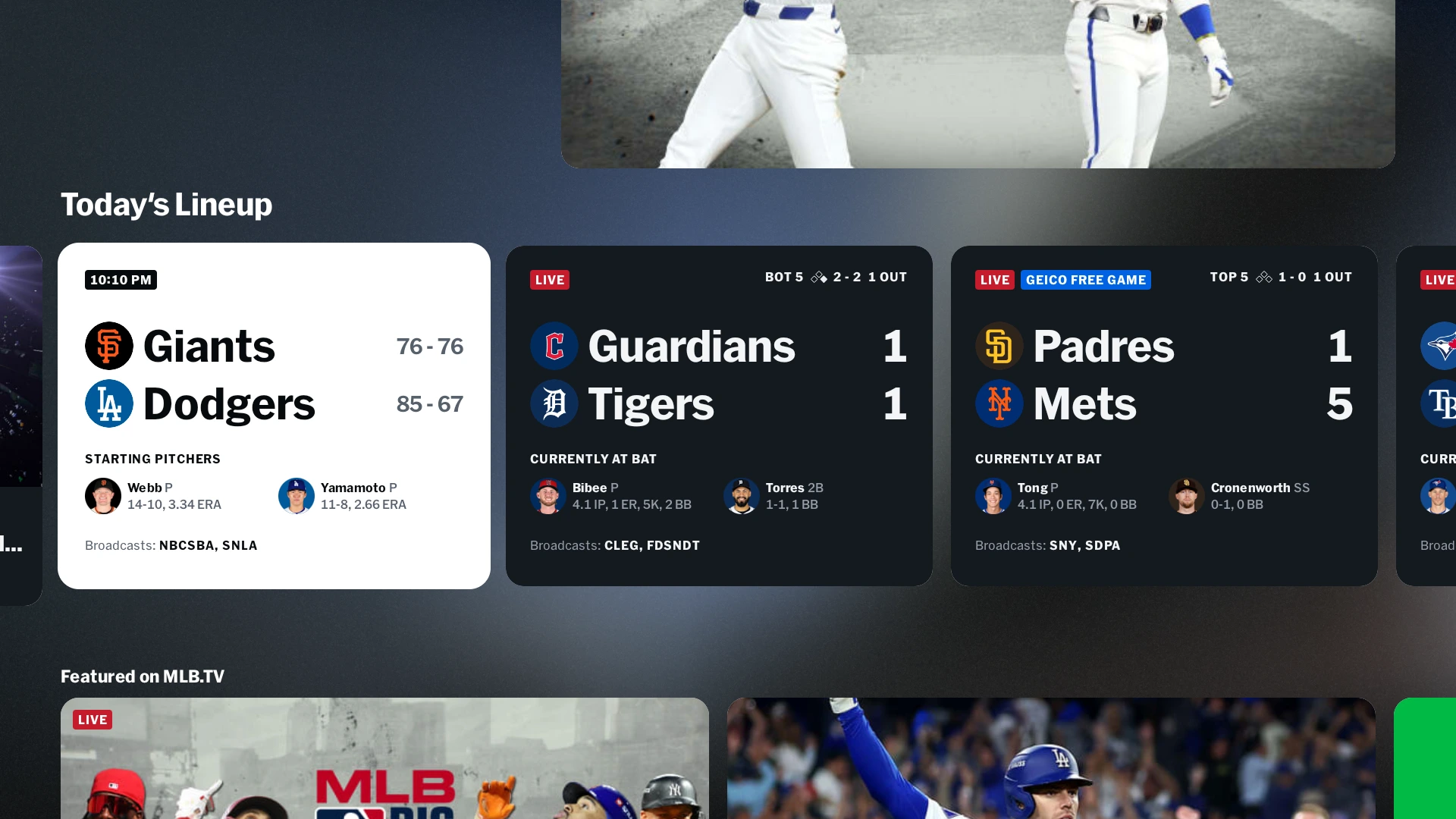
Live scores, Today’s Lineup, and pitch-by-pitch Gameday
Even without a paid streaming plan, the MLB app gives baseball fans real-time game tracking built cleanly for wide laptop displays:
- Today’s Lineup scoreboard: scan every matchup across the league with live inning counts, baserunner diamonds, probable or active pitchers, and TV/radio broadcast listings.
- Pitch-by-pitch Gameday tracker: follow every pitch location, velocity, pitch type, and exit velocity in real time when you cannot watch video.
- Full box scores and play-by-play: inspect batting lines, pitching totals, bullpen usage, and inning-by-inning scoring summaries in one tap.
- Free Game of the Day: watch one featured out-of-market game live each day during the regular season with a free MLB account.
Streaming live games and radio broadcasts with MLB.TV
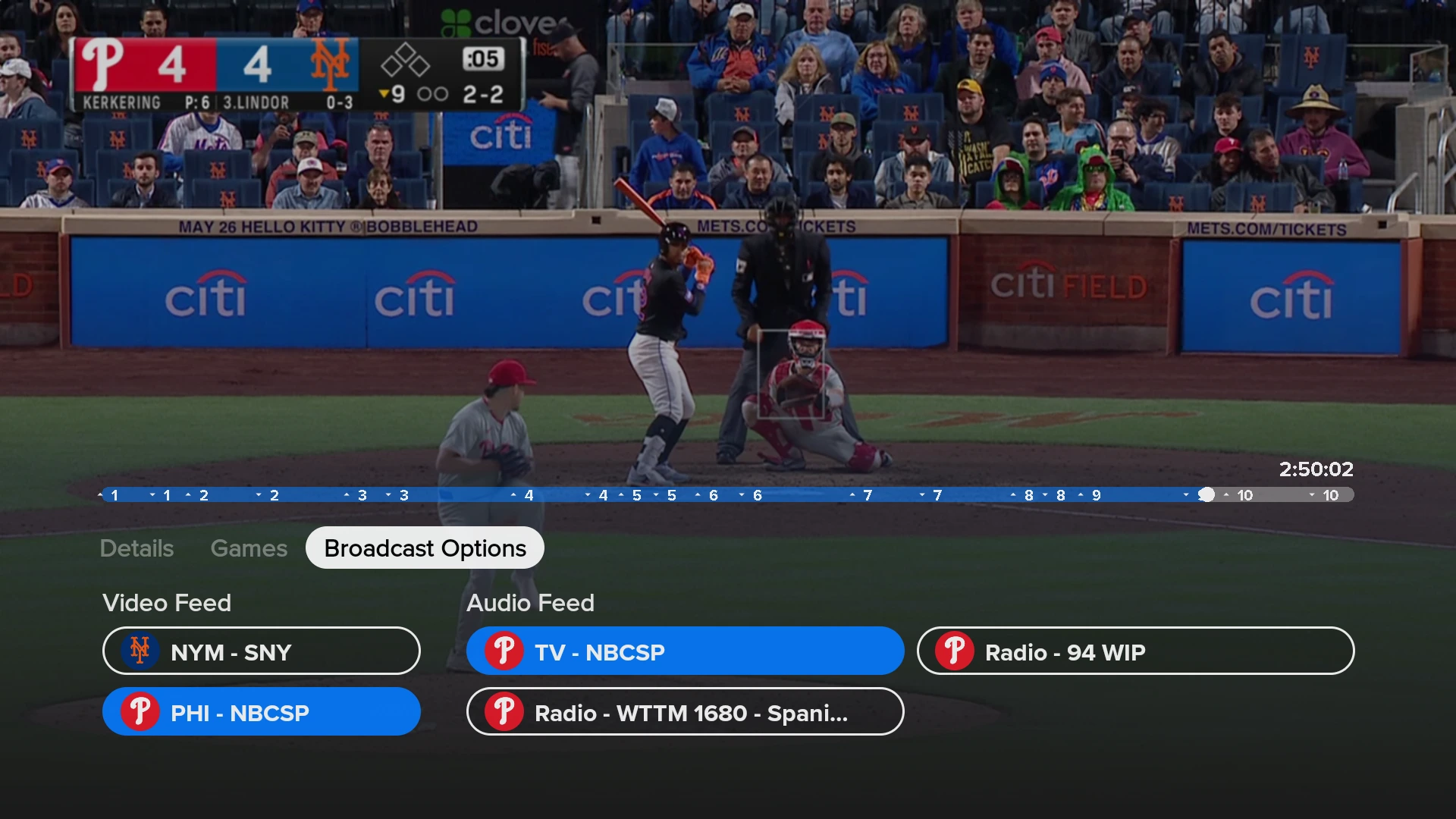
Subscribers to MLB.TV or MLB At Bat unlock full live broadcasts, alternate audio feeds, and on-demand game archives directly inside the app:
- Home and away video feeds: switch between the home and road television broadcasts using the Broadcast Options drawer inside the video player.
- Live radio and Spanish audio: listen to local radio announcers, overlay radio audio over live TV video, or switch to Spanish-language radio feeds while working in other tabs.
- Inning timeline scrubber: jump straight to any half-inning or key highlight on the timeline bar, or catch up from the beginning with full DVR controls.
- MLB Big Inning and highlights: tune into live look-ins around the league and watch condensed games or 3-minute recaps the next morning.
Schedules, standings, and team notifications
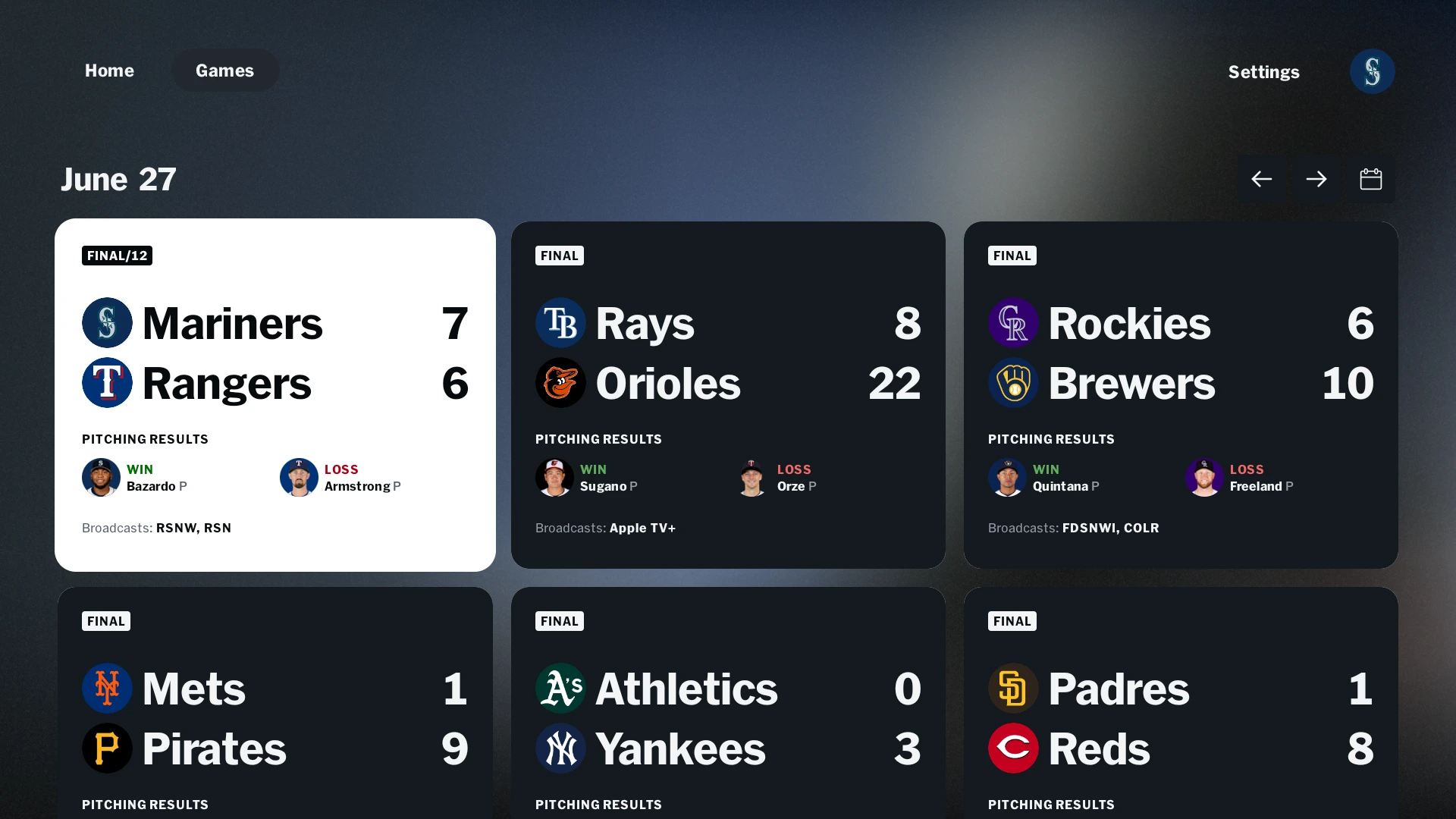
Keep track of the entire regular season and postseason from the Games tab and your ChromeOS notification tray:
- Date-by-date schedule grid: jump to any past or upcoming date using the calendar picker to review final scores, winning and losing pitchers, and upcoming probable starters.
- Division and Wild Card standings: check win-loss records, games back, run differentials, and current streaks across the American and National Leagues.
- Custom push notifications: open Settings in the app to choose alerts for game start, lead changes, home runs, no-hitters, and final scores for each followed team.
Troubleshooting MLB streaming and scores on ChromeOS
If live streams stall, show a location error, or fail to load scores on your Chromebook or Googlebook, try these quick fixes:
- Location or blackout check fails: MLB.TV verifies your region before starting a live stream. Make sure Location permissions are allowed for MLB under ChromeOS Settings > Apps > Manage your apps > MLB > Permissions, and turn off any VPN or proxy extension.
- Black screen or choppy video in Chrome: open Chrome Settings > System, toggle Use graphics acceleration when available off, and restart your browser.
- Subscription not recognized after signing in: sign out of your MLB account in Settings, close the app completely, and sign back in using the exact email tied to your MLB.TV or Google Play subscription.
- Audio keeps cutting out in the background: confirm that battery saver or background restrictions are not limiting the MLB app under ChromeOS Settings, or stream radio directly through mlb.com in a pinned browser tab.
- App freezes or scores stop updating: clear the app cache via ChromeOS Settings > Apps > Manage your apps > MLB > Storage > Clear cache, then relaunch MLB.
Frequently asked questions about the MLB app on Chromebook and Googlebook
Is the MLB app free to install on Chromebook and Googlebook?
Yes. The official MLB app is free to download from Google Play and includes live scores, pitch-by-pitch Gameday tracking, box scores, standings, and team news at no cost. Streaming out-of-market live games requires an MLB.TV subscription, while MLB At Bat unlocks live home and away radio broadcasts.
Should I use the MLB Android app or mlb.com in Google Chrome?
Both work well on ChromeOS. The Google Chrome browser at mlb.com is great for desktop multitasking, keyboard shortcuts, and quick box-score lookups without using local storage. The Google Play Android app gives you native push notifications for favorite teams, touch-friendly Gameday layouts, and easy switching between video and radio feeds.
How do I cast the MLB app from my Android phone to Googlebook?
Open the Phone Hub from the bottom-right corner of your Googlebook shelf with your Android phone linked. Click Cast My Apps and select MLB. Your phone’s active session opens in a floating desktop window on your laptop so you can follow live scores or listen to broadcasts without signing in again.
Why am I seeing a blackout message when trying to stream a live game?
MLB.TV streams out-of-market games, which means games involving teams in your local home television territory are blacked out live on MLB.TV. You can still listen to live home and away radio broadcasts with an MLB At Bat subscription, or watch the full game replay on demand shortly after the final out.
How do I fix buffering or login errors in the MLB app on ChromeOS?
First check that your ChromeOS software is up to date and your internet connection is stable. If a stream buffers or fails to load, clear the Android app cache under ChromeOS Settings > Apps > Manage your apps > MLB > Storage, or sign out and back in to refresh your MLB.TV entitlement.
Companion sports, streaming, and audio guides
Round out your live sports, streaming, and game-day audio setup on ChromeOS with these companion guides:
- Multi-sport live scores: Track baseball alongside soccer, basketball, and tennis with real-time box scores in our guide to Sofascore on Chromebook and Googlebook.
- National sports & ESPN hubs: Stream live ESPN broadcasts, studio shows, and movies on your laptop by learning How to Install and Use Disney Plus on Chromebook and Googlebook.
- Baseball podcasts & recaps: Catch daily MLB analysis, trade-deadline shows, and team podcasts with our setup walkthrough for Pocket Casts on Chromebook and Googlebook.
- Offline highlight playback: Play saved game clips and local video files with zero ads by following our guide on How to Install and Use VLC on Chromebook and Googlebook.
Discover more from Chrome Geek
Subscribe to get the latest posts sent to your email.