How to Install and Use Sofascore on Chromebook and Googlebook
 by
Joseph Vance
November 18, 2026
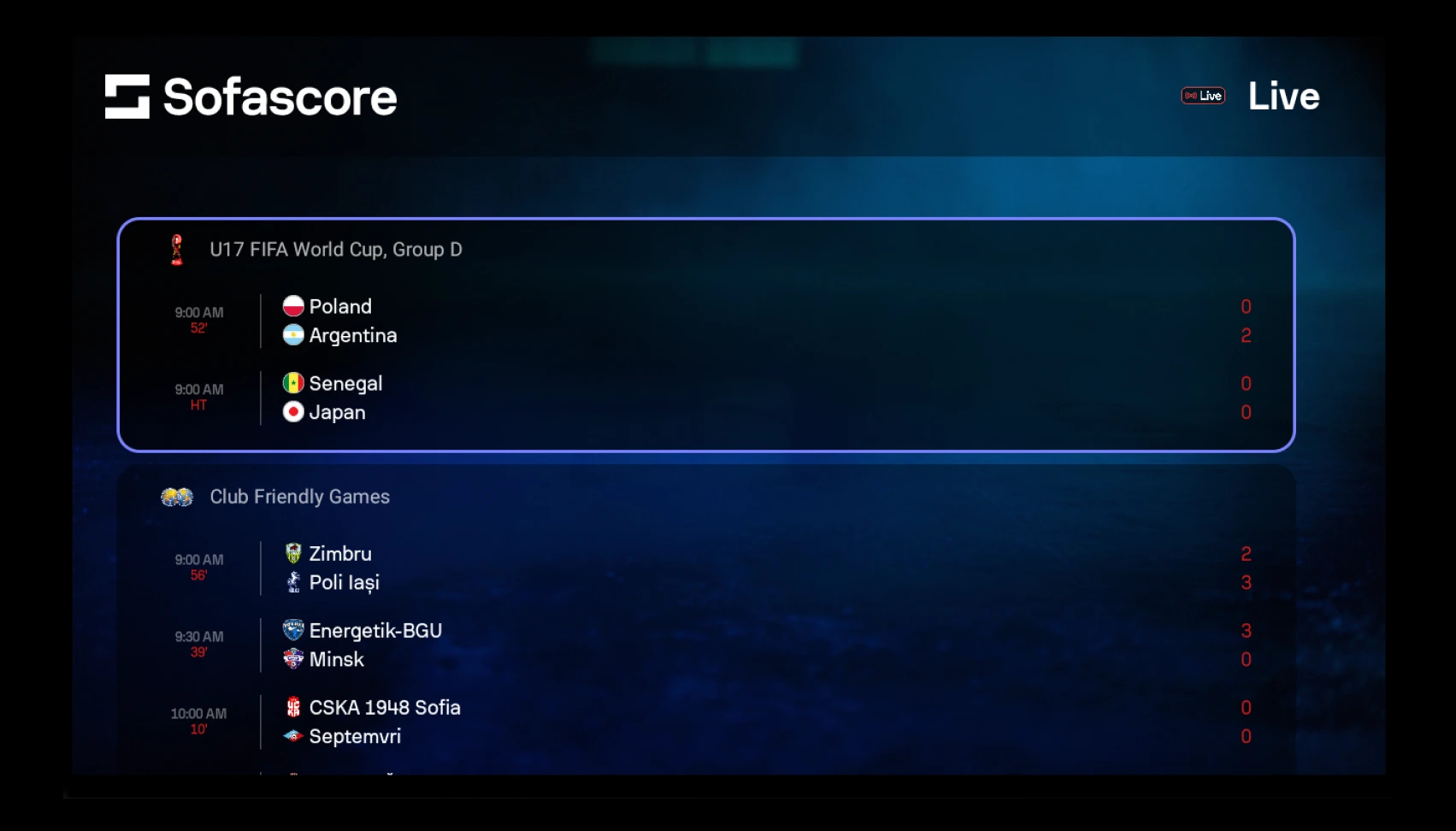
You can install and use Sofascore on Chromebook and Googlebook through the official Android app on Google Play or directly in Chrome at sofascore.com. It delivers real-time scores, lineups, player ratings, and live match stats across more than 20 sports right on your laptop screen.
Googlebook runs Android apps natively from Google Play alongside quick phone-app casting from the Phone Hub. This guide covers Play Store setup, Chrome web and PWA options, live stat tools, and common ChromeOS fixes.
Need help setting up Sofascore? Contact us with your laptop model and any alert or display questions.

How to install Sofascore on Chromebook and Googlebook
Installing the official Sofascore app from Google Play takes less than a minute and gives you native match notifications:
The official Google Play listing uses the package identifier com.sofascore.results. Installing the Android app gives you desktop-level goal alerts and touch-friendly navigation.
If Google Play is not enabled on your laptop, check Google’s Android app setup guide for Chromebook or the guide on installing apps on Googlebook. On managed school or work devices, administrator settings may block Play Store downloads. There is no native Linux (.deb) version for ChromeOS, but you can open sofascore.com in Google Chrome at any time without installing anything.
Cast Sofascore from your phone on Googlebook
If your Android phone already tracks your favorite clubs, custom alert rules, and fantasy watchlists, Googlebook’s Cast My Apps feature lets you open that active phone session on your laptop screen. Click the Phone Hub in the bottom-right corner of your Googlebook shelf, select Cast My Apps, and choose Sofascore. Your phone’s live match view opens in a floating desktop window without signing in again or transferring data.
Sofascore Web vs. Android app: choosing your best setup
On Chromebooks and Googlebooks, you can run Sofascore as a Google Play app, in a Chrome browser tab, or as an installed web app. Each option fits a different matchday workflow:
Live scores across 20+ sports and competitions
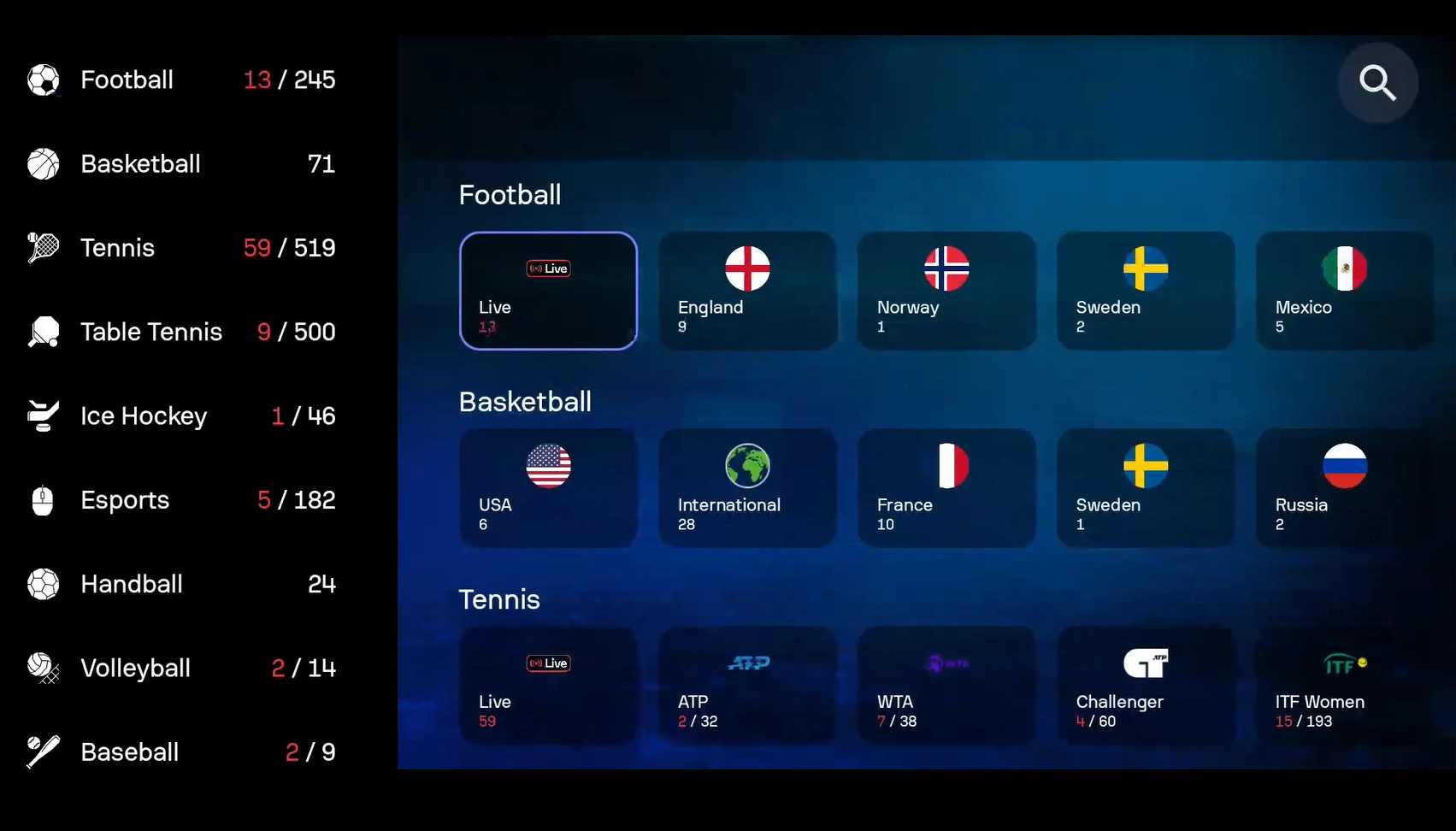
Sofascore brings scores from global leagues and smaller tournaments into one organized feed that scales cleanly on wide laptop displays:
- Real-time football and club tournaments: track Premier League, Champions League, La Liga, Serie A, MLS, and international cups with live match clocks and goal scorers.
- Basketball, tennis, and hockey: follow NBA, EuroLeague, ATP/WTA point-by-point tennis trackers, and NHL period scores in one place.
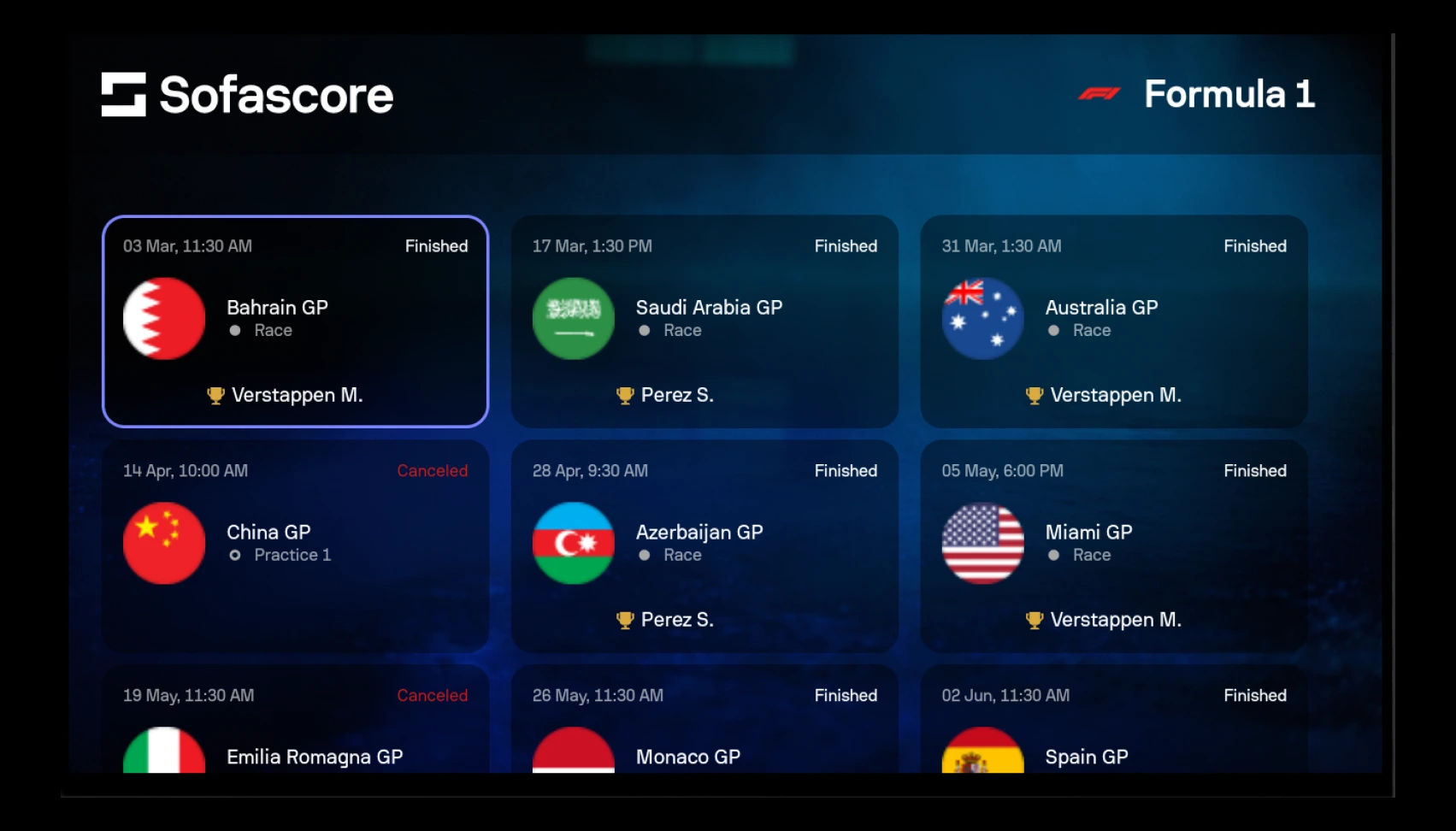
- Formula 1 and motorsports: check Grand Prix weekend schedules, qualifying grids, lap standings, and race winners without hunting across separate sites.
- Esports and niche leagues: monitor Counter-Strike, League of Legends, Dota 2, handball, volleyball, and table tennis matchups live.
Match stats, player ratings, and team search
Beyond basic scorelines, Sofascore’s large-screen layout makes it easy to dig into match momentum and individual player numbers:
- Sofascore player ratings: view live 1-to-10 performance ratings updated throughout the match based on passes, shots, tackles, saves, and key actions.
- Attack Momentum and heatmaps: see which side is controlling possession and territory during key stretches, alongside player touch heatmaps and shot maps.
- Lineups and head-to-head history: inspect confirmed starting XIs, injury lists, recent form, and past results before kickoff.
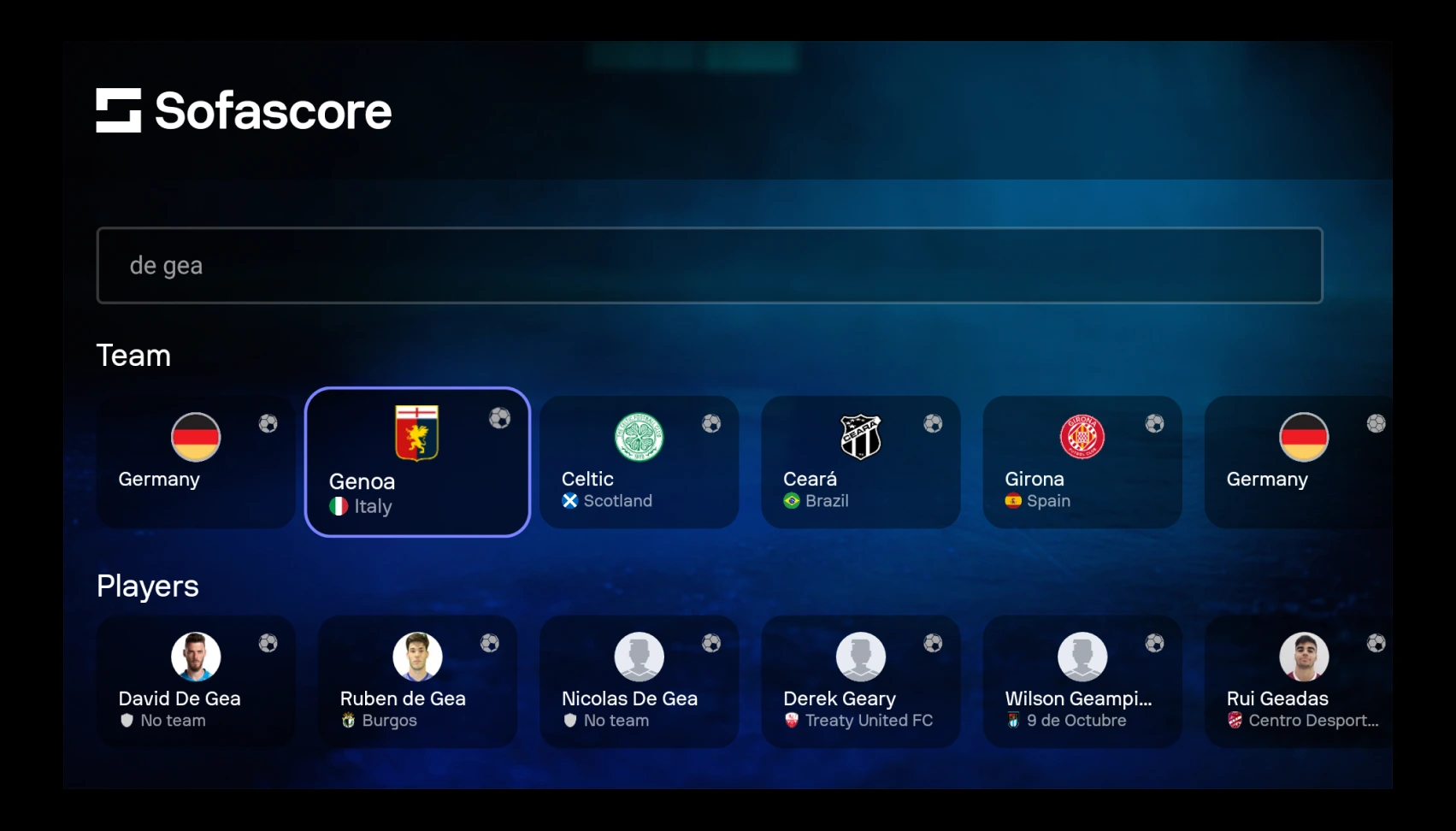
- Fast team and player search: look up any club, national team, league, or athlete in seconds to check upcoming fixtures and career stats.
Troubleshooting Sofascore on ChromeOS
If live scores freeze, notifications stop arriving, or the app window feels cramped on your Chromebook or Googlebook, try these fixes:
- Missing goal or match alerts: open ChromeOS Settings > Apps > Manage your apps > Sofascore > Notifications and make sure alerts are allowed. Also check that Do Not Disturb is off in Quick Settings.
- Cramped or portrait app window: click the maximize or resize button in the top-right corner of the Sofascore Android window, or switch to
sofascore.comin Chrome for a full desktop layout. - Live scores not updating automatically: verify your Wi-Fi connection, toggle airplane mode off and on, or refresh the Chrome tab if background tab throttling paused updates.
- Incorrect kickoff times: check your Chromebook or Googlebook system time zone under Settings > System preferences > Date and time so fixture schedules match your local clock.
- Android app crashes or fails to load: go to ChromeOS Settings > Apps > Manage your apps > Sofascore > Storage and click Clear cache, then relaunch the app.
Frequently asked questions about Sofascore on Chromebook and Googlebook
Is Sofascore free to use on Chromebook and Googlebook?
Yes. You can install the Sofascore Android app from Google Play or use sofascore.com in Google Chrome for free. An optional paid subscription removes ads, while live scores, standings, lineups, and detailed match statistics remain available on the free tier.
Should I use the Sofascore Android app or sofascore.com in Chrome?
Both work well on ChromeOS. Use sofascore.com in Google Chrome when you want multi-tab match tracking, wide tables, and zero local storage usage. Install the Google Play Android app if you prefer push notifications for goals and kickoffs or touch navigation on a 2-in-1 convertible.
How do I cast Sofascore from my Android phone to Googlebook?
Open the Phone Hub from the bottom-right corner of your Googlebook shelf and make sure your Android phone is linked. Click Cast My Apps and choose Sofascore to open your phone’s active session in a desktop window with your followed teams and alerts already synced.
Which sports does Sofascore cover?
Sofascore covers more than 20 sports, including football (soccer), basketball, tennis, ice hockey, baseball, American football, cricket, Formula 1 and motorsports, handball, volleyball, table tennis, and esports.
Why am I not getting live goal or match alerts on my Chromebook?
Make sure notifications are turned on in both the Sofascore app and ChromeOS Settings under Apps > Manage your apps > Sofascore > Notifications. Also confirm Do Not Disturb is turned off in Quick Settings and that you tapped the bell icon next to your favorite teams or matches.
Companion sports, audio, and productivity guides
Round out your matchday and everyday ChromeOS setup with these related guides:
- Workout and route tracking: If you follow sports and also track your own runs or rides, see How to Install and Use Strava on Chromebook and Googlebook.
- Sports podcasts and matchday shows: Listen to football, F1, and NBA analysis while checking live scores with our guide on How to Install and Use Pocket Casts on Chromebook and Googlebook.
- Hi-res background music: Stream studio-quality playlists in the background during weekend fixtures using How to Install and Use Qobuz on Chromebook and Googlebook.
- Match notes and fantasy tracking: Organize tournament brackets, scouting notes, or fantasy lineups with How to Install and Use Notability on Chromebook and Googlebook.
Discover more from Chrome Geek
Subscribe to get the latest posts sent to your email.