How to Install and Use Qobuz on Chromebook and Googlebook
 by
Joseph Vance
Post Updated: November 18, 2026
You can install and use Qobuz on Chromebook and Googlebook through the official Android app from Google Play or the Qobuz Web Player in Chrome. Built for listeners who care about studio sound, Qobuz streams over 100 million tracks in CD and 24-bit Hi-Res FLAC quality alongside curated playlists and album liner notes.
Googlebook runs Android music apps natively through Google Play and supports phone app casting, giving you flexible ways to listen at your desk or on the go. This guide covers Play Store setup, Hi-Res audio settings, offline downloads, the Web Player, and quick fixes.
Need help setting up Qobuz? Contact us with your laptop model and ChromeOS version details.
How to install Qobuz on Chromebook and Googlebook
Installing the official Qobuz Android app from Google Play gives you a widescreen desktop player with offline downloads and audio quality controls:
The official Google Play listing identifies Qobuz under the package ID com.qobuz.music. Using the dedicated Android app gives you offline album downloads, synchronized lyrics, and Qobuz Connect support for compatible hi-fi speakers.
If the Play Store is not enabled on your laptop yet, check Google’s official Android app setup guide for Chromebook or the guide on installing apps on Googlebook. On school or work-managed devices, administrator policies may restrict Play Store downloads. In those cases, you can stream directly in Chrome using the Qobuz Web Player without installing anything.
Cast Qobuz from your phone on Googlebook
If your Android phone already holds your offline Hi-Res albums and custom playlists, Googlebook’s Cast My Apps feature lets you open the mobile app right on your laptop screen. Click the Phone Hub in the bottom-right corner of your Googlebook shelf, choose Cast My Apps, and tap Qobuz. Your phone’s active listening session opens in a floating desktop window so you can browse albums, manage your queue, and control playback without transferring large FLAC files or signing in again.
Navigating the widescreen Discover feed and editorial picks
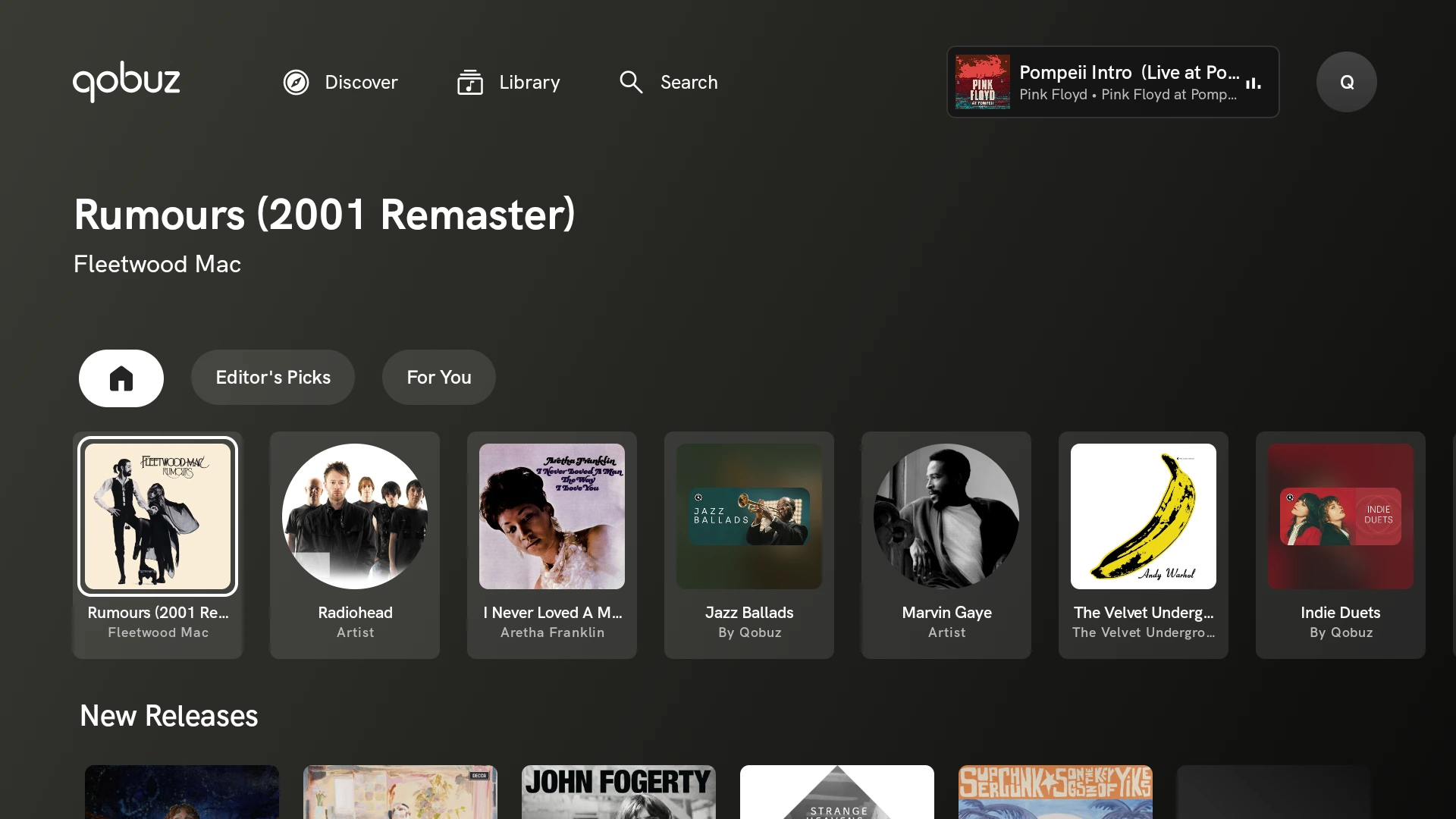
On Chromebooks and Googlebooks, Qobuz opens in a clean widescreen tablet layout with top-level tabs for Discover, Library, and Search alongside a compact Now Playing bar in the upper-right corner:
Exploring album booklets, liner notes, and tracklists
When you open an album in Qobuz, the widescreen view pairs high-resolution cover art and audio format badges with editorial commentary and complete tracklists:
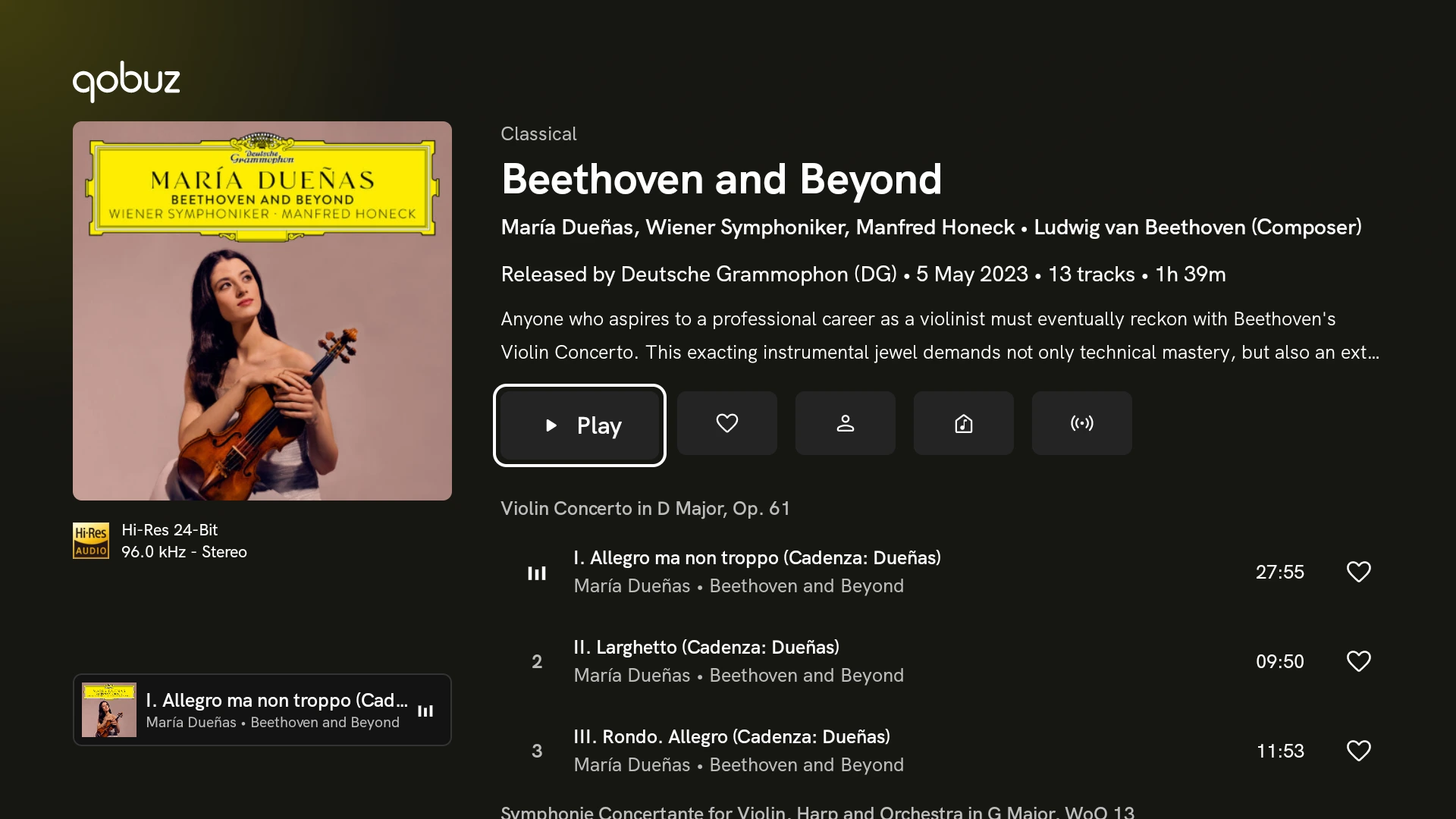
- Editorial Reviews & Liner Notes: read background essays, performer credits, record label details, and release dates right above the tracklist.
- Clear Audio Format Badges: check the gold Hi-Res Audio badge beneath the cover art to see the exact bit depth and sample rate (such as 24-Bit / 96.0 kHz) before you press play.
- One-Click Offline Downloads: use the download icon next to the Play button to save full albums or individual tracks to your Chromebook for flights and offline work sessions.
- Radio & Queue Controls: start a continuous radio mix based on any album or add tracks to your active queue with one click.
Using the Hi-Res Now Playing view and playback controls
Expanding the player opens a distraction-free widescreen Now Playing screen that highlights the album artwork, live sample rate, and full playback controls:
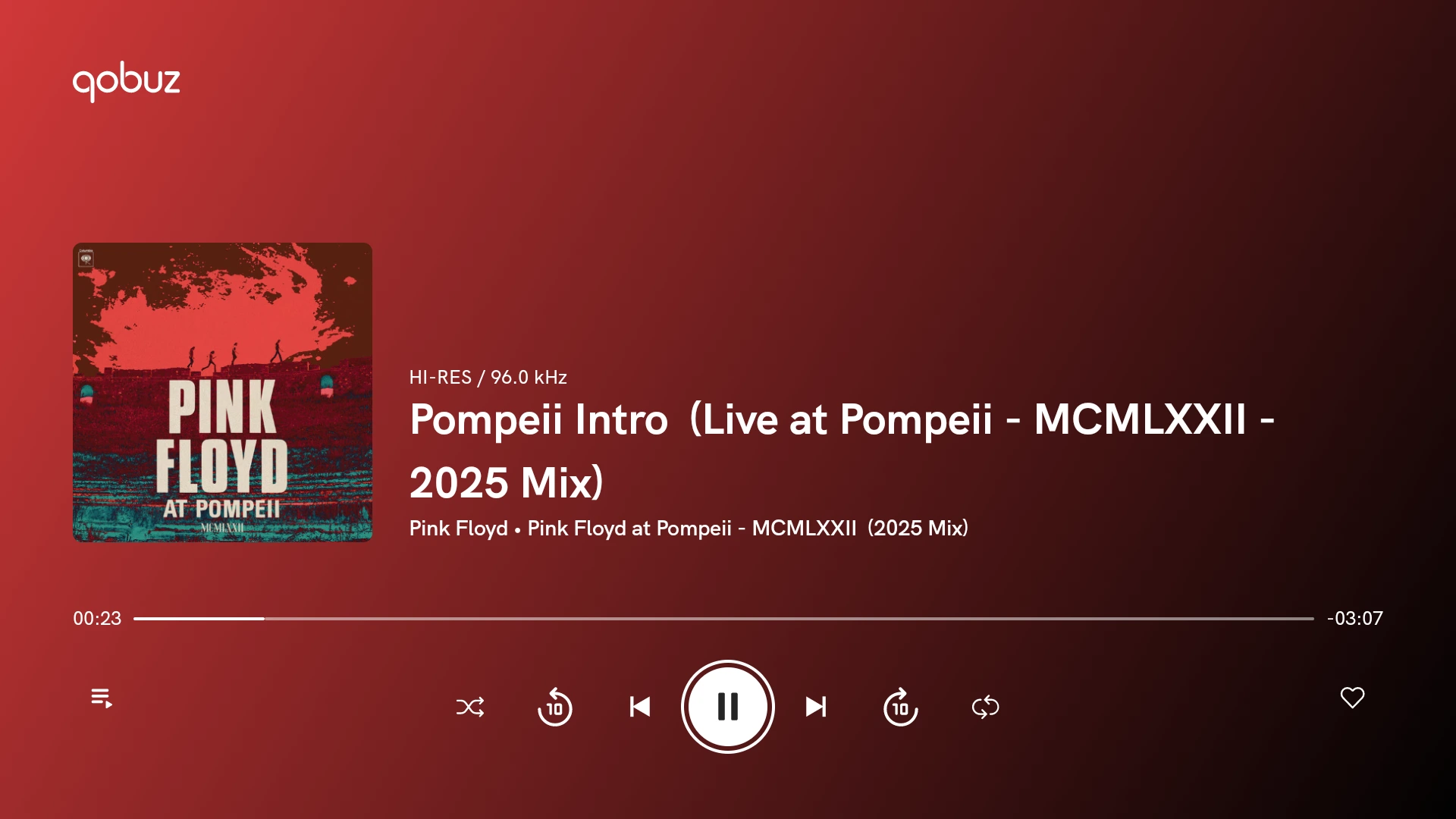
- Live Stream Quality Indicator: confirm whether the current track is streaming in Hi-Res, CD lossless, or MP3 quality right above the song title.
- 10-Second Skip & Scrubbing: jump backward or forward by 10 seconds, or drag the wide progress bar with your trackpad or touchscreen.
- Synchronized Lyrics & Sleep Timer: follow along with real-time lyrics on supported tracks or set a sleep timer before stepping away from your desk.
- Qobuz Connect Support: hand off playback directly from your Chromebook or Googlebook to compatible network speakers and hi-fi amplifiers over Wi-Fi.
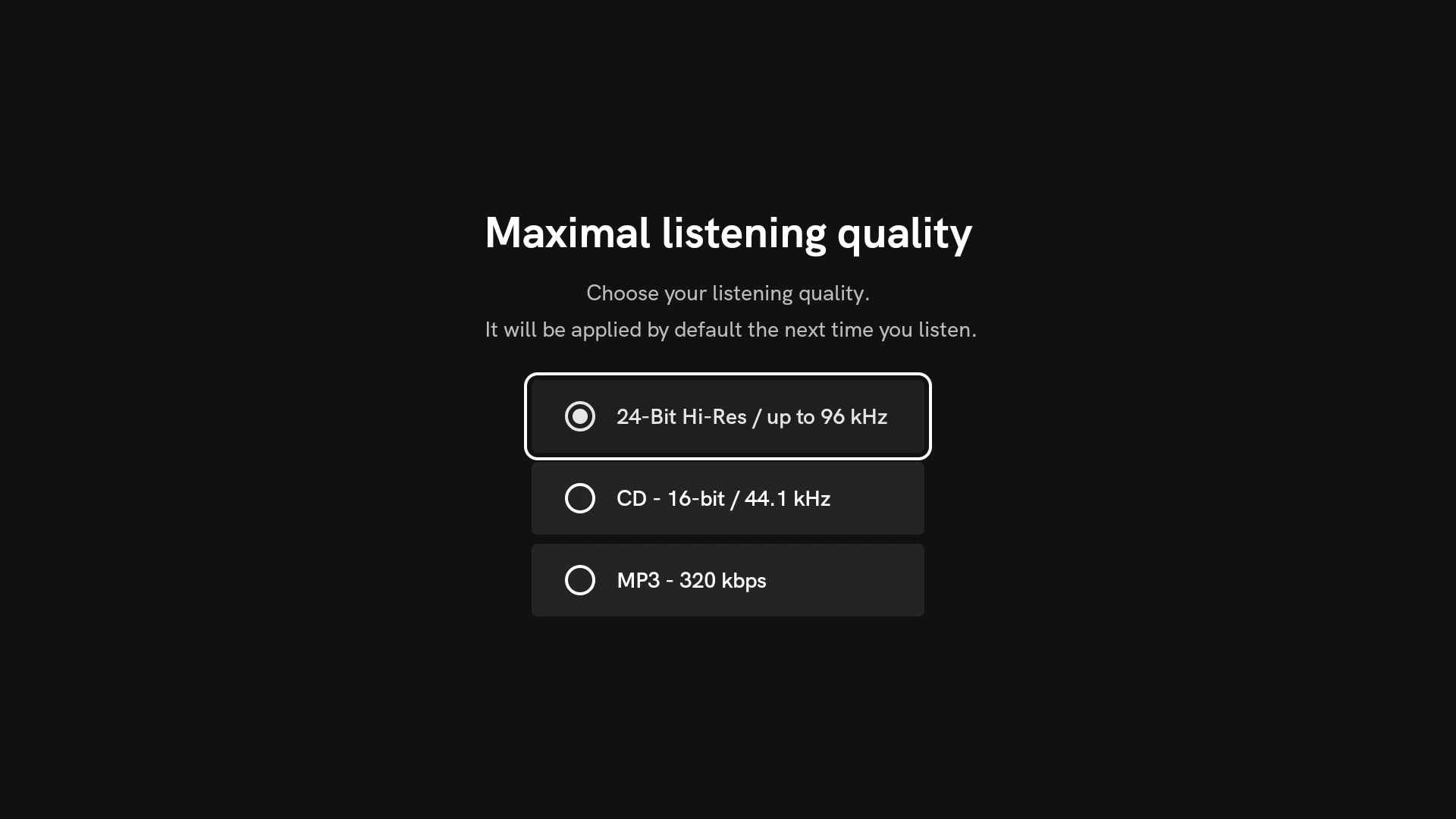
Choosing 24-bit Hi-Res, CD, or MP3 streaming quality
Qobuz lets you set separate maximum audio quality rules for Wi-Fi streaming, mobile connections, and offline downloads so you can balance sound fidelity with bandwidth and storage:
Using the Qobuz Web Player in Google Chrome
If you want to save storage space or cannot install Android apps on a managed device, open play.qobuz.com in Google Chrome. You can stream lossless and Hi-Res audio, browse editorial articles, and manage playlists right in your browser. To pin it like a native desktop app, click Chrome’s three-dot menu and select Save and share > Install Qobuz to run it in its own standalone window.
Troubleshooting Qobuz on Chromebook and Googlebook
If you run into buffering, background pauses, or audio output issues on ChromeOS, try these quick fixes:
- Music pauses when you minimize Qobuz or switch tabs: open ChromeOS Settings > Apps > Manage your apps > Qobuz > More settings and permissions > Battery, and set battery usage to Unrestricted.
- Hi-Res tracks buffer or stutter on busy Wi-Fi: open Qobuz settings and lower your streaming quality from 24-Bit Hi-Res to CD (16-bit / 44.1 kHz) for smoother playback without losing lossless quality.
- Offline downloads fill up Chromebook storage: in Qobuz settings, clear your temporary audio cache or switch download quality to CD or MP3 320 kbps to keep file sizes manageable.
- External USB-C DAC or headphones have no sound: click the time in the bottom-right corner of ChromeOS, open the volume slider arrow, and verify your USB-C DAC or headphones are selected as the active output device.
- Hardware media keys do not control playback: open Chrome, visit
chrome://flags/#hardware-media-key-handling, set it to Enabled, and relaunch your browser.
Frequently asked questions about Qobuz on Chromebook and Googlebook
Is Qobuz free to use on Chromebook and Googlebook?
Qobuz does not offer a permanent free ad-supported streaming tier, though new subscribers can start with a free trial. Paid plans such as Studio and Sublime unlock unlimited lossless CD-quality and 24-bit Hi-Res FLAC streaming, editorial booklets, and offline downloads across the Android app and Web Player.
Can I download Hi-Res albums for offline listening on my Chromebook?
Yes. When you install the official Qobuz Android app from Google Play, you can download individual tracks, full albums, and playlists in MP3, CD, or 24-bit Hi-Res FLAC quality directly to your Chromebook or Googlebook storage for offline playback.
Should I use the Qobuz Android app or the Qobuz Web Player in Chrome?
The Google Play Android app is best if you want offline downloads, Qobuz Connect speaker control, and a full-screen tablet interface. The Qobuz Web Player at play.qobuz.com is ideal if you want to save local storage, listen right inside Google Chrome, or install Qobuz as a lightweight Progressive Web App (PWA).
How do I cast Qobuz from my Android phone to Googlebook?
Open the Phone Hub from the bottom-right shelf of your Googlebook and make sure your Android phone is linked. Click Cast My Apps and select Qobuz. Your phone’s active playback queue and downloaded library open in a desktop window without transferring files or signing in again.
Why does Qobuz stop playing when I switch tabs or minimize the window?
ChromeOS may pause background Android apps to save battery. Open ChromeOS Settings > Apps > Manage your apps > Qobuz > More settings and permissions > Battery, then switch background usage to Unrestricted so music keeps playing while you multitask.
Explore more audio streaming and media guides on ChromeGeek
If you want to compare lossless music services or round out your laptop’s audio setup, check out these companion guides on ChromeGeek:
- Tidal on Chromebook: Install Guide & Web Access: Compare HiRes FLAC streaming, curated mixes, and web player options on ChromeOS.
- How to Install and Use Amazon Music on Chromebook and Googlebook: Stream HD and Ultra HD tracks, podcasts, and playlists on your laptop.
- How to Install and Use Spotify on Chromebook and Googlebook: Set up the Spotify Android app, Web Player PWA, or Linux client for playlists and podcasts.
- How to Install and Use VLC on Chromebook and Googlebook: Play locally stored FLAC, WAV, and high-resolution audio files offline.
- 10 Best Media Players for Chromebook and Googlebook: Compare the top streaming and local media apps for ChromeOS.
Discover more from Chrome Geek
Subscribe to get the latest posts sent to your email.