How to Install and Use Spark: Daily Learning Puzzles on Chromebook and Googlebook
 by
Joseph Vance
Post Updated: November 20, 2026
You can install and use Spark: Daily Learning Puzzles on Chromebook and Googlebook through the official Android app from Google Play. Created by The Mind Company, the team behind Elevate and Balance, Spark turns a few minutes each day into five short, human-crafted puzzles built around a fresh theme.
Googlebook runs Android learning apps natively via Google Play alongside quick phone-app casting from the Phone Hub. This guide covers Google Play installation, how all five daily puzzle modes work on a laptop screen, medal and library tracking, and ChromeOS troubleshooting.
Need help setting up Spark: Daily Learning Puzzles? Contact us with your laptop model and any installation or account questions.
How to install Spark: Daily Learning Puzzles on Chromebook and Googlebook
Installing the official Spark Android app from Google Play takes about a minute and keeps your daily streak synced across devices:
The official Google Play listing identifies the app under the package name com.mindcompany.spark. Installing the Android app gives you full trackpad, mouse, and touchscreen support right inside a resizable ChromeOS window.
If the Play Store is missing on your laptop, follow Google’s Android app setup guide for Chromebook or the guide on installing apps on Googlebook. On school or workplace laptops, administrator policies can restrict Play Store installations. Because Spark is a mobile-first Android app with no web player or Linux (.deb) package, Google Play or phone casting are the two supported ways to run it on ChromeOS.
Cast Spark: Daily Learning Puzzles from your phone on Googlebook
If you already play Spark on your Android phone during breakfast or a commute, Googlebook’s Cast My Apps feature lets you continue right on your laptop screen. Open the Phone Hub in the bottom-right corner of your Googlebook shelf, click Cast My Apps, and pick Spark. Your phone’s active daily theme and puzzle progress appear in a clean desktop window without installing the app separately or logging in again.
Exploring daily themes and the five puzzle modes
Instead of random trivia questions, Spark centers every day around one overarching topic, such as ancient history, mythology, geography, movies, food, or space, and explores it through five quick games:
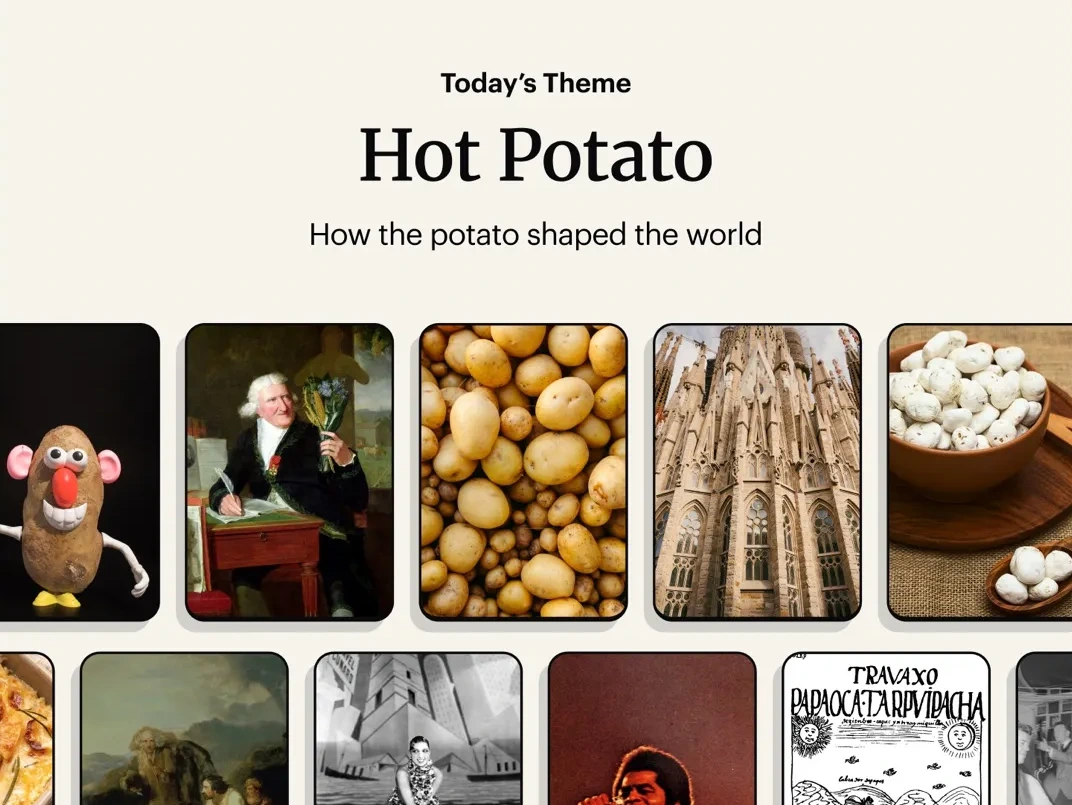
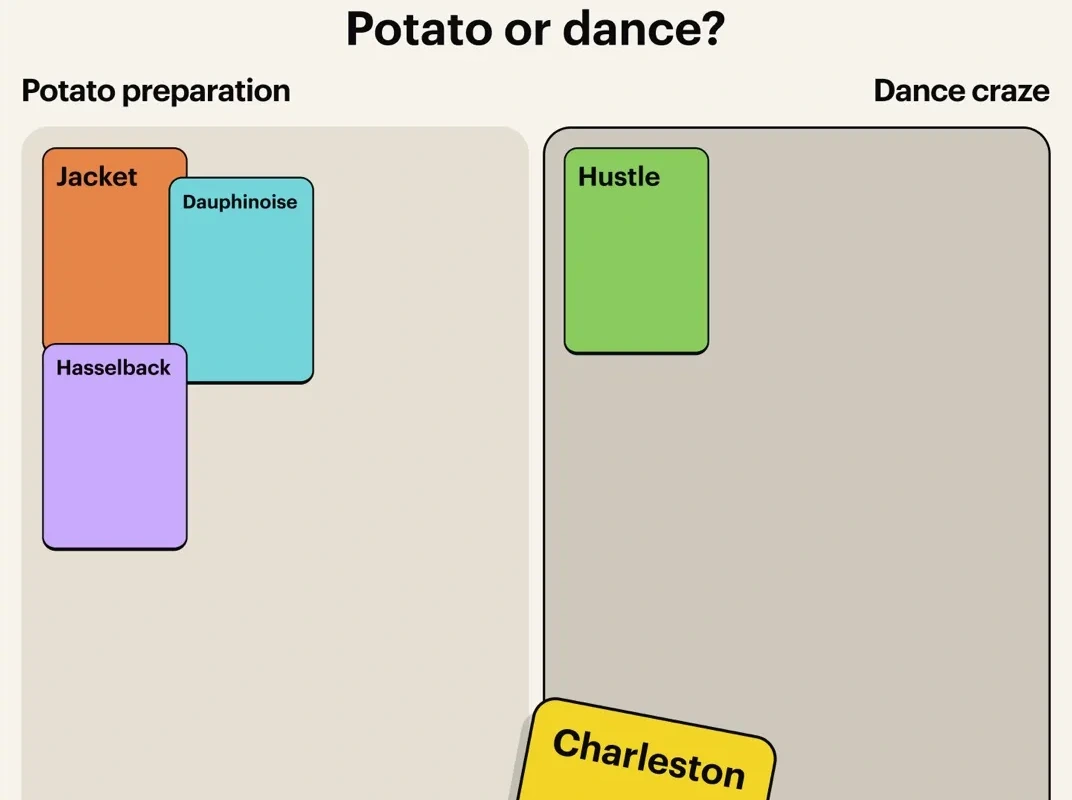
- This or That: Sort cards or pick between two categories to uncover surprising details about the day’s theme.
- Links: Spot the shared connection linking people, places, and concepts across a visual board.
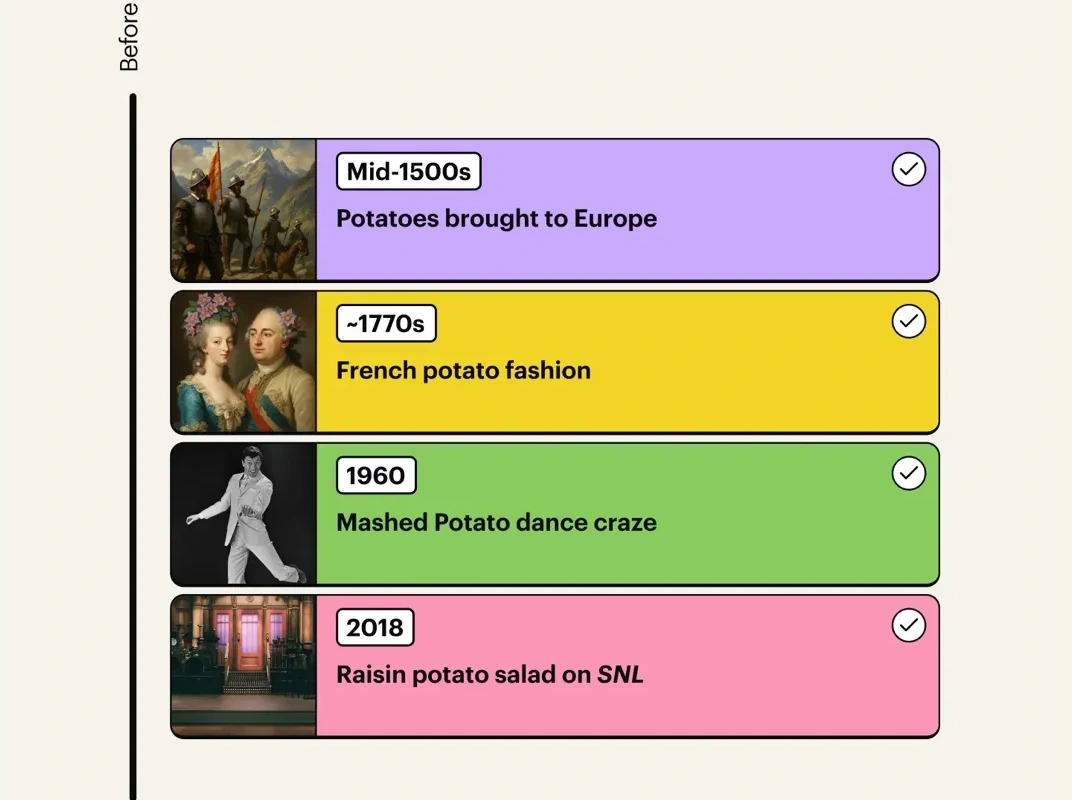
- Chrono: Arrange historical events and cultural milestones along a vertical timeline from earliest to latest.
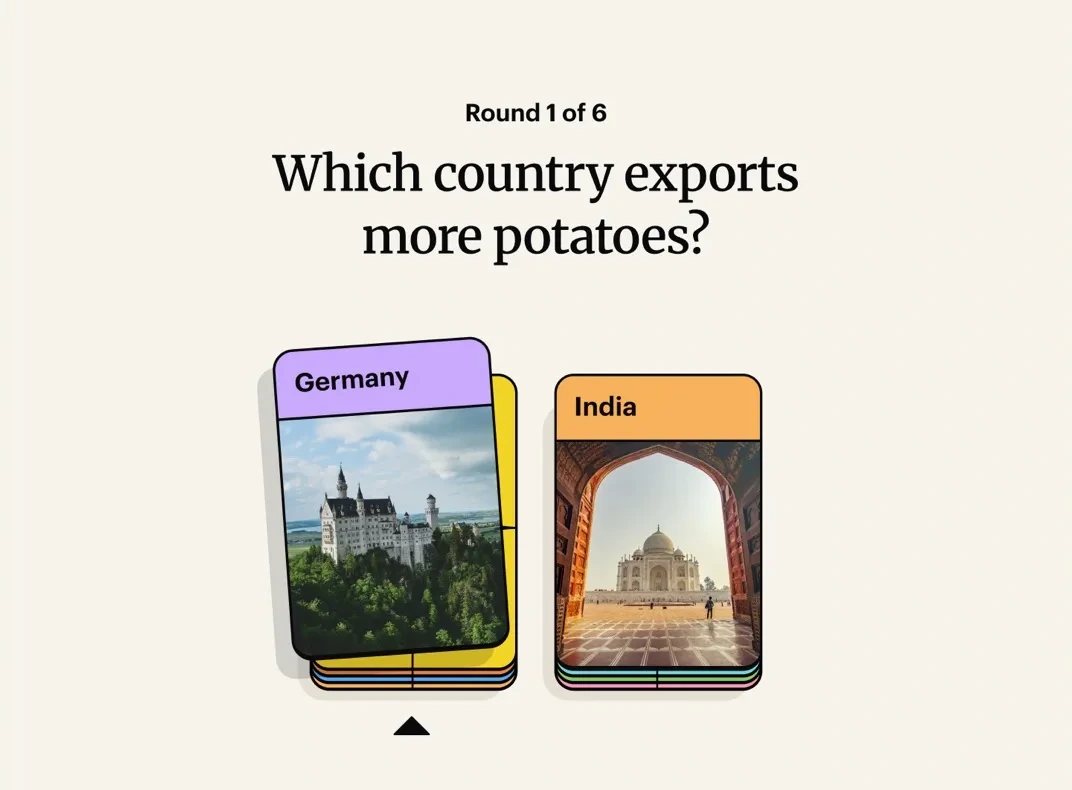
- Knockout: Compare items in quick head-to-head rounds to see which country, landmark, or fact comes out on top.
- Hindsight: Study a real historical photo, then slide the year and map markers to pinpoint when and where it was captured.
Playing Chrono, sorting boards, and matchups on a laptop
Spark’s card-based layout translates smoothly to Chromebook trackpads, mice, and 2-in-1 touchscreens. You can drag timeline tiles into place in Chrono, drop cards into columns during This or That, and inspect high-resolution photo clues without squinting:
Medals, daily streaks, and the past-topics library
As you finish each daily lineup, Spark awards Gold, Silver, or Bronze medals along with knowledge points so you can track your progress over time without stressful timers:
- Medal and streak tracking: earn Gold, Silver, or Bronze medals based on accuracy across all five daily games and keep a daily learning streak alive.
- Hundreds of archived topics: open the Library tab to browse past themes by subject, including animals, ancient history, chemistry, language, nature, and movies.
- Shareable daily themes: invite friends or classmates to play the same theme and compare how you scored on tricky timeline or photo rounds.
- Quick “aha” takeaways: every solved card reveals a concise explanation so you walk away knowing the story behind the answer.
Troubleshooting Spark: Daily Learning Puzzles on ChromeOS
If Spark stalls on launch, crops awkwardly, or misses a daily sync on your Chromebook or Googlebook, try these practical fixes:
- Window looks cramped or cards clip on screen: click the window size toggle in the top bar of the Android app window to switch between phone, tablet, and resizable desktop proportions.
- Daily puzzles fail to load or freeze: open ChromeOS Settings > Apps > Manage your apps > Spark > Storage and select Clear cache, then relaunch while connected to Wi-Fi.
- Subscription or streak not showing up: make sure you signed into Spark using the same Google or email account linked to your Google Play purchase, then restart the app.
- No sound effects during puzzles: check your ChromeOS volume slider in Quick Settings and confirm that app sound effects are enabled inside Spark’s settings menu.
- App crashes after a system update: check Google Play for an updated Spark release and make sure ChromeOS is up to date under Settings > About ChromeOS.
Frequently asked questions about Spark: Daily Learning Puzzles on Chromebook and Googlebook
Is Spark: Daily Learning Puzzles free on Chromebook and Googlebook?
Yes. You can download Spark: Daily Learning Puzzles from Google Play for free and play each day’s featured theme puzzles at no cost. An optional paid subscription unlocks unlimited access to the full archive of past themes and bonus puzzle sets.
What are the five daily puzzle games inside Spark?
Each daily theme includes five short games: This or That (sorting or choosing between two options), Links (connecting people, places, and ideas on a board), Chrono (ordering historical events on a timeline), Knockout (head-to-head comparisons), and Hindsight (guessing when and where a historical photo was taken).
Are Spark puzzles created by humans or artificial intelligence?
Spark’s puzzles and daily themes are written and fact-checked by human editors rather than generated by AI. The Mind Company designs every round to highlight surprising real-world stories across history, science, geography, food, and pop culture.
How do I cast Spark: Daily Learning Puzzles from my phone to Googlebook?
Open the Phone Hub from the bottom-right corner of your Googlebook shelf with your Android phone connected. Select Cast My Apps and choose Spark to open your phone’s active puzzle session in a desktop window without signing in again.
Can I play past daily themes and archived puzzles in Spark on ChromeOS?
Yes. Spark includes an in-app library where you can browse and replay past themes across categories like ancient history, mythology, space, movies, and animals. Full archive access may require an active Spark membership linked to your Google Play account.
Companion learning and brain-training guides
Pair Spark’s daily trivia and history challenges with other learning, quiz, and study apps on ChromeOS:
- Daily language habits: Build a companion streak practicing 40+ languages, math, and music with How to Install and Use Duolingo on Chromebook and Googlebook.
- Live group trivia: Host interactive quizzes and study flashcards with friends or classmates using Kahoot on Chromebook and Googlebook.
- Course and assignment tracking: Keep school readings, quizzes, and offline study files organized in How to Install and Use Moodle on Chromebook and Googlebook.
- Step-by-step math help: Check algebra, calculus, and graphing problems right in Chrome or the Android app with How to Install and Use Mathway on Chromebook and Googlebook.
- More study apps: Browse our full roundup of classroom, flashcard, and skill-building tools in the Best Education Apps for Chromebook.
Discover more from Chrome Geek
Subscribe to get the latest posts sent to your email.