How to Install and Use Kahoot on Chromebook and Googlebook
 by
Juniya Sankara
Post Updated: November 3, 2026
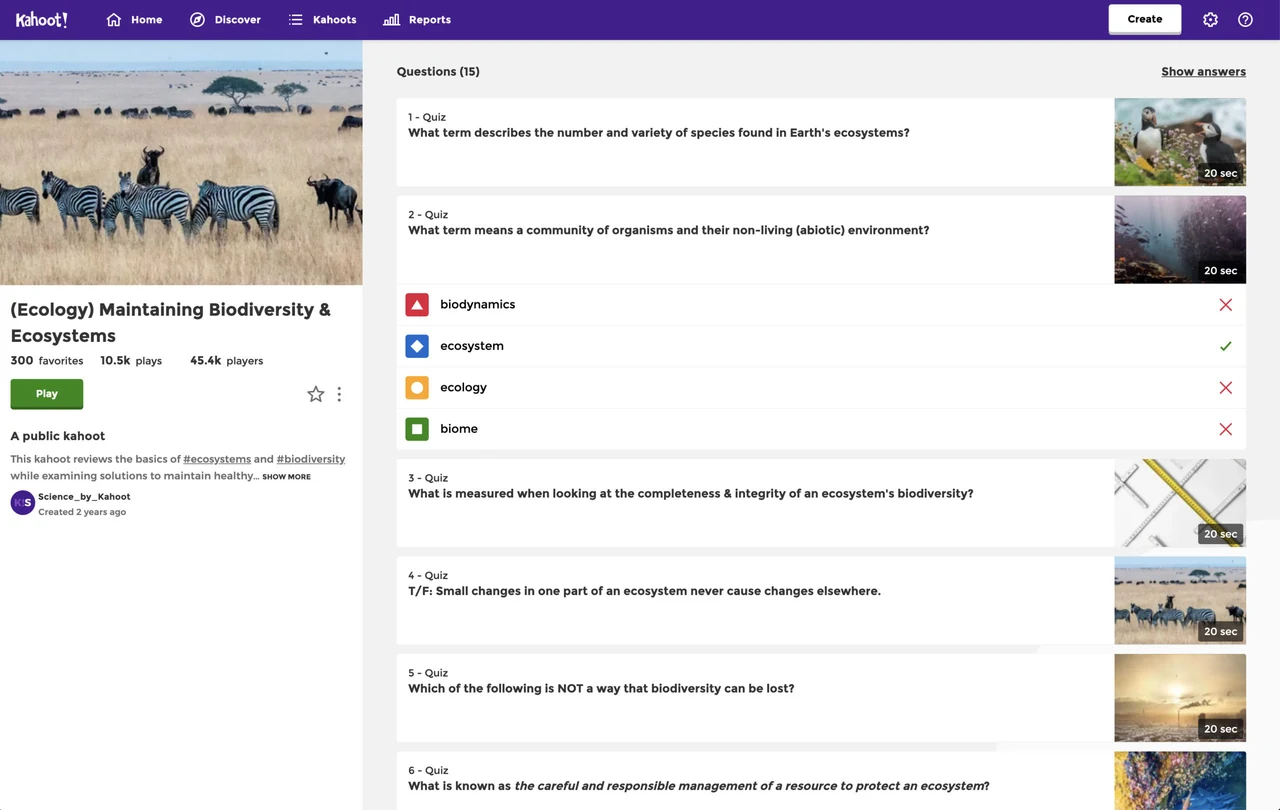
You can install and use Kahoot on Chromebook and Googlebook directly through the official app on Google Play, play instantly in the Chrome browser, or stream it wirelessly from your phone. As one of the world’s most widely used game-based learning platforms, Kahoot turns classroom reviews, team training, and family trivia nights into high-energy multiplayer competitions.
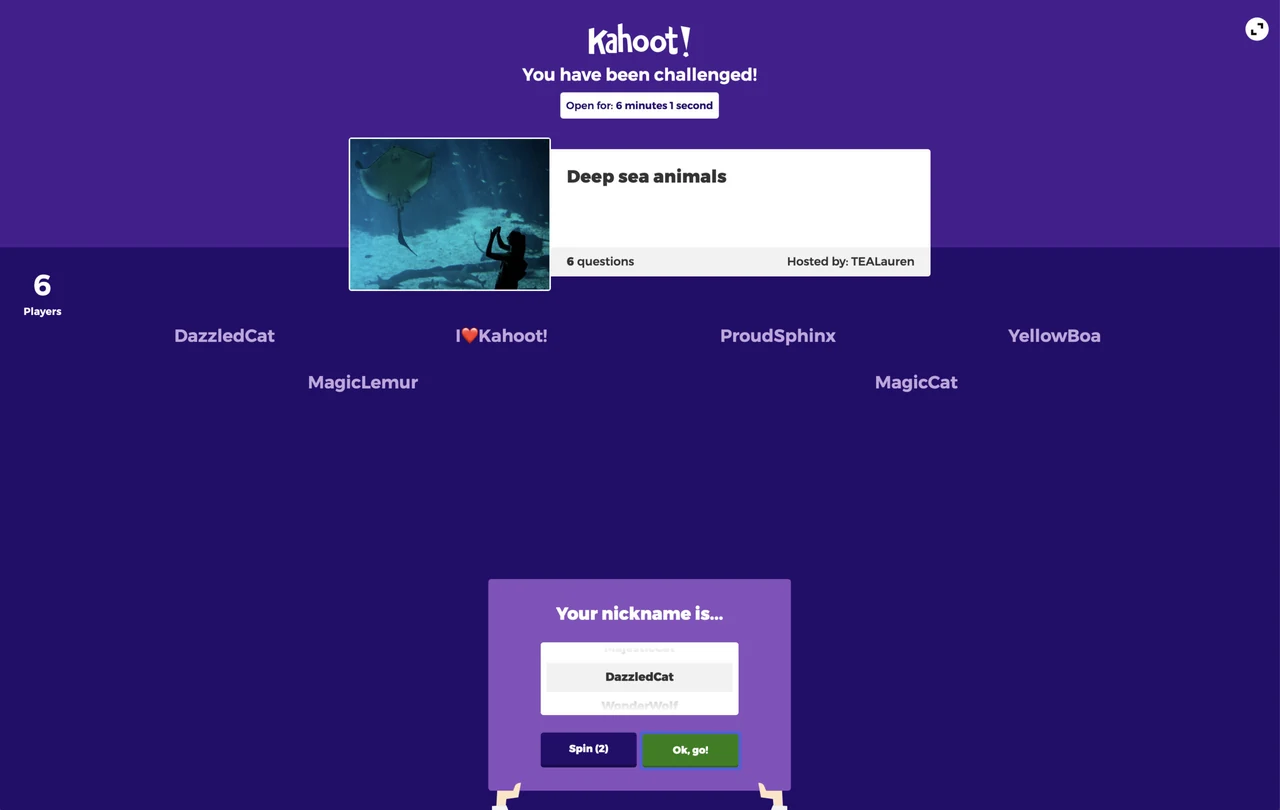
Chromebook and Googlebook devices provide the ideal balance of physical keyboards and responsive touchscreens for Kahoot. Teachers can build intricate quizzes and project live game PINs on the big screen, while students can tap colorful buzzer buttons, study digital flashcards, and complete asynchronous review challenges. This guide walks you through the Google Play installation, phone hub casting, browser play, quiz creation tools, and school network troubleshooting.
Have questions about running interactive quizzes on your school or workplace devices? Contact us with your device details and ChromeOS version.

Why choose Kahoot for ChromeOS learning
Kahoot has transformed classroom pedagogy by replacing passive lectures with gamified review sessions. Because ChromeOS runs both progressive web apps and sandboxed Android environments, educators and students have multiple flexible pathways to connect. The official Google Play listing confirms full compatibility with modern Chromebook and Googlebook hardware.
How to install Kahoot on Chromebook and Googlebook
For complete operating system instructions, consult Google’s official Android app setup guide for Chromebook and companion guide on installing apps on Googlebook. If your device is managed by a school or corporate IT department, administrators can remotely push Kahoot to your app drawer via the Google Admin Console. Users who prefer zero local storage overhead can also navigate to kahoot.it in the Chrome browser to play immediately without installing any software.
Cast Kahoot from your phone on Googlebook
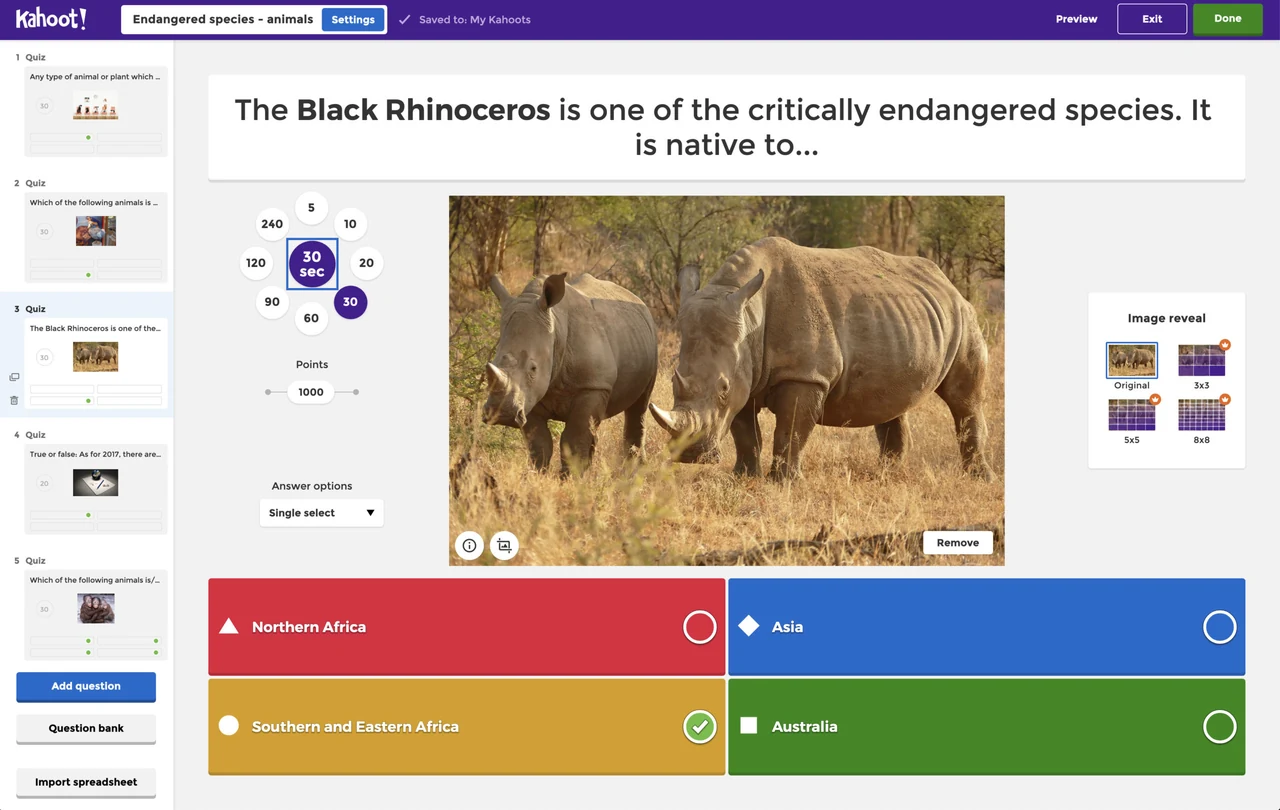
Googlebook users can also access Kahoot through seamless phone hub streaming. By using Cast My Apps within the Googlebook phone hub, you can wirelessly mirror your smartphone’s active Kahoot session directly onto your laptop screen. This enables students and presenters to display live study decks, host trivia rounds, or join rapid-fire buzzer challenges without having to reinstall the app, sign in again, or transfer study materials between devices.
Interactive game modes and study features in Kahoot
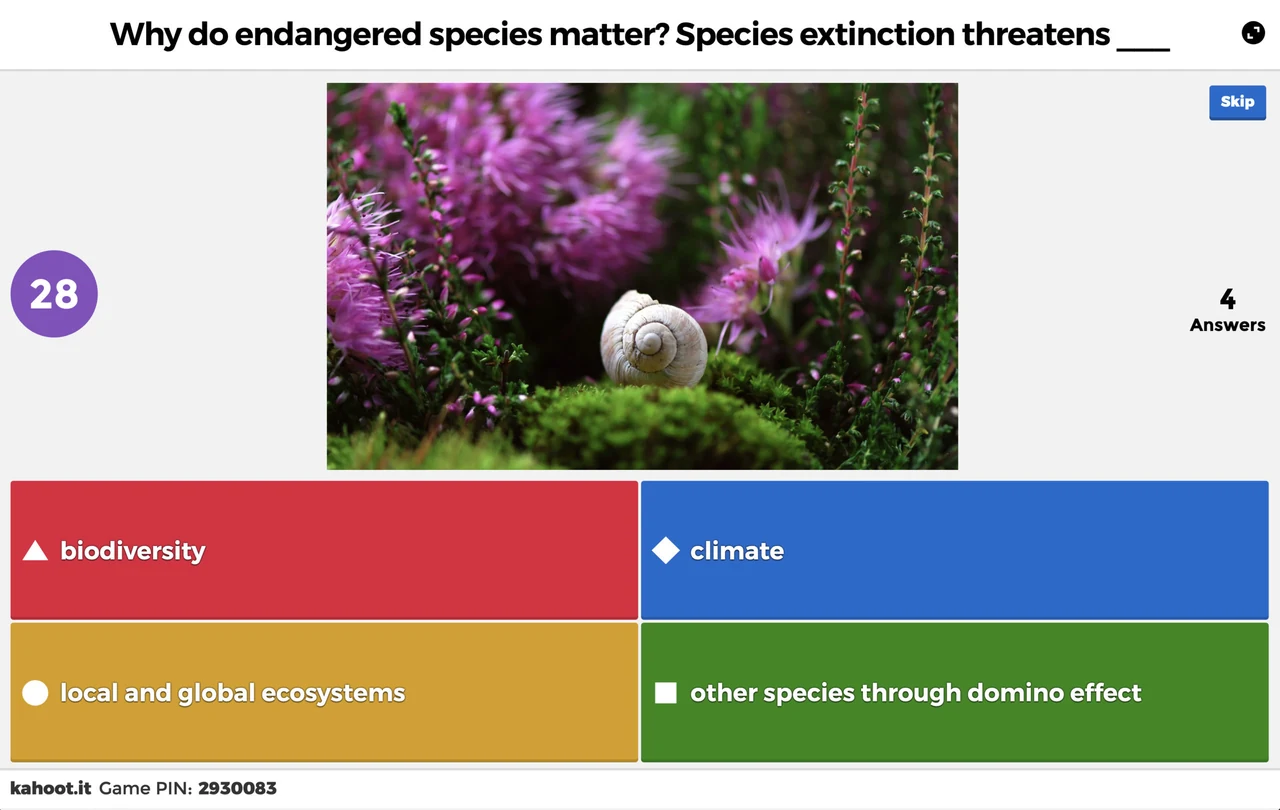
Kahoot offers versatile formats tailored for classrooms, remote study groups, and enterprise presentations:
Kahoot Android app vs web browser vs phone casting
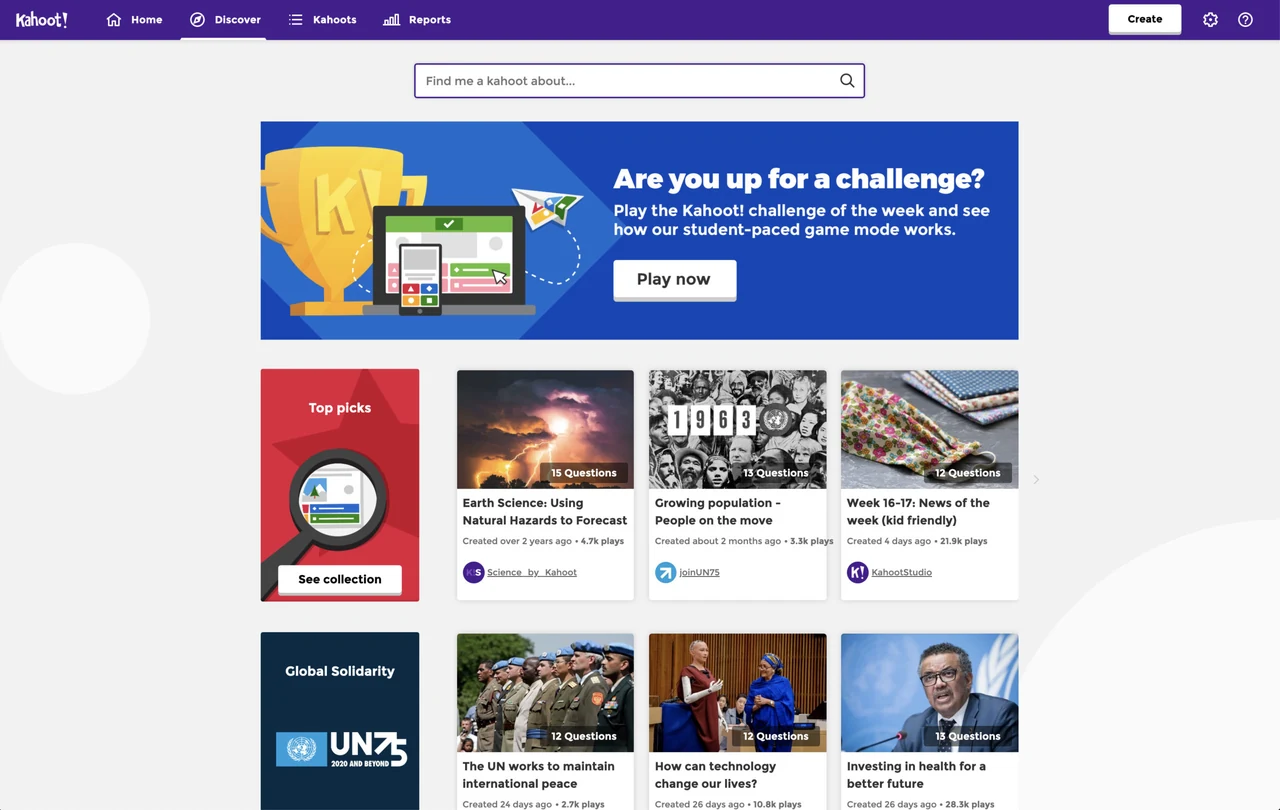
Selecting the right access method ensures optimal performance based on whether you are hosting a quiz or participating as a player:
Troubleshooting common Kahoot issues on ChromeOS
If you experience connectivity delays, audio errors, or PIN entry problems on your device, apply these direct solutions:
Frequently asked questions
Is Kahoot free to install and use on Chromebook and Googlebook?
Yes. The core version of Kahoot is completely free to install and play on Chromebook and Googlebook. Free accounts allow educators and students to host live quiz games, join sessions with game PINs, and access millions of public games. Optional paid upgrades provide advanced question types, AI quiz creation, and comprehensive reporting.
Should I use the Kahoot Android app or the web browser version on Chromebook?
Both work seamlessly, but they serve different purposes. The Android app from Google Play is ideal for students playing live games, completing self-paced study challenges, or practicing flashcards offline. The web platform (kahoot.com for hosting/creating and kahoot.it for joining) is best for teachers projecting live games onto classroom displays or drafting complex quiz questions with a full physical keyboard.
Can school IT administrators deploy Kahoot across managed Chromebooks?
Yes. School IT administrators can easily deploy the Kahoot Android app (no.mobitroll.kahoot.android) across student fleets using the Google Admin Console under Devices > Chrome > Apps & extensions. Alternatively, administrators can push managed browser bookmarks or pinned web shortcuts to kahoot.it.
What network domains must be allowlisted for Kahoot to work on school Wi-Fi?
If student Chromebooks cannot connect to live games, school network filters must allowlist *.kahoot.it, *.kahoot.com, and kahoot.com across ports 80 and 443, along with WebSockets (wss://kahoot.it) for real-time player buzzer responses.
Can I play Kahoot offline on a Chromebook or Googlebook?
The Kahoot Android app allows learners to review saved flashcards and study modes offline. However, hosting or joining live synchronous multiplayer quizzes requires an active internet connection to synchronize buzzer inputs and scoreboards in real time.
Explore more classroom tools on Chromebook
Looking to expand your classroom tech stack? Organize digital assignments and announcements with our guide to Google Classroom on Chromebook, publish collaborative student ebooks using Book Creator on Chromebook, foster interactive language practice with Duolingo on Chromebook, or introduce creative early coding projects through ScratchJr on Chromebook.
Discover more from Chrome Geek
Subscribe to get the latest posts sent to your email.