How to Install and Use Google Classroom on Chromebook and Googlebook
 by
Juniya Sankara
Post Updated: November 1, 2026
You can install and use Google Classroom on Chromebook and Googlebook through the official Android application from Google Play or access the cloud platform directly via Chrome. As Google’s dedicated digital learning hub, Google Classroom connects students, educators, and guardians through paperless assignments, interactive course streams, organized Google Drive folders, and integrated grading tools.
Chromebooks and modern Googlebook devices are built from the ground up to support the Google Workspace ecosystem, running web applications and Android apps simultaneously. Whether you are an educator managing multiple class periods or a student completing homework, this complete guide covers Google Play installation, browser setup, tablet navigation, stylus annotations, offline coursework, and phone app casting.
Need assistance configuring your student account or setting up classroom permissions on your device? Contact us with your device model and school domain details.
How to install Google Classroom on Chromebook and Googlebook
Installing the official Google Classroom app from Google Play delivers touch-optimized navigation, push notifications, offline assignment storage, and direct drawing support across your ChromeOS devices:
[email protected]) to view all registered classes.The official Google Play listing distributes Google Classroom under the package identifier com.google.android.apps.classroom. The Android application is optimized for Chromebook touch displays, 2-in-1 convertible tablets, and stylus accessories.
If the Google Play Store is not currently enabled on your device, consult Google’s official Android app setup guide for Chromebook or the guide on installing apps on Googlebook. Note that on school-managed or enterprise Chromebooks, administrative policies set by your district or institution determine whether Android applications can be downloaded from Google Play. When Play Store downloads are restricted by policy, you can still access every single feature through the browser at classroom.google.com.
Cast Google Classroom from your phone on Googlebook
If you frequently capture handwritten math problem sets, scientific sketches, or physical book pages on your smartphone camera, Googlebook’s Cast My Apps feature lets you stream the mobile Google Classroom app directly onto your laptop display. Open the Phone Hub in the bottom-right shelf of your Googlebook, choose Cast My Apps, and tap Google Classroom. Your mobile session appears immediately inside an adaptive desktop window, allowing you to attach recently taken photos directly from your phone gallery to pending assignments without manually transferring image files or uploading through Google Drive.
Tablet dashboard and class management on ChromeOS
When running Google Classroom on a Chromebook tablet, convertible 2-in-1, or detachable screen, the user interface expands across the display with colorful, informative course cards:
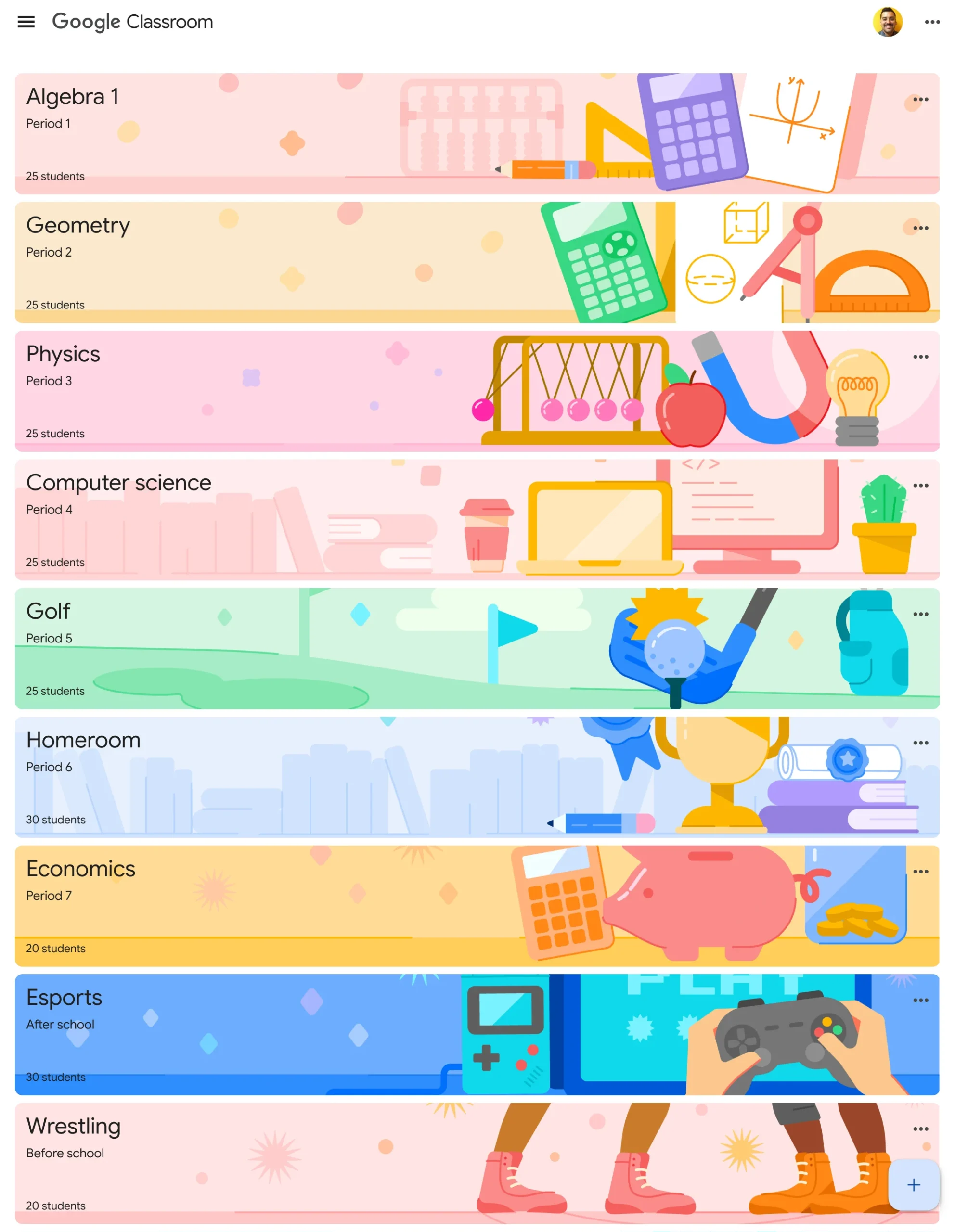
The tablet layout maximizes screen real estate with clear visual hierarchy:
Course Stream: announcements, multimedia, and worksheets
The Stream acts as the central communication feed for each course. It keeps teachers and students connected with real-time class announcements, due-date reminders, attached worksheets, and multimedia resources:
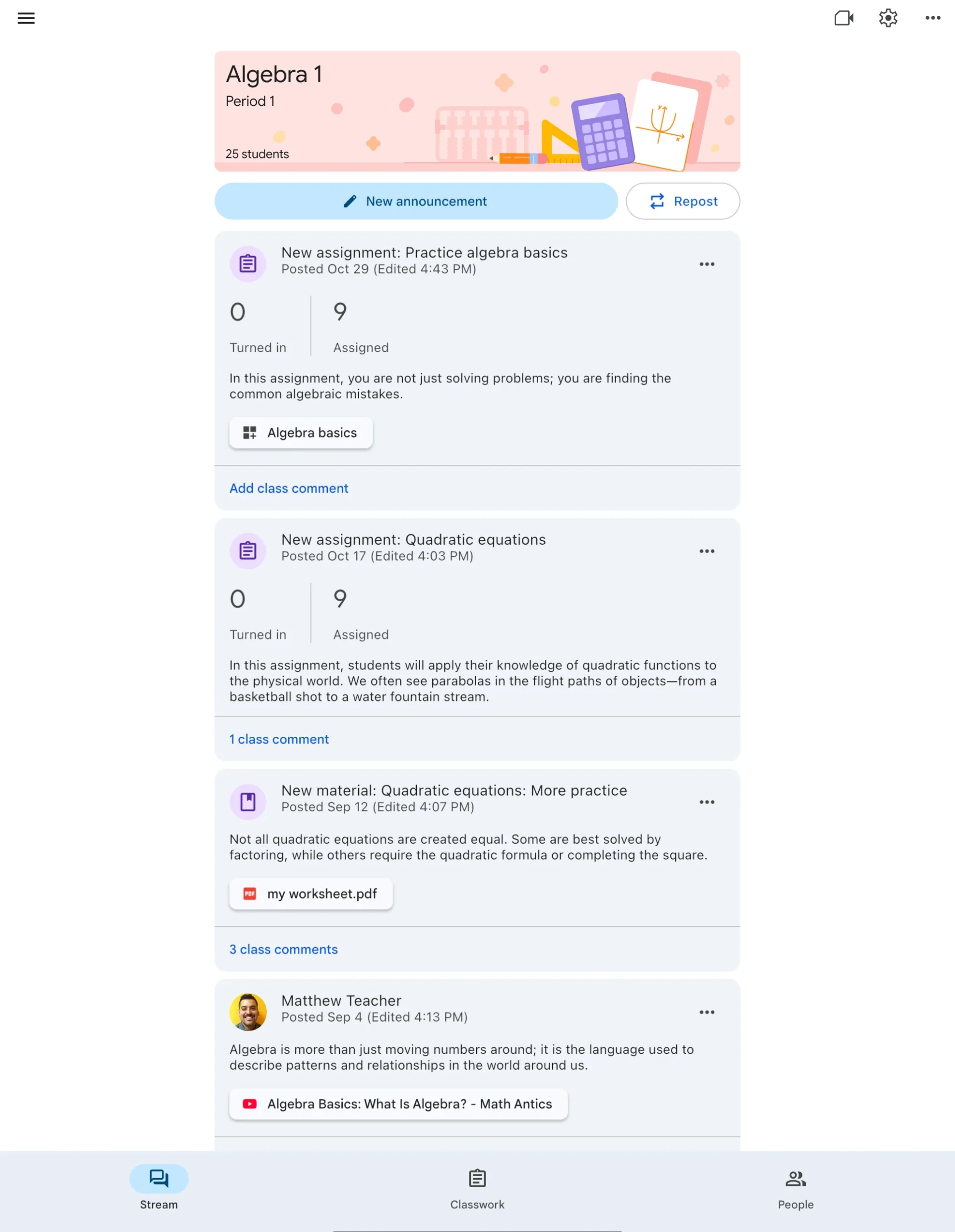
The tablet stream streamlines everyday coursework interactions:
- Structured Announcements: teachers can post daily agendas, lesson recaps, and schedule updates, or reuse announcements across multiple class periods with a single tap.
- Integrated Media Attachments: assignments support direct attachments from Google Drive, interactive YouTube educational video lessons, web hyperlinks, and PDF worksheets.
- Class and Private Comments: students can ask public questions in the class comment feed for collaborative peer discussion or send private comments directly to the instructor.
- Upcoming Due Dates Summary: the top of the stream highlights tasks due this week, missing assignments, and scheduled quiz dates to keep learners organized.
Classwork tab: curriculum units, rubrics, and assignment trackers
The Classwork tab is the organizational engine of Google Classroom. It enables teachers to structure entire semesters into structured thematic units and lets students track their academic progress:
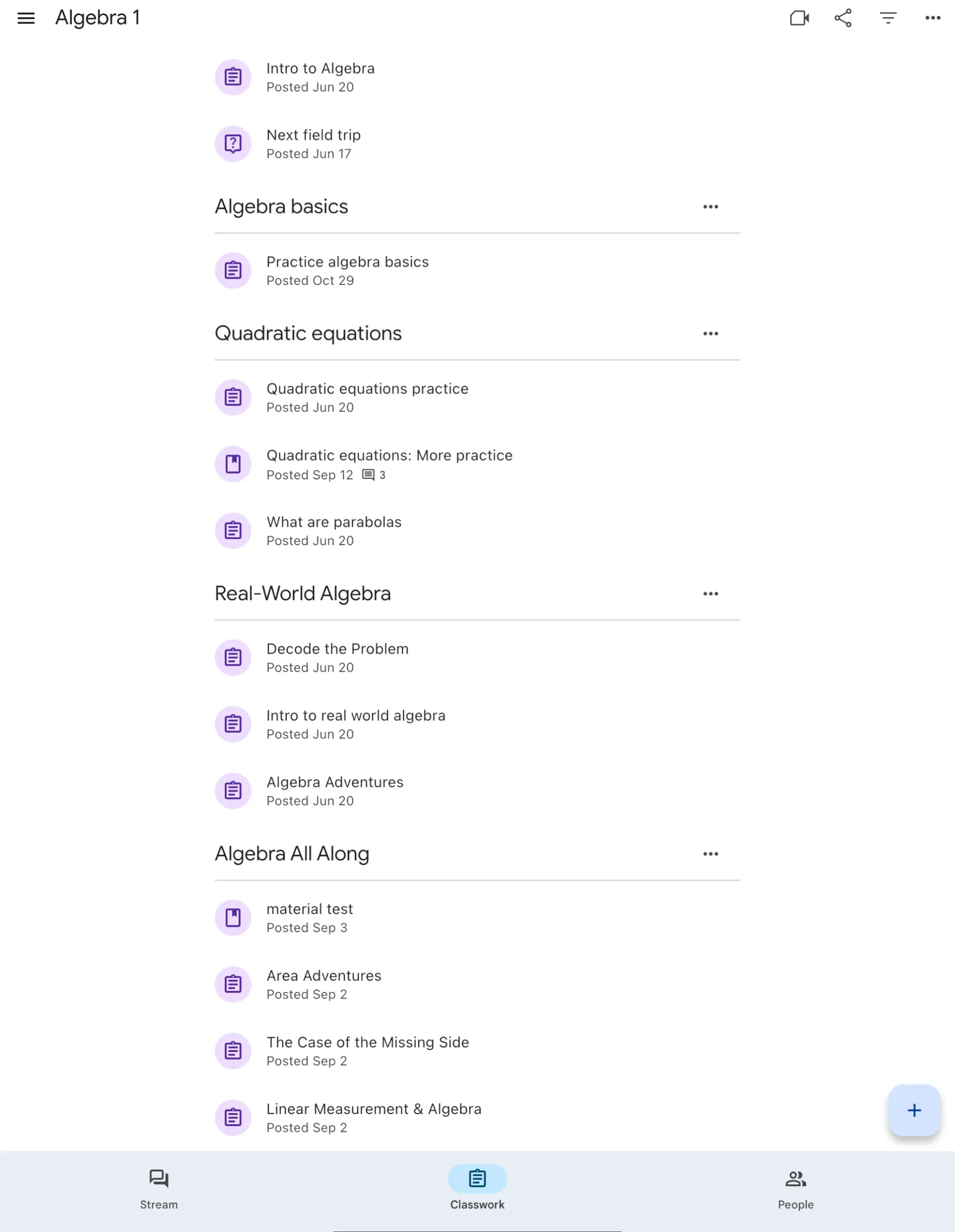
Key features within the Classwork workspace include:
- Thematic Topics Organization: group coursework into units such as “Algebra basics,” “Quadratic equations,” and “Real-World Applications” for logical progression through the syllabus.
- Interactive Assignment Cards: each task clearly displays posting date, point value, instructions, attached templates (such as student copies of Google Docs), and status icons.
- Reference Materials Library: post non-graded syllabus documents, formulas cheat-sheets, reading lists, and lab safety guidelines that remain permanently accessible.
- Built-In Rubrics: instructors can attach standardized scoring rubrics with customizable criteria, levels, and point scales so students understand grading expectations before submission.
Teacher grading, student submissions, and instant feedback
Grading on ChromeOS is fast and paperless. The teacher evaluation dashboard displays submission counts, student completion statuses, and individual files at a glance:
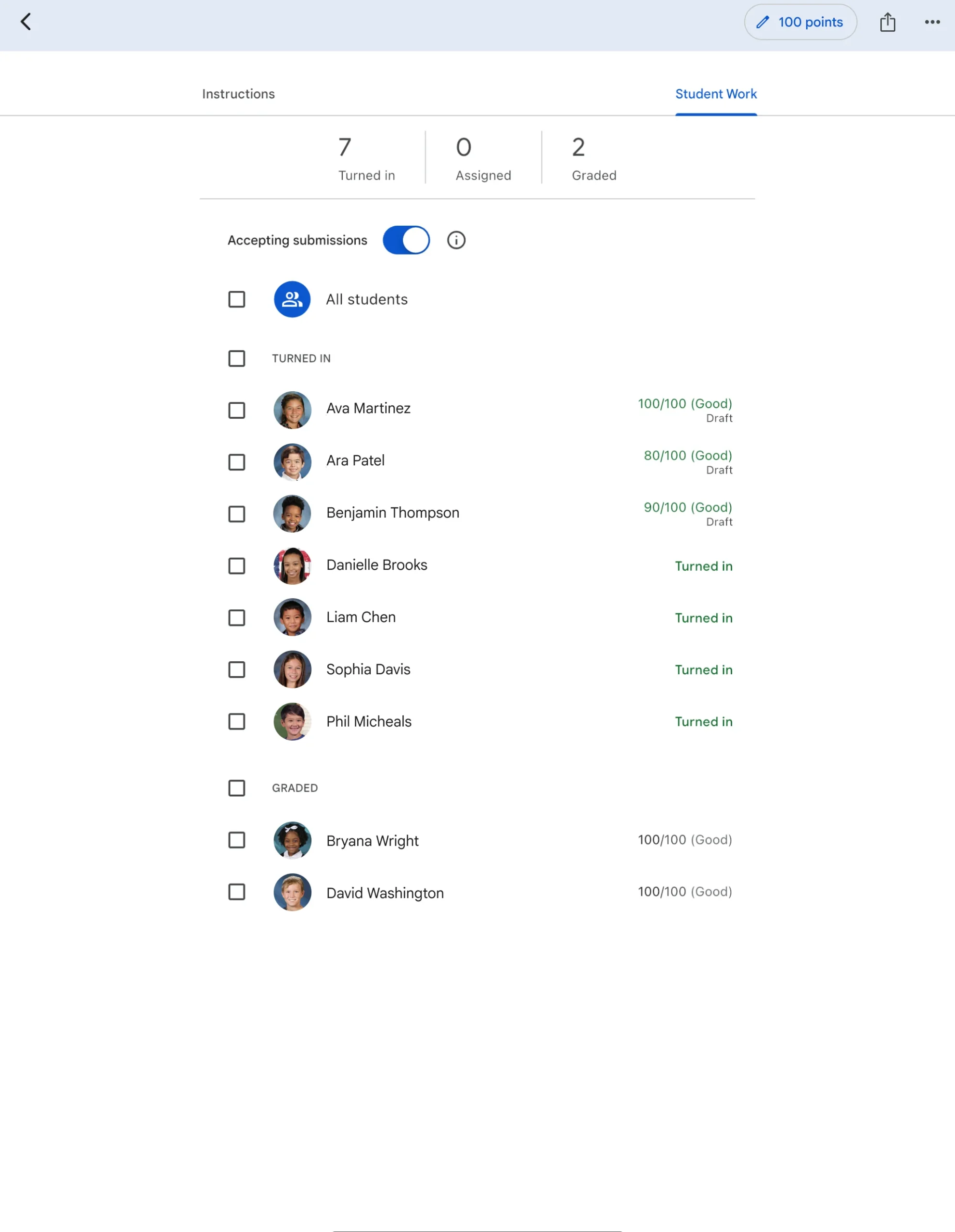
The streamlined grading workflow accelerates assessment for instructors:
- Real-Time Submission Breakdown: immediately check how many students have turned in work, how many assignments remain assigned, and which papers are graded.
- Draft Scoring System: enter scores in a draft status so grades can be reviewed and adjusted before returning them to the entire class simultaneously.
- Accepting Submissions Toggle: easily lock an assignment once a hard deadline passes or unlock it for individual students requiring extensions.
- Originality Reports: run automated plagiarism checks against billions of web pages and proprietary book databases directly within student Google Docs and Slides.
- Comment Bank: save frequently used feedback phrases and grading notes to quickly insert detailed comments with a single click.
Web platform vs. Android app on Chromebook: which should you choose?
Because Chromebooks and Googlebook devices support both full web applications and native Android apps, you can use either or both depending on your task:
| Feature / Capability | Web Version (classroom.google.com) | Android App (Google Play) |
|---|---|---|
| Offline Access | Limited (cached pages in browser) | Full offline caching of streams & tasks |
| Stylus & Drawing Tools | Requires separate web drawing apps | Native pen, highlighter & annotation tools |
| Multitasking & Tabs | Open multiple classes in browser tabs | Single-window navigation |
| Camera Scanning | Via ChromeOS Camera app files | Direct document scanner in assignment flow |
| Best For | Teachers, grading, multi-window workflows | Students, 2-in-1 tablets, handwritten work |
Pro Tip: Most students and educators get the best experience by pinning both the web shortcut in Chrome and installing the Android app from Google Play, switching seamlessly based on whether they need tablet stylus tools or wide multi-window productivity.
Stylus annotation, USI pens, and handwriting on touchscreen Chromebooks
One of the greatest advantages of using Google Classroom on a Chromebook tablet or 2-in-1 convertible is native digital inking. When students open any PDF worksheet, math problem sheet, or scanned diagram inside the Android app, a pencil icon appears in the top navigation bar:
- Natural Handwriting: write answers directly into worksheet fields using a Universal Stylus Initiative (USI) active pen or passive capacitive stylus.
- Highlighter and Color Palette: highlight key vocabulary in reading comprehension texts or annotate scientific diagrams in distinct colors.
- Automatic PDF Generation: when the student finishes writing and taps Save, Google Classroom automatically compiles their handwriting into an annotated PDF attachment and links it to the assignment, ready for teacher review.
Troubleshooting Google Classroom on Chromebook and Googlebook
If you experience login issues, blank pages, or upload errors, follow these quick diagnostic solutions:
- Account switching and wrong domain: Google Classroom requires signing in with the account assigned by your educational institution (e.g.
[email protected]). If you see an empty dashboard or receive a “Class not found” error, click your profile avatar in the top-right corner and switch from your personal@gmail.comprofile to your school account. - Play Store disabled by school administrator: if you cannot find or install the app from Google Play, your school IT department has likely restricted Play Store app downloads via Google Admin console. Simply open Chrome and navigate to classroom.google.com, which provides the full curriculum experience without requiring app store installation.
- Drive storage quota or file upload failures: if assignment attachments fail to upload, verify that your Google Drive trash is not full and ensure file attachments are within institutional file-size limits.
- App crashing or sync errors after ChromeOS update: clear the local app cache by opening ChromeOS Settings > Apps > Manage your apps > Google Classroom > Storage & cache, then select Clear cache.
- Camera and microphone permissions in Google Meet: when joining virtual class sessions through Google Classroom, verify that Chrome and the Classroom app have camera and microphone permissions enabled under device privacy settings.
Frequently asked questions about Google Classroom on Chromebook and Googlebook
Is Google Classroom free to use on Chromebook and Googlebook?
Yes. Google Classroom is completely free for individual students, teachers, homeschoolers, and accredited educational institutions using Google Workspace for Education. There are no built-in ads, in-app purchases, or subscription fees required to access classes, turn in coursework, or grade assignments.
Should I use the Google Classroom web platform or the Android app on ChromeOS?
Both options provide distinct advantages. The web version at classroom.google.com offers multi-tab multitasking, comprehensive class management settings, and full keyboard navigation. The Google Play Android app delivers offline assignment viewing, direct mobile push notifications, and native stylus handwriting and drawing tools on touchscreen Chromebooks and convertibles.
Can students write and draw on assignments using a stylus on Chromebook tablets?
Yes. When opening PDF worksheets or image attachments in the Google Classroom Android app on a touchscreen Chromebook or Googlebook, students can select the pen tool to handwrite answers, highlight passages, sketch diagrams, and annotate math equations directly using their finger or a USI stylus.
Can I access Google Classroom assignments offline without an internet connection?
Yes. The Google Classroom Android app caches your enrolled class streams and assignment prompts for offline access. Students can review directions, draft responses in Google Docs offline, and download attached reading materials without Wi-Fi. Submissions automatically sync to the teacher once the device reconnects to the internet.
How do I cast Google Classroom from my phone to Googlebook?
Open the Phone Hub from the bottom-right shelf of your Googlebook and ensure your Android phone is connected. Click Cast My Apps, then select Google Classroom. Your phone app session opens instantly inside a responsive desktop window on your laptop screen, allowing you to attach smartphone camera scans, check notifications, and submit homework without sending files between devices.
Explore more educational and productivity guides on ChromeGeek
- 12 Best Education Apps for Chromebook: Discover top learning platforms, study planners, language tools, and interactive STEM software for ChromeOS.
- 15 Best Chrome Extensions for Teachers: Streamline lesson planning, classroom management, grading, and screen annotation with curated teacher tools.
- 15 Best Chrome Extensions for Students: Enhance research, citation generation, focus timers, note-taking, and assignment tracking on your Chromebook.
- How to Install and Use Moodle on Chromebook: Set up open-source learning management system coursework, quizzes, and university modules.
- How to Install and Use Chrome Remote Desktop on Chromebook and Googlebook: Remotely connect to school computer labs, home desktops, and PC workstations with free cloud brokering.
- Googlebook News and Guides Hub: Explore Googlebook AI enhancements, device specifications, and seamless phone integration features.
Discover more from Chrome Geek
Subscribe to get the latest posts sent to your email.