How to Install and Use Moodle on Chromebook and Googlebook
 by
Juniya Sankara
Post Updated: November 20, 2026
You can install and use Moodle on Chromebook and Googlebook through the official Android app from Google Play or directly in Chrome via your school’s web portal. It keeps your course lessons, assignments, quizzes, and grades organized in one place.
Googlebook runs Android apps natively through Google Play alongside quick phone-app casting from the Phone Hub. This guide covers Google Play installation, web browser access, offline course downloads, assignment tracking, and troubleshooting.
Need help setting up Moodle? Contact us with your laptop model and any login or course questions.

How to install Moodle on Chromebook and Googlebook
Installing the official Moodle Android app takes about a minute and lets you save course files for offline study:
The official Google Play listing uses the package identifier com.moodle.moodlemobile. Installing the Android app gives you offline course downloads and native ChromeOS notifications for upcoming assignment deadlines.
If the Play Store is missing on your laptop, check Google’s Android app setup guide for Chromebook or the guide on installing apps on Googlebook. On school-managed laptops, IT administrators sometimes restrict Play Store downloads. There is no separate Linux package required because you can always open your school’s Moodle website directly in Google Chrome or test the official Moodle demo in any browser tab.
Cast Moodle from your phone on Googlebook
If you already stay signed into your university or school portal on your Android phone, Googlebook’s Cast My Apps feature lets you open that active session on your laptop screen. Open the Phone Hub in the bottom-right corner of your Googlebook shelf, choose Cast My Apps, and pick Moodle. Your phone’s current course page opens in a desktop window without typing your school URL or password again.
Moodle Web vs. Android app: choosing your ChromeOS setup
Both the Android app and the Chrome browser version connect to the same Moodle courses, so you can pick the option that fits how you study or teach:
Organizing courses, assignments, and grades
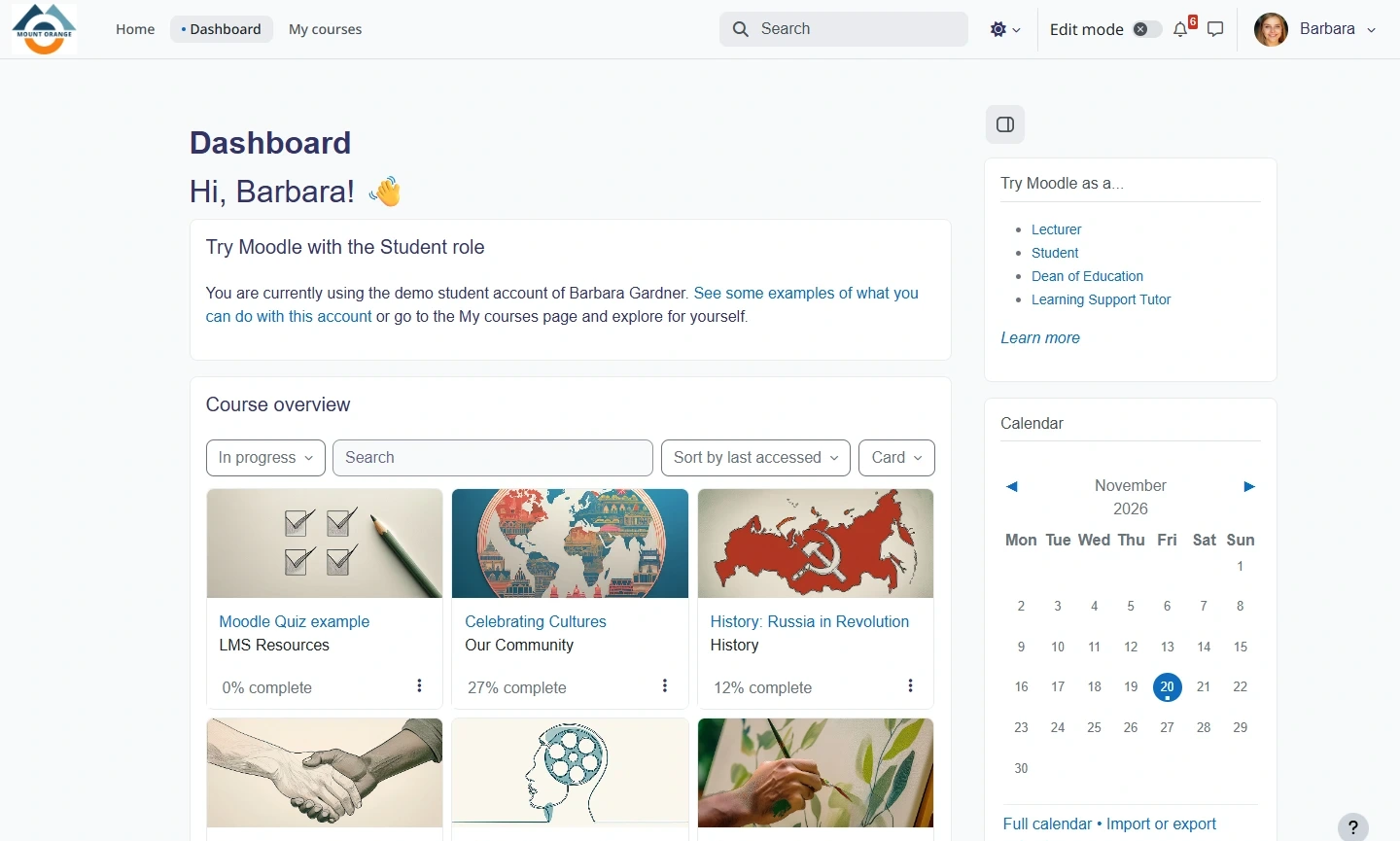
Moodle gives both learners and instructors clear tools to keep classes structured across the semester:
- Course overview and progress tracking: filter your classes by in-progress, future, or past terms and see completion percentages on every course card.
- Assignment uploads from Google Drive: submit essays, slide decks, and lab reports directly from your Chromebook Files app or connected Google Drive account.
- Quizzes and instant feedback: complete multiple-choice, short-answer, and timed quizzes with clear review screens and instructor comments.
- Gradebook overview: check scores, rubric breakdowns, and teacher feedback for each module from a single grades tab.
Offline study, calendar deadlines, and class discussions
Whether you are studying without Wi-Fi or coordinating group projects, Moodle’s built-in tools keep you on schedule:
- Offline course downloads: in the Google Play app, tap the download icon beside a course or week to save readings, slides, and videos locally.
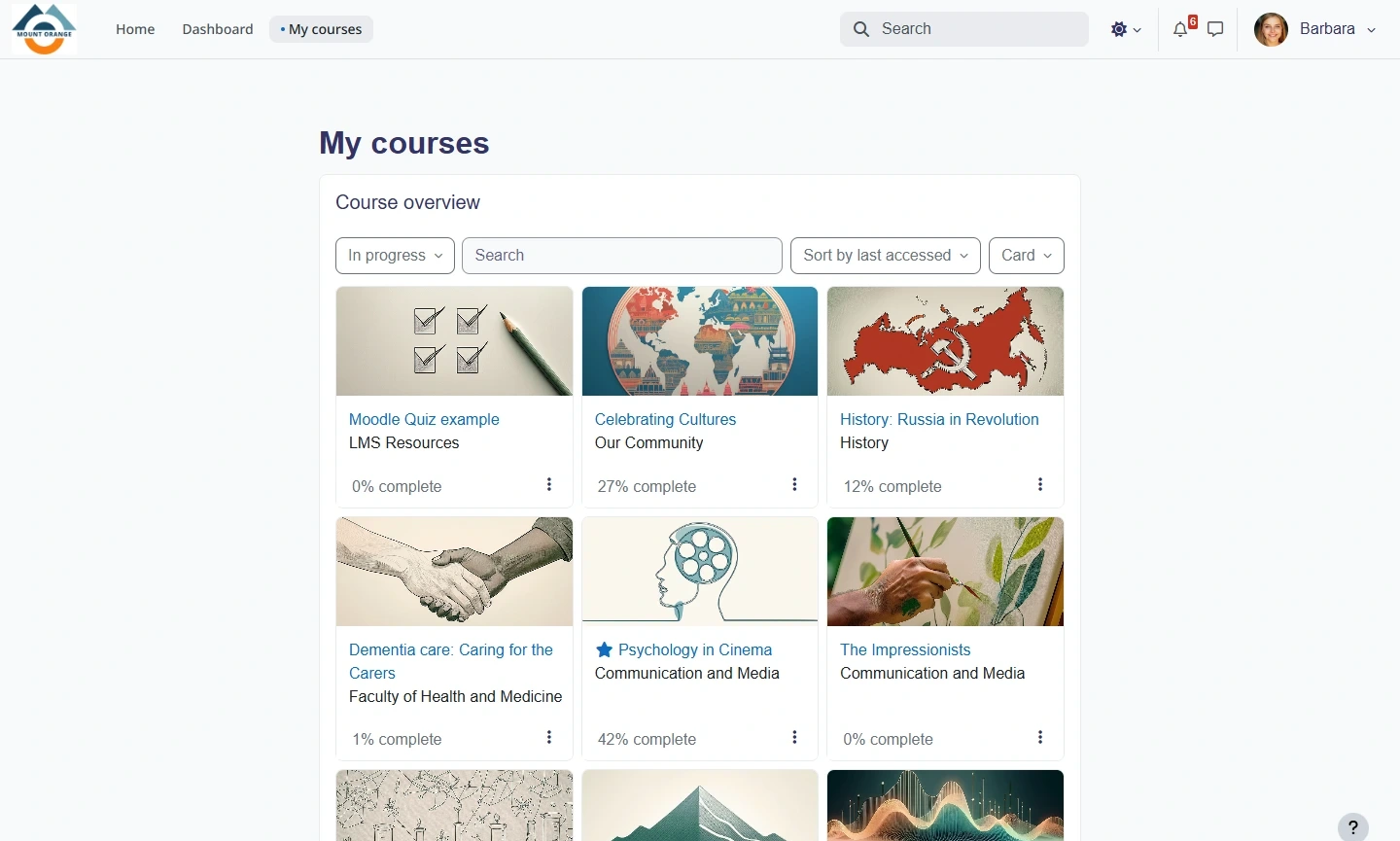
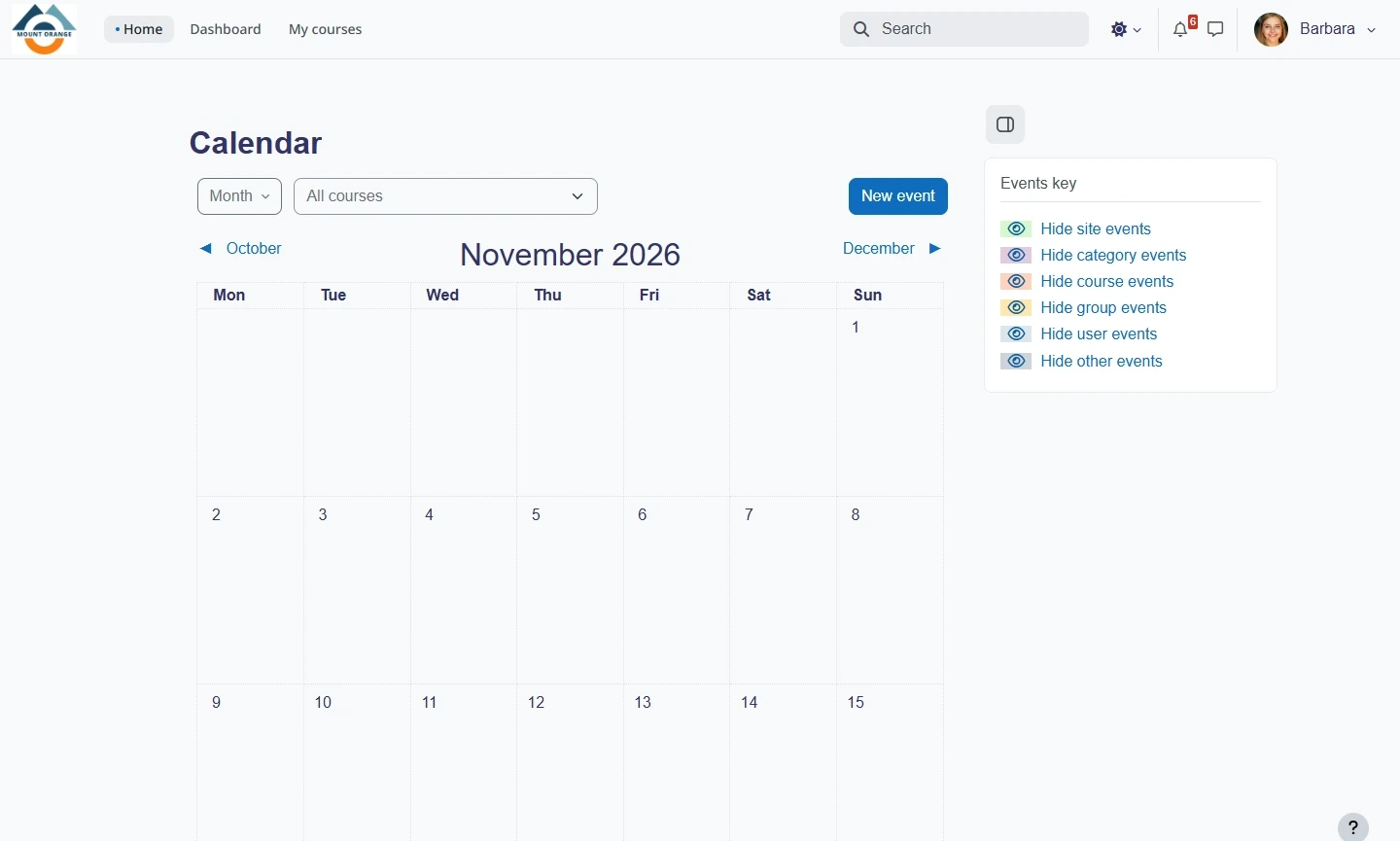
- Unified class calendar: view upcoming quiz windows, assignment due dates, and school events in one monthly calendar with color-coded filters.
- Discussion forums and messaging: reply to class threads, ask instructors questions, and receive notifications when classmates post updates.
- Multilingual and accessible design: switch interface languages in your profile settings and pair Moodle with ChromeOS screen readers or high-contrast modes.
Troubleshooting Moodle on ChromeOS
If you run into sign-in loops, upload errors, or syncing delays on your Chromebook or Googlebook, try these quick fixes:
- School site URL not found: double-check the exact web address from your syllabus or IT department and include
https://before the domain name. - Single Sign-On (SSO) login keeps looping: allow pop-ups and third-party cookies for your school’s Moodle domain in Chrome Settings, or sign out of personal Google accounts before logging in.
- Assignment file fails to upload: confirm your file size stays under your course’s upload limit and convert large documents to PDF before submitting.
- Offline work not syncing: open the Moodle Android app while connected to Wi-Fi and pull down on the course page to force a manual sync.
- Android app freezes or crashes: open ChromeOS Settings > Apps > Manage your apps > Moodle > Storage and select Clear cache, then relaunch the app.
Frequently asked questions about Moodle on Chromebook and Googlebook
Is Moodle free to use on a Chromebook and Googlebook?
Yes. The official Moodle Android app on Google Play and the Moodle web platform are free for students and teachers. Your school, university, or organization provides the Moodle site address and login credentials you need to sign in.
Should I use the Moodle Android app or the web version in Chrome?
Use the web version in Google Chrome when you want a full desktop layout for typing essays, taking long quizzes, or managing courses as a teacher. Use the Google Play Android app when you need to download course materials for offline reading or want push notifications for due dates.
Can I access Moodle courses offline on a Chromebook?
Yes. When you install the Moodle Android app from Google Play, you can download course sections, PDFs, and recorded lessons to your Chromebook or Googlebook storage. Any quiz attempts or forum drafts you save offline sync automatically once you reconnect to Wi-Fi.
How do I cast Moodle from my Android phone to Googlebook?
Open the Phone Hub from the bottom-right corner of your Googlebook shelf with your Android phone connected. Click Cast My Apps and select Moodle to open your phone’s active Moodle session in a desktop window without entering your school site URL again.
Why will Moodle not accept my school login on Chromebook?
Most login issues happen when the Moodle site URL is entered incorrectly or when your school uses Single Sign-On (SSO) through Google or Microsoft. Make sure you include the full https:// web address provided by your school, and clear browser cookies or allow pop-ups if the SSO login window fails to redirect.
Companion study and education guides
Pair Moodle with other helpful learning, note-taking, and accessibility tools across ChromeOS:
- Alternative classroom platform: If another class or teacher uses Google’s learning hub, follow our guide to Google Classroom on Chromebook.
- More study apps: Explore flashcard tools, math helpers, and subject-specific resources in our roundup of the Best Education Apps for Chromebook.
- Lecture notes and PDF markup: Annotate downloaded Moodle slides and organize handwritten class notes with How to Install and Use Notability on Chromebook and Googlebook.
- Voice dictation for essays: Draft discussion replies and written assignments faster using speech-to-text in our guide to How to Install and Use Wispr Flow on Chromebook and Googlebook.
- Reading and focus tools: Customize text-to-speech, screen magnification, and study aids with our 15 Best Chromebook Accessibility Apps & Tools.
Discover more from Chrome Geek
Subscribe to get the latest posts sent to your email.