How to Install and Use DraftKings on Chromebook and Googlebook
 by
Juniya Sankara
Post Updated: November 20, 2026
You can install and use DraftKings on Chromebook and Googlebook through the official Android app from Google Play or directly in Chrome at sportsbook.draftkings.com. It brings live in-game odds, Same Game Parlays, player props, and major league markets right to your laptop.
Googlebook runs Android apps natively from Google Play alongside quick phone-app casting. This guide covers Play Store installation, browser and PWA setup, live betting tools, bet slip controls, responsible gaming options, and ChromeOS troubleshooting.
Need help setting up DraftKings? Contact us with your laptop model and any sign-in or location check questions.

How to install DraftKings on Chromebook and Googlebook
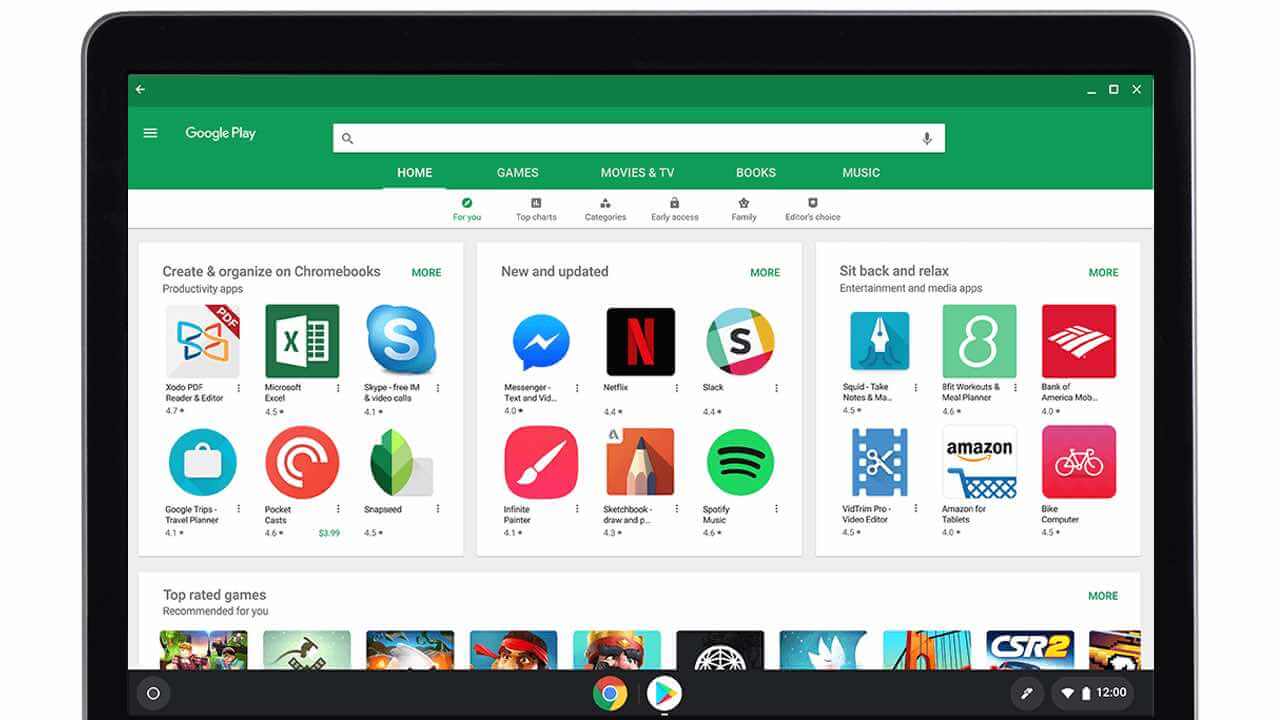
Installing the official DraftKings Sportsbook & Casino app through Google Play takes just a moment and keeps your account accessible from your launcher:
The official Google Play listing identifies the app under the package identifier com.draftkings.sportsbook. Installing the Android app gives you quick touch navigation and built-in geolocation verification on supported ChromeOS devices.
If the Play Store is not available on your laptop, check Google’s Android app setup guide for Chromebook or the guide on installing apps on Googlebook. On school or workplace laptops, administrator policies may restrict app downloads or betting sites. While there is no native Linux (.deb) package for ChromeOS, you can open sportsbook.draftkings.com directly in Google Chrome without installing extra software.
Cast DraftKings from your phone on Googlebook
If you already stay signed in to DraftKings on your Android phone with your favorite teams and notifications set up, Googlebook’s Cast My Apps feature lets you mirror that session onto your laptop screen. Open the Phone Hub in the bottom-right corner of your Googlebook shelf, click Cast My Apps, and pick DraftKings. Your phone’s active session opens in a floating desktop window so you can check odds or review open tickets without signing in again, while still relying on your phone’s location verification.
DraftKings Web vs. Android app: choosing your ideal ChromeOS setup
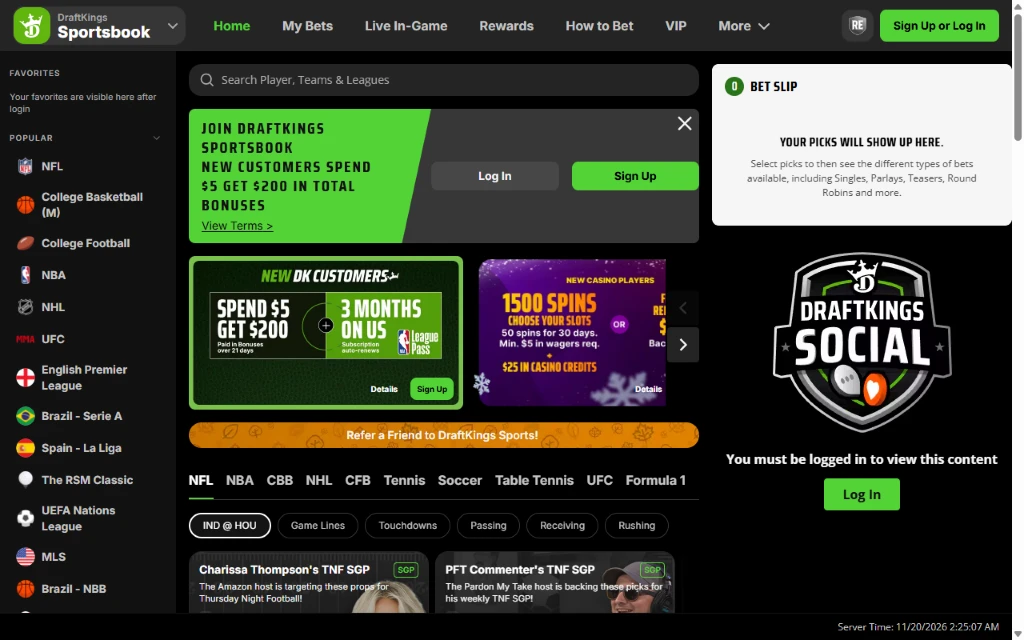
On Chromebooks and Googlebooks, you can run DraftKings through the Google Play Android app or directly in Google Chrome. Both options share the same account balance and markets, with each fitting a slightly different workflow:
Live in-game betting, player props, and Same Game Parlays
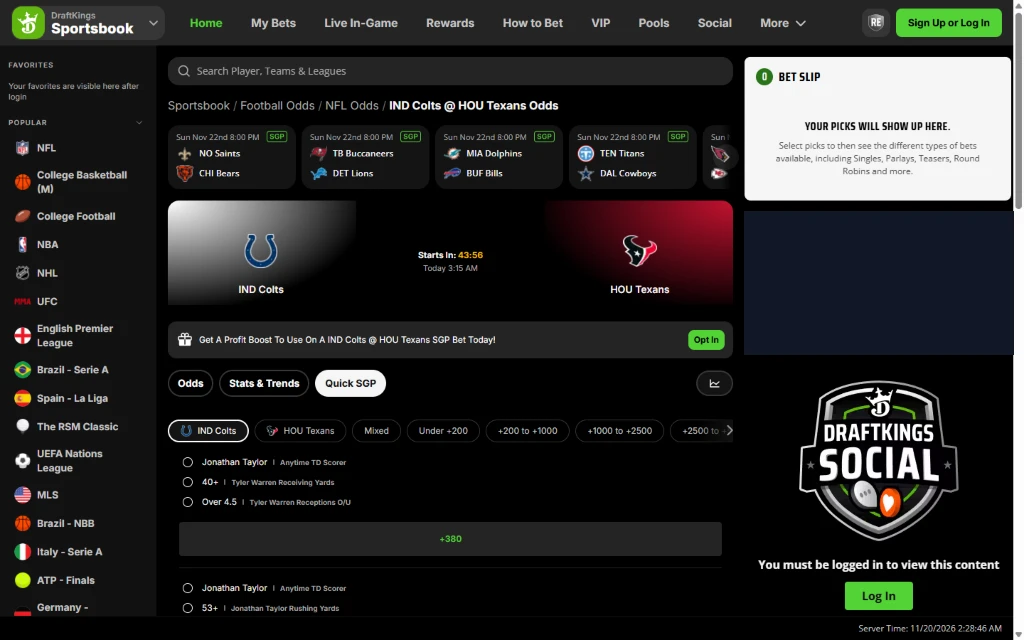
On a laptop screen, DraftKings makes it easy to scan multiple leagues and build custom wagers without cramped menus:
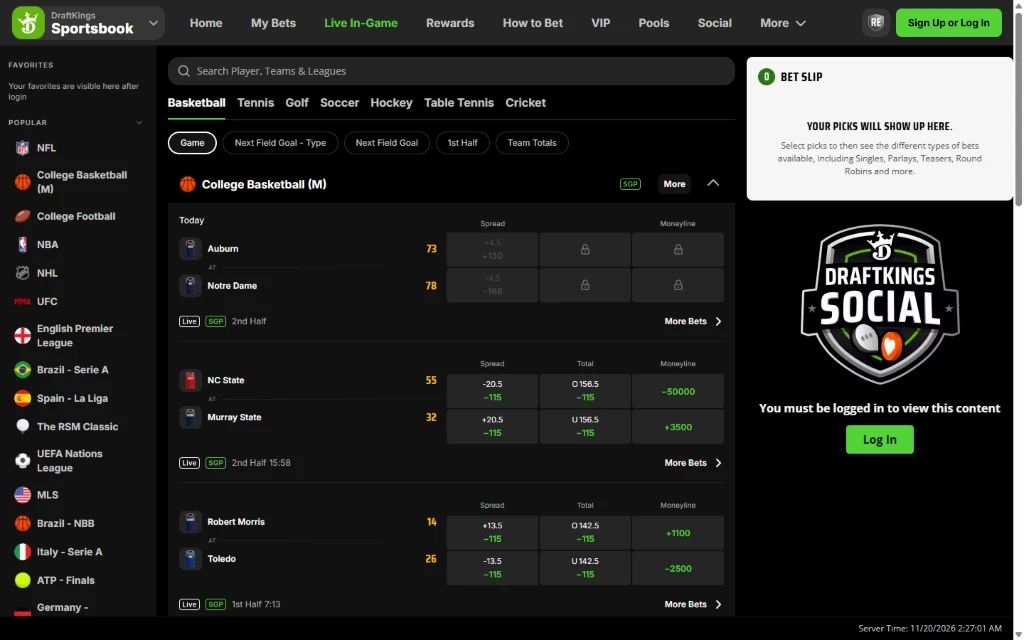
- Live In-Game odds board: Switch to the Live In-Game tab to follow real-time scores alongside continuously updating point spreads, totals, and moneylines across basketball, football, soccer, hockey, tennis, and more.
- Same Game Parlays (SGP) and Quick SGP: Combine multiple outcomes from a single matchup—such as team totals, anytime touchdown scorers, or player yardage props—or browse pre-built Quick SGP cards filtered by odds range.
- Player props and team stats: Open any individual game to explore passing, rushing, receiving, points, rebounds, or assists props alongside head-to-head trends.
- Fast player and league search: Use the top search bar to jump straight to a specific player, team, or competition instead of scrolling through the full A-Z sports list.
Managing your Bet Slip, cash-out options, and responsible gaming
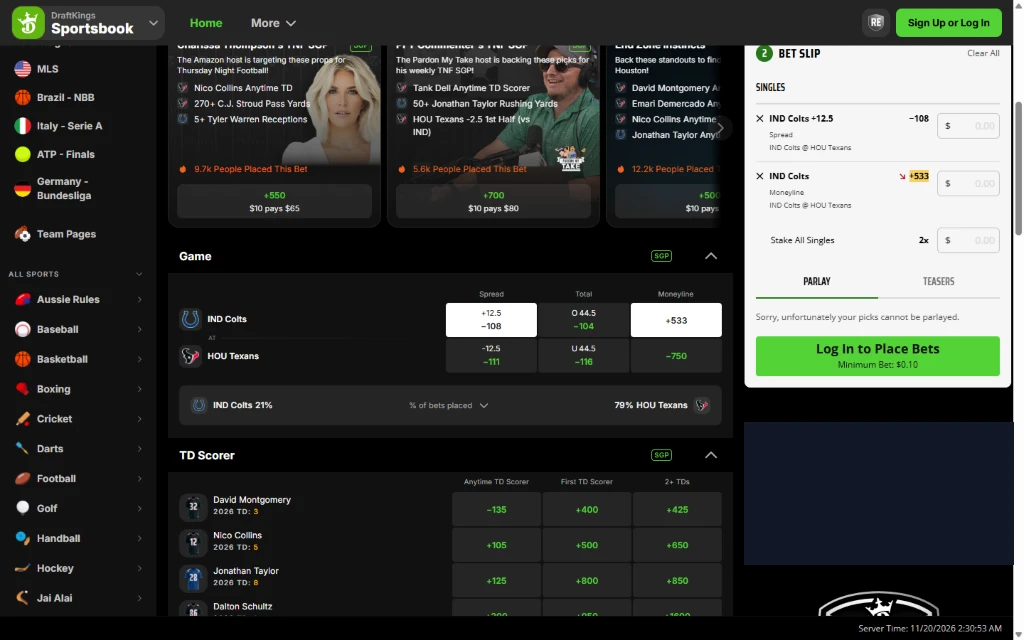
Whether you prefer single wagers or multi-leg parlays, the right-hand Bet Slip keeps everything organized alongside built-in account controls:
- Interactive Bet Slip: Click any odds tile to add it to your slip, enter individual or combined stakes, and switch cleanly between Singles, Parlays, Teasers, and Round Robins with instant payout previews.
- Early Cash Out and My Bets: Monitor active tickets in the My Bets tab and use Cash Out on eligible wagers to settle early when live momentum shifts.
- DraftKings ecosystem access: Use the top-left product switcher to move between Sportsbook, Daily Fantasy, Casino, Pick6, and Pools where available in your jurisdiction.
- Responsible gaming tools: Set deposit limits, wager limits, time limits, or cool-off and self-exclusion periods directly in your account settings. You can also visit rg.draftkings.com, browse ncpgambling.org, or call 1-800-GAMBLER for confidential support.
Troubleshooting DraftKings on ChromeOS
If you run into location verification errors, login loops, or slow loading on your Chromebook or Googlebook, try these practical fixes:
- Location verification fails: Make sure Wi-Fi is turned on (even if you use Ethernet, Wi-Fi helps ChromeOS pinpoint your location), turn off any VPN or proxy extensions, and allow Location access for
sportsbook.draftkings.comin Chrome or for DraftKings under ChromeOS Settings > Apps > Manage your apps > DraftKings > Permissions. - Web player freezes or shows stale odds: Clear site cookies and cached data for
draftkings.comin Chrome, or test in a fresh Chrome window with ad-blocking extensions paused. - Android app crashes or refuses to open: Open ChromeOS Settings > Apps > Manage your apps > DraftKings > Storage and select Clear cache, then relaunch the app.
- Geolocation plugin prompts in browser: If your state requires DraftKings’ desktop location check, ensure your ChromeOS version is up to date or switch to the Google Play Android app, which handles location checks natively.
Frequently asked questions about DraftKings on Chromebook and Googlebook
Is DraftKings free to install on Chromebook and Googlebook?
Yes. Downloading the DraftKings Sportsbook & Casino app from Google Play or browsing odds at sportsbook.draftkings.com is free. You only need to deposit funds if you choose to enter real-money contests or place wagers in an eligible region, and users must meet the legal age requirement (typically 21+ for sportsbook).
Should I use the DraftKings Android app or the Chrome web version?
Both work smoothly on ChromeOS. The Google Play Android app is great for touchscreen convertibles and built-in location checks, while sportsbook.draftkings.com in Google Chrome gives you a spacious multi-column layout for comparing live odds, player props, and your bet slip without using local storage.
How do I cast DraftKings from my Android phone to Googlebook?
Open the Phone Hub from the bottom-right corner of your Googlebook shelf with your Android phone linked. Select Cast My Apps and choose DraftKings to open your phone’s active session in a desktop window without signing in again.
Why is DraftKings unable to verify my location on a Chromebook?
DraftKings requires accurate Wi-Fi geolocation to confirm you are inside an eligible state or region. Make sure Wi-Fi and ChromeOS Location Services are turned on, turn off any VPN or proxy extensions, and allow location access for sportsbook.draftkings.com in Chrome or for the DraftKings app in ChromeOS Settings.
Can I set deposit limits or take a break inside DraftKings?
Yes. DraftKings includes built-in responsible gaming controls under your account settings, including deposit limits, wager limits, time limits, cool-off periods, and self-exclusion tools. You can also visit rg.draftkings.com or call 1-800-GAMBLER for confidential support.
Companion sports and entertainment guides
Explore more sportsbook, live score, and companion apps on ChromeOS with our related guides:
- Alternative sportsbook setup: If you compare odds across multiple platforms, follow our walkthrough for FanDuel on Chromebook.
- Real-time match stats: Track live scores, player ratings, and team lineups before placing wagers with Sofascore on Chromebook and Googlebook.
- Sports podcasts and pregame shows: Queue up daily injury reports and betting analysis podcasts using Pocket Casts on Chromebook and Googlebook.
- Activity and fitness tracking: Log your own runs, rides, and training stats right from your laptop with Strava on Chromebook and Googlebook.
Discover more from Chrome Geek
Subscribe to get the latest posts sent to your email.