How to Install and Use Riley on Chromebook and Googlebook
 by
Joseph Vance
Post Updated: November 20, 2026
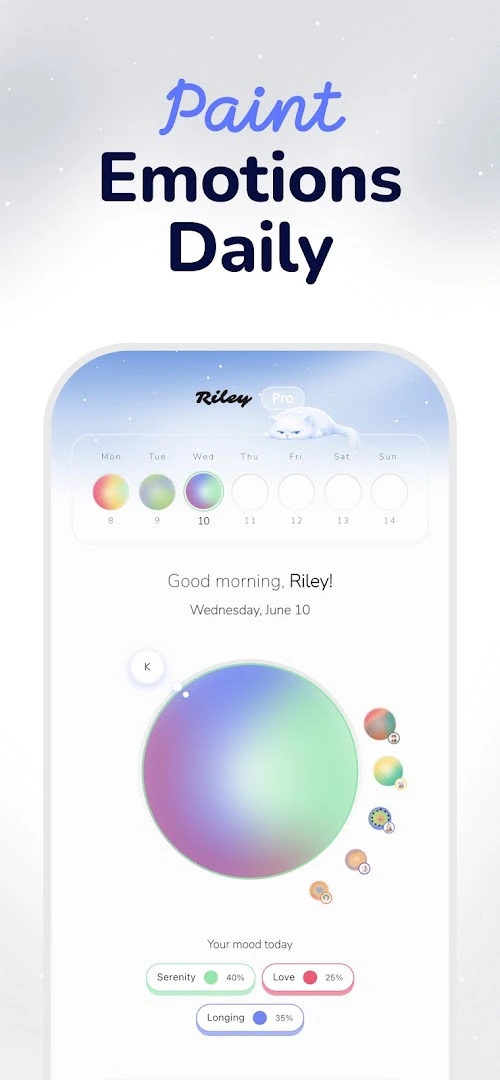
You can install and use Riley on Chromebook and Googlebook directly through the official Android app on Google Play. Developed by Buor Studio, Riley: Emotion & Mood Tracker turns daily check-ins into colorful mood orbs paired with private journal notes, calming breathing tools, and visual timelines.
Googlebook runs Android apps natively through Google Play and supports phone-to-laptop app casting, so you can reflect on your day from a full keyboard or your phone. This guide walks you through Google Play installation, Phone Hub casting, mood orb tracking, journaling, privacy locks, and ChromeOS troubleshooting.
Need help setting up Riley? Contact us with your laptop model and ChromeOS version details.

How to install Riley on Chromebook and Googlebook
Installing the official Riley Android app from Google Play gives you full access to daily mood painting, local storage, and keyboard-friendly journaling on ChromeOS:
The official Google Play listing identifies Riley under the package name com.nusretuzman.riley. Installing the Android app directly gives you offline access to your mood history and smooth typing support for longer journal entries.
If Google Play is not yet enabled on your device, review Google’s official Android app setup guide for Chromebook or the guide on installing apps on Googlebook. On school or work managed laptops, administrator policies may restrict Play Store downloads. Because Riley does not offer a standalone web app or Linux package, using Google Play or casting from your phone is the best way to run it on ChromeOS.
Cast Riley from your phone on Googlebook
If you already log your moods on your Android phone and keep your daily streak there, Googlebook’s Cast My Apps feature lets you open Riley right on your laptop screen without transferring local data. Open the Phone Hub from the bottom-right shelf of your Googlebook, select Cast My Apps, and tap Riley. Your phone’s live Riley session opens in a floating desktop window, allowing you to type journal entries with your laptop keyboard and review your calendar orbs without interrupting your mobile streak.
Painting daily emotions with color-coded mood orbs
Instead of forcing you to pick a single rigid emoji, Riley lets you blend multiple feelings into a custom gradient orb each day. You can track calm, gratitude, anxiety, excitement, or fatigue side by side with clear percentage sliders:

Tracking streaks, memories, and visual timelines
Every orb you save joins your personal Memories Collection, turning weeks and months of check-ins into a colorful visual archive you can browse by calendar or spiral timeline:
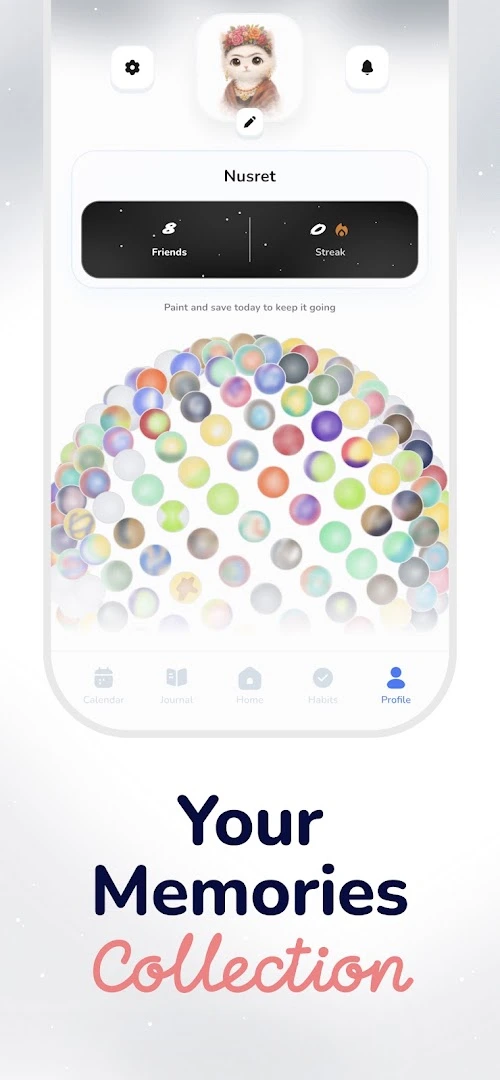
- Calendar & Spiral Views: Switch between a monthly calendar grid and a continuous spiral overview to spot recurring mood shifts across weeks or seasons.
- Streak Counter & Habits: Track your daily check-in streak and pair mood logs with simple self-care habits to see what routines lift your energy.
- Pattern Insights: Review clear breakdowns of your most frequent emotions so you can identify stressors and positive triggers over time.
Writing private journal entries with photos and voice notes
Typing on a Chromebook or Googlebook makes Riley’s Personal Journal especially comfortable for longer reflections. Each day’s notebook entry links directly to that day’s mood orb:
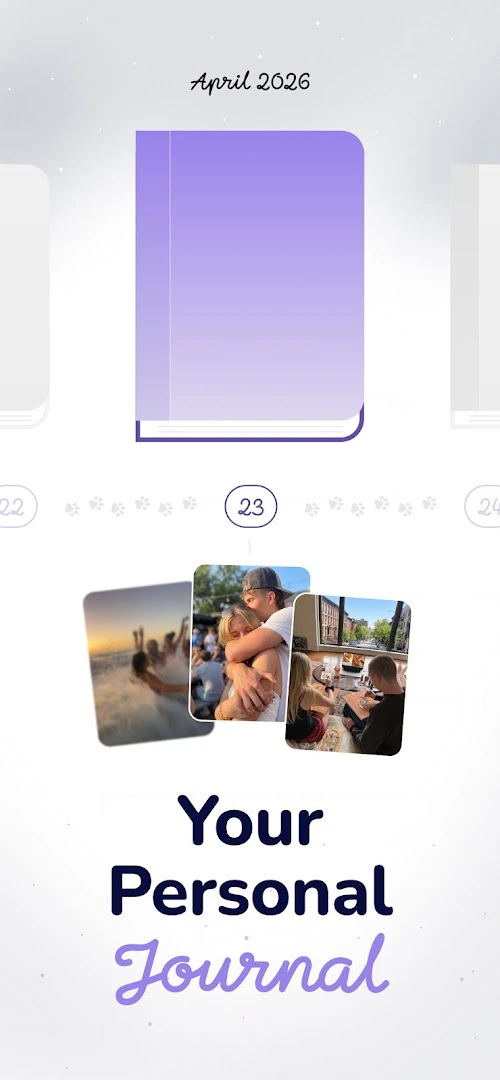
- Text, Photo & Voice Logs: Write short or detailed notes for free, and attach photos or quick voice memos when you have a Riley Pro subscription.
- Passcode Privacy Lock: Protect your journal with a custom passcode screen so anyone else using your laptop cannot open your private entries.
- Local-First Storage: Keep entries stored directly on your device by default, with optional cloud backup if you want extra peace of mind.
Mindfulness exercises, shared moods, and daily painting
Beyond journaling, Riley includes calming tools for stressful moments and gentle social features for staying close to people you trust:
Troubleshooting Riley on Chromebook and Googlebook
If you run into window sizing quirks, missing audio permissions, or notification delays while running Riley on ChromeOS, try these quick fixes:
- App window looks too narrow or refuses to resize: Riley is built for portrait mobile screens, so ChromeOS opens it in a phone-sized frame. Click the size toggle in the app title bar and switch to Resizable or Tablet mode, or drag the window border to adjust its height.
- Voice memos do not record audio: Open ChromeOS Settings > Apps > Manage your apps > Riley > Permissions, and set Microphone to Allow.
- Daily check-in reminders fail to arrive: Make sure Notifications are enabled for Riley under ChromeOS App settings and disable Do Not Disturb during your preferred check-in hour.
- Photos will not attach to journal entries: Grant Riley Photos and videos access in Android app permissions so it can read images saved in your ChromeOS Files app.
- App freezes or fails to load saved orbs: Open ChromeOS Settings > Apps > Manage your apps > Riley > Storage & cache, and tap Clear cache without deleting your local app data.
Frequently asked questions about Riley on Chromebook and Googlebook
Is Riley: Emotion & Mood Tracker free to use on Chromebook and Googlebook?
Yes. You can download Riley for free from Google Play and use its core daily mood orb painter, calendar history, and basic journaling features at no cost. An optional Riley Pro subscription unlocks extras such as attaching photos and voice memos to entries, additional themes, and expanded customization.
Does Riley store my mood logs locally or in the cloud?
By default, Riley keeps your daily mood orbs and journal entries private on your device, and you can also set a passcode lock inside the app. If you want to back up your memories or sync across devices, you can use the optional cloud backup settings in your profile.
Can I resize Riley to fit nicely on a Chromebook or Googlebook screen?
Yes. Riley is designed primarily as a portrait mobile app, so on ChromeOS it opens in a phone-sized window by default. You can drag the window edges or switch between phone and tablet window modes from the top title bar so it sits comfortably beside your browser or notes.
How do I cast Riley from my Android phone to Googlebook?
Open the Phone Hub from the bottom-right shelf of your Googlebook and make sure your Android phone is connected. Click Cast My Apps and select Riley from the list. Your phone’s active mood journal and streak history will open in a desktop window on your laptop without transferring files.
Can I share my daily mood with a friend or partner in Riley?
Yes. Riley includes a shared connections feature that lets you link with a trusted friend or loved one. Once connected, you can view each other’s daily mood orbs side-by-side right from your home screen or widget view.
Explore more wellness, audio, and productivity guides on ChromeGeek
Pair your daily reflection routine with other helpful ChromeOS apps from our companion guides:
- How to Install and Use Spark: Daily Learning Puzzles on Chromebook and Googlebook: Build a quick daily brain-training habit alongside your morning mood check-in.
- How to Install and Use Pocket Casts on Chromebook and Googlebook: Listen to mindfulness podcasts, sleep stories, and daily shows with customizable playback controls.
- How to Install and Use Wispr Flow on Chromebook and Googlebook: Dictate longer reflections and notes hands-free using fast voice-to-text input.
- How to Install and Use ibis Paint X on Chromebook and Googlebook: Express your creativity with full-screen digital sketching and custom color palettes.
Discover more from Chrome Geek
Subscribe to get the latest posts sent to your email.