How to Install and Use Superfonik on Chromebook and Googlebook
 by
Joseph Vance
November 20, 2026
You can install and use Superfonik on Chromebook and Googlebook through the official Android app on Google Play. Built by Play Piknik and Sago Sago for kids ages 5 to 10, it turns early reading and phonics practice into comic-style mini-games with over 800 words.
Googlebook runs Android apps natively through Google Play alongside instant phone-app casting from the Phone Hub. This guide covers Google Play installation, phone casting, adaptive reading levels, offline play, Piknik subscription sharing, and quick ChromeOS troubleshooting.
Need help setting up Superfonik? Contact us with your laptop model and any Google Play or audio questions.
How to install Superfonik on Chromebook and Googlebook
Installing Superfonik from Google Play takes about a minute and lets your child play reading games online or offline:
The official Google Play listing identifies Superfonik under the package ID com.sagosago.Superfonik.googleplay. Installing the native Android app gives kids smooth widescreen gameplay, full sound playback, and offline access.
If the Play Store is not turned on yet, check Google’s Android app setup guide for Chromebook or the guide on installing apps on Googlebook. On school-managed devices, your school administrator controls which Play Store apps are available. Superfonik does not offer a web player or Linux (.deb) package, so the Google Play Android app is the standard way to run it on ChromeOS.
Cast Superfonik from your phone on Googlebook
If your child already has an active reading streak or Piknik subscription signed in on your Android phone, Googlebook’s Cast My Apps feature lets you mirror that session straight onto the laptop screen. Open the Phone Hub from the bottom-right corner of your Googlebook shelf, click Cast My Apps, and choose Superfonik. Your phone’s active session opens in a floating desktop window without transferring files or signing in again.
Best ways to play Superfonik on ChromeOS
Superfonik runs in full-screen landscape mode on Chromebooks and Googlebooks, making it easy to adapt to different setups at home or in the classroom:
Phonics mini-games, sounder-outer tool, and adaptive levels
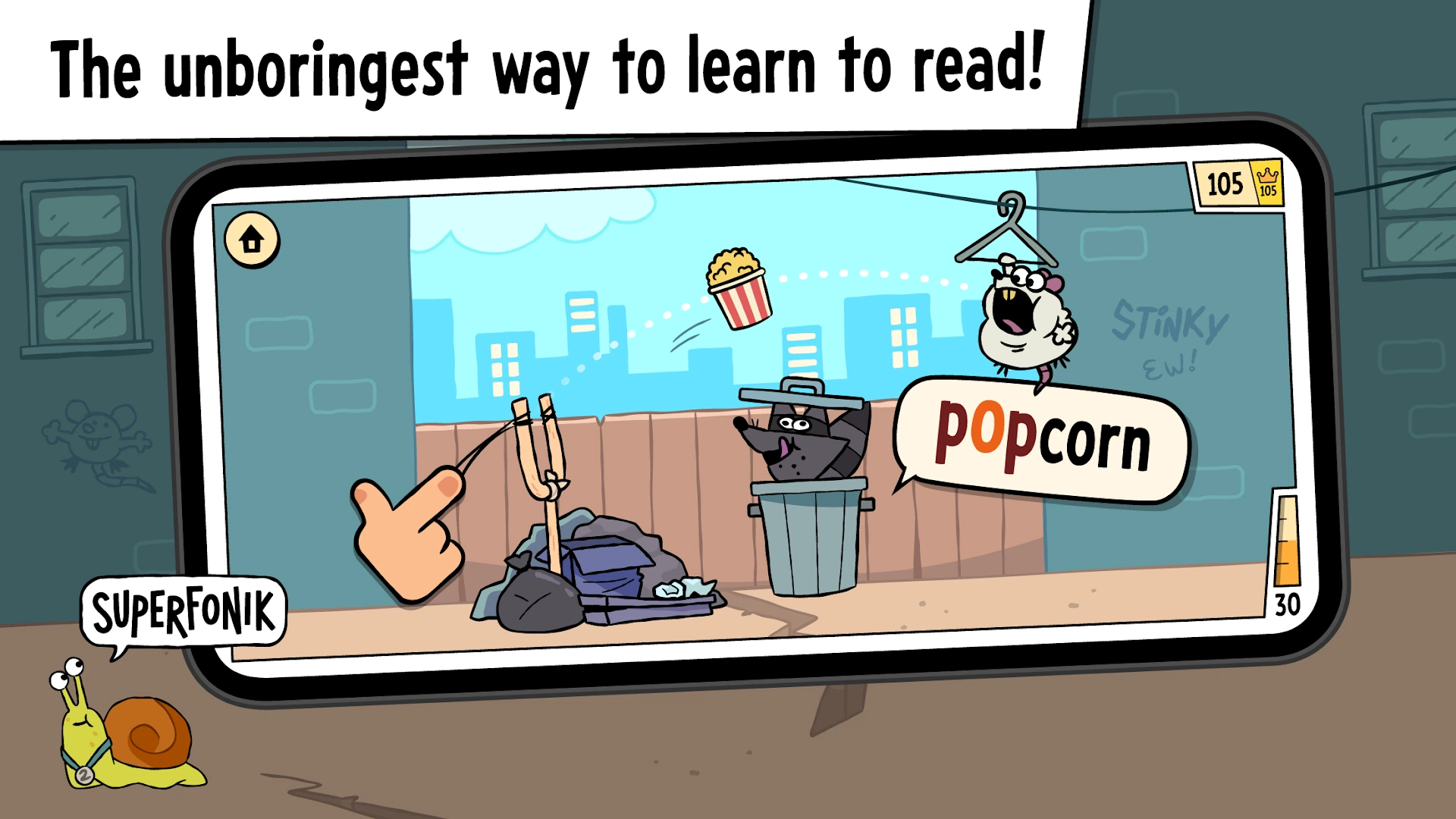
Superfonik pairs comic-book humor with structured reading practice informed by literacy researchers at Hoot Reading and the Joan Ganz Cooney Center:
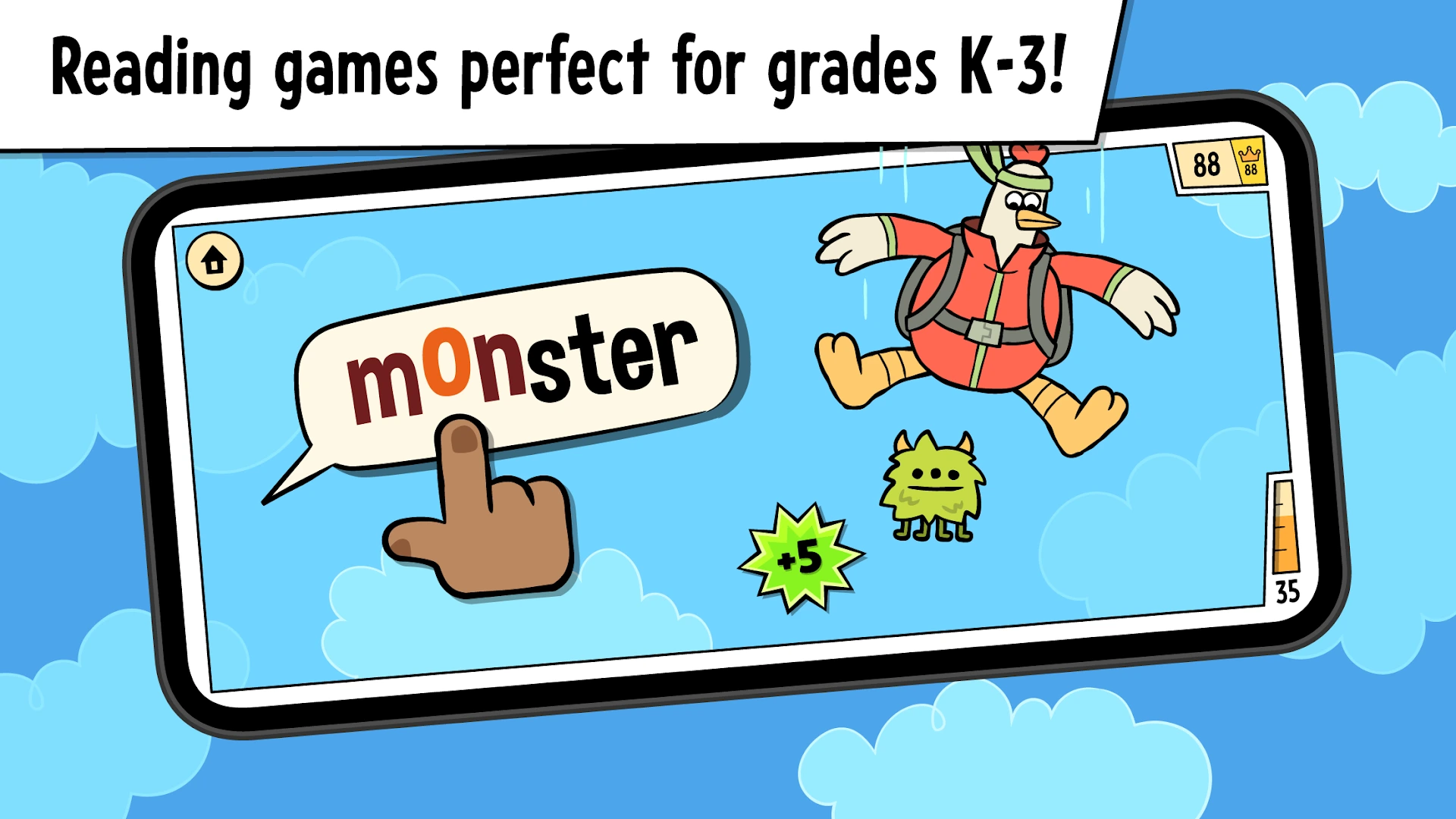
- Touchable sounder-outer tool: When a child gets stuck on a word, they can tap individual letters or letter groups to hear each phoneme sounded out clearly before blending the full word together.
- 42 adaptive skill levels: Lessons adjust automatically based on how your child performs, moving from basic consonant-vowel-consonant words up to multi-syllable words, prefixes, and suffixes.
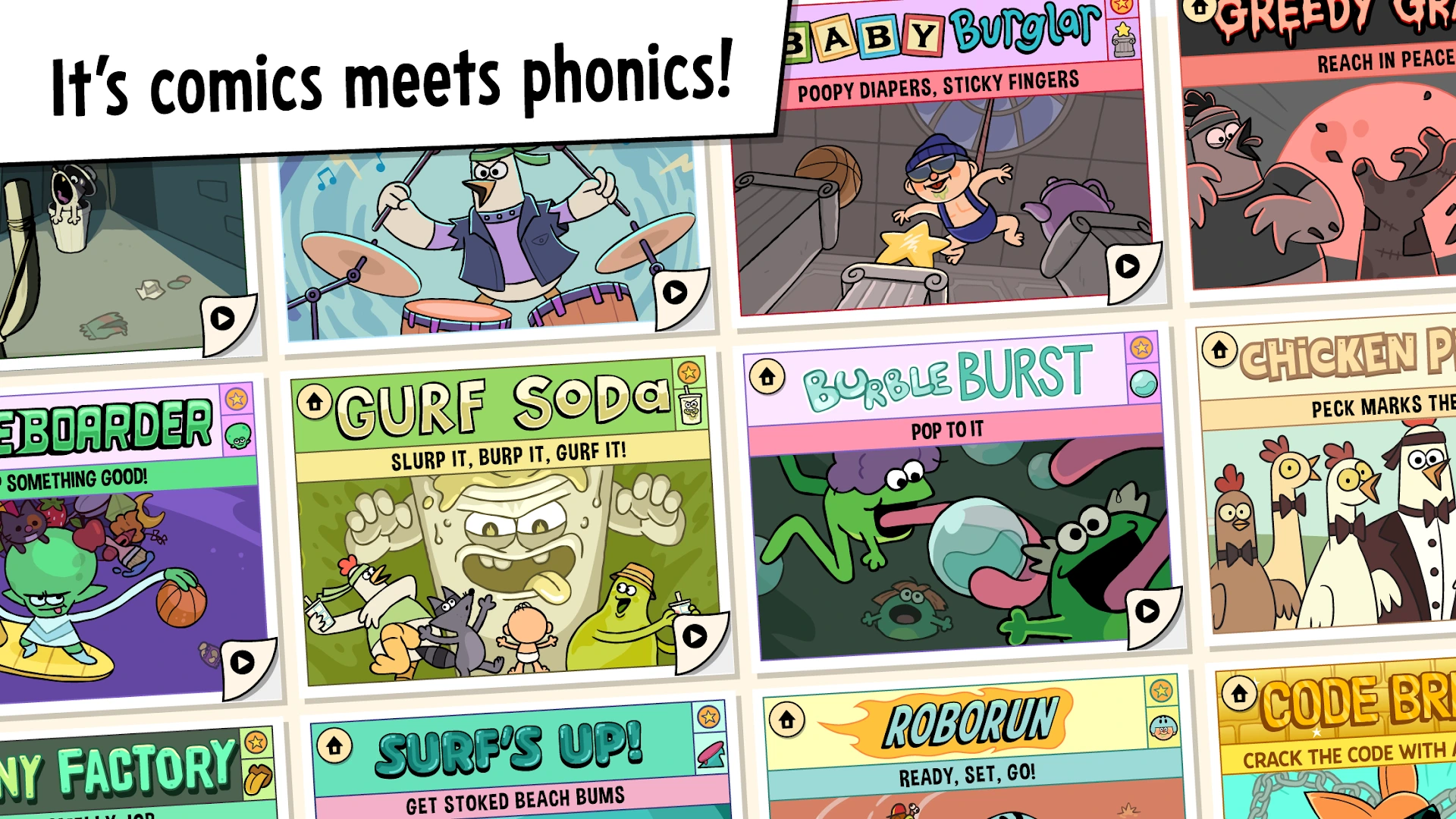
- 25+ comic-style mini-games: Kids practice over 800 vocabulary words across quirky arcade activities like Chicken Pickin’, Gurf Soda, Burble Burst, and RoboRun.
- Zero ads and kidSAFE certified: The app is 100% ad-free and COPPA certified, so children can explore safely without pop-ups or external links.
Progress tracking, rewards, and Piknik family sharing
Superfonik includes gentle motivation features and cross-app family benefits that work well on shared household laptops:
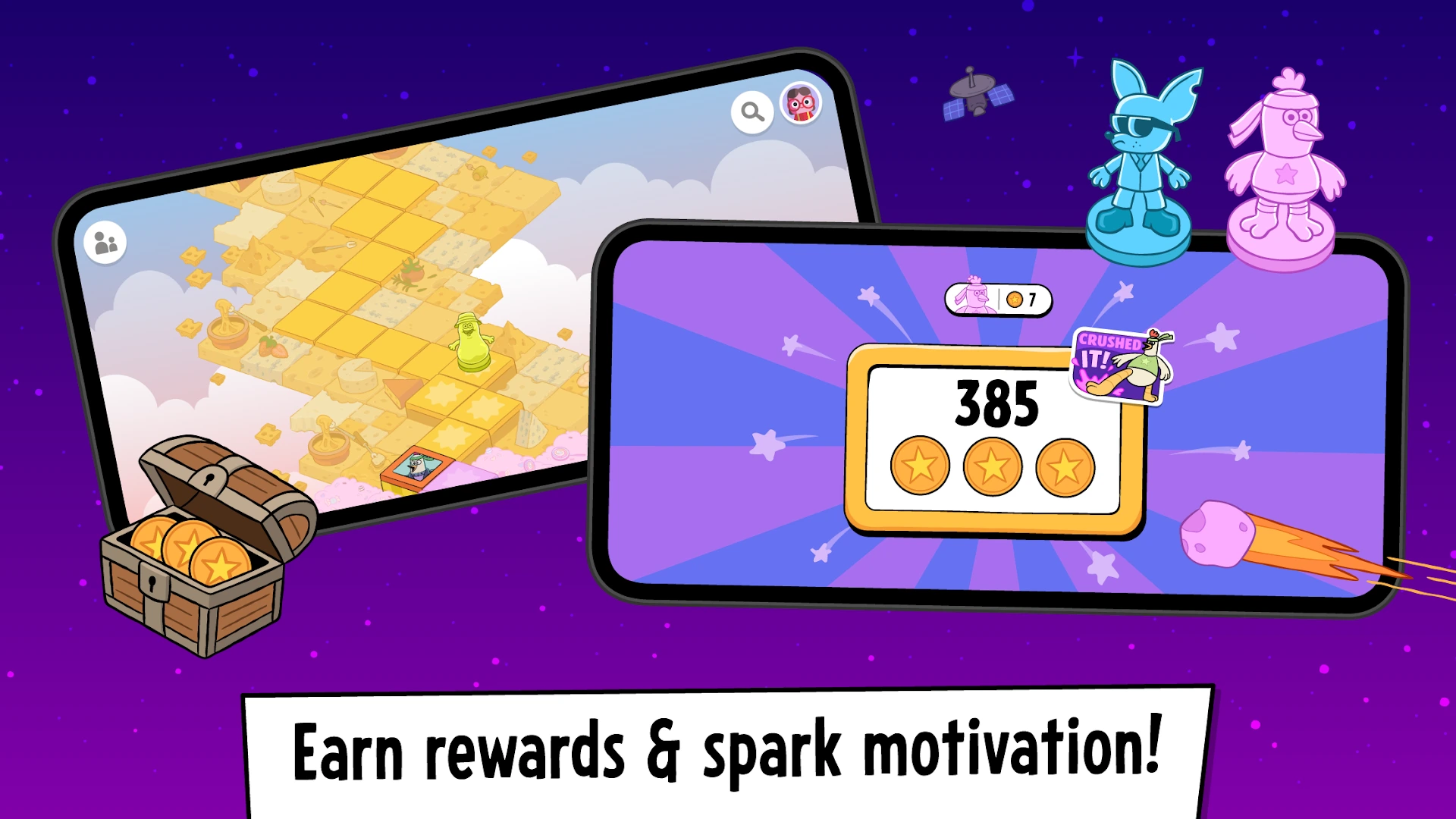
- Reward coins and game map: Finishing reading rounds awards stars and coins that unlock new characters and levels along the interactive map.
- Multiple child profiles: Create separate profiles on one Chromebook or Googlebook so siblings can progress at their own reading pace without overwriting each other’s levels.
- Piknik bundle access: One Piknik subscription unlocks full access across Superfonik as well as Sago Mini World, Sago Mini School, Toca Boca Jr, and MathTango on multiple devices.
Troubleshooting Superfonik on ChromeOS
If you run into audio, window sizing, or subscription sync issues while running Superfonik on your laptop, try these fixes:
- No sound during phonics lessons: Check the ChromeOS volume slider in the bottom-right Quick Settings panel, and make sure Bluetooth headphones are not connected in another room.
- Window looks too small or letterboxed: Click the maximize button in the top-right corner of the Android app window, or switch the window size preset from Phone to Tablet/Resizable in the top bar.
- Piknik subscription not unlocking full games: Open the parent gate inside Superfonik, tap Restore Purchases, and confirm you are signed into the same Google account that purchased the Piknik plan.
- Trackpad clicks feel awkward in drag games: Enable Tap-to-click in ChromeOS Settings > Device > Touchpad, or plug in a standard mouse for younger readers.
- App freezes or fails to load: Open ChromeOS Settings > Apps > Manage your apps > Superfonik > Storage and click Clear cache, then relaunch the app.
Frequently asked questions about Superfonik on Chromebook and Googlebook
Does Superfonik work offline on a Chromebook or Googlebook?
Yes. Once you install Superfonik from Google Play and open it at least once to finish setup, kids can play its phonics mini-games without Wi-Fi. This makes it great for road trips, flights, and classrooms with limited internet access.
What age group is Superfonik designed for?
Superfonik is built for early readers ages 5 to 10 (roughly kindergarten through third grade). Its 42 adaptive levels start with simple three-letter words and gradually introduce blends, digraphs, prefixes, and suffixes as your child improves.
Is Superfonik free, or does it require a Piknik subscription?
You can download Superfonik for free from Google Play and try a selection of starter activities. Full access to all 25+ reading games and 800+ vocabulary words requires a Piknik subscription, which also unlocks companion kids apps like Sago Mini World and Toca Boca Jr.
Can kids use a Chromebook trackpad or mouse instead of a touchscreen?
Yes. While touchscreens on 2-in-1 convertibles feel natural for tapping letters and pulling slingshots, every Superfonik mini-game also responds to standard trackpad clicks, drags, and external USB or Bluetooth mice on clamshell Chromebooks and Googlebooks.
How do I cast Superfonik from my Android phone to Googlebook?
Open the Phone Hub in the bottom-right corner of your Googlebook shelf with your Android phone linked. Click Cast My Apps and choose Superfonik to open your phone’s active reading session in a desktop window without signing in again.
Companion reading and learning guides
Build a complete kids learning toolkit on your Chromebook or Googlebook with these related guides:
- Free early phonics: For another playful, ad-free literacy app aimed at young readers, check out our guide on Duolingo ABC on Chromebook and Googlebook.
- K-12 math and reading: Pair phonics games with full math, science, and grammar lessons using Khan Academy on Chromebook and Googlebook.
- Daily brain puzzles: Keep older kids and families engaged with short logic challenges in Spark: Daily Learning Puzzles on Chromebook and Googlebook.
- Language practice: Start building second-language vocabulary with bite-sized daily lessons in Duolingo on Chromebook and Googlebook.
- Parenting support: Parents managing newborn routines alongside older siblings can organize schedules with Riley on Chromebook and Googlebook.
Discover more from Chrome Geek
Subscribe to get the latest posts sent to your email.