How to Install and Use Grammarly on Chromebook and Googlebook
 by
Frank Cross
Post Updated: November 3, 2026
You can install and use Grammarly on Chromebook and Googlebook through the official Android app, Chrome extension, or the full-featured online editor at grammarly.com. Whether you are writing academic essays, drafting work emails, or collaborating in shared documents, Grammarly delivers real-time grammar checks, tone insights, vocabulary enhancements, and generative AI rewrites across ChromeOS.
Googlebook and Chromebook hardware adapt smoothly to your workflow, providing tactile physical keyboard productivity in laptop mode, responsive on-screen corrections in tablet mode, and effortless phone-hub streaming. This guide walks you through Google Play installation, browser extension setup, phone hub casting, writing enhancement features, and common troubleshooting solutions.
Have questions about configuring your Grammarly account or setting up input methods on ChromeOS? Contact us with your device model and our team will be glad to assist.

Get on Google Play →Install Chrome Extension →Launch Grammarly Web →
Choose your preferred way to run Grammarly
Depending on your daily writing routine, you can download the keyboard app from the official Google Play Store listing, add the extension from the Chrome Web Store, or open the full cloud dashboard at grammarly.com.
How to install Grammarly on Chromebook and Googlebook
If the Play Store is not visible or managed by school policies, check Google’s Android app setup guide for Chromebook or the official overview on installing apps on Googlebook. On restricted devices, you can achieve identical real-time writing correction by adding the Grammarly extension for Chrome or using the online editor without administrative installation rights.
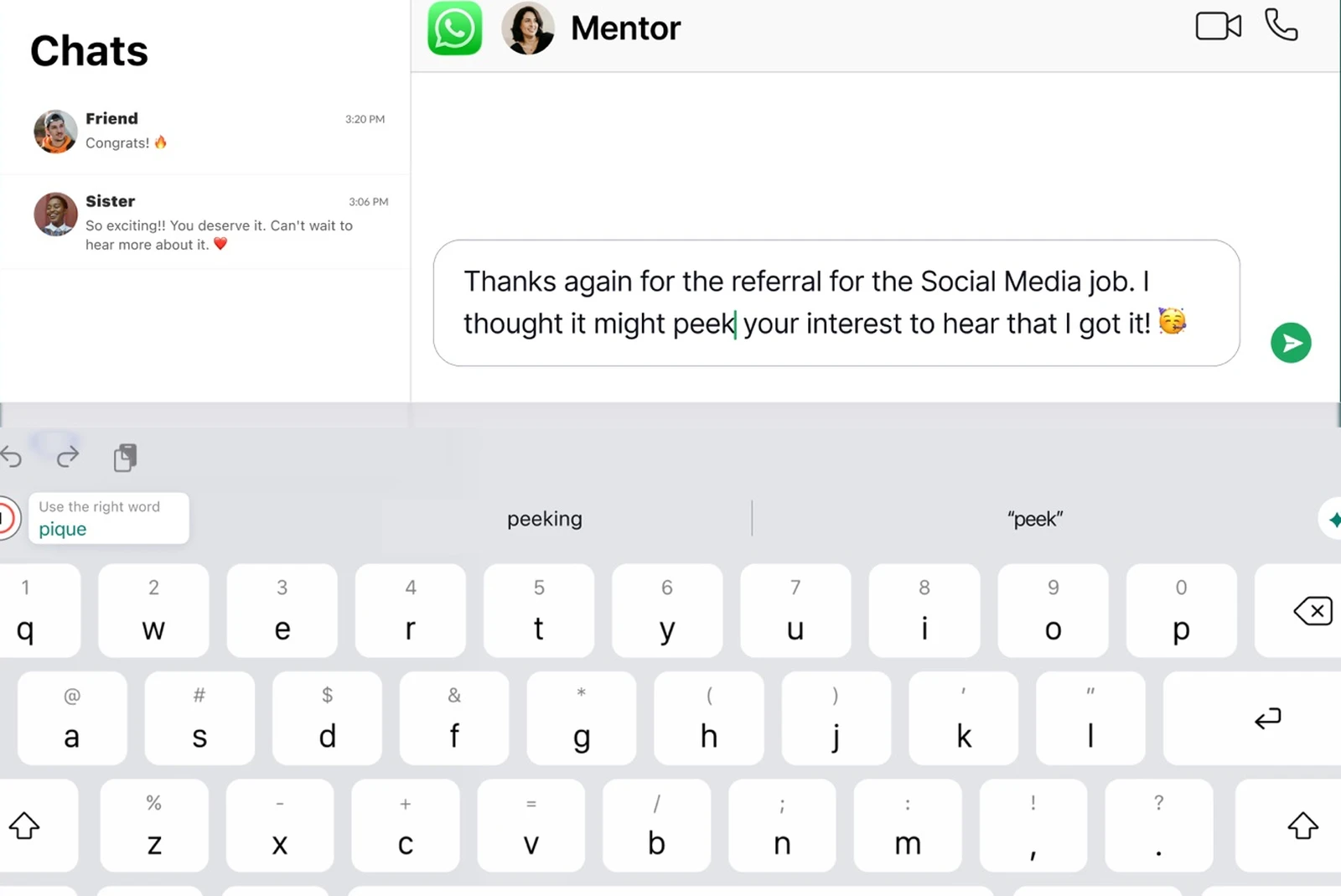
Cast Grammarly from your phone on Googlebook
If you started composing a draft, email, or message on your mobile phone and want to continue polishing your phrasing on a larger screen, Googlebook’s Cast My Apps feature lets you project your phone’s Grammarly app session straight to your laptop display. Simply link your mobile phone in the Googlebook phone hub, open Cast My Apps, and select your writing app. You can review suggestions, refine tone, and finish your draft using your full-sized keyboard without having to copy and paste text between devices.
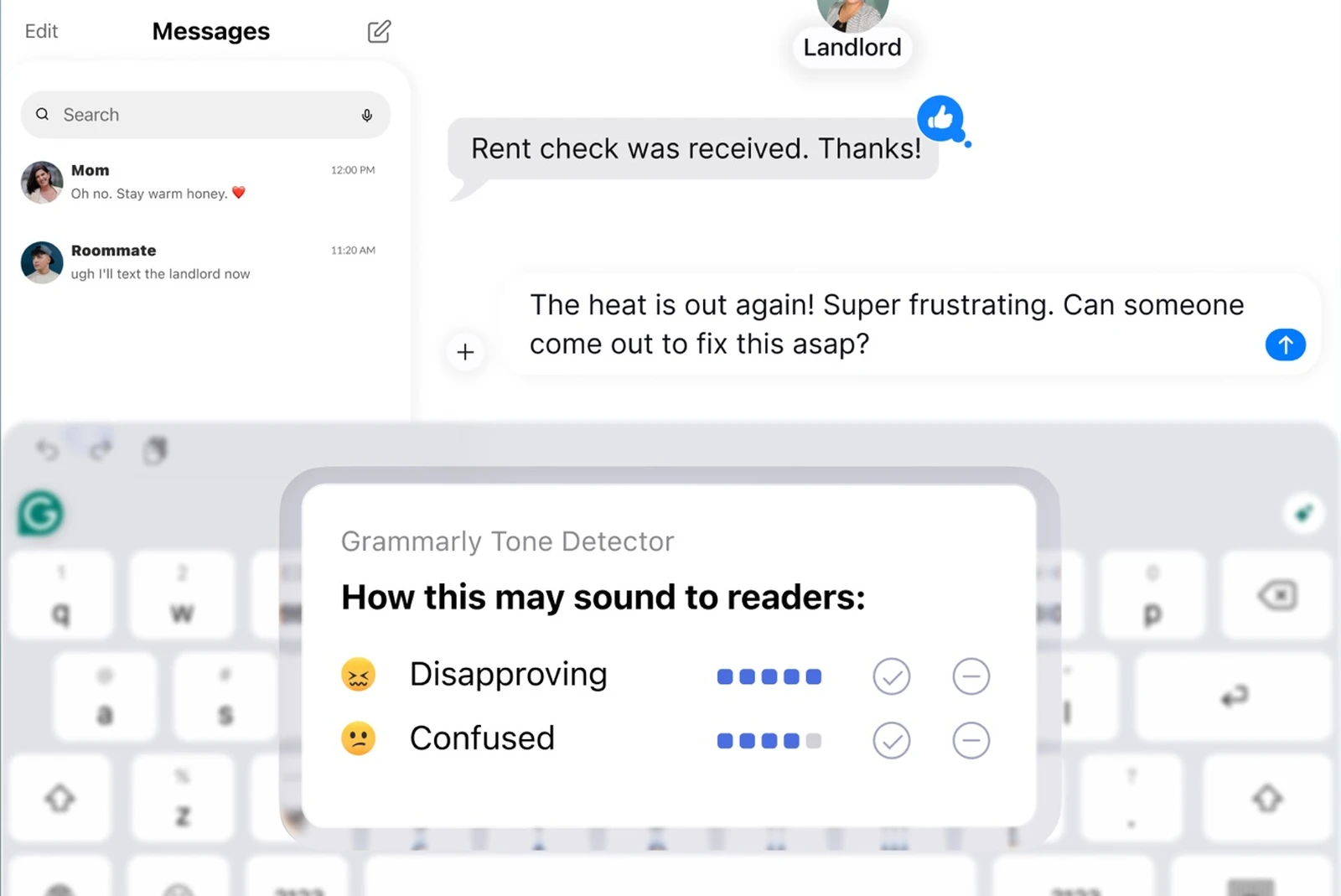
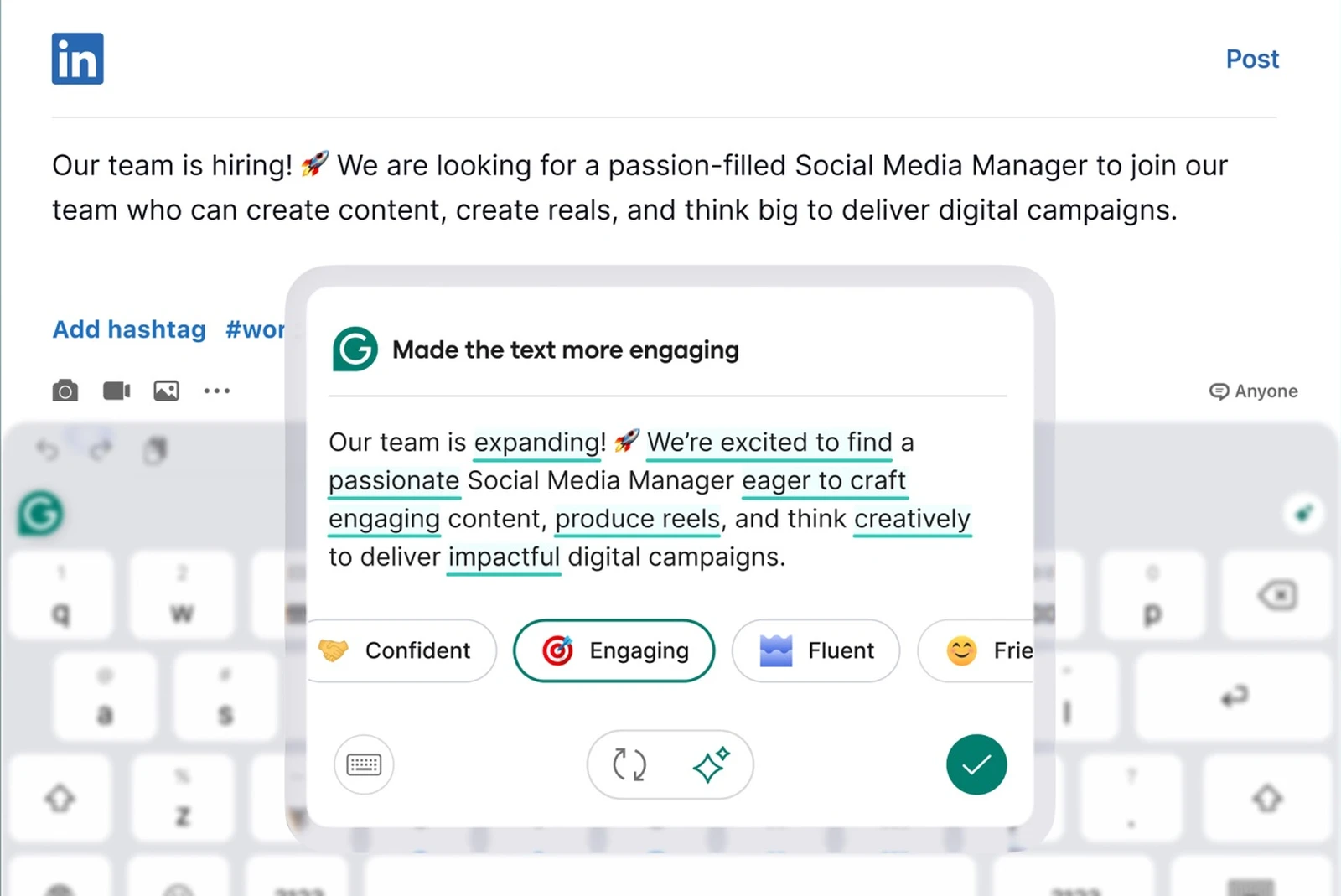
Core writing tools and AI features on ChromeOS
These linguistic algorithms run dynamically whether you are typing quick replies in chat clients or producing multi-page reports. With customizable writing goals, you can configure Grammarly to tailor suggestions for general audiences, academic formal registers, or casual creative communication.
Tips for the best writing experience on Chromebook
- Pair extension and Android app: Keep the Chrome extension active for browser documents and Google Docs, while keeping the Android keyboard ready for touchscreen tablet note-taking.
- Customize personal dictionary: Add specialized terms, proper nouns, and industry acronyms to your personal Grammarly dictionary so they are never flagged as errors.
- Use quick keyboard switcher: Press Ctrl + Shift + Space on your physical keyboard to instantly toggle between your native ChromeOS layout and Grammarly.
- Set up audience goals: Open the Grammarly sidebar in Google Docs or web editor to define formality, domain, and intent for targeted suggestions.
Quick fixes for common Grammarly issues on ChromeOS
- Grammarly widget not appearing in web text fields: Ensure third-party cookies or aggressive script blockers are not preventing grammarly.com scripts from running, or reload the tab.
- Android keyboard not popping up in tablet mode: Go to ChromeOS Settings > Device > Keyboard > Inputs and verify Grammarly is checked under active input methods.
- Slow or unresponsive suggestions: Clear your browser cache or reset Android app storage via Settings > Apps > Manage your apps > Grammarly > Storage > Clear Cache.
- Google Docs integration lagging: Disable conflicting third-party spellcheck extensions and ensure your Chromebook has updated to the latest stable ChromeOS release.
Related writing and productivity guides
- Microsoft Copilot on Chromebook and Googlebook: Generate summaries, analyze documents, and streamline office productivity with AI.
- ChatGPT on Chromebook and Googlebook: Draft creative content, brainstorm research ideas, and automate text workflows.
- DeepSeek on Chromebook and Googlebook: Leverage open reasoning models and smart conversational assistance on ChromeOS.
- Chromebooks That Support Android Apps: Verify Google Play hardware compatibility and optimize mobile application performance.
Frequently asked questions
Is Grammarly free to use on Chromebook and Googlebook?
Should I use the Android app, the Chrome extension, or the web editor?
Does Grammarly work offline on ChromeOS?
Can I use Grammarly with physical hardware keyboards on Chromebook?
How do I manage Grammarly on school or managed family Chromebooks?
Discover more from Chrome Geek
Subscribe to get the latest posts sent to your email.