

Readers like you help support this site. When you make a purchase using links on our site, we may earn an affiliate commission. All opinions remain our own.

Simply Piano for Chromebook could be exactly what you’re looking for. Whether you’re a beginner or looking to play your favorite songs, this award-winning app brings piano learning to ChromeOS in a friendly, guided way.
In this guide, we’ll show you how to install Simply Piano, what gear you’ll need, and how it fits into a broader creative toolkit for Chromebook users.
You’ll also get a step-by-step example using a real song, because let’s face it, we all want to learn the classics fast.
You can also contact us or leave a comment below if you need any help or want to leave feedback.
What is Simply Piano?
Simply Piano is an interactive piano learning app that guides users through real songs and music theory with video-style lessons and real-time feedback. Perfect for ages 7 and up,
it’s ideal for both touch learners and parents looking to turn screen time into skill time.
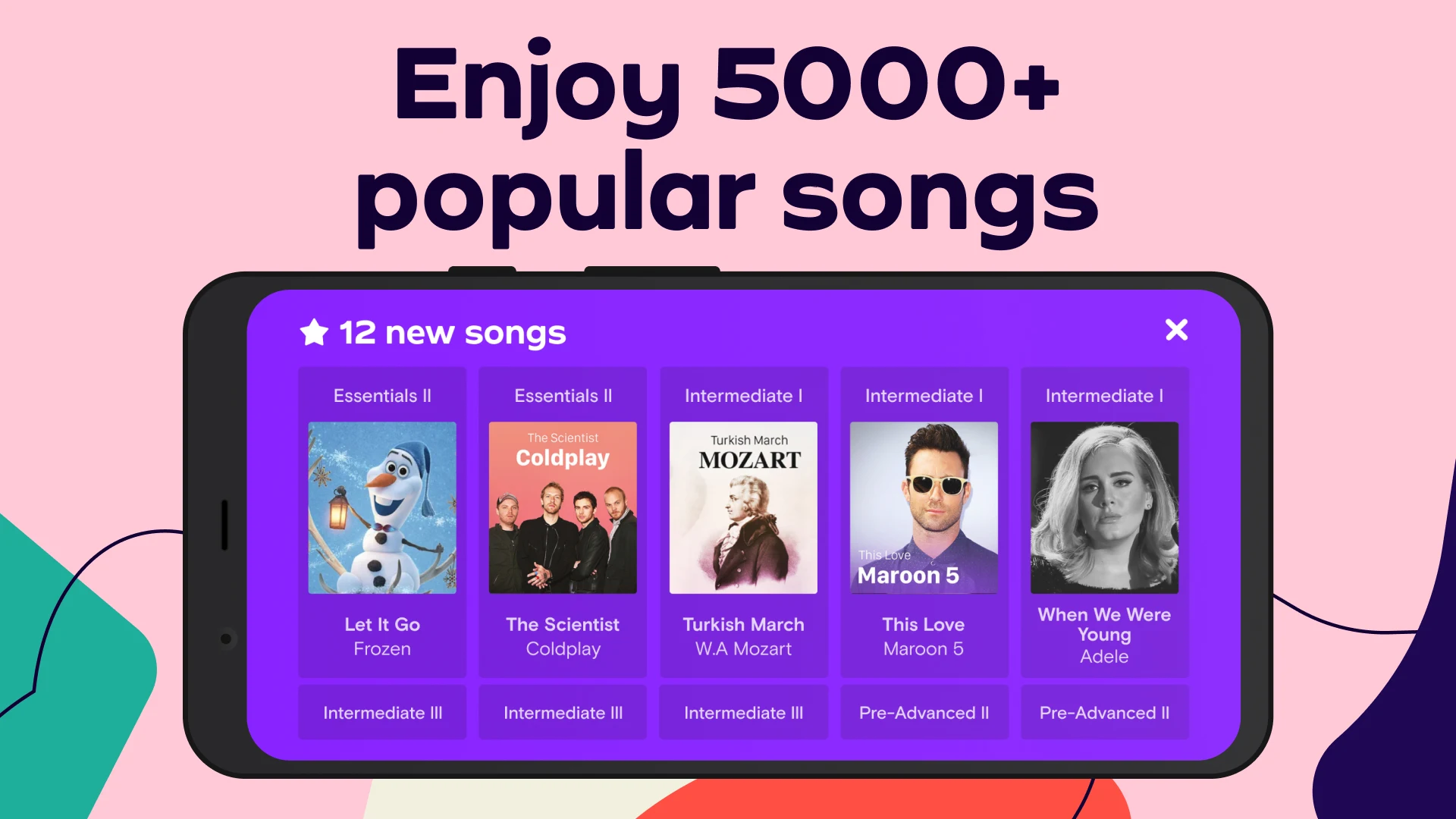
- Choose from pop, classical, and rock songs
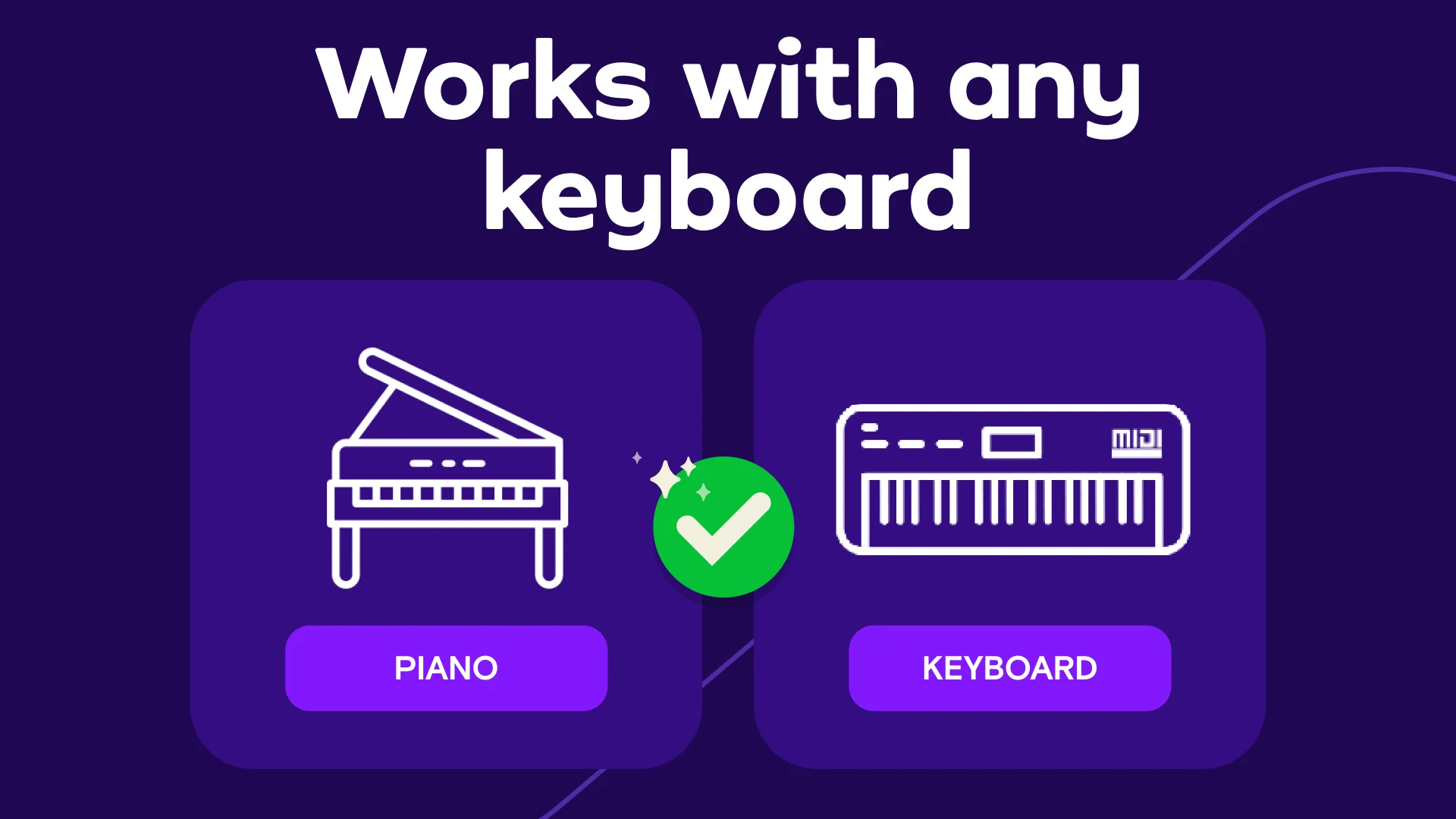
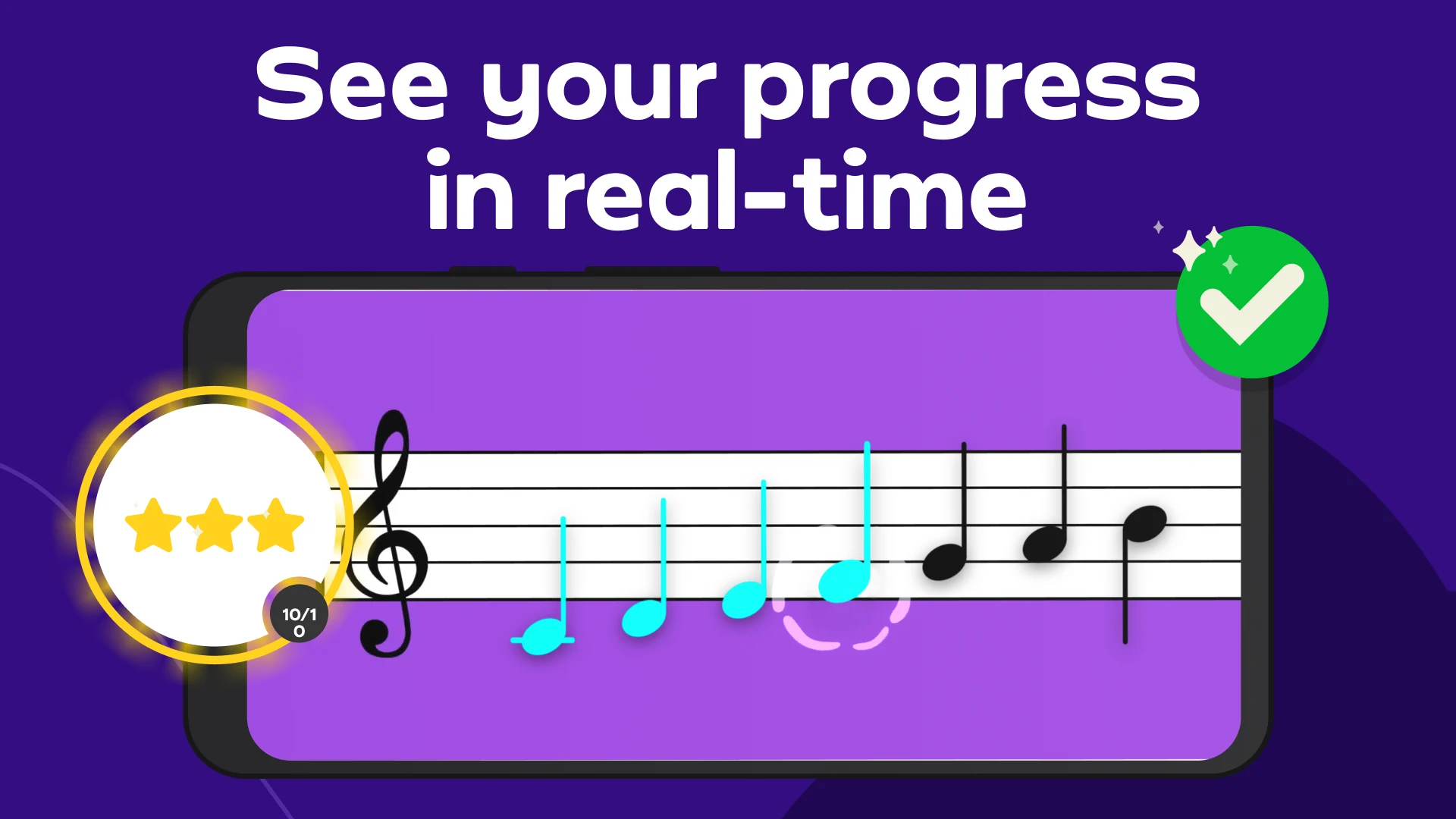
- Real-time note recognition via mic or MIDI keyboard
- Game-like progression system for motivation
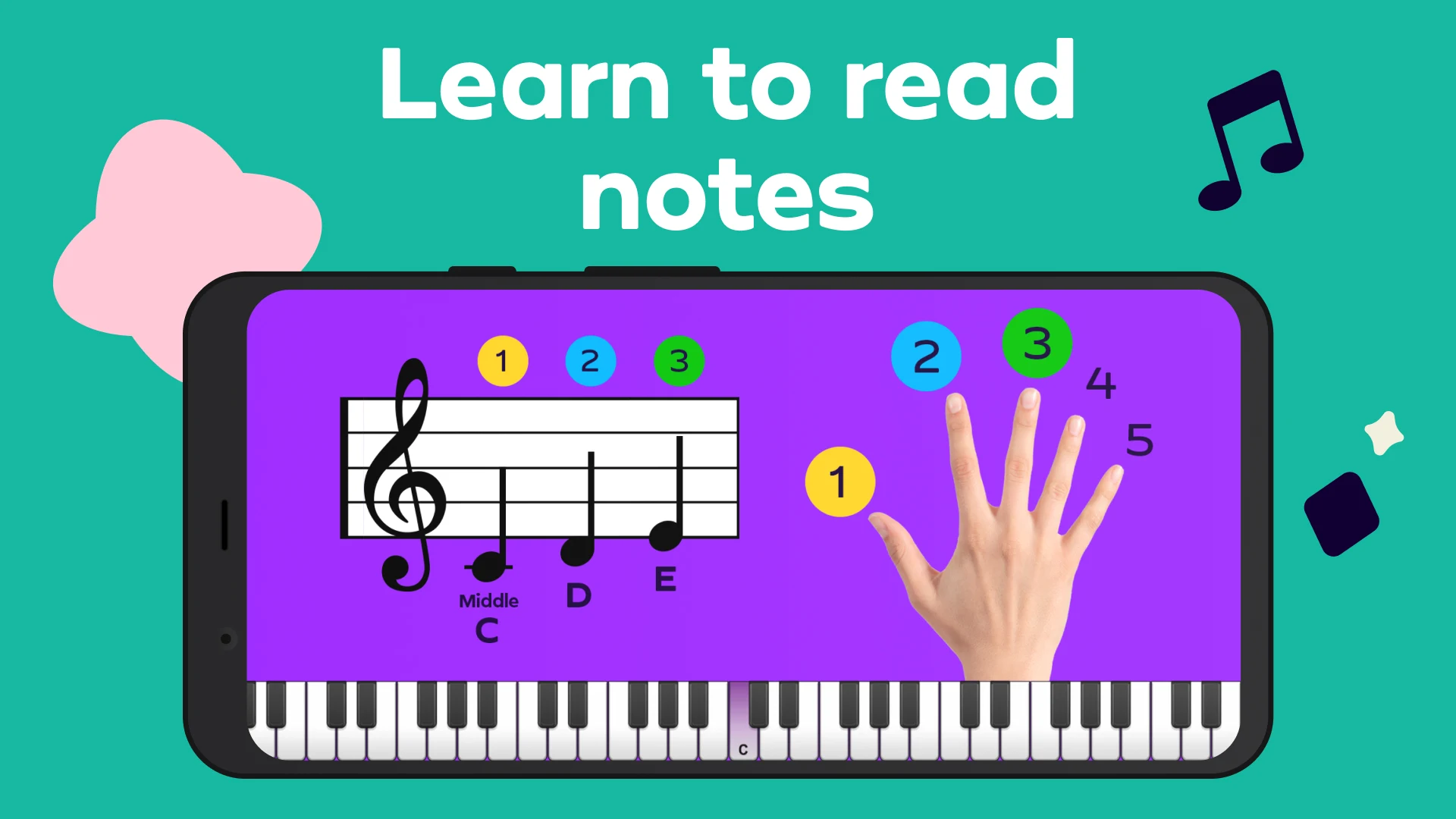
- Beginner-friendly with no prior music theory needed
How to Set Up Simply Piano on Chromebook
- Open your Chromebook’s Google Play Store
- Search for “Simply Piano”
- Click Install
- Launch the app and choose your learning path
- Use your Chromebook’s mic or connect a MIDI keyboard
Quick Tip: A basic electronic keyboard with a headphone jack or USB MIDI makes the experience more accurate, but you can also use an on-screen piano to start.
Why Simply Piano is Worth Trying
Here are three solid reasons this app stands out for Chromebook users interested in learning piano:
- Improve your musical skills with step-by-step lessons, whether you’re a piano pro or starting from scratch
- Learn to play popular songs and read sheet music, or upgrade for regularly updated new courses
- Set the app near a real piano or use the touch-screen keyboard to receive instant feedback as you play
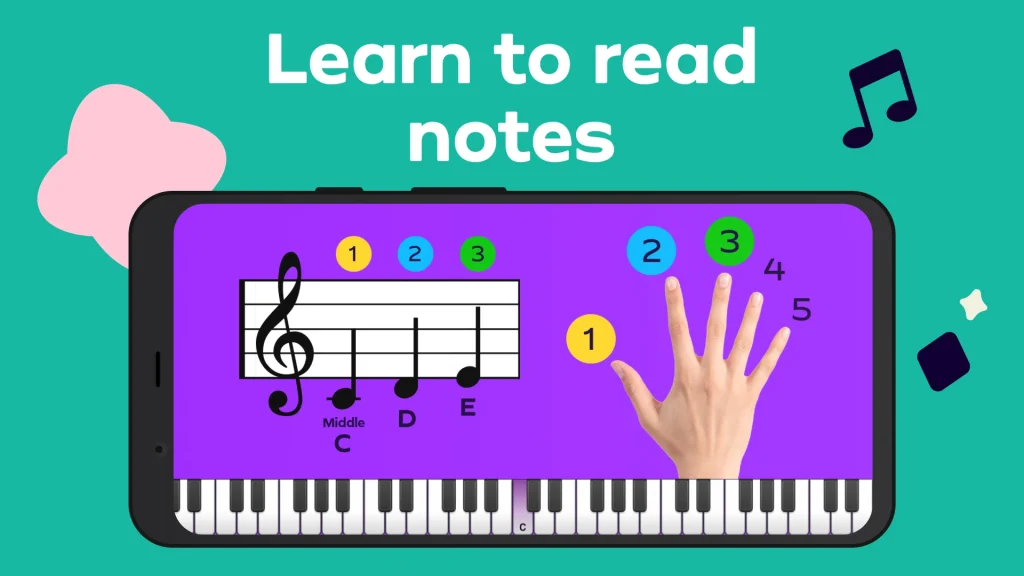

Example: Learn “Let It Be” by The Beatles
Here’s how Simply Piano guides you step-by-step through a song like “Let It Be”:
- Open the app and go to the Song Library
- Select “Let It Be” (or your preferred song)
- Watch a short tutorial introducing the notes and rhythm
- Use your keyboard (or Chromebook mic) to play along
- The app gives feedback on timing, accuracy, and posture
- Repeat sections until you unlock the next part of the song
After just a few sessions, you’ll be able to play full sections smoothly; Simply Piano’s bite-sized approach makes practice feel manageable and rewarding.
Screenshots
Chromebook Compatibility
- ChromeOS: 90+ with Android app support
- RAM: 4GB or higher
- Audio input: Built-in mic or external keyboard connection
- MIDI Support: Optional for enhanced accuracy
Who Is Simply Piano Best For?
- Kids learning piano basics in a fun, visual way
- Adults picking up a lifelong musical hobby
- Homeschoolers needing music curriculum options
- Content creators looking to add keyboard to their toolkit
Looking to take your creativity further? Try learning guitar with Simply Guitar. Check out BandLab for Chromebook for music production or Best Media Players for Chromebook to fine-tune your audio journey.
FAQ: Simply Piano on Chromebook
Does it work without a real piano or keyboard?
Yes, you can use the on-screen keyboard with your Chromebook’s touchscreen or trackpad, or just play on a real keyboard while the app listens using the mic.
Is Simply Piano free?
The app includes free lessons to get started. A premium subscription unlocks full song libraries and course content. You can test several lessons before subscribing.
Do I need to read sheet music?
No music theory is required to begin. The app uses visual cues and video lessons to teach rhythm and note placement intuitively.
Can I use headphones?
Yes, but if you’re using a real piano and relying on the mic for note recognition, try to play through speakers so the app can hear your notes.