



The Mote extension lets you add voice comments and audio notes directly to Google Docs, Slides, Gmail, and Forms.
Built by Mote Technologies, this tool integrates a simple “Record” button into your favorite Google apps. Instead of typing out long paragraphs of feedback, you just click, speak, and send.
If you are a teacher grading papers or a manager reviewing a report, this saves you hours of typing. The recipient can click “Play” to hear your voice, or even read a text transcription if they can’t listen right away.
This guide explains how to set it up, how to use voice notes in Google Docs, and the difference between the free and paid plans. Feel free to contact us or leave a comment below.
How to Install Mote Extension
You can add Mote to Chrome just like any other extension. Once installed, it automatically detects when you are using a compatible app (like Google Docs).
Installation Steps
- Go to the Mote Chrome Web Store listing.
- Click “Add to Chrome”.
- Sign in with your Google Account to sync your notes.
- Pin the extension for quick access, though the Mote icon will mostly appear inside your documents automatically.
Quick Tip: 💡 If you send a voice note to someone who doesn’t have the extension, they can still hear it. Mote sends them a link to a web player so they don’t need to install anything.
Utility & Use Cases
Mote bridges the gap between a text comment and a phone call. It adds human tone and clarity that text often misses.
Common ways people use it:
- Educators: Giving personalized feedback on student essays without writing 500 words.
- Teams: Explaining complex changes in a shared Google Doc or Slide deck.
- Language Learning: Recording pronunciation examples for students.
Key Functions & Features
Mote is more than just a voice recorder. It has smart features that make it a full productivity suite.
1. Voice Comments in Google Docs/Slides
Highlight any text in a document and click “Add Comment.” You will see the purple Mote icon. Click it to record your feedback. It appears right in the sidebar like a normal text comment.
2. Automatic Transcription
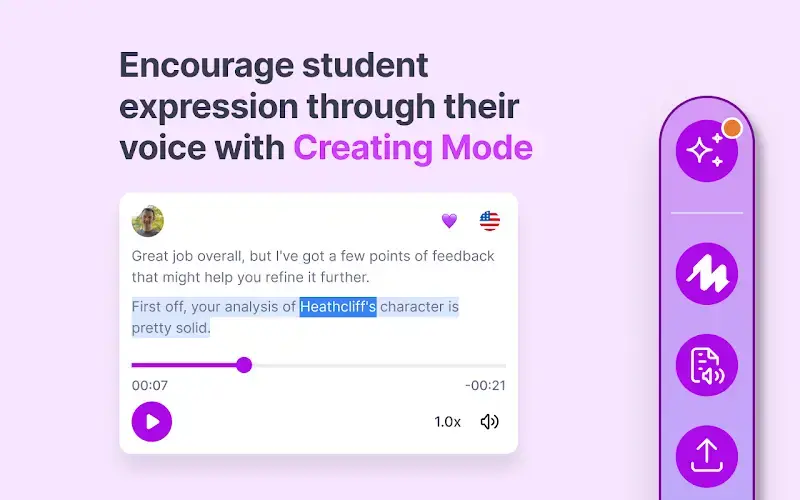
Not everyone can listen to audio. Mote automatically transcribes your voice note into text. The recipient can choose to listen or read, making your feedback accessible to everyone.
3. “Motebook” (Saved Responses)
Do you find yourself saying the same thing over and over? You can save common voice notes to your “Motebook” and re-paste them into future documents with one click.
Video & Interface
See how Mote integrates directly into the Google Docs interface:

Interface Screenshots
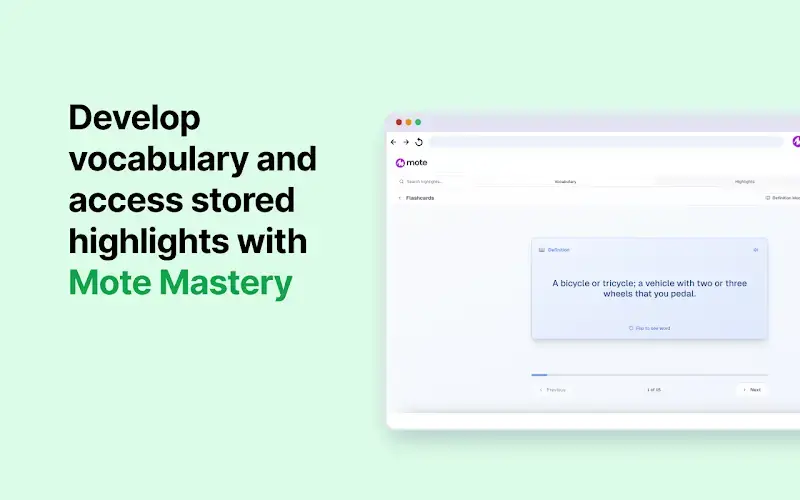
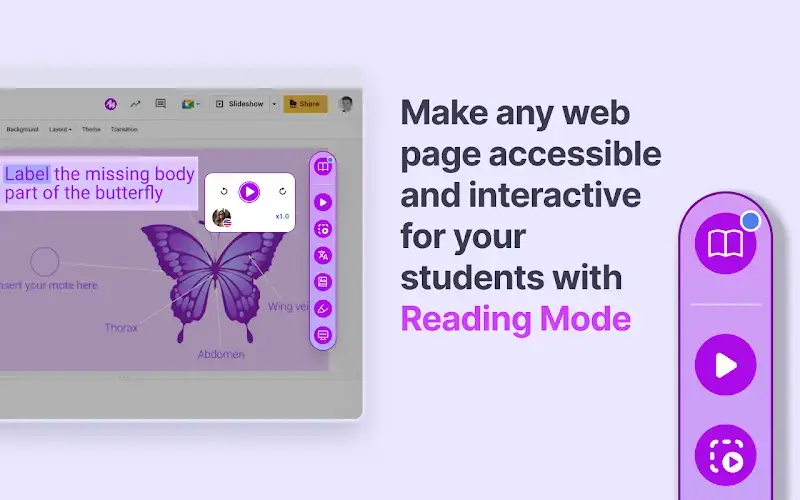
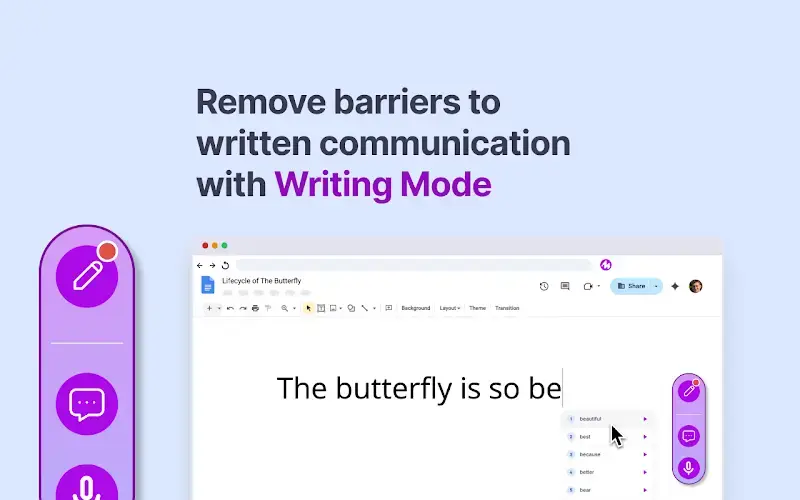
Here is what the voice comments and transcription look like:
FAQs & Technical Details
System Compatibility
- OS: Works on any desktop OS with Chrome (Windows, Mac, ChromeOS).
- Mobile: There is an iOS app, and Mote links work on any mobile browser.
Frequently Asked Questions
- Is Mote free? Yes, but with limits. The free plan limits recording length (usually 30 seconds) and the number of transcripts. The “Unlimited” plan removes these caps.
- Is it safe for schools? Yes. Mote is COPPA, FERPA, and GDPR compliant, making it a popular choice for K-12 education.
- Does it work in Gmail? Yes. You can record a voice email directly inside the Gmail “Compose” window.
Check out other useful tools: Image Downloader Extension, GoFullPage Screen Capture, and Google Keep Extension.