Best Chrome Extensions for Teachers to Save Time in Class
 by
Gloria Brown
Post Updated: October 15, 2026
by
Gloria Brown
Post Updated: October 15, 2026
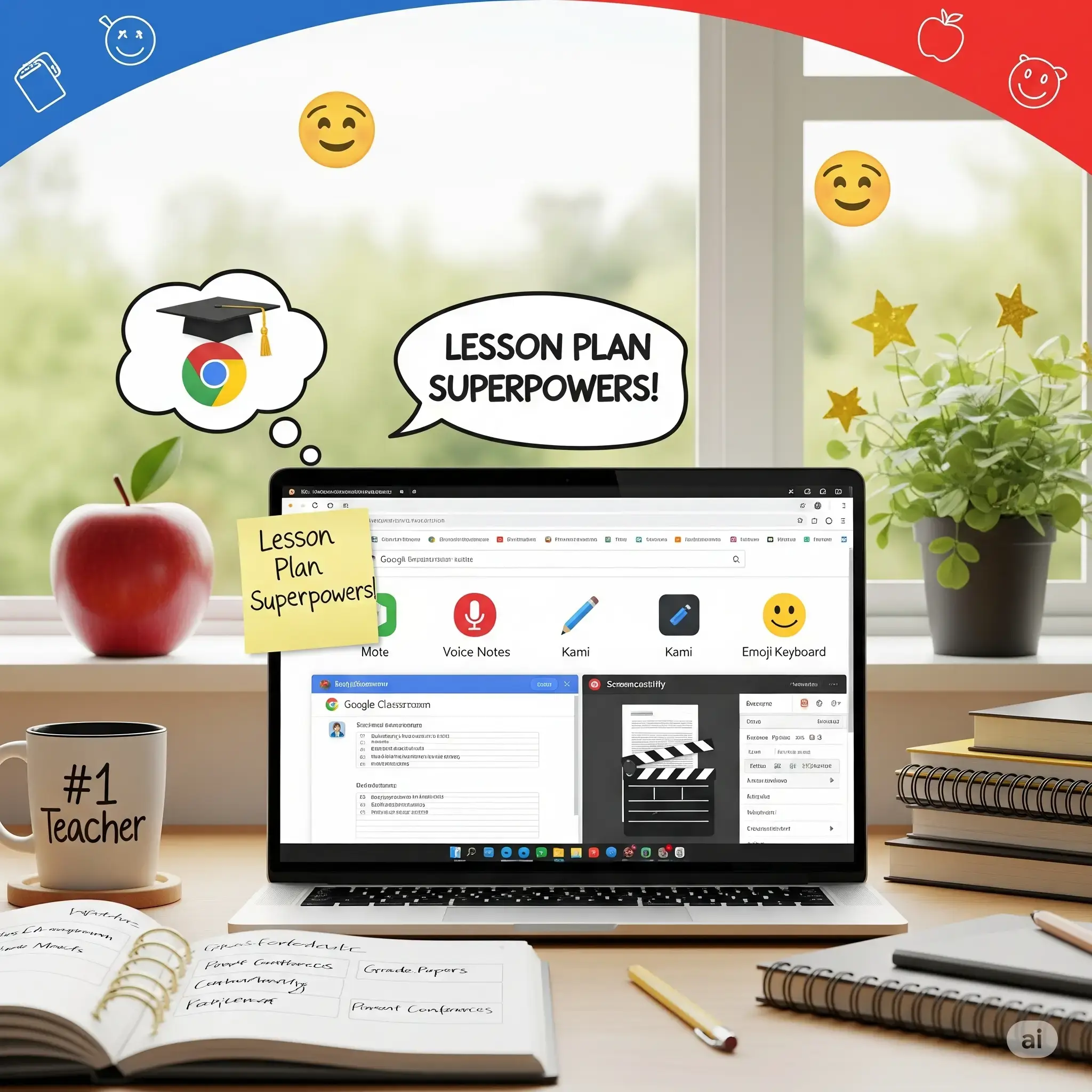
The best Chrome extensions for teachers include Brisk Teaching for lesson planning and feedback, Kami for working with worksheets and PDFs, and Mote for leaving voice comments on student work.
Whether you teach in person or online, these extensions can help you prepare lessons, check assignments, create videos, and support students with different learning needs. We’ve included free and paid options, along with practical tips for using them. If you teach on a school-managed Chromebook or Google account, your administrator may need to approve new extensions before you can install them.
Best Chrome Extensions for Teachers
1. Brisk Teaching
AI Lesson Planning & Feedback
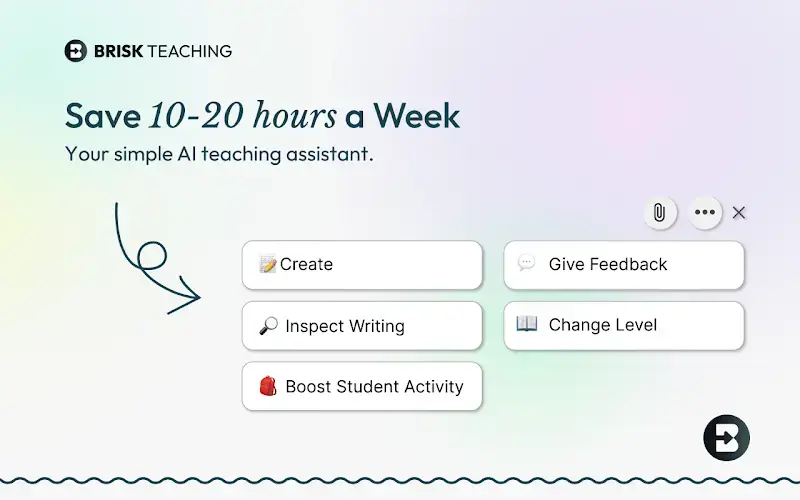
What it does: Brisk Teaching works directly inside Google Docs, Google Classroom, YouTube, web articles, and PDF files. It helps teachers create lesson plans, quizzes, resource guides, and feedback for students at different learning levels without switching between tabs.
👍 Why we chose it: Instead of copying and pasting text back and forth into separate AI websites, Brisk works right where you are already working. You can change the reading level of an online article in seconds, create rubrics, and write helpful feedback directly on student work in Google Docs.
Good to know: Always check AI-generated questions and feedback before using them in class. Do not upload private student information unless your school allows the service. The free plan covers core lesson tools and reading level changes, while advanced rubric grading requires a paid plan.
2. Kami
Interactive Worksheets & PDFs
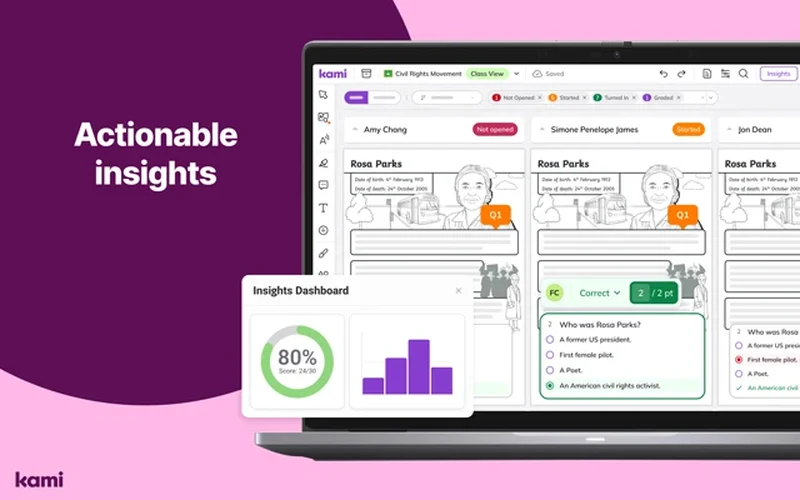
What it does: Kami turns documents, worksheets, scanned pages, and PDF files into interactive materials where teachers and students can draw, highlight, type, and leave voice notes directly on the page.
👍 Why we chose it: It makes digital worksheets much easier to manage. Students can complete assignments on PDFs without messing up the formatting or converting file types, and teachers can review, write notes, and grade student work alongside Google Classroom or Canvas.
Good to know: The free Chrome extension gives you basic drawing, text boxes, and shapes. Paid features include speech-to-text, math symbols, voice comments, and automatic grade syncing with your school system.
3. MagicSchool AI
AI Teaching Resources & Planning
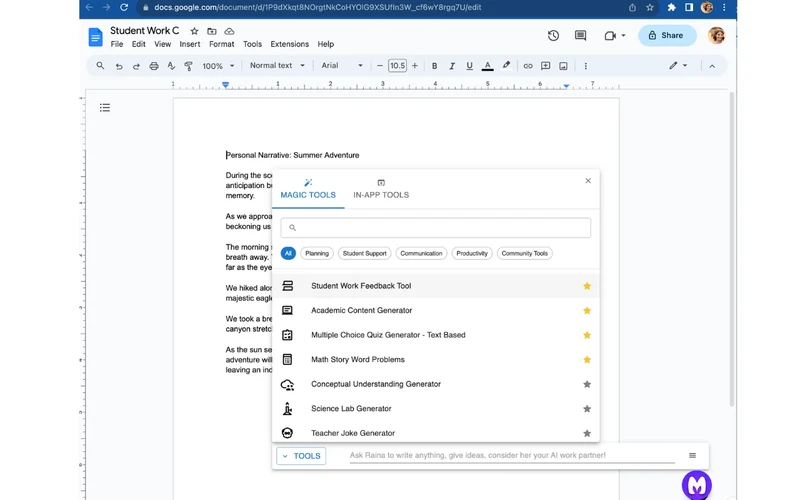
What it does: MagicSchool includes dozens of tools made for teachers, including lesson planning, quizzes, rubrics, feedback, IEP support, and parent communication.
👍 Why we chose it: Every tool is designed around everyday classroom tasks. MagicSchool differs from Brisk by giving you a complete dashboard of ready-made forms and templates to plan lessons from scratch, rather than only working on documents already open on your screen.
Good to know: The free plan lets you use core tools with monthly generation limits, while MagicSchool Plus unlocks unlimited generations. As with any AI tool, do not enter private student details unless your school approves.
4. Wayground AI (formerly Quizizz)
Quizzes & Classroom Activities
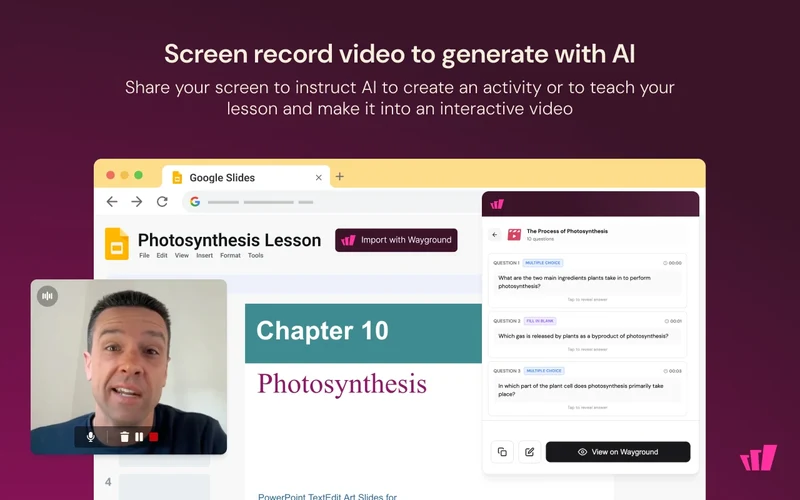
What it does: Wayground AI (formerly known as the Quizizz extension) turns web articles, YouTube videos, and Google Docs into review quizzes, flashcard sets, and classroom practice activities with one click.
👍 Why we chose it: Instead of spending prep periods writing quiz questions by hand, you can open any helpful webpage and generate an activity right away. Students recognize the familiar game format, which makes review sessions fun and engaging.
Good to know: Wayground links directly to your Wayground account to host and assign review games. While basic quiz creation and games are free, premium question types and extra reports require a paid Wayground plan.
5. Mote
Voice Feedback & Reading Support
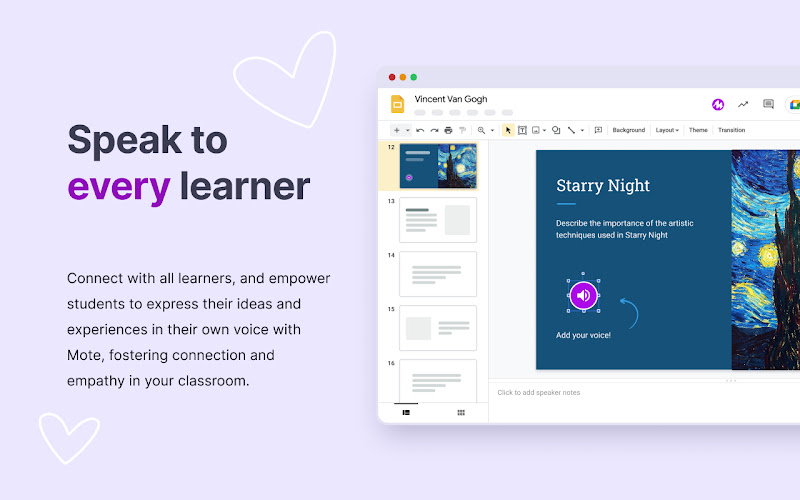
What it does: Mote lets teachers and students record voice notes inside Google Docs, Slides, Sheets, and Google Classroom, with automatic speech-to-text transcription and translation in dozens of languages.
👍 Why we chose it: Leaving spoken comments saves hours of typing and lets students hear your encouraging tone. Tone of voice helps prevent misunderstandings, and the built-in read-aloud tool helps younger learners and students who are still learning English.
Good to know: The free plan includes up to 20 voice recordings each month, with recordings up to one minute long. Paid plans allow longer recordings up to five minutes, unlimited monthly notes, and audio file downloads.
6. GradeTransferer
Moving Grades Between School Systems
What it does: GradeTransferer grabs student grades from Google Classroom, Canvas, Schoology, Edpuzzle, and Kami, and enters them directly into school grading systems like PowerSchool, Infinite Campus, and Skyward.
👍 Why we chose it: Typing grades by hand from one computer screen into another takes hours. GradeTransferer copies an entire class roster’s scores in seconds and matches student names automatically, cutting down on data-entry mistakes.
Good to know: GradeTransferer comes with a seven-day free trial so you can test it with your school gradebook before buying. After the trial, it requires a paid license. Teachers should always double-check transferred numbers before hitting submit.
7. Edpuzzle
Interactive Video Lessons
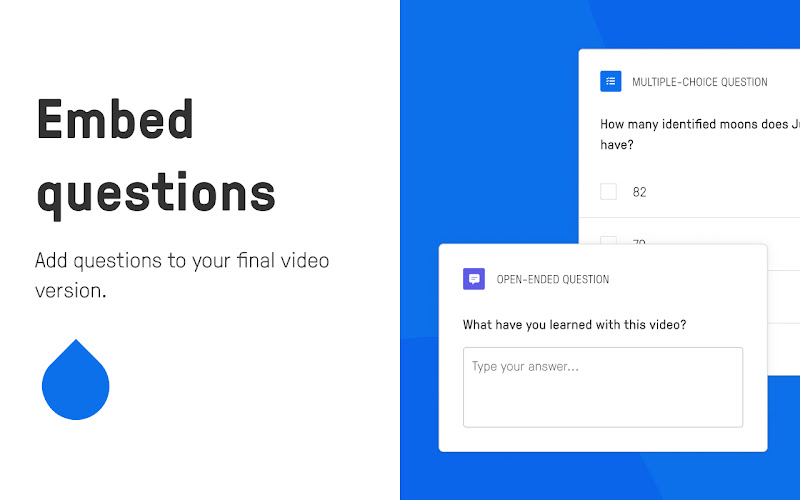
What it does: Edpuzzle turns online videos into interactive lessons by adding questions, audio notes, and explanations to educational YouTube clips, and includes a tool to record lessons from your screen.
👍 Why we chose it: It keeps students engaged while watching videos. You can pause a clip at important points to check understanding, prevent students from skipping ahead, and use built-in AI tools to suggest good questions automatically.
Good to know: The Chrome extension adds an ‘Edit with Edpuzzle’ button right below YouTube videos and lets you start screen recordings quickly. A free teacher account can store up to 20 activities. If you need more space, you will need a school plan or referral credits.
8. Screencastify
Recording Teaching Videos
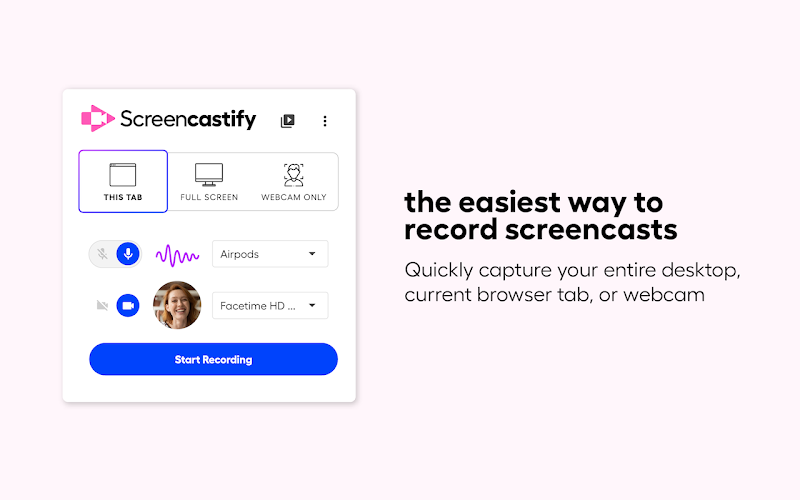
What it does: Screencastify lets teachers record their computer screen, a single browser tab, or their webcam. You can draw on the screen while recording, trim clips, add simple check-in questions, and share videos straight to Google Classroom or Google Drive.
👍 Why we chose it: It is built for simple classroom recordings and connects easily with Google Workspace. Teachers can record quick lesson walkthroughs, homework explainers, or personalized student feedback in just a couple of clicks without dealing with complicated editing software.
Good to know: The free plan covers your first 10 recorded videos, allowing up to 30 minutes per video and 10GB of storage. Unlimited video recording, extra trimming tools, and viewer stats require a Screencastify Pro plan.
9. Read&Write for Google Chrome
Accessible Reading & Writing
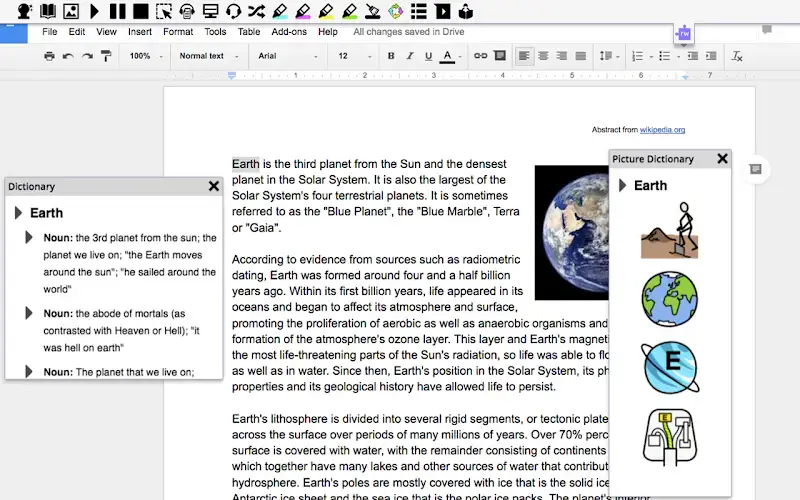
What it does: Read&Write adds an accessibility toolbar to web articles and Google Docs, offering text-to-speech reading, text highlighting, picture dictionaries, word prediction, and simplified page views.
👍 Why we chose it: It gives students useful reading and writing tools, including read-aloud support, dictionaries, prediction, and dictation. Students with dyslexia or learning differences can work through reading assignments more independently, and teachers can gather highlighted notes into instant study sheets.
Good to know: Text-to-speech and basic single-word translations are free for everyone. While full student access is paid, Texthelp offers free premium accounts for qualifying teachers who sign up on their site with a school email address.
10. Helperbird
Dyslexia & Accessibility Support
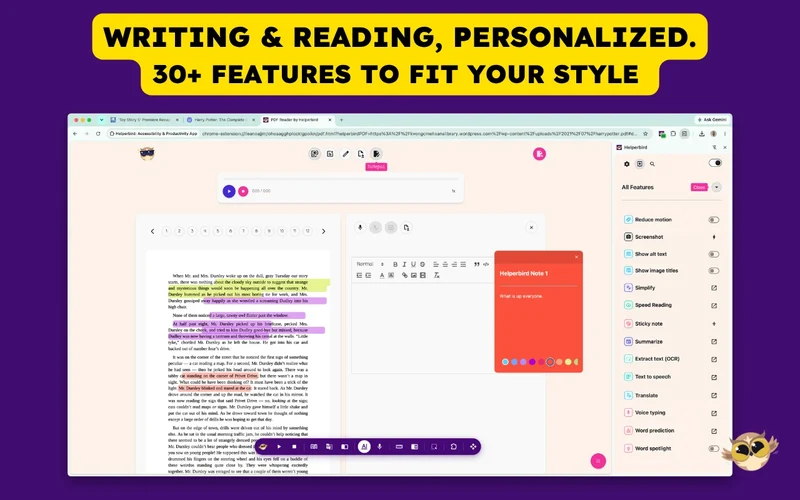
What it does: Helperbird changes how webpages look so they are easier to read, offering dyslexia-friendly fonts, wider letter spacing, colored reading rulers, high-contrast color tints, reader mode, and text-to-speech.
👍 Why we chose it: While Read&Write focuses on reading and writing tools, Helperbird focuses on page display and visual comfort. Students who struggle with small print, screen glare, or busy layouts can customize page styles across every website they visit.
Good to know: The free version includes basic font changes, background tints, and simple reading rulers. More natural-sounding read-aloud voices, translation tools, and advanced reader modes require Helperbird Pro.
11. Equatio
Maths & Science Notation
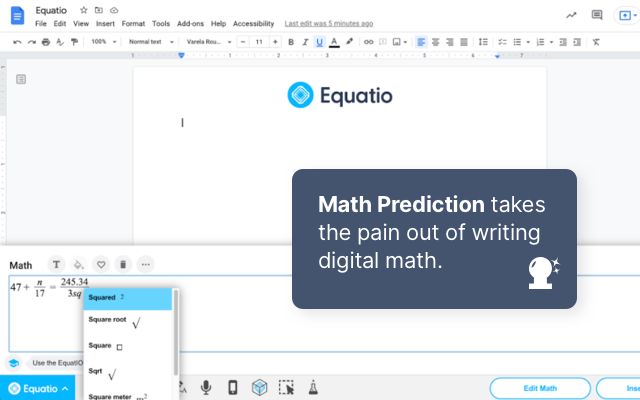
What it does: Equatio makes it easy to create digital math formulas and science equations by typing, writing by hand on a touchscreen, or speaking out loud.
👍 Why we chose it: Typing math symbols in standard word processors is slow and frustrating. Equatio formats formulas cleanly and inserts them directly into Google Docs, Forms, Slides, and Sheets, and includes Desmos graphing for visual math problems.
Good to know: Equatio comes with a 30-day free trial with full access. When the trial ends, basic math typing remains free, but handwriting recognition, voice input, and deeper Google Workspace tools require a paid license.
12. Revision History
Reviewing Student Writing Patterns
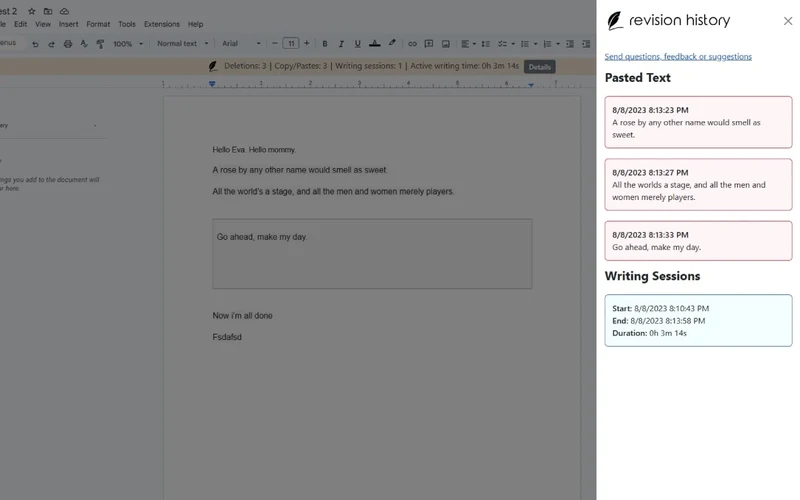
What it does: Revision History (from revisionhistory.com) shows animated replays and visual timelines of student writing in Google Docs and Google Slides, displaying typing speed, active writing time, and pasted text.
👍 Why we chose it: It helps teachers see how students actually put their work together. You can watch an essay take shape draft by draft, see where a student made changes, and understand how long they worked, which helps guide supportive writing conferences.
Good to know: Revision History does not prove whether a student used AI or copied their work. A pasted block of text might just be an assignment prompt, an outline, or notes from another source. Always review work with the student before making assumptions. The free plan handles single documents, while checking multiple documents at once requires a paid plan.
13. Text Blaze
Reusable Grading Comments & Messages
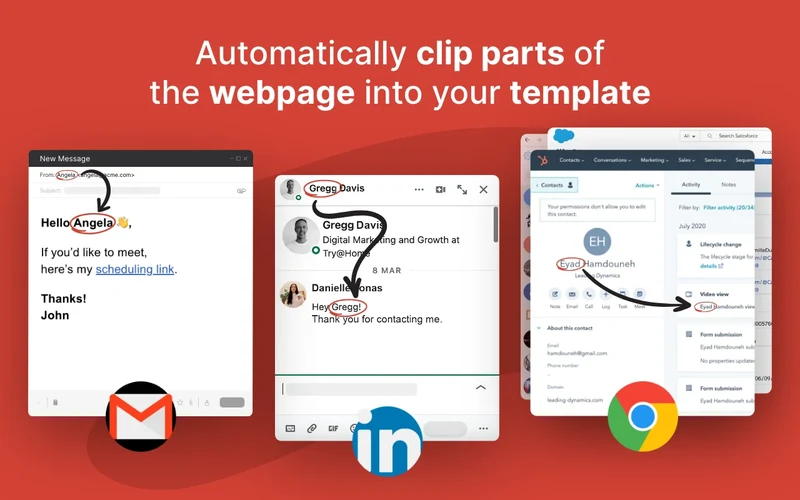
What it does: Text Blaze lets teachers save frequently used grading feedback, rubrics, parent messages, and classroom announcements, then insert them anywhere online using short keyboard shortcuts (like typing `/feedback` or `/latehw`).
👍 Why we chose it: Grading a stack of essays usually means typing the same advice over and over. Text Blaze saves hours of repetitive typing across Google Classroom, Canvas, Gmail, and school gradebooks. You can also include fill-in blanks to add student names and custom notes easily.
Good to know: The free plan allows up to 20 active snippets. Some advanced templates and automation features require a paid plan.
14. Google Keep Chrome Extension
Saving Lesson Ideas & Web Notes
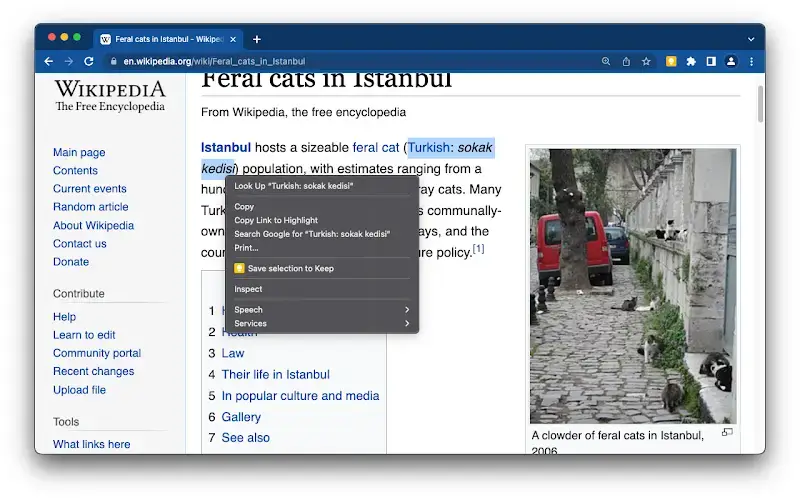
What it does: The Google Keep extension lets teachers save webpage links, text excerpts, and online images straight into Keep notes with a single click while looking for lesson materials.
👍 Why we chose it: It works like a quick digital notepad right in your browser. When you find an interesting article or diagram for an upcoming class, you can save it immediately, add a quick reminder or label, and open the note inside Google Docs through the side panel.
Good to know: The extension is made for quick saving and simple note-taking while browsing. Organizing your full notes, rearranging checklists, and setting location reminders take place in the main Google Keep app or website.
15. InsertLearning
Turning Webpages into Lessons
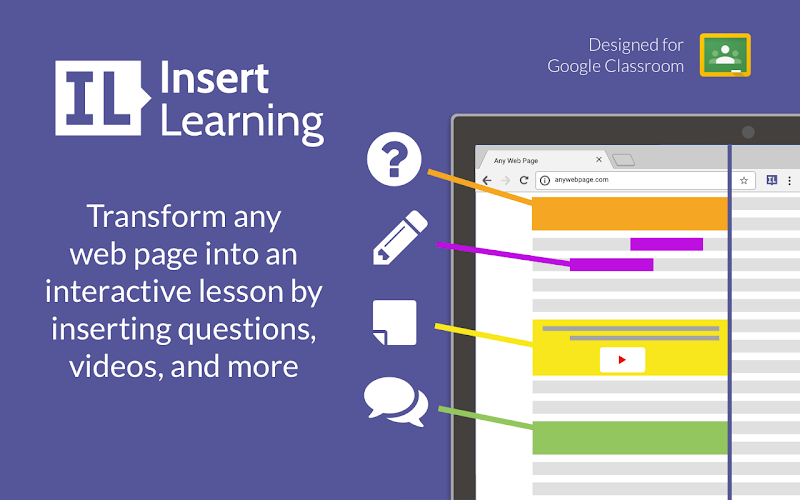
What it does: InsertLearning lets teachers add discussion questions, multiple-choice checks, sticky notes, and video explanations directly onto any webpage for students to complete.
👍 Why we chose it: It lets you turn real articles and webpages into interactive lessons. Instead of printing paper packets or having students read passively, you can guide them through online reading and see their answers as they work.
Good to know: The free plan lets you create and run up to two lessons. Making unlimited interactive lessons and getting full grade reports requires an annual teacher subscription.
16. Wakelet
Organizing Teaching Resources
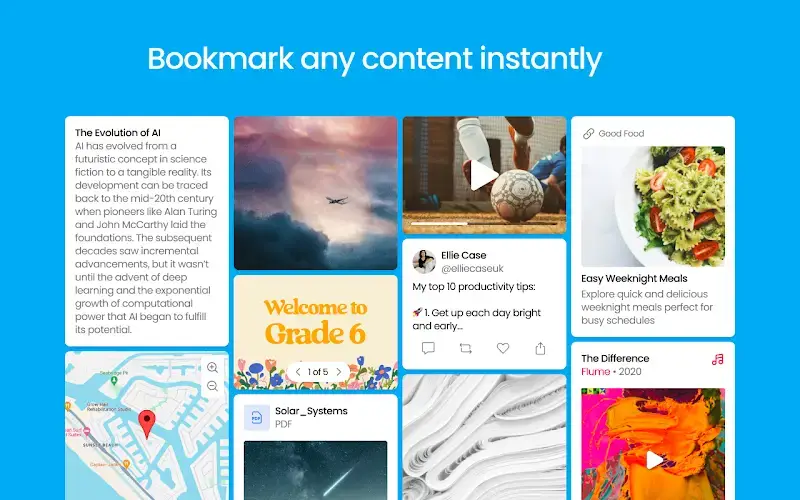
What it does: Wakelet lets teachers save, organize, and share web links, videos, PDFs, images, and classroom documents in clean visual collections for students, parents, or colleagues.
👍 Why we chose it: It stops you from drowning in messy browser bookmarks. You can put together a visual resource list for a history topic, organize weekly reading assignments, or share a clean classroom newsletter with picture cards and link previews.
Good to know: Wakelet’s free Starter plan allows up to three collections. If you want to make unlimited resource boards, organize large student groups, or export collections as PDFs, you will need a paid plan.
17. Screenity
Free Screen Recordings & Annotations
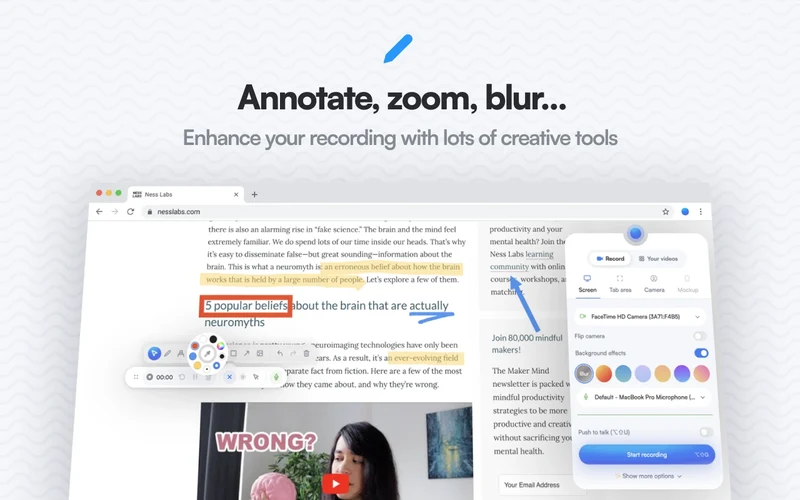
What it does: Screenity is a free screen and webcam recorder that lets you capture a browser tab, a specific app window, or your whole screen. You can draw on the screen while recording, trim clips, and save videos as MP4, WebM, or GIF files.
👍 Why we chose it: Many screen recorders limit free users to five minutes or put watermarks on videos. Screenity is completely free, does not limit recording time, and does not require an account sign-in. You get clean video recordings and drawing tools without needing a paid plan.
Good to know: The free extension can save recordings locally or to Google Drive, and Screenity says it does not collect your recordings. An optional paid cloud tier is available if you want online link hosting.
18. MyBib
Teaching Citations & Research
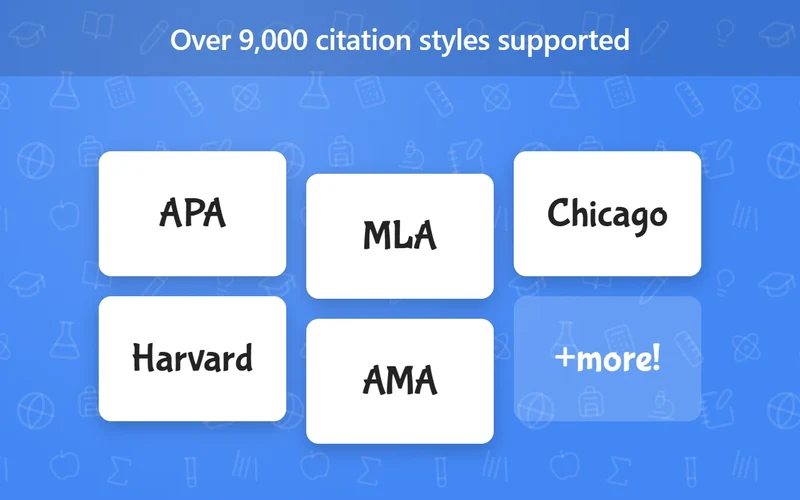
What it does: MyBib is a free citation generator that creates bibliographies and in-text citations from any webpage. It supports thousands of styles, including APA, MLA, Chicago, and Harvard.
👍 Why we chose it: Teaching students how to format citations can be frustrating. MyBib builds citations with a click, warns students if a web source looks unreliable, and exports reference lists directly into Google Docs without ads or paid paywalls.
Good to know: MyBib usually picks up the citation details from a webpage automatically. However, students should still check author names and publication dates against the page before handing in work.
19. Grammarly
Classroom Writing & Communication
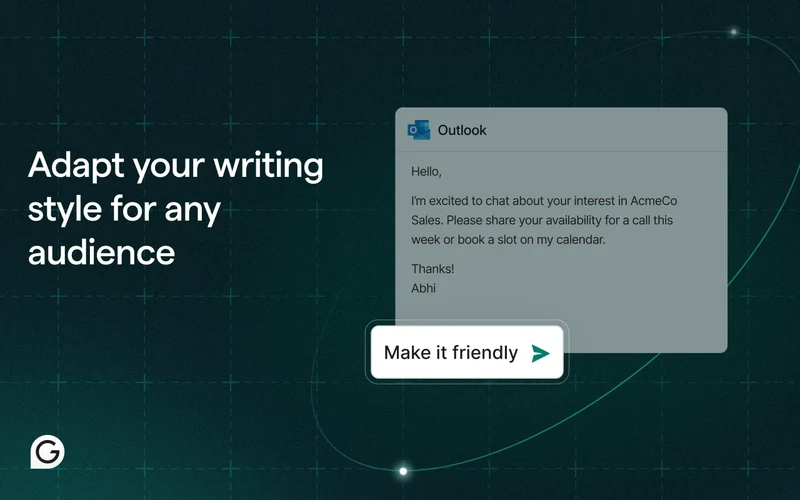
What it does: Grammarly checks grammar, spelling, punctuation, and clarity as you type in Gmail, Google Docs, school learning platforms, and online forms.
👍 Why we chose it: Teachers send dozens of messages every day, from parent emails to report card comments and assignment instructions. Grammarly catches everyday typos and helps make your wording clear, polite, and easy to read.
Good to know: The free version catches everyday spelling and grammar mistakes. Advanced tone adjustments, full sentence rewrites, and AI features require a paid plan. Do not upload private student information unless your school allows the service.
20. Google Translate
Quick In-Lesson Translations
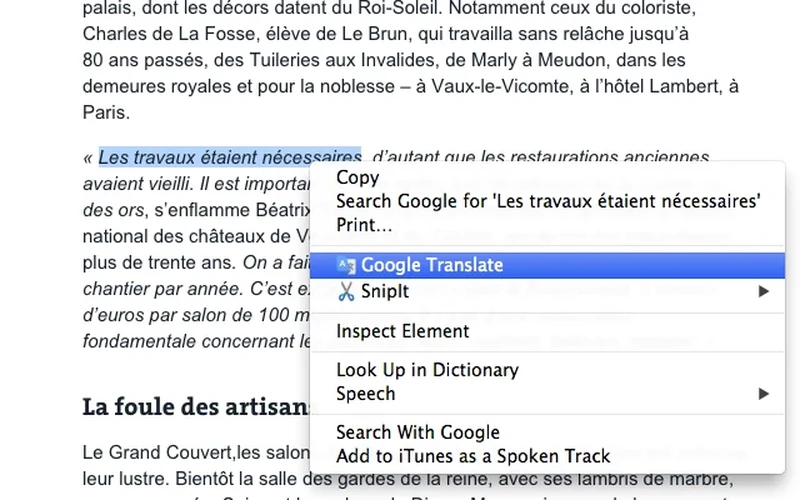
What it does: The Google Translate extension lets you highlight a word or phrase on any webpage and see a quick translation in more than 100 languages.
👍 Why we chose it: Translating an entire webpage can break the page layout or confuse students learning English. This extension lets you check individual words or short sentences without leaving the page.
Good to know: The extension is completely free. Automatic translations can sometimes miss the exact context, so it works best for quick vocabulary help rather than complex passages.
21. Read Aloud
Listening to Lesson Material
What it does: Read Aloud reads web articles, online textbooks, and Google Docs out loud. You can change the reading speed, pitch, and voice in more than 40 languages.
👍 Why we chose it: It is a simple read-aloud tool without extra bloat. Students who focus better when listening can hear assigned articles read out loud, which cuts down on screen fatigue and helps with reading comprehension.
Good to know: The standard browser voices and text highlighting are completely free. More natural-sounding voices require optional voice credits.
22. Classwork Zoom for Google Classroom
Reviewing Student Work Patterns
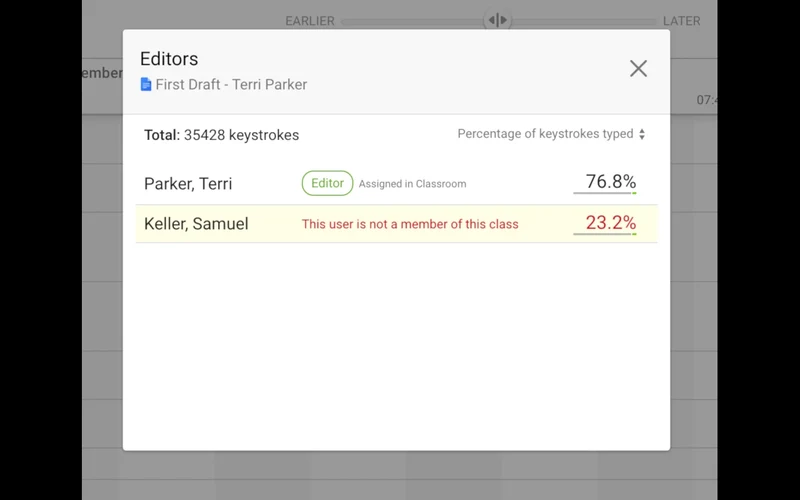
What it does: Classwork Zoom builds a visual timeline for Google Classroom assignments. It shows when students worked in Google Docs, Sheets, and Slides, and how much time they spent on each session.
👍 Why we chose it: It helps teachers see how students manage their work. You can tell whether a student chipped away at a project over several days or rushed through it an hour before the deadline, helping you spot who might need extra help.
Good to know: The timeline shows when a document was open and edited, but it is not definitive proof of effort or honesty. The free plan lets you look at individual student timelines. Viewing activity from several students together in one timeline requires a paid plan.
23. Add to Google Classroom
Sharing Webpages with Classes
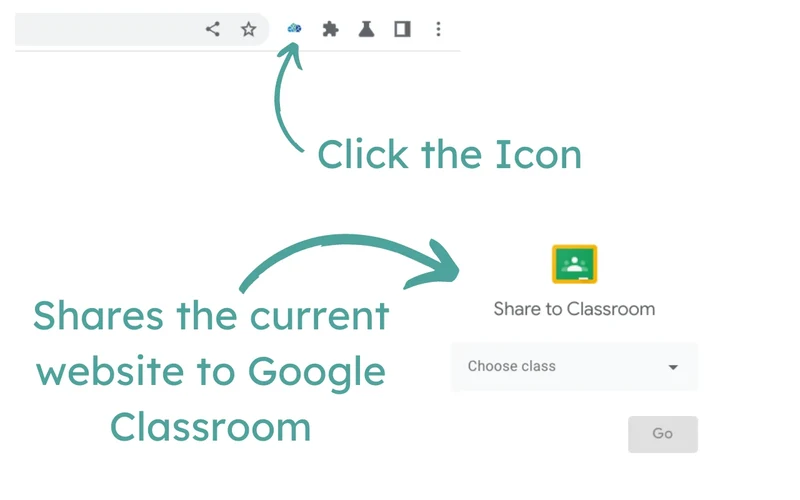
What it does: Add to Google Classroom adds a button to your browser toolbar that sends the webpage you are viewing straight to Google Classroom as an assignment, question, announcement, or material.
👍 Why we chose it: When you find a helpful article or video during lesson planning, you do not need to open Google Classroom in a new tab, find your class, and copy-paste the web address. You can share it with your class in a couple of clicks.
Good to know: You need a Google Classroom teacher account with classes already set up. This extension is designed for sharing links quickly; setting up rubrics or attaching multiple files still happens in Google Classroom.
Compare Chrome Extensions for Teachers
(Click to expand)
| Extension | Best for | Pricing | Key limitation or consideration |
|---|---|---|---|
| Brisk Teaching | AI Lesson Planning & Feedback | Freemium | Check AI content before using; advanced rubric grading requires a paid plan |
| Kami | Interactive Worksheets & PDFs | Freemium | Advanced tools like voice notes and auto-grading require a paid teacher license |
| MagicSchool AI | AI Teaching Resources & Planning | Freemium | Free plan has monthly limits; unlimited generations require MagicSchool Plus |
| Wayground AI (formerly Quizizz) | Quizzes & Classroom Activities | Freemium | Hosting review games requires a Wayground account; premium questions need a paid plan |
| Mote | Voice Feedback & Reading Support | Freemium | Free plan allows 20 recordings per month (up to 1 minute each); longer recordings require a paid plan |
| GradeTransferer | Moving Grades Between School Systems | Paid (7-day free trial) | Requires a paid license after a 7-day free trial; always verify transferred scores |
| Edpuzzle | Interactive Video Lessons | Freemium | Free plan stores up to 20 activities; additional storage requires a paid plan |
| Screencastify | Recording Teaching Videos | Freemium | Free plan includes 10 videos up to 30 minutes each; unlimited recordings require Pro |
| Read&Write for Google Chrome | Accessible Reading & Writing | Freemium (Free for qualifying teachers) | Free for qualifying teachers; full student access requires a paid license |
| Helperbird | Dyslexia & Accessibility Support | Freemium | Basic display settings are free; natural-sounding voices and reader tools require Helperbird Pro |
| Equatio | Maths & Science Notation | Freemium (30-day free trial) | Basic math typing is free; handwriting and voice input require a license after 30 days |
| Revision History | Reviewing Student Writing Patterns | Freemium | Shows writing patterns rather than proof of plagiarism; batch class viewing requires a paid plan |
| Text Blaze | Reusable Grading Comments & Messages | Freemium | Free plan allows up to 20 active snippets; advanced templates require a paid plan |
| Google Keep Chrome Extension | Saving Lesson Ideas & Web Notes | Free | Made for quick notes; board organization happens in the main Keep app |
| InsertLearning | Turning Webpages into Lessons | Freemium | Free plan allows 2 active lessons; unlimited lessons require an annual subscription |
| Wakelet | Organizing Teaching Resources | Freemium | Free Starter plan allows up to 3 collections; unlimited collections require a paid plan |
| Screenity | Free Screen Recordings & Annotations | Free | Saves files to your computer or Google Drive rather than hosting videos on a web portal |
| MyBib | Teaching Citations & Research | Free | Check citations before submitting to confirm author names and dates were detected correctly |
| Grammarly | Classroom Writing & Communication | Freemium | Spelling and grammar checks are free; advanced rewrites require a paid plan |
| Google Translate | Quick In-Lesson Translations | Free | Best for quick word and phrase lookups; automatic translation can occasionally miss context |
| Read Aloud | Listening to Lesson Material | Free (Optional premium voices) | Standard voices are free; more natural-sounding voices require optional credits |
| Classwork Zoom for Google Classroom | Reviewing Student Work Patterns | Freemium | Shows work timelines for individual students; viewing several students together requires a paid plan |
| Add to Google Classroom | Sharing Webpages with Classes | Free | Requires an existing Google Classroom account; built for sharing links rather than full assignment setup |
Looking for more classroom browser tools? Explore our guides to the best Chrome extensions for students, the best AI extensions for Chrome, and the best productivity extensions for Chrome.
Discover more from Chrome Geek
Subscribe to get the latest posts sent to your email.