

Readers like you help support this site. When you make a purchase using links on our site, we may earn an affiliate commission. All opinions remain our own.


Whether you’re texting friends or video calling family, Messenger brings over 5 billion downloads of chat power to ChromeOS via its Android app, web version, or Chrome extension.
It’s free and now features Meta AI for smarter chats.
We’ll show you how to set up Messenger, highlight its best features, and explore why it’s worth a try.
Ready to message? Share your thoughts or contact us below.
How to Set Up Messenger on Chromebook
Messenger works on Chromebook through its Android app, web version, or Chrome extension. Pick your favorite way to connect.
Method 1: Install Messenger Android App
- Open the Google Play Store on your Chromebook.
- Search for “Messenger.”
- Click “Install” to download.
- Launch the app from your drawer.
- Sign in with your Facebook account.
Quick Tip: 💡 Pin it to your dock for instant chat access.
Method 2: Use Messenger Web Version
- Open Chrome on your Chromebook.
- Visit messenger.com.
- Sign in with your Facebook account.
- Start chatting in your browser.
Quick Tip: 💡 Bookmark it for quick logins.
Method 3: Install Messenger Chrome Extension
- Open the Chrome Web Store on your Chromebook.
- Search for “Messenger.”
- Click “Add to Chrome” for the Meta version.
- Launch from your browser or shelf.
- Sign in to chat.
Quick Tip: 💡 Enable notifications for new messages.
App vs. Web vs. Extension: What’s the Difference?
- Android App: Full features, standalone, great for daily use.
- Web Version: No install, browser-based, good for quick chats.
- Extension: It’s NOT the official extension as that was retired. Lightweight, toolbar access, perfect for multitasking.
- Which to Choose? App for all tools; web or extension for speed.
What is Messenger About?
Messenger, launched in 2011 by Meta, is a messaging app available on Chromebook via Android, web, or extension, with a 4.0-star rating.
It stands out with Meta AI and group video, offering more than basic chat apps, perfect for social and creative connections.
Key Features:
- Text, voice, and video chats
- Meta AI assistant for help
- Group calls up to 50 people
- Shared albums and stories
Why You Might Like Messenger:
It’s ideal for group video hangouts or asking Meta AI for recipe ideas, with a Chromebook setup that’s smooth and versatile.
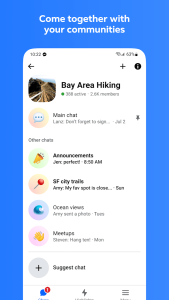
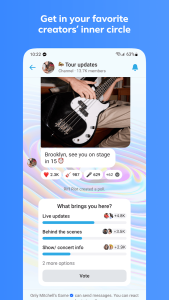
Messenger Screenshots



Messenger on Chromebook FAQ:
- Is it free? Yes, core features are free; extras may cost.
- Does it need internet? Yes, for all functions.
- Can I use it without Facebook? No, a Facebook account is required.
Messenger Chromebook Requirements:
- OS Version: ChromeOS with Android 9.0+ or Chrome 90+.
- Device Specs: 4GB+ RAM recommended.
- Storage Space: 1GB+ for app, minimal for web or extension.
- Internet: Required for use.
For more help:
Explore more Chromebook apps: WeChat, Facebook Lite, Instagram.