How to Install and Use LINE on Chromebook and Googlebook
 by
Juniya Sankara
Post Updated: October 28, 2026
You can install and use LINE on Chromebook and Googlebook through the official app from Google Play. It gives you a fast, reliable messaging and calling platform with free voice and HD video calls, an extensive sticker collection, shared albums, and Keep Memo notes.
Googlebook runs Android apps natively through Google Play, giving you the same dependable messaging alongside phone-app casting. This guide walks you through the Google Play installation, Googlebook phone-app casting, 1:1 and group chats, animated stickers, HD video calling, Keep Memo notes, and Letter Sealing security.
Need help setting up your chats? Contact us with your laptop model and any setup questions.
Choose LINE for cross-platform messaging
The official Google Play listing identifies LY Corporation as the developer. Using the official app ensures your chats and calls stay encrypted and protects your account from unauthorized third-party clients.
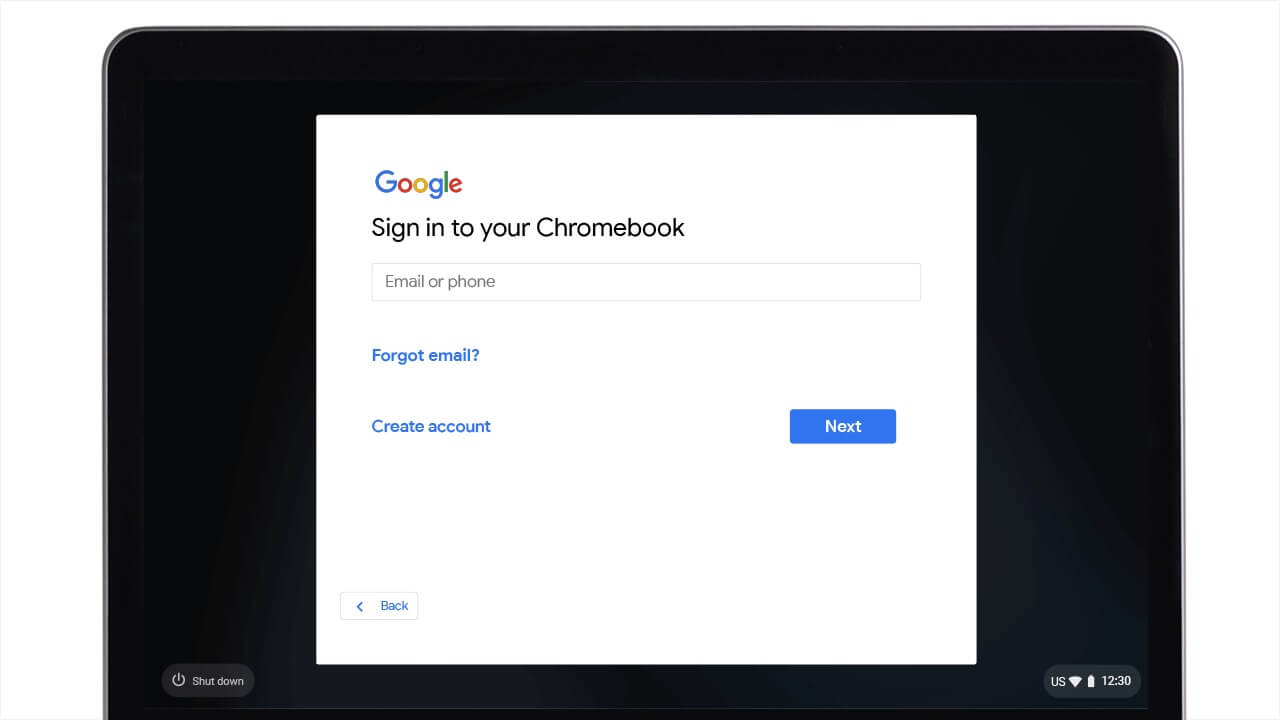
How to install LINE on Chromebook and Googlebook
If your laptop is managed by a school or workplace organization, check with your administrator if Google Play access is restricted. For device-specific setup guidance, see the official Google Android app setup guide for Chromebook and the companion guide on installing apps on Googlebook. If your Chromebook supports Linux development, you can also install the desktop client through Debian Linux.
Cast LINE from your phone on Googlebook
If you already have LINE active on your smartphone and want immediate access without logging in again or transferring local chat databases, you can use the Googlebook phone hub. Open the phone hub on your Googlebook shelf, select connected devices, and choose Cast My Apps. This streams your active mobile LINE session directly to a secure floating window on your Googlebook desktop. You can reply to incoming messages, send photos, and view notifications immediately while keeping your phone’s full encrypted history and biometric logins intact.
Stay in touch with 1:1 and group messaging
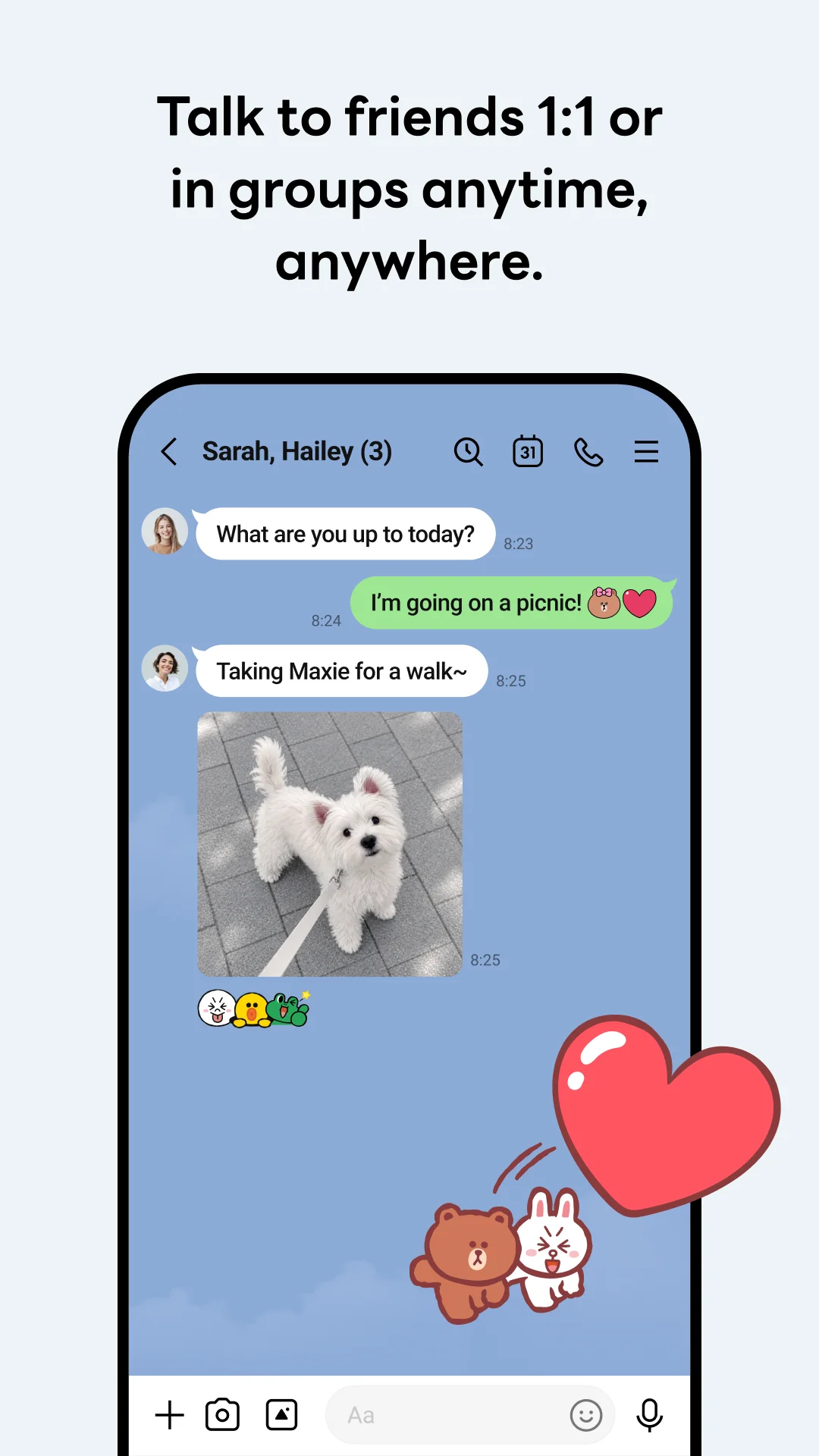
LINE makes daily conversations responsive and organized. You can exchange one-on-one instant messages or organize group chats with up to 500 family members, friends, or coworkers. The chat window supports voice messages, high-resolution photo sharing, location pins, and link previews.
On Chromebooks and Googlebooks, you can take advantage of the physical keyboard to type long messages quickly, search message history across conversations, and pin your most important threads to the top of your chat list.
Express yourself with stickers, emojis, and themes
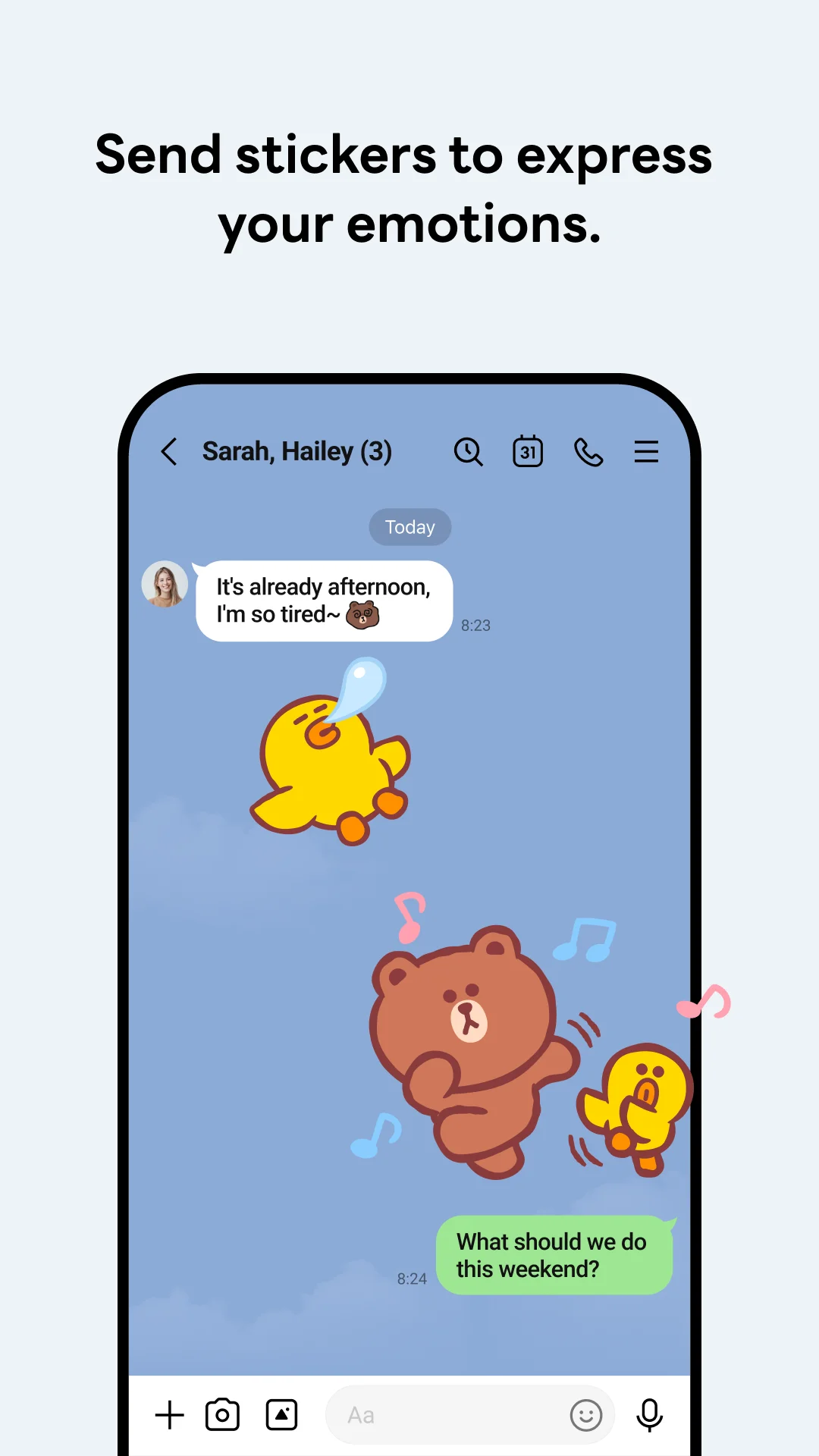
Stickers are LINE’s signature feature. The platform hosts thousands of free and premium animated sticker sets, including beloved global characters like Brown, Cony, Sally, and Moon, alongside popular anime and pop-culture franchises.
You can combine emojis into customized expressions, send sound-enabled animated stickers, and customize the entire look of the app with downloadable visual themes. Touchscreen Chromebooks and convertibles make browsing and sending stickers especially quick and intuitive.
Host free HD video and voice calls
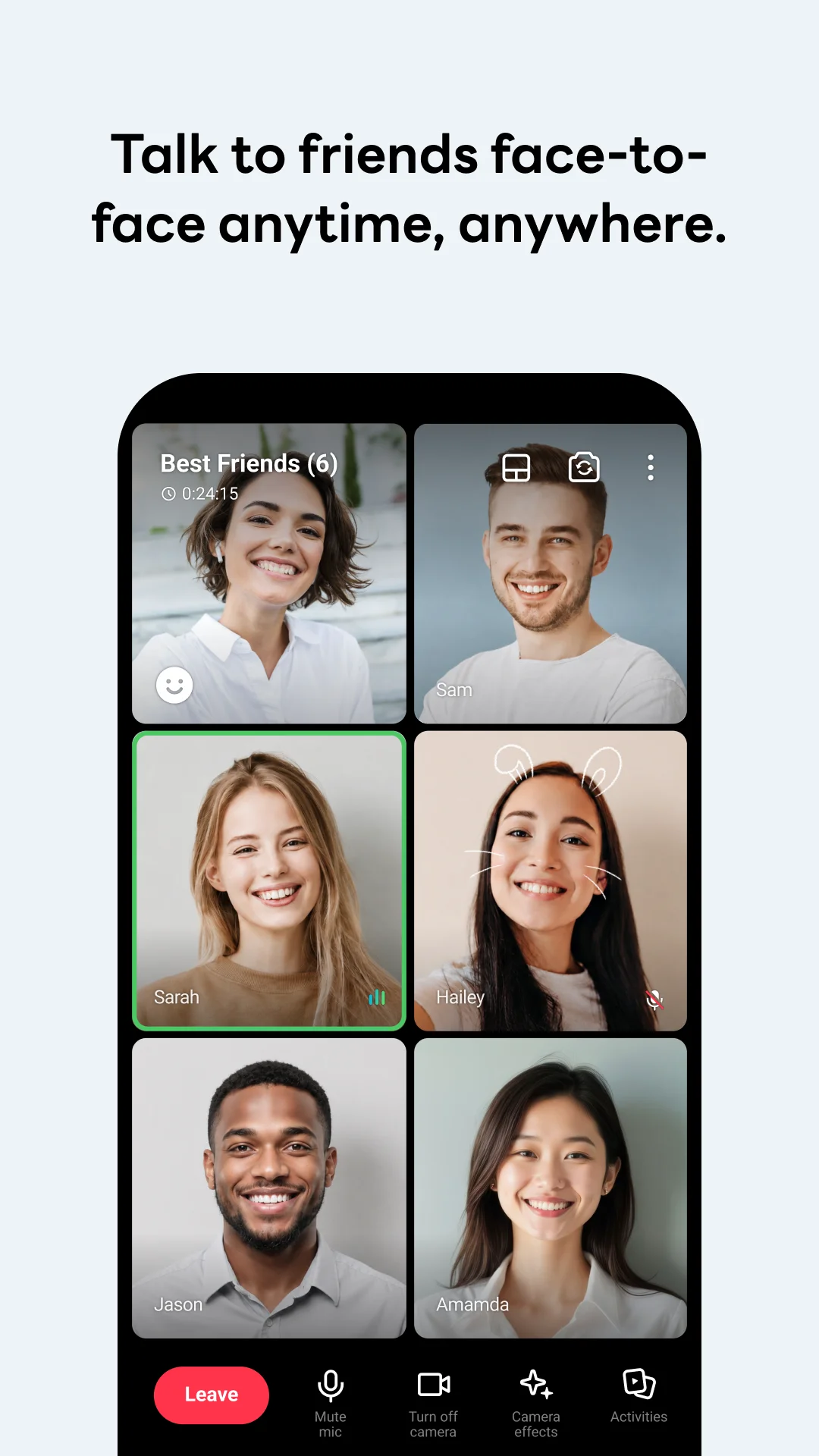
Stay connected with voice and video calling built directly into the app. LINE delivers clear audio and high-definition video calls over Wi-Fi and mobile data networks. You can start one-on-one calls or host large group video meetings with up to 500 participants.
During group video conferences, you can view participants in a responsive grid layout, apply fun face effects and background filters, toggle your camera and microphone, and share your screen for collaborative discussions and family hangouts.
Keep Memo and Letter Sealing privacy
LINE includes Keep Memo, a private personal chat room where you can store text notes, URLs, documents, photos, and to-do lists. Anything you save to Keep Memo syncs across your smartphone and laptop, making it easy to transfer files and draft notes between devices.
Security is managed through Letter Sealing, LINE’s advanced end-to-end encryption (E2EE) protocol. Letter Sealing encrypts chat text, location data, and voice and video calls directly on your device before transmission, ensuring that only you and the recipient can read or decode your communications.
Quick fixes for common LINE issues
- Notifications not popping up: open ChromeOS Settings > Apps > Manage your apps > LINE and ensure Notifications are toggled on. Verify that Do Not Disturb is disabled in your system shelf quick settings.
- Camera or microphone not responding on calls: open Settings > Privacy and security > Permissions and confirm LINE has permission to access your webcam and microphone hardware.
- QR code login will not scan: increase your laptop screen brightness and ensure both your smartphone and laptop are connected to an active Wi-Fi network. Tap the QR code on your screen to refresh it if the session expired.
- App runs slowly or consumes excessive storage: open LINE Settings > Chats > Delete data and clear cached files to free up local laptop drive space without deleting your chat history.
Related messaging and social guides
- Messenger on Chromebook and Googlebook: Install Meta’s messaging app for HD video calls and Meta AI chats.
- Viber on Chromebook and Googlebook: Set up Rakuten Viber for encrypted messaging and international calls.
- WeChat on Chromebook: Access Moments, voice messaging, and official accounts on ChromeOS.
- WhatsApp on Chromebook and Chrome: Connect your phone account for secure multi-device messaging.
- Snapchat on Chromebook: Install the app and capture Snaps using your laptop camera.
Frequently asked questions
Is LINE free to use on Chromebook and Googlebook?
Can I log into the same LINE account on my phone and Chromebook?
Does LINE require a phone number to register?
Are LINE messages and video calls encrypted?
Can I make group video calls on LINE with my laptop webcam?
Discover more from Chrome Geek
Subscribe to get the latest posts sent to your email.