How to Install and Use Viber on Chromebook and Googlebook
 by
Gloria Brown
Post Updated: November 3, 2026
You can install and use Viber on Chromebook and Googlebook through the official app from Google Play. It gives you a reliable, ad-free communication hub for free text messaging, crystal-clear voice and HD video calls, and group chats without needing a phone constantly active once linked.
Googlebook runs Android apps natively through Google Play, giving you the same secure messaging experience alongside convenient phone-app casting. This guide walks you through the Google Play installation, Chromebook microphone and camera permissions, group calling, Viber Out options, and desktop alternatives.
Need help setting up your chats? Contact us with your device model and any setup questions.

Choose your preferred way to run Viber
Unlike many browser-based social platforms, Rakuten Viber does not operate a standalone web browser client. To chat and make calls on ChromeOS, you connect through the official Google Play listing (published by Viber Media S.à r.l.) or download the desktop client via the Linux container.
How to install Viber on Chromebook and Googlebook
If the Play Store is missing or disabled, review Google’s Android app setup guide for Chromebook or the guide on installing apps on Googlebook. On school or managed enterprise devices, your administrator may restrict Play Store downloads. If your device supports the Linux development environment, you can also download the 64-bit Debian package from Viber’s official desktop download page and install it using sudo apt install ./viber.deb.
Cast Viber from your phone on Googlebook
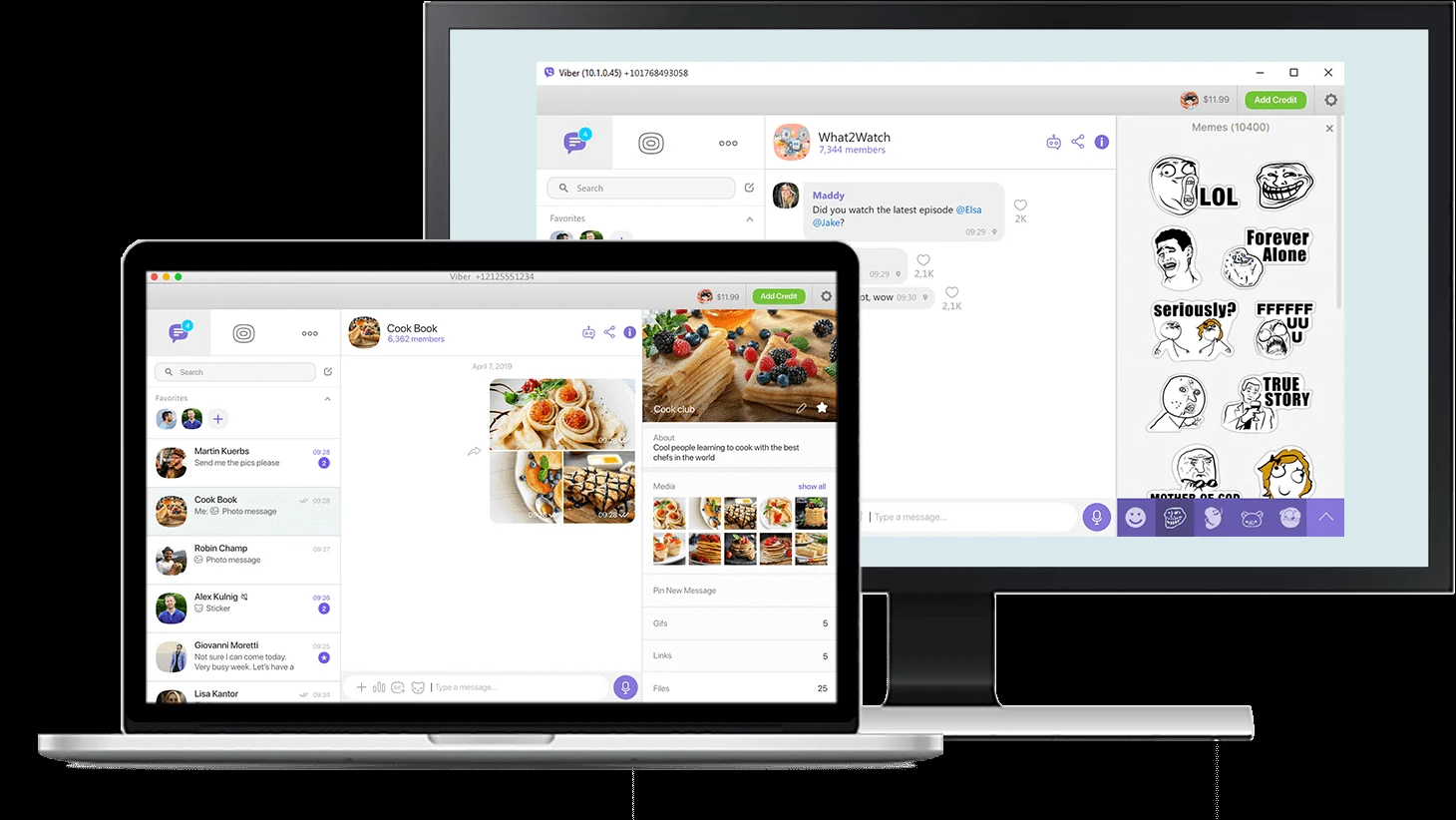
If you already have your chats, groups, and contact history active on your smartphone and want to quickly respond from your laptop without setting up a secondary client, Googlebook’s Cast My Apps feature lets you stream your phone’s Viber app directly to your laptop display. Pair your phone in the Googlebook phone hub, open Cast My Apps, and select Viber. This lets you view active chats, type responses with your full physical keyboard, and answer calls immediately without transferring files or rescanning QR codes.
High-definition voice and video calling
Rakuten Viber provides reliable voice and video communication across mobile devices and laptops, making it easy to stay in touch with loved ones or collaborate with team members:
- Group video calls: host video meetings with up to 60 participants simultaneously, complete with dynamic speaker focus and grid viewing modes.
- Crisp audio quality: built-in audio optimization reduces background noise and delivers clear voice transmission over standard Wi-Fi connections.
- Viber Out calling: make affordable calls to traditional landlines and non-Viber mobile numbers worldwide by purchasing calling credit or a flexible monthly plan.
- Peripherals and accessories: plug in a USB headset or pair Bluetooth wireless earbuds for hands-free audio and enhanced microphone pickup.
Group chats, channels, and expressive messaging
Viber combines essential group communication tools with expressive media options that keep conversations lively:
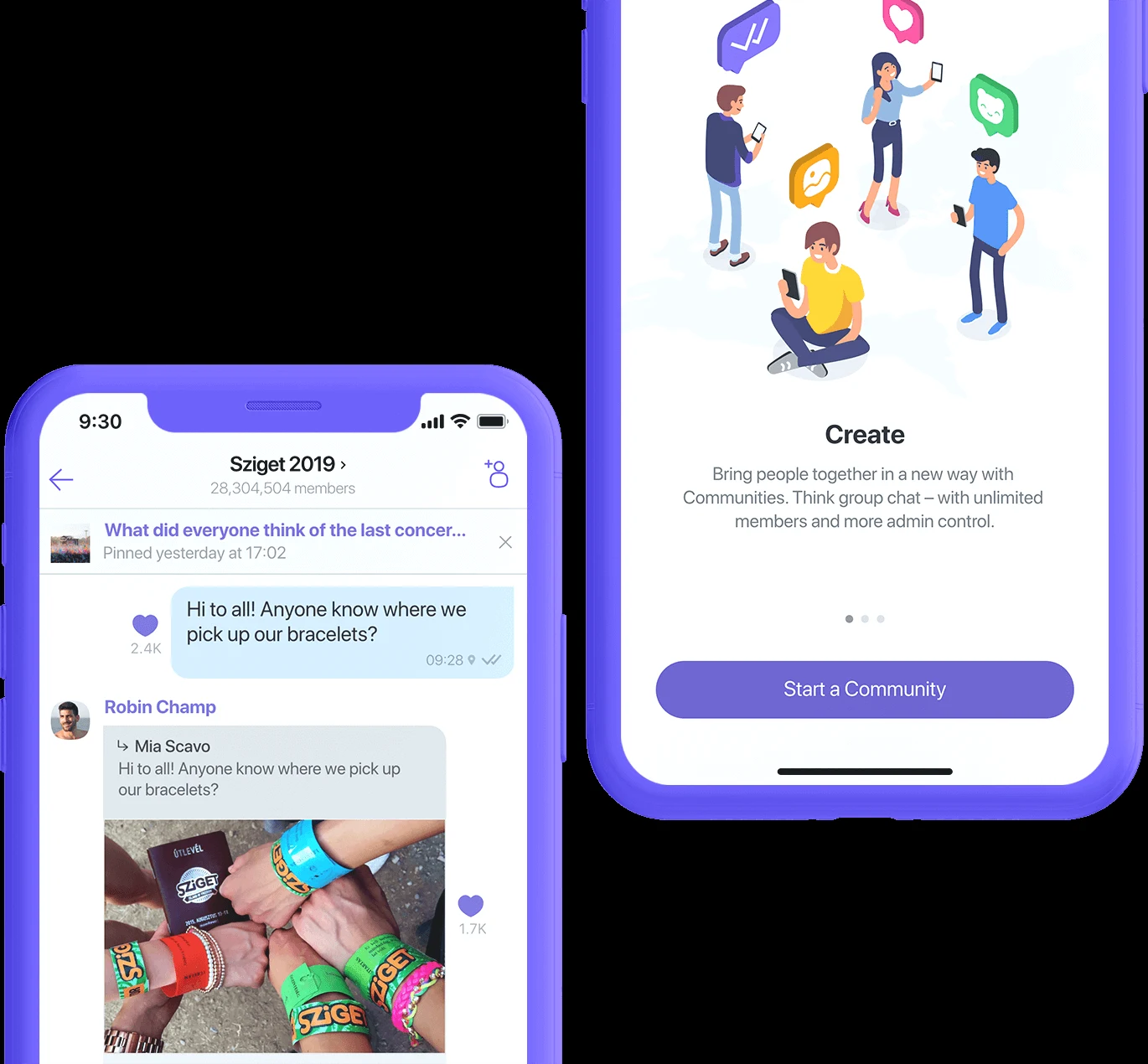
- Large group chats: create groups with up to 250 members, assign co-admins, pin important announcements, and create interactive polls or quizzes.
- Public channels and communities: follow verified channels covering sports, breaking news, entertainment, and technology, or build your own audience.
- Stickers and reactions: browse an extensive library of over 55,000 animated stickers, expressive GIFs, and custom emoji reactions to reply without typing.
- My Notes: save web links, jot down quick reminders, bookmark important messages, and check off completed tasks in a private personal notebook.
Built-in end-to-end encryption and privacy controls
Privacy is central to Rakuten Viber’s architecture. All private 1-on-1 chats, group conversations, voice calls, and video calls are protected by default:
- Default end-to-end encryption: messages and calls are encrypted on the sender’s device and only decrypted by the recipient. Neither Viber nor third parties can read or intercept your communications.
- Disappearing messages: set a self-destruct timer ranging from 10 seconds to 24 hours on sensitive messages, photos, or documents so they disappear after being read.
- Hidden chats: lock confidential conversations behind a secret 4-digit PIN so they remain invisible in your main chat inbox.
- Message editing and deletion: edit typos in sent messages or permanently delete messages for everyone in the chat at any time.
Quick fixes for common Viber issues
- Notifications not appearing: open ChromeOS Settings > Apps > Manage your apps > Viber and verify Notifications are set to Allowed. Also check that “Do Not Disturb” is turned off in your quick settings tray.
- Microphone or camera blocked: navigate to ChromeOS Settings > Privacy and security > Permissions, find Viber, and ensure camera and microphone toggles are switched on.
- Verification code not received: double-check your country code and phone number formatting. If the SMS does not arrive within two minutes, select the automated voice call option to hear the verification digits.
- Enter key does not send messages: inside the Viber app, tap More > Settings > General and enable “Send on Enter” to map your physical keyboard’s Enter key to the send action.
Related messaging and social guides
- Messenger on Chromebook and Googlebook: Set up Meta’s chat app, Meta AI assistant, and HD video calls.
- Telegram on Chromebook and Googlebook: Share up to 2GB files, join public channels, and use cloud messaging.
- WhatsApp on Chromebook and Chrome: Connect with phone contacts and manage end-to-end encrypted messaging.
- WeChat on Chromebook: Explore messaging, voice calls, and social feeds on ChromeOS.
Frequently asked questions
Is Viber free to use on Chromebook and Googlebook?
Can I use Viber on Chromebook without a smartphone?
Does Viber have a web version in Chrome?
How many people can join a Viber group video call?
Can I install Viber on ChromeOS using Linux?
Discover more from Chrome Geek
Subscribe to get the latest posts sent to your email.