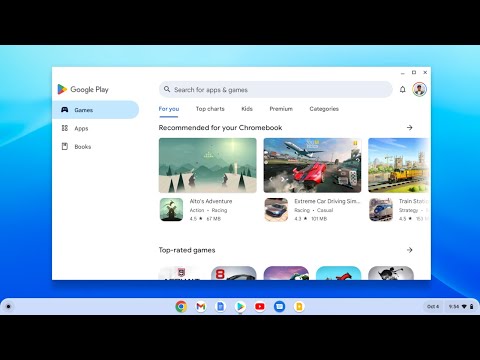
To install Android apps on your Chromebook, click the Launcher (Circle icon), open the Play Store, search for your app, and click Install. It works exactly like your phone.
In 2026, the line between ChromeOS and Android is invisible. Whether you picked up one of the cheapest Chromebooks or a high-end machine, you now have access to millions of apps.
You can even stream apps from your phone without installing them (more on that below).
Not sure if your device is compatible? Check our list of Chromebooks for students which are all Play Store ready.

Method 1: The Play Store
If you have used an Android phone, this will feel familiar. Here is the Chromebook workflow:
- Open the Launcher: Click the circle icon in the bottom-left corner.
- Find the Icon: Look for the colorful Play Store triangle.
- Search & Install: Type the name of the app (e.g., “Netflix” or “Roblox”) and hit Install.
- Launch: Once downloaded, the app will appear in your Launcher.
📱 Managing App Windows (Phone vs. Tablet)
Chromebooks are laptops, but Android apps are often built for phones. Here is how to fix the layout:
The “Header” Toggle
At the very top of any Android app window, click the small arrow. You can switch between Phone (vertical), Tablet (horizontal), or Resizable modes.
Pin to Shelf
Use an app daily? Right-click its icon while it is open and select Pin. Now it lives on your bottom taskbar forever.
Method 2: App Streaming (No Install Needed)
New for 2026: If you have a Google Pixel or modern Android phone, you don’t even need to install the app. You can “stream” it from your pocket.
- Ensure Phone Hub is set up (Settings > Connected Devices).
- When you receive a notification on your phone (like a WhatsApp message), click the notification on your Chromebook.
- A window will open streaming the app directly from your phone.
- Great for banking apps or Instagram where you don’t want to log in again!

Missing the Play Store? If this is a school device, Admins often block apps. Use Google Workspace to manage allow-lists for students.
⚠️ Troubleshooting: “I Can’t Find the Play Store”
If you don’t see the icon, one of three things is happening:
1. It needs to be enabled manually (Older Devices)
Go to Settings > Apps > Google Play Store and click “Turn On”. If this button is missing, your device might be too old.
2. Your device is “Managed” (School/Work)
If you see a briefcase icon, your IT admin controls your apps. You cannot install personal games like Roblox unless they allow it.
3. “Device Not Compatible” Error
Some older Chromebooks use processors that modern apps don’t support. Check our list of Chromebooks that can run Android apps.
🎥 Watch the Video Guide