How to Install and Use SHEIN on Chromebook and Googlebook
 by
Juniya Sankara
Post Updated: November 18, 2026
You can install and use SHEIN on Chromebook and Googlebook through the official Android app from Google Play or directly in Chrome at us.shein.com. It lets you browse clothing, shoes, home goods, and beauty items on a full laptop screen with clear product photos and easy cart management.
Googlebook runs Android apps natively through Google Play and supports instant phone-app casting from the Phone Hub. This guide covers Google Play installation, Chrome web and PWA setup, size filters, order tracking, and quick fixes for common issues.
Need help setting up SHEIN? Contact us with your laptop model and any sign-in or display questions.

How to install SHEIN on Chromebook and Googlebook
Installing the official SHEIN app from Google Play takes less than a minute and gives you direct access to your wishlist, order alerts, and account rewards:
The official Google Play listing identifies SHEIN under the package identifier com.zzkko. Installing the Android app keeps your shopping bag, notifications, and wishlists synced across your phone and laptop.
If Google Play is not active on your device, check Google’s Android app setup guide for Chromebook or the guide on installing apps on Googlebook. School or work laptops may have Play Store downloads restricted by an administrator. Because there is no native Linux package for ChromeOS, you can always open us.shein.com directly in Google Chrome with zero installation required.
Cast SHEIN from your phone on Googlebook
If you already browse deals and save items on your Android phone, Googlebook’s Cast My Apps feature lets you mirror the mobile app straight onto your laptop screen. Open the Phone Hub in the bottom-right corner of your Googlebook shelf, click Cast My Apps, and select SHEIN. Your phone’s active session opens in a floating desktop window so you can review your cart, apply mobile-only coupons, or check delivery updates without signing in again.
SHEIN Web vs. Android app: choosing your ChromeOS setup
You can shop on SHEIN through either the Google Play Android app or the Chrome web store. Both sync to the same account, so choosing the right option comes down to how you like to browse:
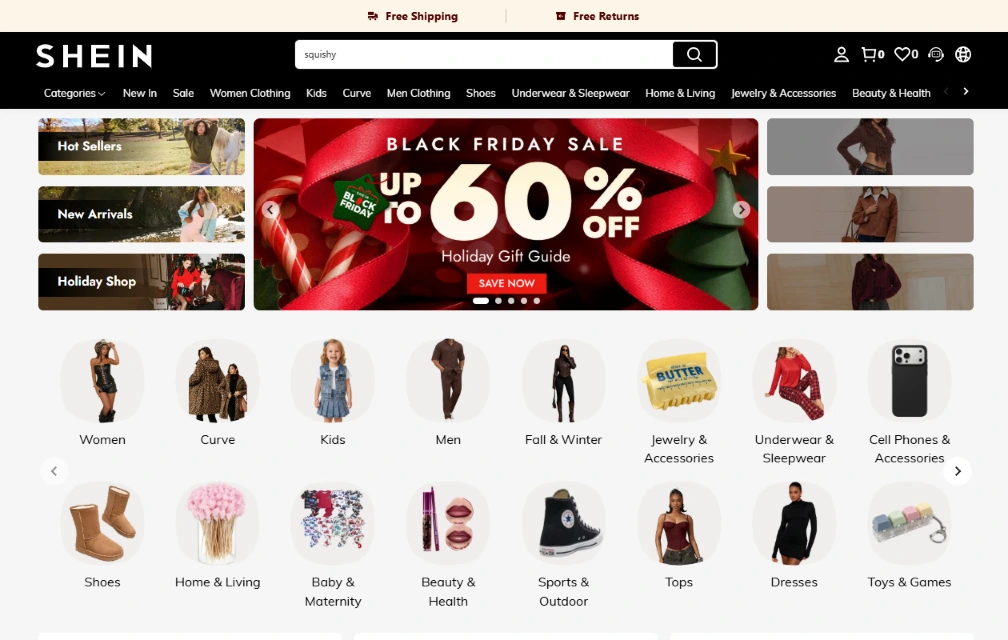
Browsing categories, search filters, and daily deals
Shopping on a Chromebook or Googlebook screen makes it much easier to sort through thousands of listings without endless scrolling:
- Department navigation: jump straight between Women, Curve, Men, Kids, Shoes, Beauty & Health, and Home & Living from the persistent top menu bar.
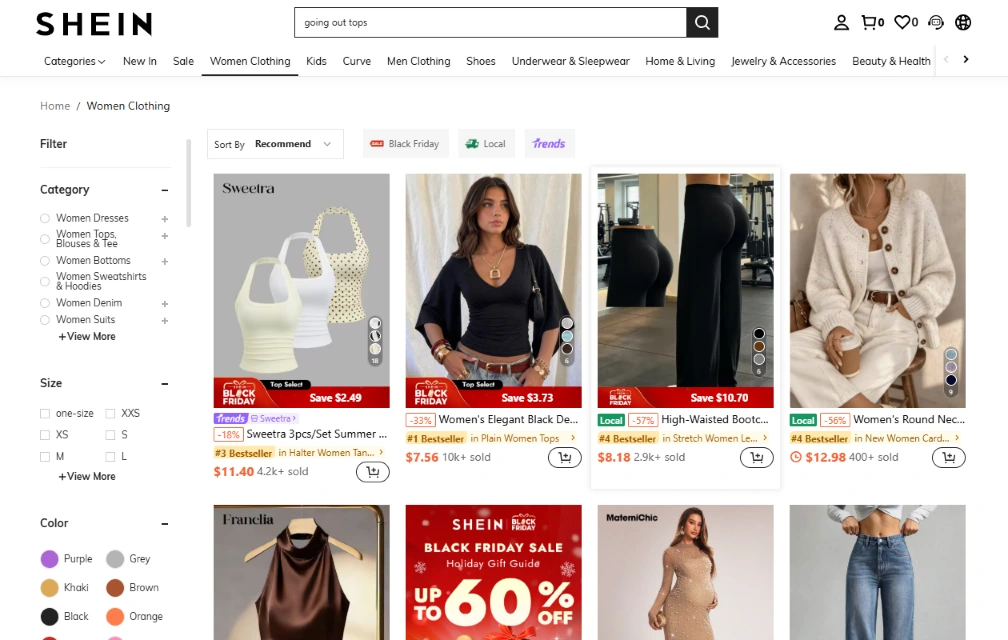
- Sidebar filtering: narrow results by category, exact size, color swatch, price range, fabric, or sleeve length using the left-hand filter panel.
- Quick tags and sorting: sort items by Recommend, Top Rated, Most Popular, or Price Low to High, or toggle quick tags like Local for faster domestic shipping.
- Multi-tab comparison: middle-click or Ctrl+click product cards in Chrome to open several outfits in background tabs before deciding what goes in your bag.
Size guides, customer reviews, and order tracking
Before adding items to your bag, the larger laptop layout helps you check fit details and real buyer feedback clearly:
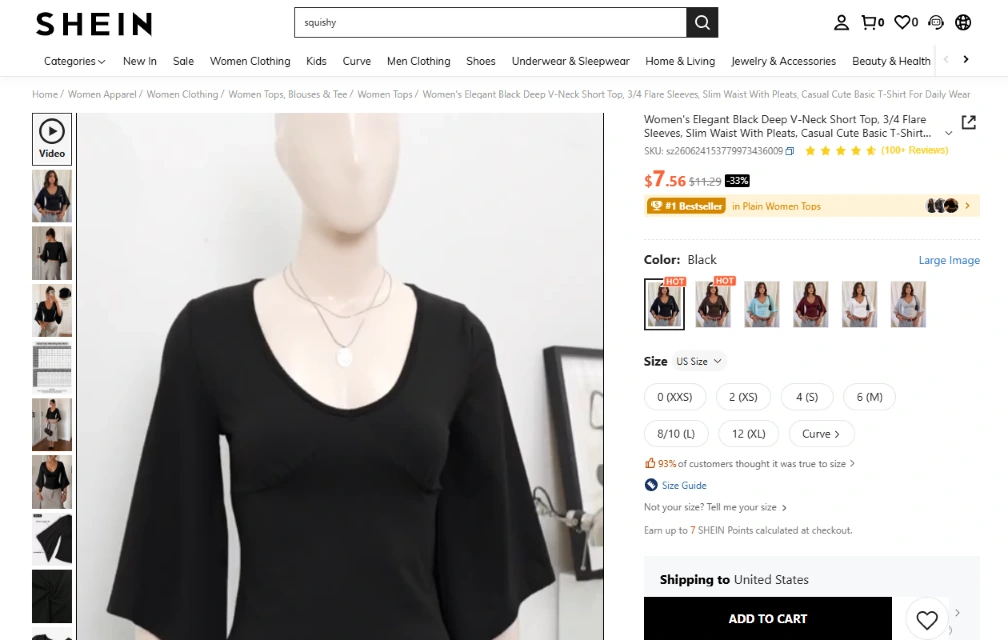
- Detailed size charts: click Size Guide on any clothing page to compare bust, waist, hip, and length measurements in inches or centimeters.
- True-to-size ratings and photo reviews: check the percentage of buyers who rated an item True to Size and inspect customer-uploaded photos on a full display.
- Wishlists and saved carts: click the heart icon to save items for later, track price drops, or share links with friends.
- Order and return tracking: open My Orders in your account menu to follow shipping milestones, download return labels, and manage SHEIN Points.
Troubleshooting SHEIN on Chromebook and Googlebook
If the SHEIN app or website runs into display or checkout hiccups on ChromeOS, try these quick fixes:
- Product images or filters fail to load in Chrome: ad blockers or strict privacy extensions can block SHEIN’s image CDN or filter scripts. Pause your blocker for
us.shein.comand reload the tab. - Checkout or PayPal popup is blocked: click the blocked-popup icon in the right side of Chrome’s address bar and select Always allow pop-ups and redirects from us.shein.com.
- Android app window looks narrow or won’t resize: click the maximize button in the top-right corner of the Android window, or switch to tablet/resizable mode from the window title bar.
- Android app crashes or freezes on launch: open ChromeOS Settings > Apps > Manage your apps > SHEIN > Storage and click Clear cache.
- Wrong currency or country store: click the globe icon in the top-right corner of the website (or Me > Settings > Country/Region in the app) to switch back to your local region.
Frequently asked questions about SHEIN on Chromebook and Googlebook
Is SHEIN free to install and use on a Chromebook or Googlebook?
Yes. Both the SHEIN Android app on Google Play and the web store at us.shein.com are completely free to browse and use. You only pay for the items you choose to order at checkout.
Should I use the SHEIN Android app or the website on ChromeOS?
The website at us.shein.com is usually better for laptop browsing because it scales naturally to widescreen displays, supports multi-tab comparisons, and works with keyboard shortcuts. The Google Play Android app is handy if you prefer a touch-friendly layout on a 2-in-1 convertible or want app-only flash sale alerts.
How do I cast SHEIN from my Android phone to Googlebook?
Open the Phone Hub in the bottom-right corner of your Googlebook shelf, select Cast My Apps, and choose SHEIN. Your phone’s active SHEIN session opens in a desktop window so you can view your saved cart or order status without signing in again.
Can I use SHEIN offline on a Chromebook?
No. Both the SHEIN Android app and the web platform require an active internet connection to load product listings, check stock, apply coupons, and place orders.
Why are SHEIN product images or checkout pages not loading in Chrome?
Ad blockers, strict privacy extensions, or cached site cookies can occasionally block SHEIN product grids or payment popups. Try disabling extensions temporarily for us.shein.com, allowing popups for checkout, or clearing your browser cache.
Companion shopping and ChromeOS app guides
Explore more shopping platforms, Android app compatibility checks, and helpful ChromeOS tools with these guides:
- Budget marketplace alternative: Compare deals, home goods, and shipping options in our guide to Temu on Chromebook.
- Android app compatibility: If the Play Store is missing on an older laptop, check our list of Chromebooks that can run Android apps.
- Reading and digital media: Pair your shopping setup with ebooks and magazines using Amazon Kindle on Chromebook.
- Better screen readability: Customize zoom, contrast, and visual aids while browsing catalogs with our best Chromebook accessibility apps and tools.
Discover more from Chrome Geek
Subscribe to get the latest posts sent to your email.