How to Install and Use Amazon Kindle on Chromebook and Googlebook
 by
Juniya Sankara
Post Updated: November 3, 2026
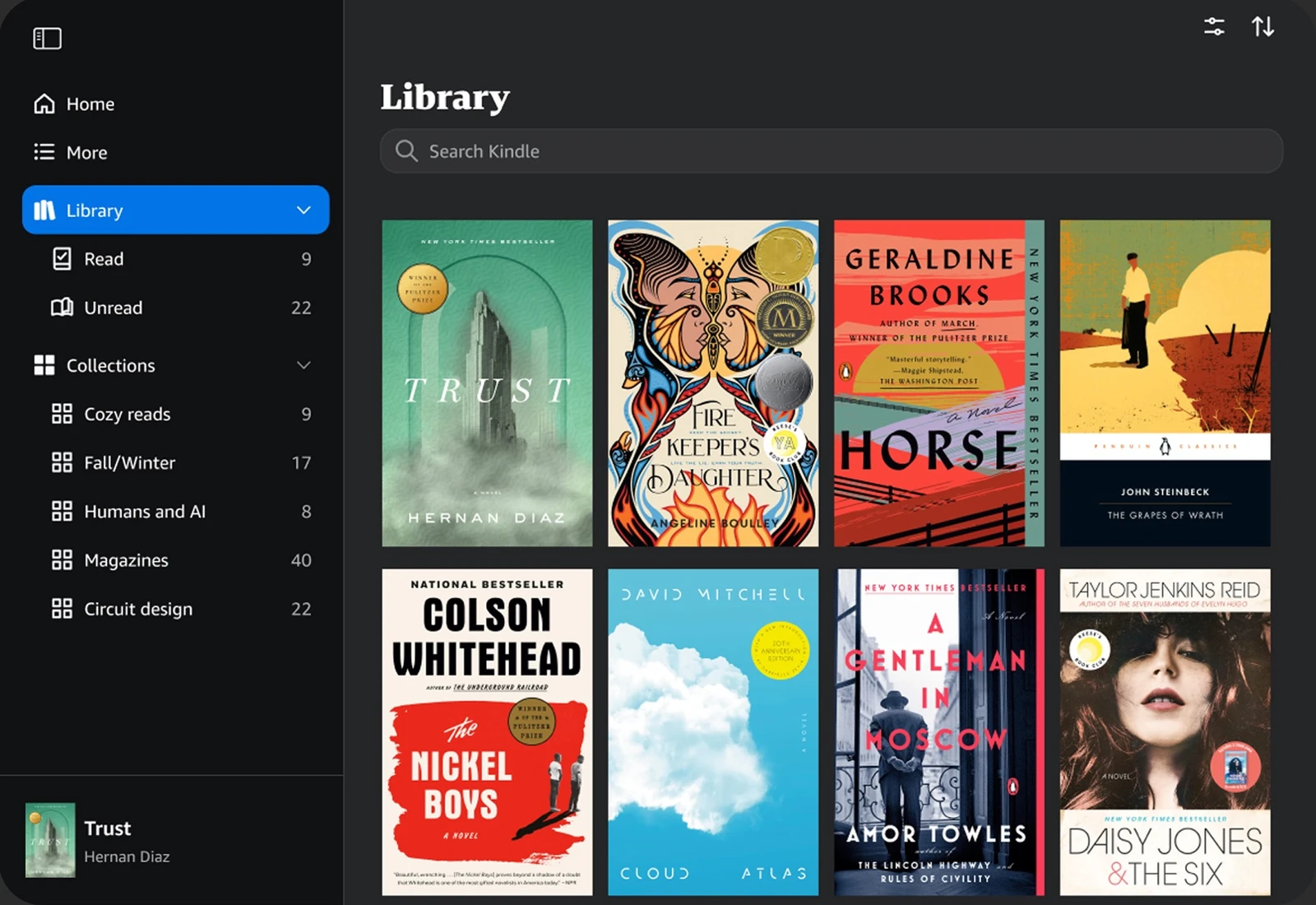
You can install and use Amazon Kindle on Chromebook and Googlebook through the official Android app from Google Play or by accessing Kindle Cloud Reader in Google Chrome. With access to millions of books, magazines, comics, and graphic novels, Kindle delivers a dedicated digital reading environment complete with personalized typography, automatic page syncing, and offline library caching.
Googlebook and ChromeOS run Android apps seamlessly with responsive multi-window scaling, touchscreen page turning, and native phone casting. Whether you read in laptop mode with a trackpad and physical keyboard or flip into tablet mode for a distraction-free two-page book experience, this guide explains Google Play installation, browser access, phone-hub streaming, essential reading settings, and everyday performance tips.
Need help setting up your digital bookshelf, Amazon family sharing, or Whispersync bookmarks? Contact us with your device model and any setup questions.
Choose your preferred way to run Amazon Kindle
Depending on your reading setup, you can install Kindle as a standalone Android app from the official Google Play Store listing or read directly in your browser at read.amazon.com.
How to install Amazon Kindle on Chromebook and Googlebook
If the Play Store is missing or disabled, review Google’s Android app setup guide for Chromebook or the guide on installing apps on Googlebook. On school-managed or enterprise accounts with Play Store restrictions, readers can open Kindle Cloud Reader in Google Chrome to read and pin books without administrative installation rights.
Cast Amazon Kindle from your phone on Googlebook
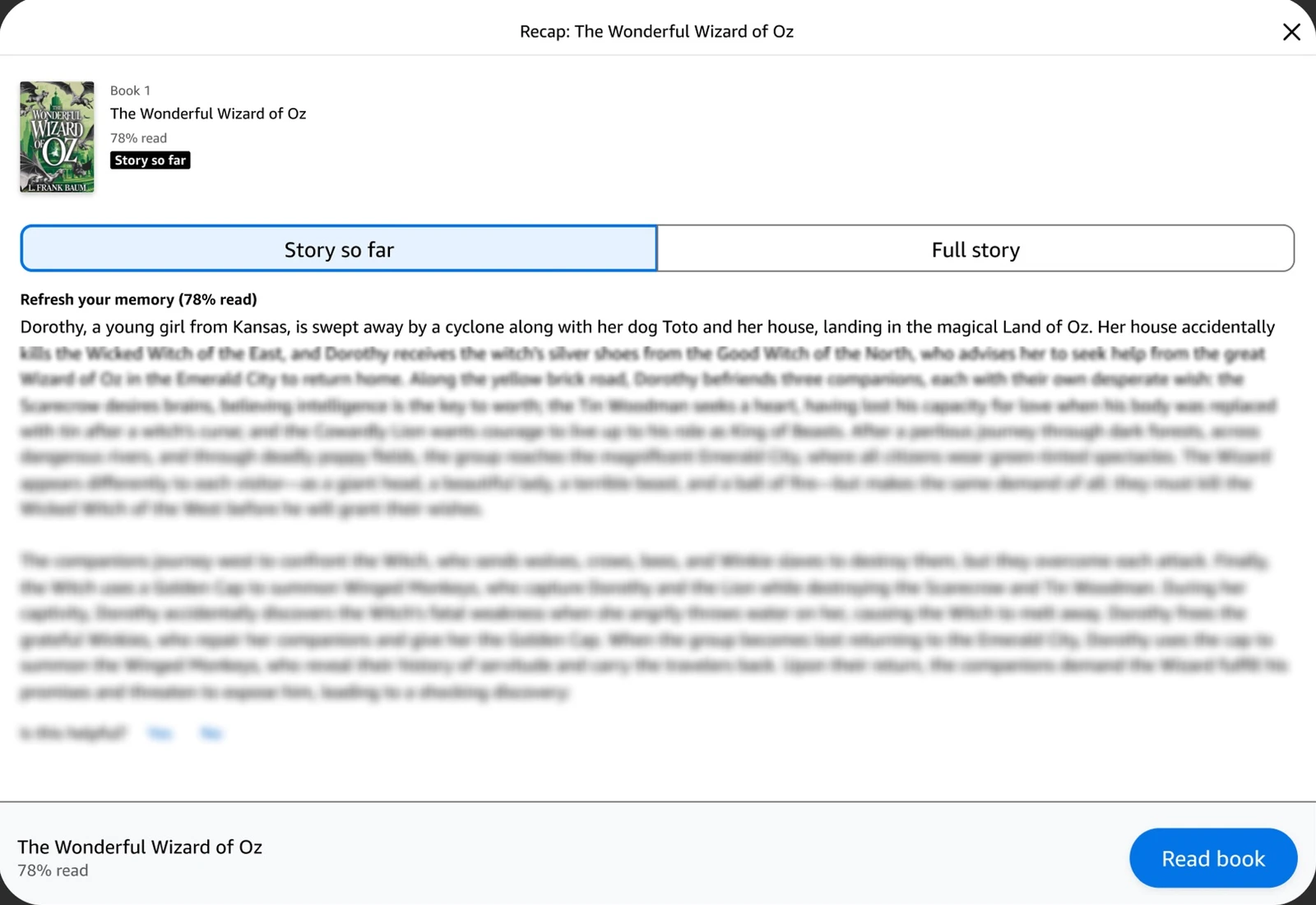
If you are already immersed in a chapter on your smartphone and want to switch to a larger laptop display without signing in again, Googlebook’s Cast My Apps feature lets you stream your phone’s Kindle app straight to your Googlebook screen. Pair your phone in the Googlebook phone hub, launch Cast My Apps, and select Kindle. You can continue reading your current page, navigate chapters, and reference bookmarks on a spacious widescreen display while keeping your progress synchronized across devices.
Key reading features and display customization on ChromeOS
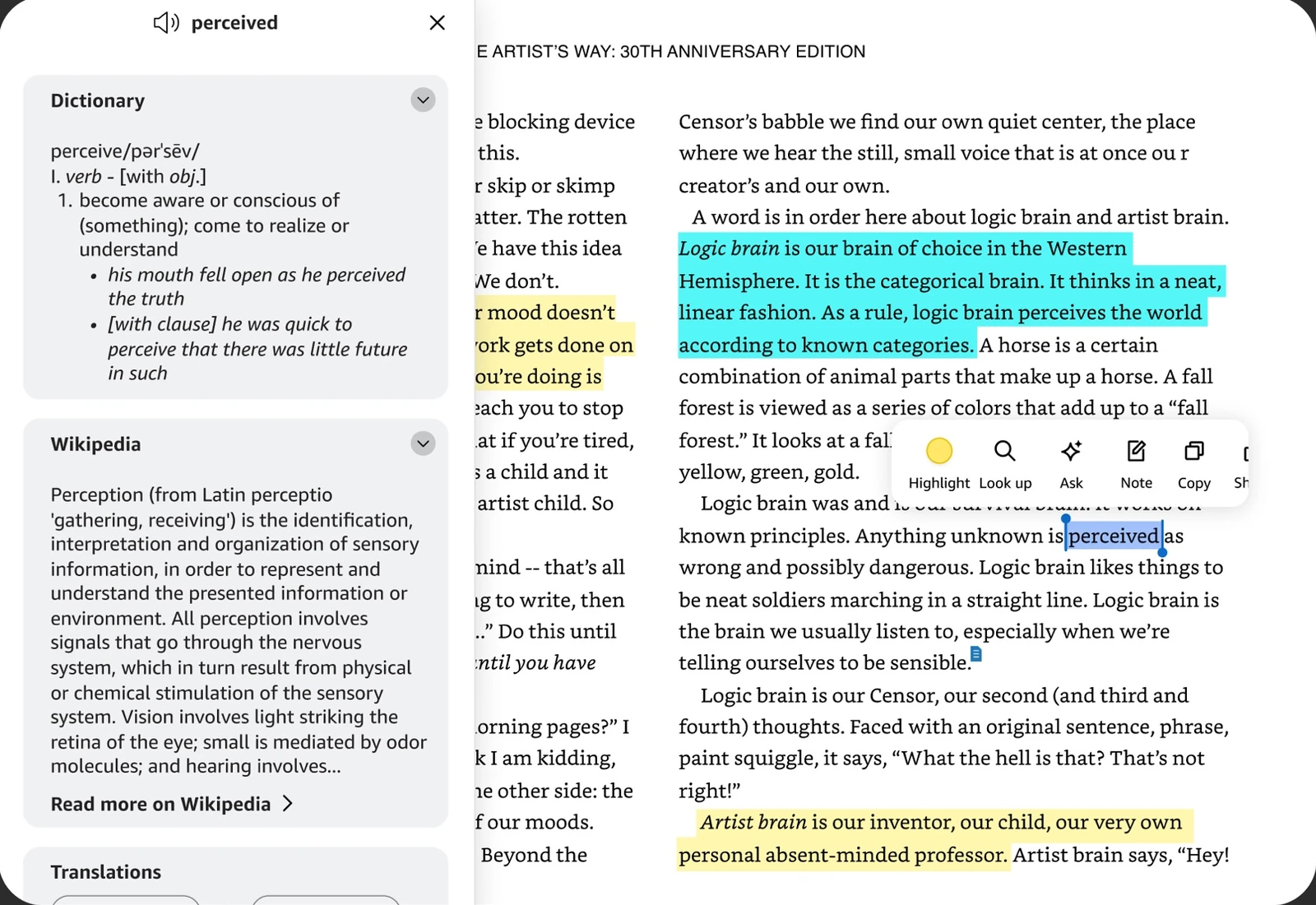
The Kindle app on ChromeOS offers deep customization to match your personal reading preferences. The dedicated Aa typography panel lets you choose comfortable font styles, adjust margin widths, and select color themes including white, black, sepia, and soft green to reduce eye strain during prolonged reading sessions.
Tips for the best reading experience on Chromebook
- Switching between Laptop and Tablet modes: Fold a 2-in-1 convertible into tablet mode for intuitive touchscreen page turns, or keep it in laptop mode and use the Spacebar or arrow keys to advance pages.
- Maximizing for two-column reading: Expand the Kindle window to full screen in landscape mode to automatically display a natural two-page book spread that mimics an open hardcover.
- Using Night Mode and ChromeOS Night Light: Switch Kindle’s background theme to Black (white text on dark background) and enable ChromeOS Night Light in quick settings to protect your eyes before sleep.
- Organizing collections and series: Group related textbooks, reference guides, or book series into custom Collections in your Library for quick one-click navigation.
Quick fixes for common Kindle issues
- Play Store shows “Your device isn’t compatible”: Update ChromeOS to the latest stable release via Settings > About ChromeOS > Check for updates, or read via Kindle Cloud Reader.
- Book download stuck or failing: Verify available device storage under ChromeOS Settings > Device > Storage Management, or clear app cache under Settings > Apps > Manage your apps > Kindle > Storage > Clear Cache.
- Whispersync not updating furthest page read: Tap the Sync icon in the top Kindle menu and ensure both your reading device and mobile phone are connected to active Wi-Fi.
- Two-page layout not displaying: Ensure the Kindle app window is wide enough or rotate your convertible Chromebook into landscape orientation.
Related reading and digital media guides
- Wattpad on Chromebook and Googlebook: Discover millions of community stories, original web novels, and serialized fiction.
- WEBTOON on Chromebook and Googlebook: Read thousands of popular webcomics, graphic novels, and manga with vertical scrolling.
- Amazon Music on Chromebook and Googlebook: Stream HD audio tracks and companion podcasts alongside your reading sessions.
- Amazon Prime Video on Chromebook and Googlebook: Stream acclaimed movie adaptations, original series, and documentaries on ChromeOS.
Frequently asked questions
Is Amazon Kindle free to install on Chromebook and Googlebook?
Can I read Kindle books on Chromebook without installing the Android app?
How do I download Kindle books for offline reading on ChromeOS?
Does Kindle on ChromeOS support a two-page side-by-side reading layout?
Will my reading progress and bookmarks sync with my phone or Paperwhite?
Discover more from Chrome Geek
Subscribe to get the latest posts sent to your email.