How to Install and Use WEBTOON on Chromebook and Googlebook
 by
Frank Cross
Post Updated: November 3, 2026
You can install and use WEBTOON on Chromebook and Googlebook through the official Android app from Google Play or directly via the web. It gives you immediate access to thousands of creator-owned digital comics, popular manhwa titles, weekly manga updates, and an active global reader community.
Googlebook and Chromebook devices support native Android applications via Google Play alongside Googlebook phone app streaming and progressive web app integration in Google Chrome. This guide walks you through the Google Play installation, browser access, touch and trackpad reading controls, offline episode downloads, and practical fixes for common reading issues.
Have questions about reading comics on your laptop? Feel free to contact us with your device model and reading preferences.

Choose between the WEBTOON Android app and web platform
Both access methods provide high-definition comic panels, interactive reader comments, and curated daily recommendations. The official Google Play listing identifies WEBTOON Entertainment as the verified developer.
How to install WEBTOON on Chromebook and Googlebook
If the Play Store is not visible, check Google’s Android app setup guide for Chromebook or the guide on installing apps on Googlebook. On school or workplace laptops, the administrator may manage app installations. Advanced users can also access WEBTOON directly in Google Chrome as an installable Progressive Web App (PWA).
Cast WEBTOON from your phone on Googlebook
If you already keep an extensive library of unlocked chapters, coin balances, and reading progress on your Android phone, Googlebook’s Cast My Apps feature lets you stream your phone’s WEBTOON session directly on your laptop screen. Pair your phone via the Googlebook phone hub, select Cast My Apps, and launch WEBTOON. You can immediately continue reading right where you stopped on mobile without re-authenticating or re-downloading large graphic files.
Track weekly chapter releases and daily comic schedules
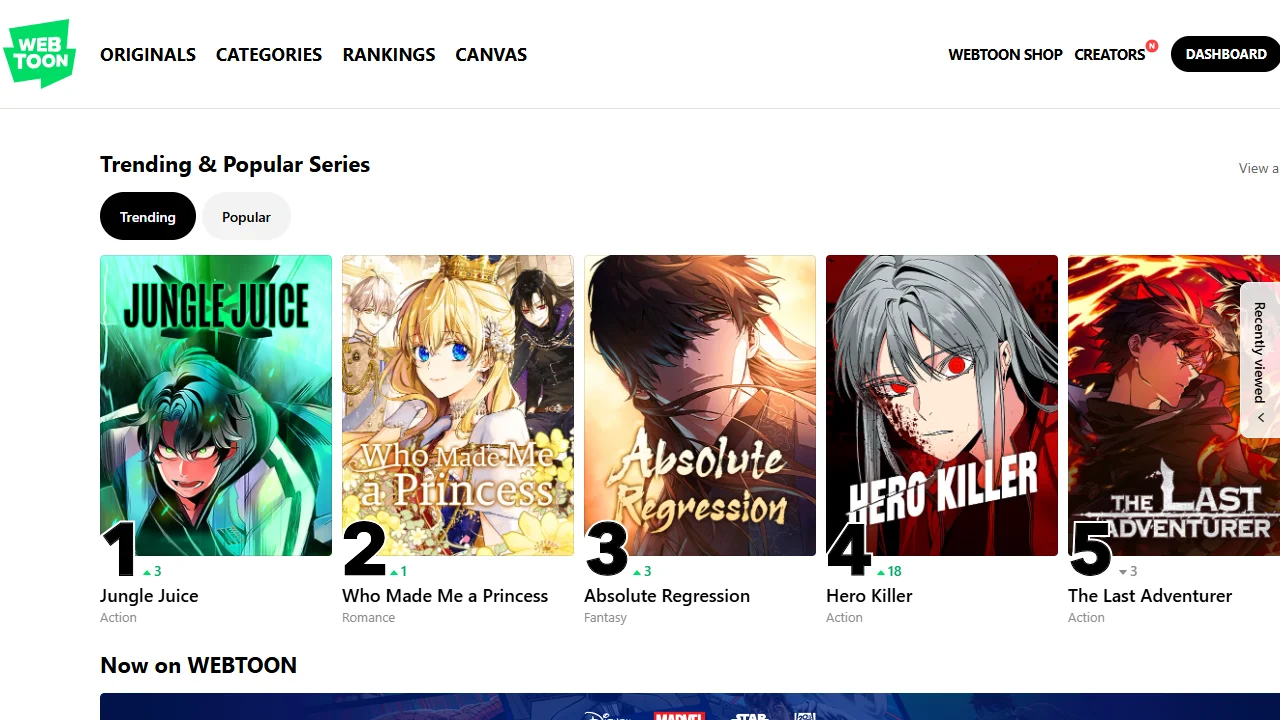
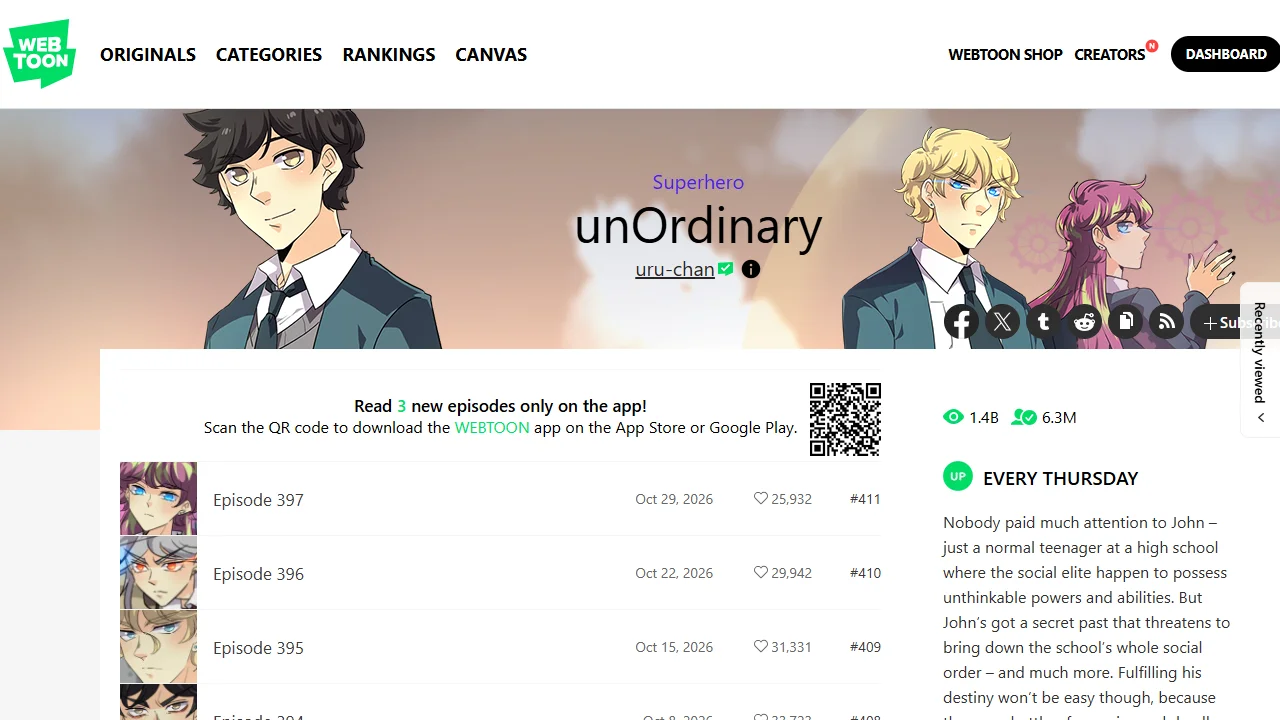
WEBTOON updates series on a predictable weekly cadence. The built-in release calendar organizes upcoming chapters into daily tabs, helping you keep track of ongoing storylines without missing an upload:
- Daily schedule tabs: switch between Monday through Sunday to see new releases, season premieres, and scheduled author hiatus notes.
- Series follow alerts: subscribe to favorite creators to receive instant ChromeOS notifications when fresh chapters go live.
- Fast Pass and Daily Pass: use optional coins to preview upcoming episodes ahead of the public schedule or unlock completed archive vaults.
- Reading history sync: automatically mark read episodes across both your Chromebook laptop and mobile phone devices.
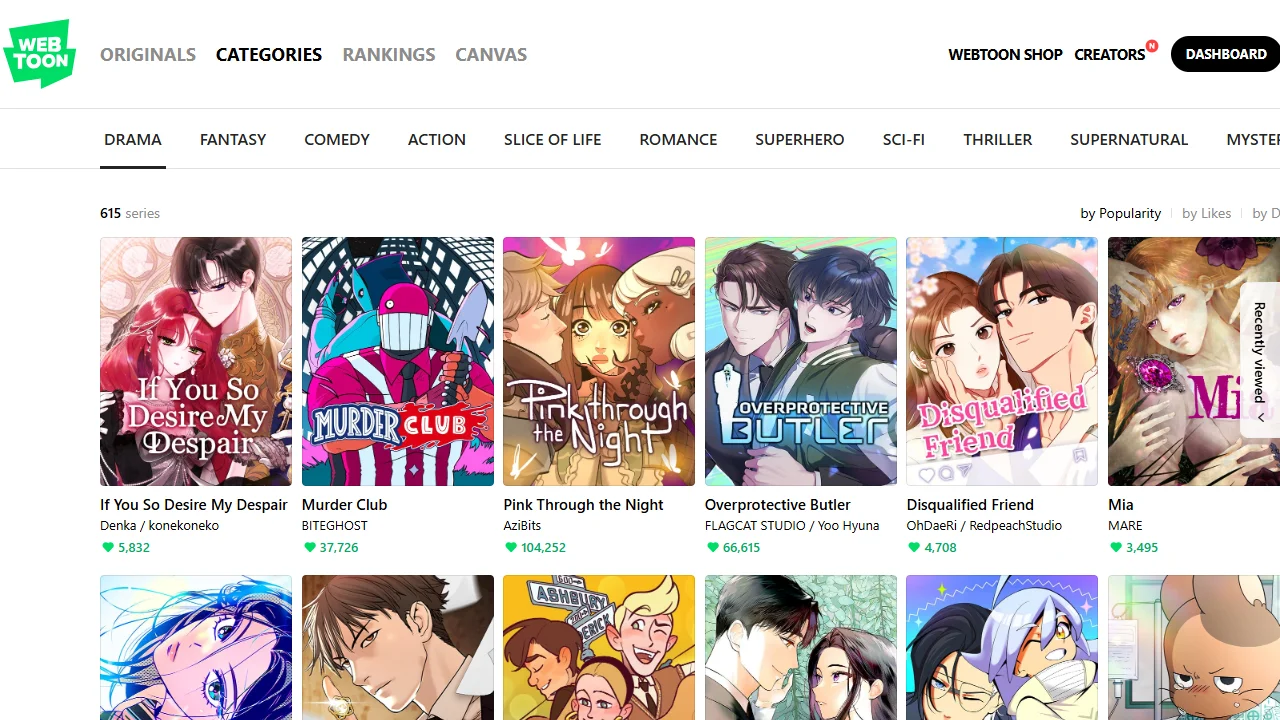
Browse genres, trending manhwa, and community Canvas creators
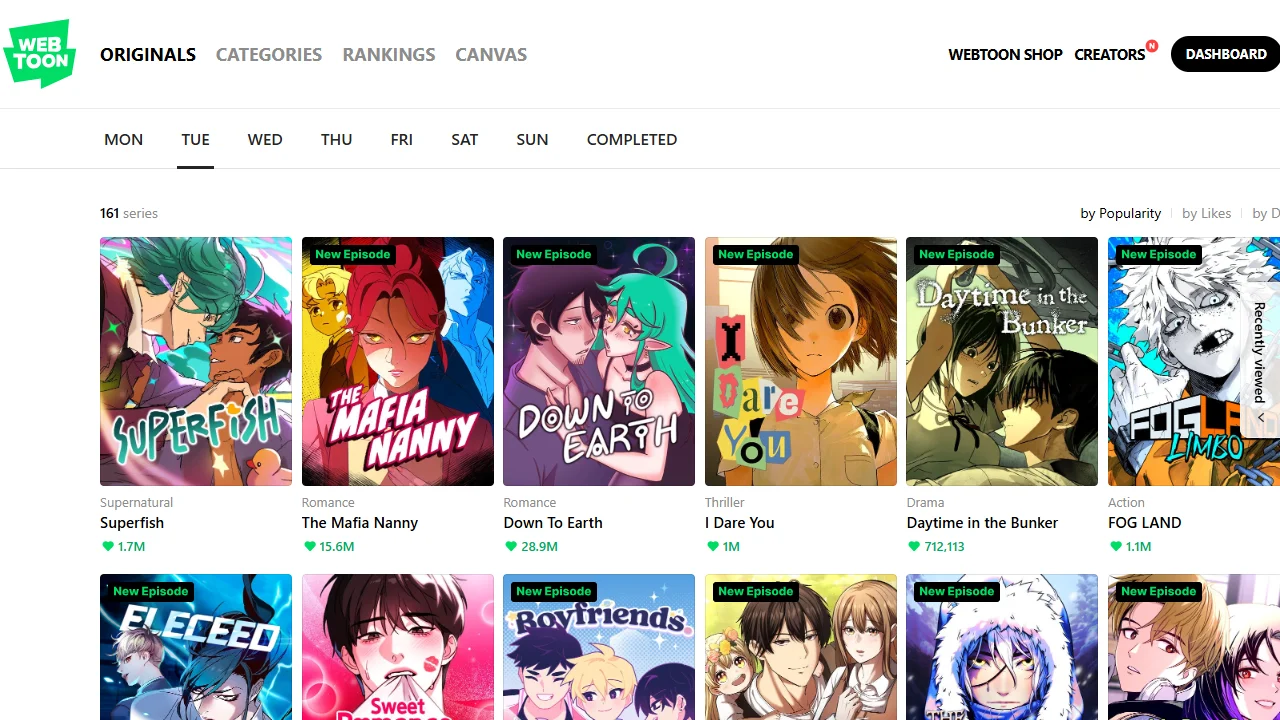
The WEBTOON catalog spans original Korean webtoons, English indie releases, and translated international manga. The genre browser lets you drill down by storytelling tone and artistic style:
Digital comic reader controls, display settings, and offline reading
WEBTOON is built around the vertical scrolling comic format, where continuous strips flow naturally from panel to panel. On Chromebook displays and Googlebook convertible screens, you get multiple ways to customize the reading layout:
- Smooth vertical scrolling: use two-finger trackpad gestures, arrow keys, or touchscreen swipes to navigate panels at your preferred reading pace.
- Offline episode downloads: in the Android app, tap the download icon on any unlocked series to save up to 30 days of reading material directly to your local Chromebook storage.
- Episode comments and reactions: read top reader comments, like standout moments, and participate in lively community discussions below each chapter.
- Full-screen reading mode: press F4 or the dedicated fullscreen key on your ChromeOS keyboard to hide address bars and maximize panel art.
Quick fixes for common WEBTOON issues on ChromeOS
- Comic panels take time to load: check your Wi-Fi connection or try switching to webtoons.com in Chrome if the Android app is buffering image slices on high-latency networks.
- Offline chapters fail to save: go to ChromeOS Settings > Apps > Manage your apps > WEBTOON > Permissions and confirm that Storage access is enabled.
- Touchscreen scrolling feels sluggish: in tablet mode, close background browser tabs to free up system memory, or enable GPU rasterization flags in chrome://flags.
- Account subscriptions out of sync: log out of WEBTOON, clear the application cache under ChromeOS Settings, and log back in to force a cloud refresh of your reading lists.
Related anime and media guides
- Solo Leveling: Arise on Chromebook: Step into the world of Jinwoo with high-performance action RPG combat and optimized graphics.
- Crunchyroll on Chromebook: Stream top anime series, simulcasts, and movies alongside your favorite manga reads.
- Amazon Kindle on Chromebook: Build your digital library and customize typography for extended reading sessions.
- Best Media Players on Chromebook: Discover versatile video players for offline movies and multimedia files.
Frequently asked questions
Is WEBTOON free on Chromebook and Googlebook?
Should I use the WEBTOON Android app or web platform on Chromebook?
Can I read WEBTOON comics offline on my Chromebook?
How do I zoom or change reading direction in WEBTOON?
Can I publish my own webcomics through WEBTOON on Chromebook?
Discover more from Chrome Geek
Subscribe to get the latest posts sent to your email.