How to Install and Use Crunchyroll on Chromebook and Googlebook
 by
Gloria Brown
Post Updated: November 17, 2026
You can install and use Crunchyroll on Chromebook and Googlebook through the official Android app from Google Play or directly in your browser at crunchyroll.com. It streams thousands of anime series, theatrical feature films, and same-day simulcast episodes fresh from Japan directly to your laptop screen.
Googlebook runs Android applications natively through Google Play, giving you the same smooth playback alongside effortless phone-app casting. This guide covers the Google Play setup, Chrome browser streaming and PWA shortcuts, offline episode downloads, subtitle and dub switching, Crunchylists, and quick troubleshooting fixes.
Need help setting up Crunchyroll? Contact us with your laptop model and any playback or sign-in questions.

How to install Crunchyroll on Chromebook and Googlebook
Installing the official Crunchyroll app from Google Play takes just a moment and unlocks offline episode syncing for travel:
The official Google Play listing identifies Crunchyroll under the package identifier com.crunchyroll.crunchyroid. Running the native Android app ensures full support for touch navigation, offline downloads, and background audio controls.
If the Play Store is missing from your launcher, follow Google’s Android app setup guide for Chromebook or the guide on installing apps on Googlebook. Note that school-issued or managed workplace laptops may have Play Store downloads restricted by an administrator. Although there is no official Debian Linux client (.deb), you can open crunchyroll.com directly in Google Chrome to stream anime instantly without installing local apps.
Cast Crunchyroll from your phone on Googlebook
If your Android phone already has your Crunchyroll watchlist, synced offline episodes, and active session ready to go, Googlebook’s Cast My Apps feature lets you stream that app straight onto your laptop screen. Open the Phone Hub in the bottom-right corner of your Googlebook shelf, select Cast My Apps, and pick Crunchyroll. Your phone’s current queue opens in a resizable desktop window so you can watch and control episodes without signing in again or transferring downloaded files.
Crunchyroll Web vs. Android app: choosing your ideal ChromeOS setup
Both the Crunchyroll Google Play app and the Chrome browser player run well on ChromeOS, so choosing between them depends on how you watch anime:
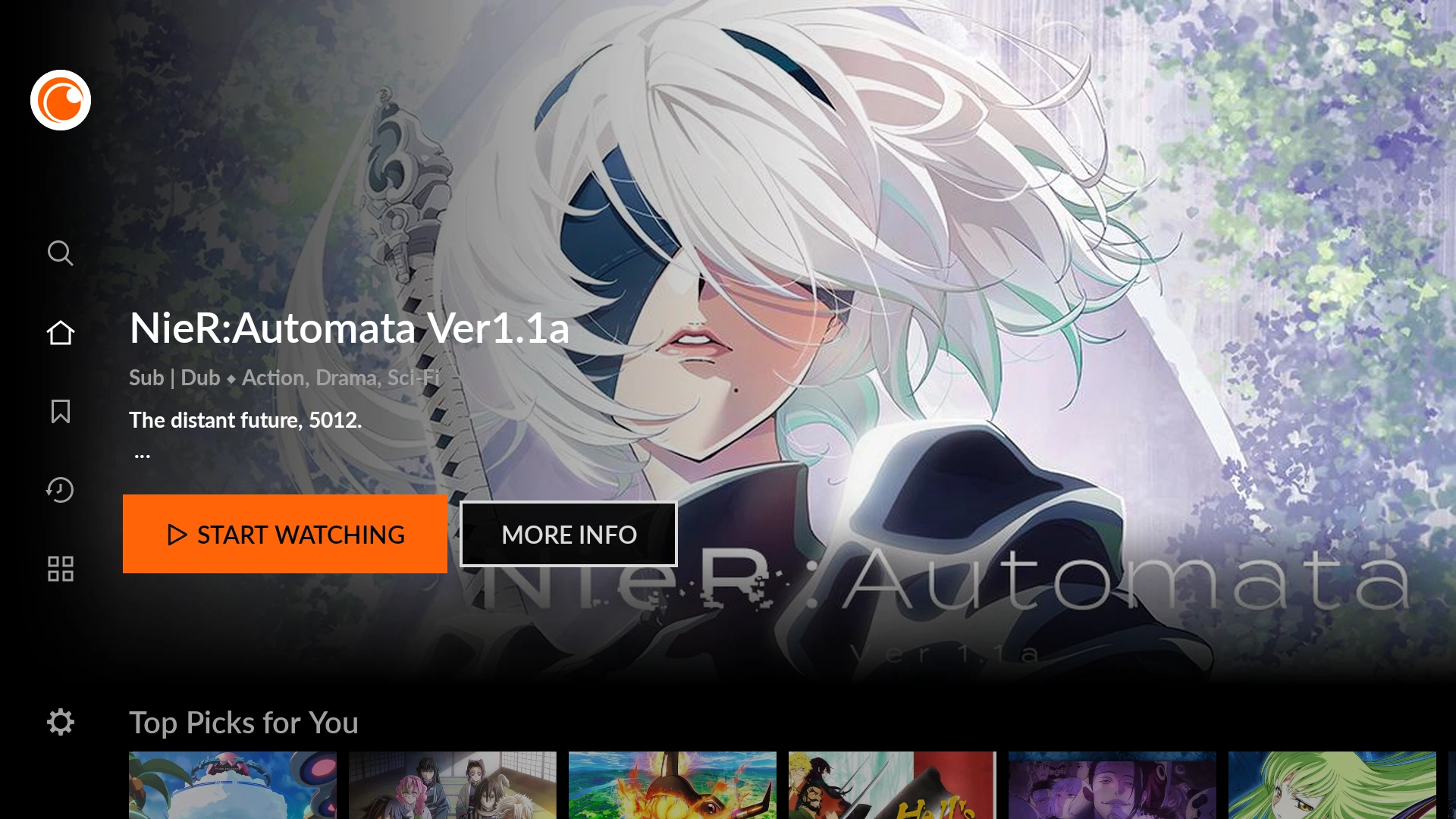
Simulcast anime, genre browsing, and multi-language dubs
Crunchyroll keeps pace with Japanese television schedules while giving you fine-grained tools to explore its massive catalog:
- Same-day Japanese simulcasts: watch brand-new episodes of ongoing seasonal hits shortly after they broadcast in Japan, complete with professional English and international subtitles.
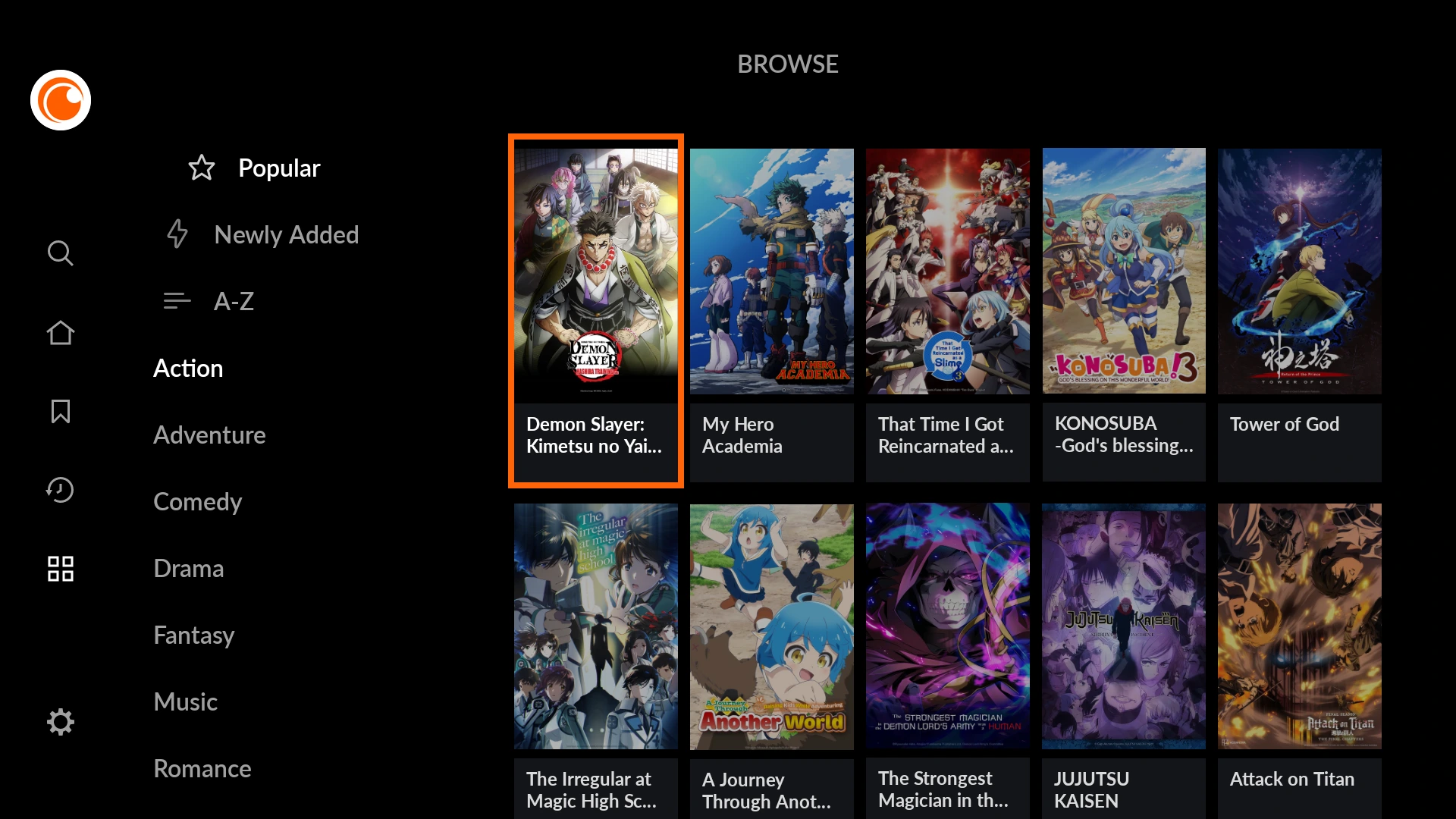
- Genre and seasonal catalog discovery: filter thousands of shows by Popular, Newly Added, alphabetical A-Z listings, or specific genres including Action, Fantasy, Shonen, Drama, and Slice of Life.
- Multi-language subtitles and dubs: switch between original Japanese audio with subtitles and full voice dubs in English, Spanish, French, German, and Portuguese directly from the player gear icon.
- Theatrical anime films and concert specials: stream feature-length movies, OVAs, and live anime music concerts from the same subscription without renting individual titles separately.
Offline episode downloads, Watchlists, and membership tiers
Whether you binge one long-running shonen epic or track a dozen weekly shows, Crunchyroll’s queue tools and membership tiers keep your library tidy:
- Offline episode syncing on Mega Fan and Ultimate Fan plans: tap the download icon next to episodes or full seasons inside the Google Play app to save them locally for offline playback when traveling without Wi-Fi.
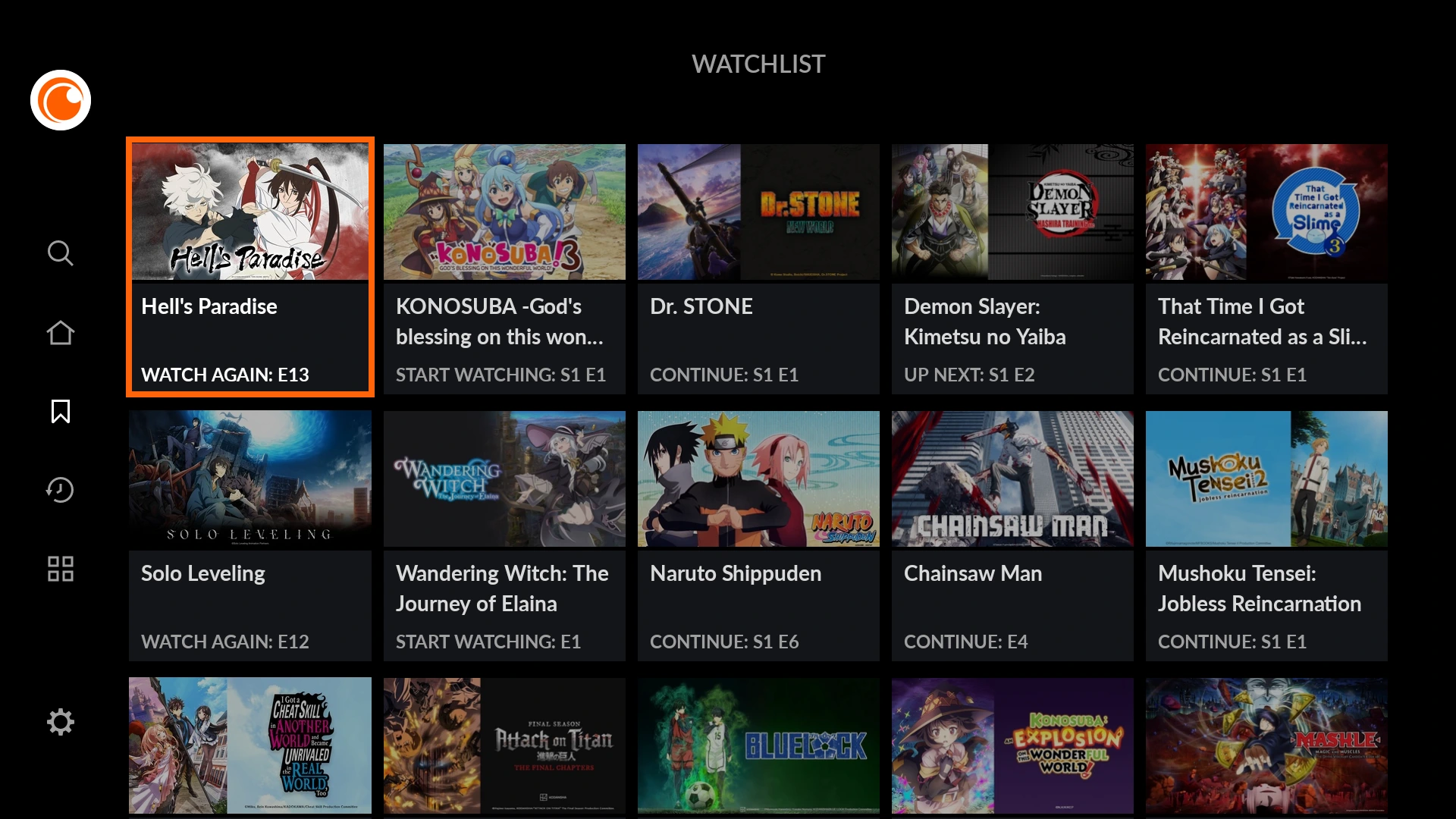
- Watchlist and custom Crunchylists organization: bookmark ongoing series to your Watchlist for instant episode progress tracking, or build custom Crunchylists grouped by mood, studio, or rewatch order.
- Up to five household profiles with maturity ratings: create separate profiles for family members or roommates so everyone keeps their own episode history, watch progress, and age-appropriate content filters.
- Simultaneous device streaming limits: Fan accounts stream ad-free on one device at a time, while Mega Fan supports up to four concurrent streams and Ultimate Fan expands up to six simultaneous streams.
Troubleshooting Crunchyroll streaming and playback on ChromeOS
If you run into black screens, missing subtitles, or random logouts on your Chromebook or Googlebook, apply these proven fixes:
- Black screen with audio playing: open Google Chrome Settings > System, turn off Use graphics acceleration when available, and restart the browser to clear video decoder conflicts.
- Repeated logouts or Incognito cookie blocks: clear site cookies and cached data for
crunchyroll.comin Chrome privacy settings. If streaming inside an Incognito window, ensure third-party cookies are permitted so session tokens remain active. - Missing subtitles or delayed captions: click the gear icon on the video player to confirm your preferred subtitle track is enabled, then temporarily pause ad blockers or script-blocking extensions that may interfere with timed caption scripts.
- Video buffering or “Oops! Something Went Wrong” error: reload the tab, close background streams, lower the player video quality from Auto to 720p on slower Wi-Fi, and verify ChromeOS is updated to the latest stable version.
- App crashes or stuck offline downloads: open ChromeOS Settings > Apps > Manage your apps > Crunchyroll > Storage and click Clear cache, then confirm you have enough free storage space for synced episodes.
Frequently asked questions about Crunchyroll on Chromebook and Googlebook
Can I download Crunchyroll anime episodes to watch offline on a Chromebook?
Yes. When you install the official Crunchyroll Android app from Google Play and subscribe to the Mega Fan or Ultimate Fan plan, you can sync and download episodes directly to your Chromebook or Googlebook storage for offline viewing during flights and commutes.
Should I use the Crunchyroll Android app or stream in Google Chrome?
Both methods work smoothly on ChromeOS. Streaming at crunchyroll.com in Google Chrome (or installing it as a Chrome PWA) is ideal for desktop multitasking, keyboard shortcuts, and large external monitors without using local storage. The Google Play Android app is best when you need offline episode downloads or tablet touch controls.
How do I cast Crunchyroll from my Android phone to Googlebook?
Open the Phone Hub from the bottom-right corner of your Googlebook shelf and confirm your Android phone is connected. Click Cast My Apps and select Crunchyroll to stream your phone’s active anime session and watchlist in a desktop window without signing in again.
Why does Crunchyroll show a black screen or missing subtitles in Chrome?
A black video screen with audio playing is usually caused by browser hardware acceleration. In Google Chrome, open Settings > System, toggle off ‘Use graphics acceleration when available’, and relaunch Chrome. If subtitles disappear, check the player gear icon to confirm your subtitle language is selected and pause any script-blocking extensions on crunchyroll.com.
Why does Crunchyroll keep logging me out or showing an ‘Oops! Something Went Wrong’ error?
Repeated sign-outs or playback errors typically happen when browser cookies become corrupted or third-party cookies are blocked in Incognito mode. Clear your site cookies and cache for crunchyroll.com in Chrome, ensure ChromeOS is updated, or switch to the official Google Play app.
Companion entertainment and streaming guides
Build out your streaming setup and local video playback options across ChromeOS with these companion guides:
- Family movies and animated series: If you want Pixar classics, Marvel sagas, and integrated Hulu titles alongside anime, read our guide on How to Install and Use Disney Plus on Chromebook and Googlebook.
- Curated streaming roundups: Compare top subscription platforms, free ad-supported services, and rental libraries in our roundup of the 10 Best Apps to Watch Movies and TV Shows on Chromebook.
- Live sports and hit dramas: For another streaming setup featuring Universal films, NBC series, and live broadcasts, check out Peacock on Chromebook.
- Offline local media playback: To watch downloaded video files, MKV anime releases with ASS subtitle tracks, and personal folders without ads, learn How to Install and Use VLC on Chromebook and Googlebook.
Discover more from Chrome Geek
Subscribe to get the latest posts sent to your email.