How to enable the Google Play store on your Chromebook
 by
Juniya Sankara
Post Updated: January 14, 2025
by
Juniya Sankara
Post Updated: January 14, 2025
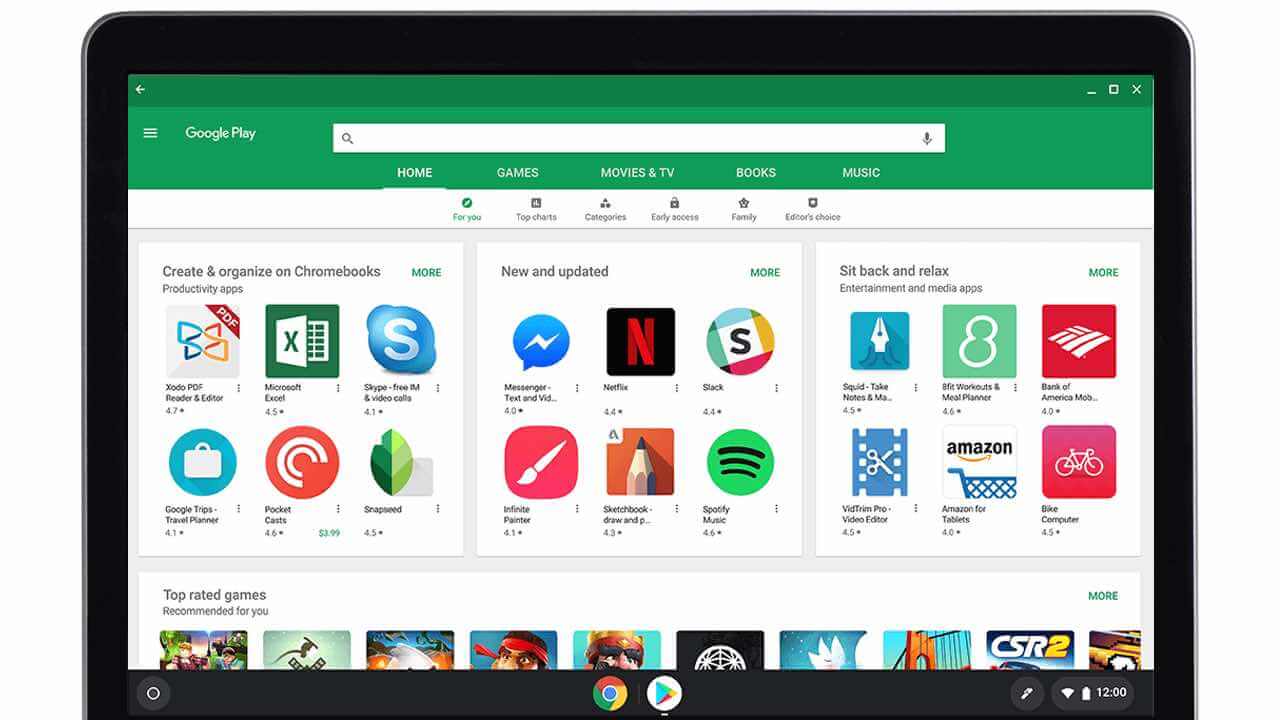 Hello everyone, on this page you will find out how to enable Google Play store on your Chromebook by following our step by step guide.
Enable the Google Play store, follow these steps:
Step 1.
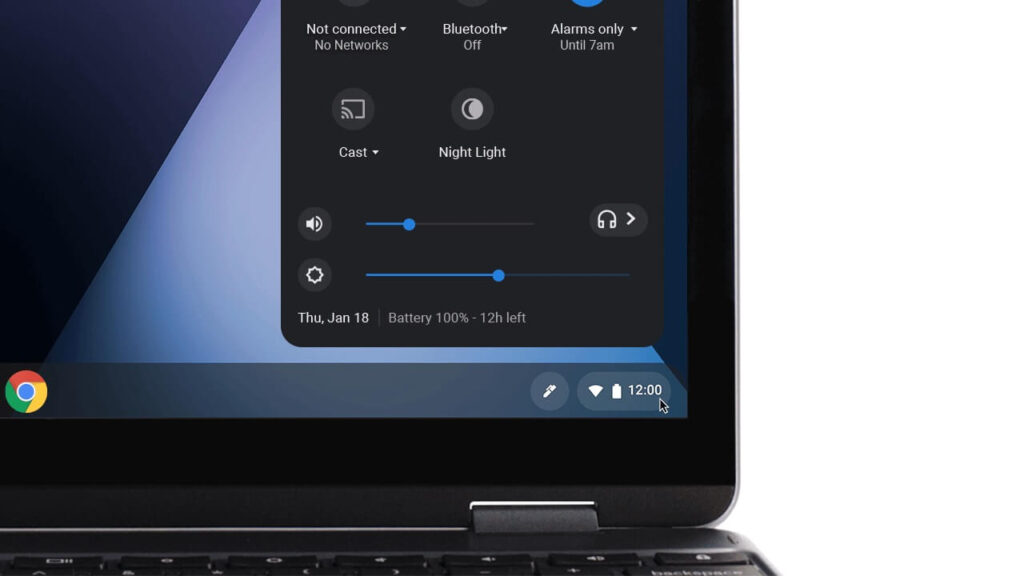
To access the Quick Settings Panel, look for the icon at the bottom right of your screen and click on it. This will open the panel, allowing you to quickly adjust various settings on your device.
Step 2.
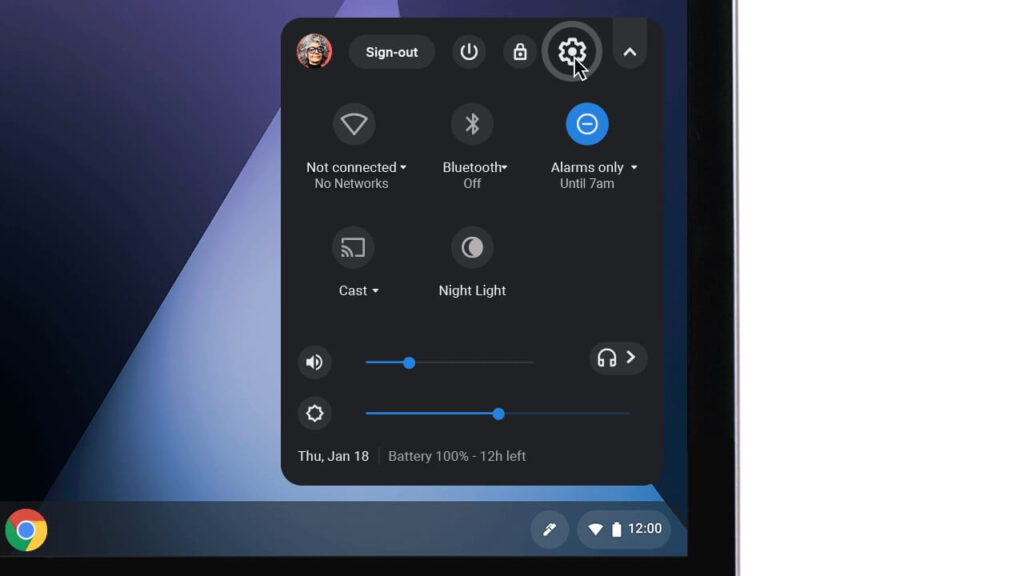
To access the Settings on your device, look for the Settings icon and click on it.
Step 3.
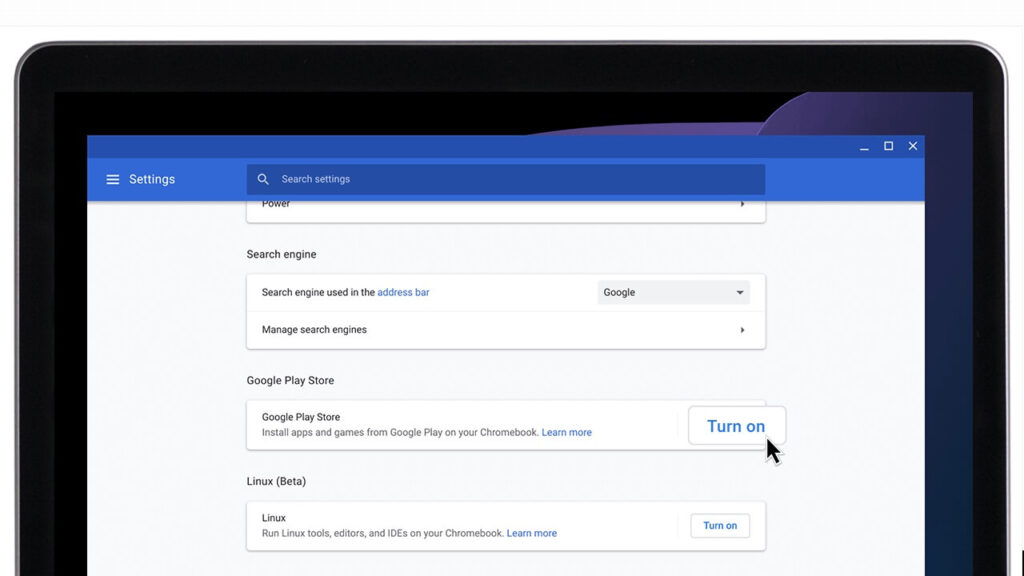
Scroll down until you find the Google Play Store option, click on the toggle next to “Google Play Store” to turn it on.
Step 4.
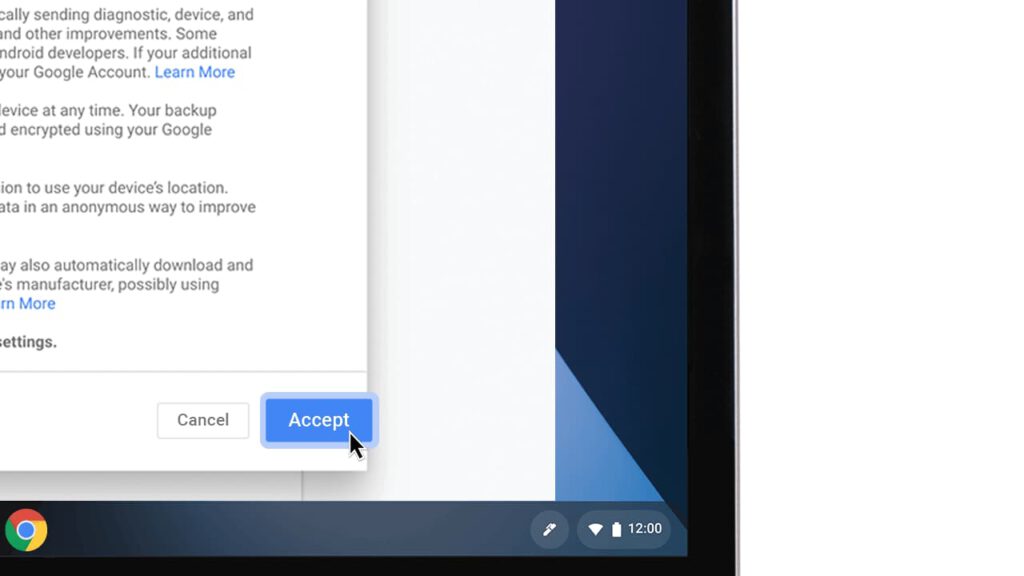
Read the terms of service and click “Accept.”
Step 5.
You should now be able to launch the Google Play store from your dock.
You should also read our a guide on how to install Android Apps on your Chromebook.
Discover more from Chrome Geek
Subscribe to get the latest posts sent to your email.