Netflix Not Working on Google TV? Install & Fix Guide (2026)
 by
Gloria Brown
Post Updated: January 2, 2026
by
Gloria Brown
Post Updated: January 2, 2026
Summary
Netflix has changed how it works on Google TV. Casting from a phone is no longer reliable. To watch movies in 4K without errors, you must install the official app on the TV itself.
How to fix Netflix on Google TV
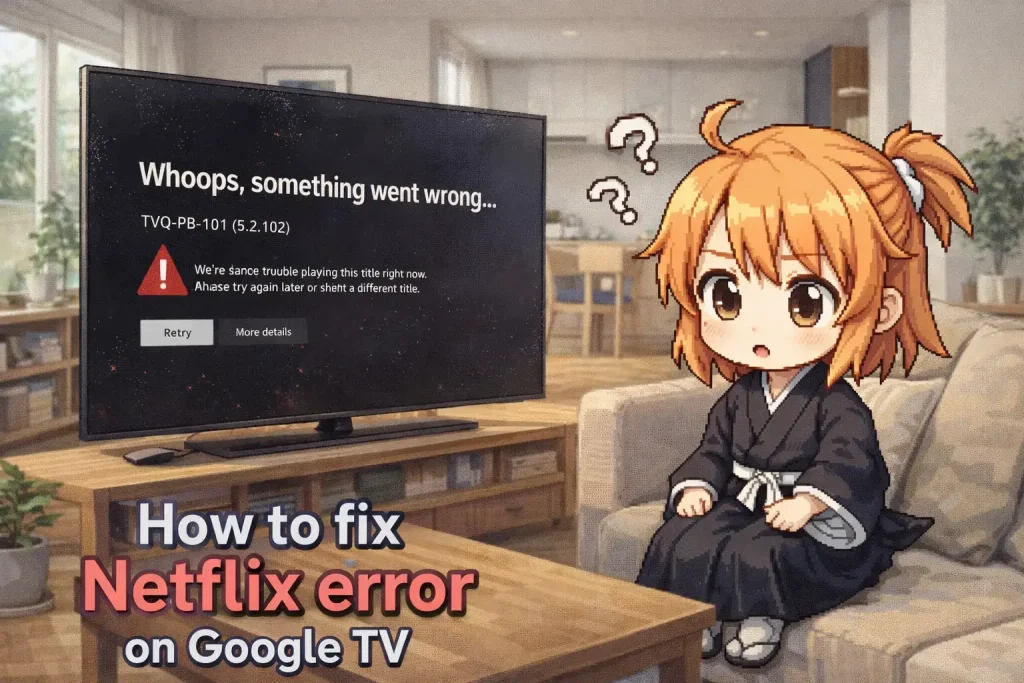
Is the Netflix button missing from your Google TV? Or maybe you are stuck on a black screen? Since Netflix changed their casting rules in late 2025, relying on your phone to control the TV doesn’t work well anymore.
You need the actual app installed on the device. Here is how to find it, install it, and the “Secret Remote Code” to fix it when it crashes.
Option 1: It might just be hidden (Check this first)
Netflix comes pre-installed on almost every Chromecast with Google TV. If you can’t find it on your home screen, you probably didn’t delete it, it is just disabled.
- Go to Settings (The gear icon) > Apps.
- Select “See All Apps.”
- Scroll to the bottom. If you see Netflix under “Disabled Apps,” click it and select Enable.
Option 2: Re-Install from Play Store
If you actually managed to delete it, here is how to get the official version back. (Do not side-load APKs, as they usually won’t play in 4K resolution).
- Press the Assistant Button on your remote (the microphone icon).
- Say “Open Play Store.”
- Search for “Netflix.”
- Click Install or Update.
🔧 The “Secret” Reset Code
Is your Netflix stuck on a black screen or spinning red circle? There is a hidden “Konami Code” built into the app to force a reset.
Press these buttons on your remote quickly:
⬅️ LEFT, ➡️ RIGHT, ⬅️ LEFT, ➡️ RIGHT
⬆️ UP, ⬆️ UP, ⬆️ UP, ⬆️ UP
This will open a secret “Diagnostics Menu.” Select “Reload Netflix” or “Sign Out” to fix almost any error instantly.
Common Questions
Why is the “Basic with Ads” plan not working?
Older “Chromecast” devices (the circular dongles without a remote) are NOT supported on the Netflix “Standard with Ads” plan. You need a modern Google TV Streamer or a newer Chromecast with Google TV to use the ad-supported tier.
How do I stop Netflix auto-playing previews?
You can’t do this in the TV app. You must go to Netflix.com on a computer, go to Account > Profile Settings, and uncheck “Autoplay previews while browsing.” The change will sync to your Google TV automatically.
New to the platform?
Confused about the difference between Android TV, Google TV, and Chromecast?
Read our Beginner’s Guide: What is Google TV? →
Discover more from Chrome Geek
Subscribe to get the latest posts sent to your email.