Crosh Commands Cheat Sheet (2026): Storage, Battery & Network Diagnostics
 by
Frank Cross
Post Updated: January 14, 2026
by
Frank Cross
Post Updated: January 14, 2026
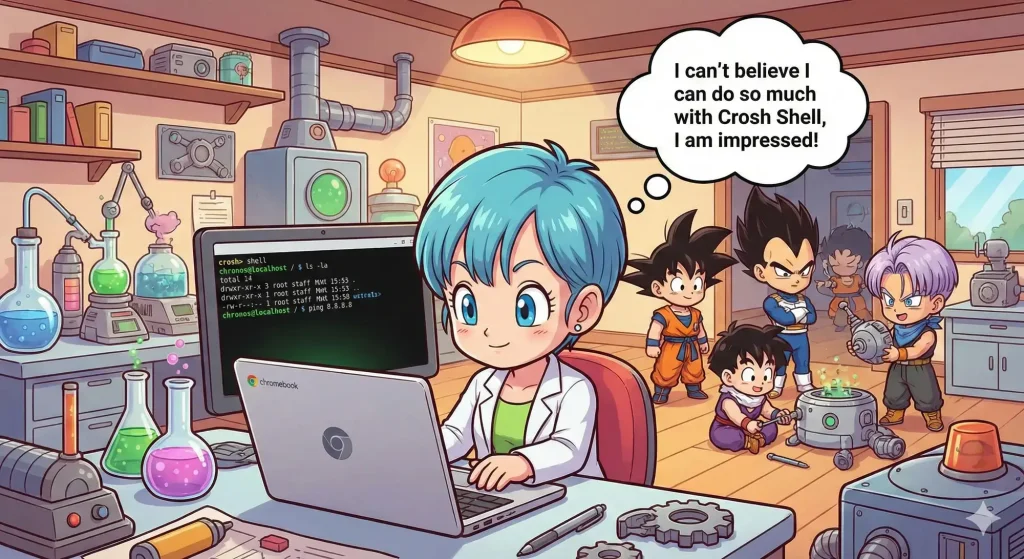
Whether you’re troubleshooting Wi-Fi, checking battery health, or just curious about what your Chromebook can really do, the Crosh shell is your hidden superpower.
Crosh (Chrome Shell) gives you access to advanced diagnostic tools without needing Developer Mode.
In 2026, Crosh has become even more powerful for checking Storage Health and Network Diagnostics. In this guide, we’ll walk through the most useful commands, grouped by safety level, so you can get the most out of your device.
Have feedback or need help with a command? Contact us here or leave a comment below, don’t be shy!
Download the Crosh Commands Cheat Sheet
💻 How to Open Crosh
- Press Ctrl + Alt + T on your keyboard.
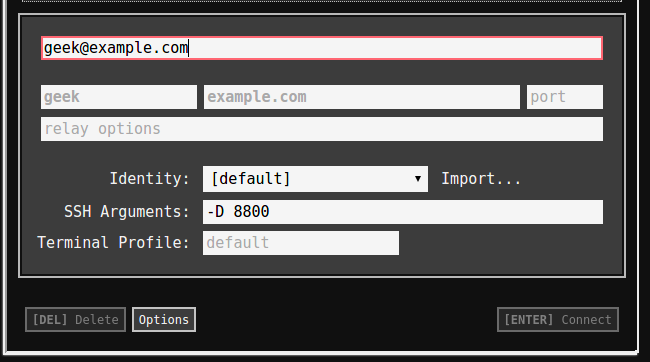
- A new tab will open with a black terminal prompt:
crosh> - Type
helpfor basic commands orhelp_advancedfor the full list.
System & Hardware Diagnostics (Safe)
These commands are 100% safe to run. Use them to check if your battery is dying or if your storage is failing.
| Command | What It Does |
|---|---|
| battery_test 60 | Runs a 60-second discharge test. Shows Battery Health % and discharge rate. |
| storage_test_1 | New: Checks your SSD/eMMC storage health (SMART status). |
| memory_test | Runs a deep RAM test. Use this if your Chromebook freezes or crashes often. |
| top | Shows real-time system processes (like Windows Task Manager). Press Q to exit. |
| uptime | Shows how long the device has been running since the last reboot. |
| ccd_pass | Verifies status of the Case Closed Debug (Security Chip). Useful for Enterprise devices. |
Network & Connectivity
Wi-Fi acting up? Use these commands to pinpoint the problem.
| Command | What It Does |
|---|---|
| ping google.com | Tests connection latency. If it fails, you are offline. Press Ctrl + C to stop. |
| tracepath [domain] | Traces the route your data takes. Good for finding where the connection drops. |
| network_diag | Runs a full suite of network tests (DNS, Proxy, Firewall) and saves the results. |
| modem help | Advanced settings for LTE/5G enabled Chromebooks. |
| ipaddrs -4 | Quickly shows your local IPv4 address. |
Developer & Advanced Tools
Note: Some of these commands require Developer Mode enabled.
| Command | What It Does |
|---|---|
| shell | Access full Linux Bash shell (Dev Mode only). |
| vmc start termina | Manually start the Linux (Crostini) container. |
| packet_capture | Captures Wi-Fi packets for analysis (Dev Mode only). |
| bt_console | Opens the Bluetooth debugging console. |
| rollback | Warning: Reverts to the previous OS version and Powerwashes (wipes) your device. |
Input Device Testing
| evtest | Tests input devices (Touchscreen, Touchpad, Keyboard). Note: Very verbose output. |
| inputcontrol | Manually adjust touchpad sensitivity (legacy command, depends on model). |
🔗 Related Guides from ChromeGeek
- Enable Developer Mode on Chromebook + Shortcuts Cheat Sheet
- ChromeOS PowerControl: Advanced Hardware Management
- What Is Crosh Shell on Chromebook?
Discover more from Chrome Geek
Subscribe to get the latest posts sent to your email.