GoFullPage Chrome Extension: Features and Setup Guide
 by
Juniya Sankara
Post Updated: December 8, 2025
by
Juniya Sankara
Post Updated: December 8, 2025
 The GoFullPage extension is a browser utility designed to capture screenshots of entire webpages, including the parts not currently visible on the screen.
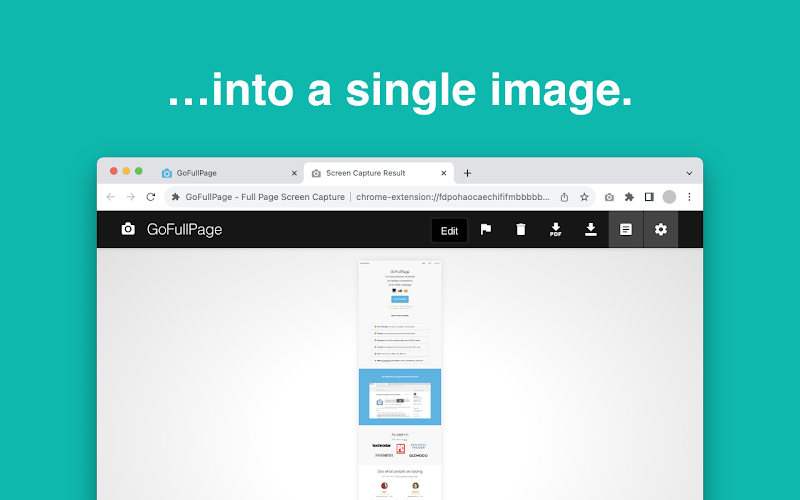
Developed by Full Page LLC, this tool automates the process of scrolling and capturing content. It scans the page from top to bottom and generates a single, continuous image file.
Standard screenshots often cut off long articles or receipts. GoFullPage solves this by scrolling through the document for you, eliminating the need to manually stitch multiple images together.
This guide covers the installation process, privacy details, and how to use the basic capture features.
How to Install GoFullPage Extension
You can add the extension to your browser via the Chrome Web Store. The process is standard for most extensions:
Installation Steps
- Visit the GoFullPage Store listing.
- Click “Add to Chrome”.
- Pin the extension: Click the “Puzzle Piece” icon in your toolbar and select the pin icon to make it accessible.
Usage Note: 💡 For accurate captures, allow the webpage to fully load all images and ads before clicking the extension icon.
Utility & Use Cases
This tool is primarily used for archiving digital content that exceeds the standard screen height.
Common use cases include:
- Designers: Saving full landing page layouts for reference.
- Developers: documenting bugs that occur “below the fold.”
- Archiving: Saving receipts, invoices, or news articles as a single PDF or image file.
Key Functions
The extension operates with a minimal interface, focusing on three main capabilities.
1. Automated Scrolling Capture
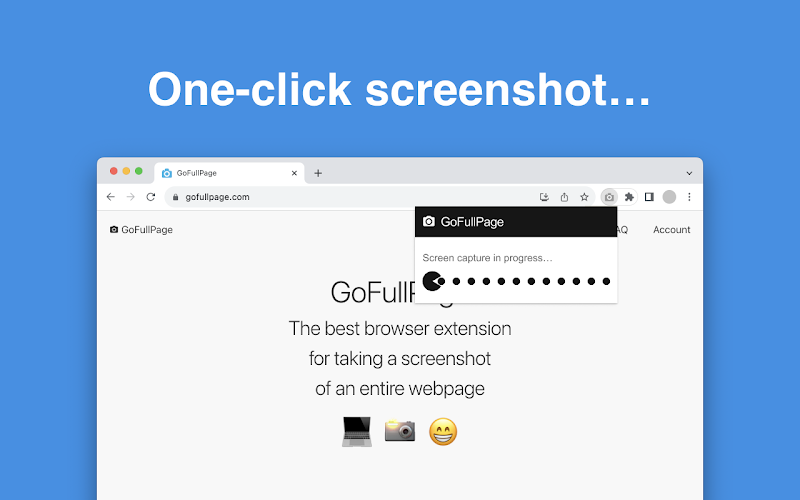
Upon activation, the extension overlays a progress bar and automatically scrolls the active tab. It handles dynamic content, such as internal scroll bars and embedded frames, to ensure the final image is continuous.
2. Privacy & Permissions
The standard version of the extension does not request permissions to read data on other websites unless initiated by the user. It processes the image capture locally within the browser.
3. Built-In Editor
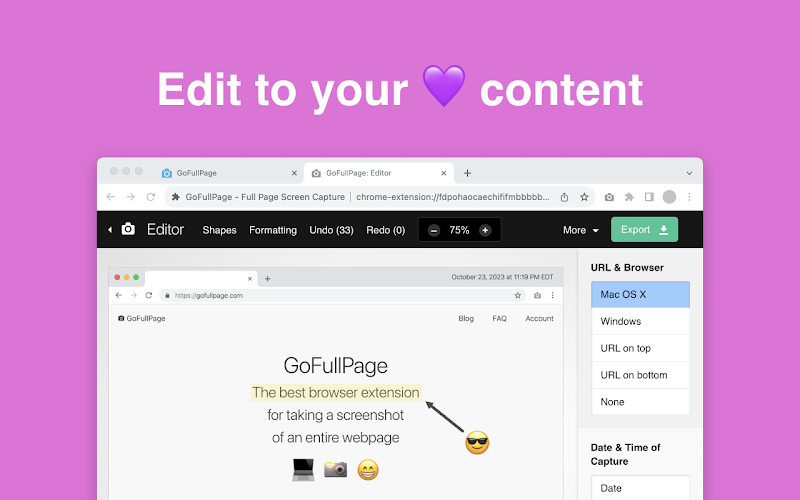
After a capture is complete, the image opens in a new tab. This interface allows users to:
- Crop: Remove unwanted headers or footers.
- Annotate: Add simple shapes or arrows to highlight specific text.
- Export: Save the file as a PNG, JPG, or PDF.
Video & Interface
The following video demonstrates the scrolling capture process on a long webpage:
Interface Screenshots
Visual examples of the capture progress and settings menu:
FAQs & Technical Details
System Compatibility
- OS: Windows, macOS, Linux, ChromeOS
- Browser Support: Chrome, Edge, Brave, Vivaldi
Frequently Asked Questions
- Is it free? The core capture and download features are free. Some editing tools (like adding browser frames) are paid features.
- Does it work on login pages? Yes, the extension captures the current view of the user, including pages behind authentication.
- How does it handle massive pages? If a page exceeds Chrome’s maximum image size limits, the extension will prompt to split the capture into multiple smaller files.
Related extensions in our directory: Image Downloader Extension, Google Arts & Culture Extension, and the Mote Extension.
Discover more from Chrome Geek
Subscribe to get the latest posts sent to your email.