How to connect a bluetooth device to your Chromebook
 by
Juniya Sankara
Post Updated: January 18, 2026
by
Juniya Sankara
Post Updated: January 18, 2026
To connect a Bluetooth device to your Chromebook, click the Time/Clock in the bottom right corner, click the Bluetooth icon to turn it on, and select “Pair new device”.
Select your headphones or mouse from the list, and you are done. In 2026, it is even easier. If you have “Fast Pair” compatible headphones (like Pixel Buds or Sony), they will pop up automatically when you open the case.
For everything else, follow the manual guide below.
Device not showing up? Contact us here or leave a comment below.
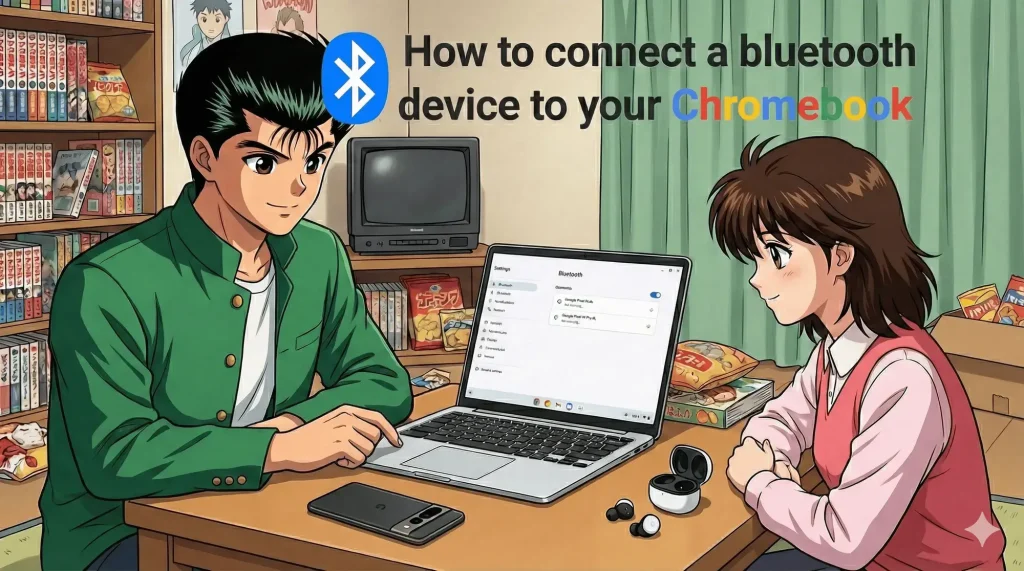
Method 1: Google “Fast Pair” (The Easy Way)
Supported devices (Pixel Buds, newer JBL/Sony headphones) don’t need menus.
- Make sure Bluetooth is ON on your Chromebook.
- Put your headphones in pairing mode (or just open the case) near the laptop.
- A small notification will pop up: “Device detected. Connect?”
- Click Connect. That’s it!
Method 2: Manual Connection
For mice, keyboards, and older speakers, use the standard menu.
1. Open Quick Settings
Click the Time/Clock area in the bottom right corner.
2. Activate Bluetooth
Click the small Bluetooth Icon (it looks like a ‘B’). If it is grey, click it to turn it Blue (On).
3. Select “Pair New Device”
Your Chromebook will start scanning. Make sure your device is in pairing mode (usually holding a button until lights flash).https://referworkspace.app.goo.gl/bAxu
4. Click to Connect
Select your device from the list. If asked for a PIN, try 0000 or 1234 (check your device manual).

IT Admins: Use Google Workspace to restrict which Bluetooth devices (like file transfer tools) can connect to company Chromebooks.
⚠️ Troubleshooting: Why Won’t It Pair?
Bluetooth can be finicky. If your device won’t connect, try these fixes:
Device Not Showing Up?
Turn Bluetooth OFF and ON again on your Chromebook. Also, ensure the device isn’t already connected to your phone.
Audio Cutting Out?
This is often interference. Move away from your microwave or Wi-Fi router. If it persists, unpair (“Forget”) the device and re-pair it.
Bluetooth Won’t Turn On?
Hardware glitch. Perform a hard reset: Press Refresh ⟳ + Power for 10 seconds.
🎥 Watch the Video Guide
🔗 More Chromebook Guides
Get the most out of your device with these tutorials:
- How to download Android Apps on Chromebook
- How to format SD Card or USB Drive
- How to connect to Wi-Fi
Discover more from Chrome Geek
Subscribe to get the latest posts sent to your email.