Don’t Trash Your Old Laptop: The 2026 ChromeOS Flex Guide
 by
Juniya
Post Updated: January 2, 2026
by
Juniya
Post Updated: January 2, 2026
Summary: ChromeOS Flex is a free, secure operating system that replaces Windows on old laptops to make them fast again for web browsing and cloud gaming, though it does not support Android apps.
Microsoft stopped supporting Windows 10 back in 2025. If you are reading this on an old laptop that feels slow, hot, or unsafe, you don’t need to buy a new computer. You just need a new operating system.
What does it look like?
Unlike Linux, which can be confusing, ChromeOS Flex looks exactly like the desktop of a modern Chromebook. It is clean, simple, and familiar.
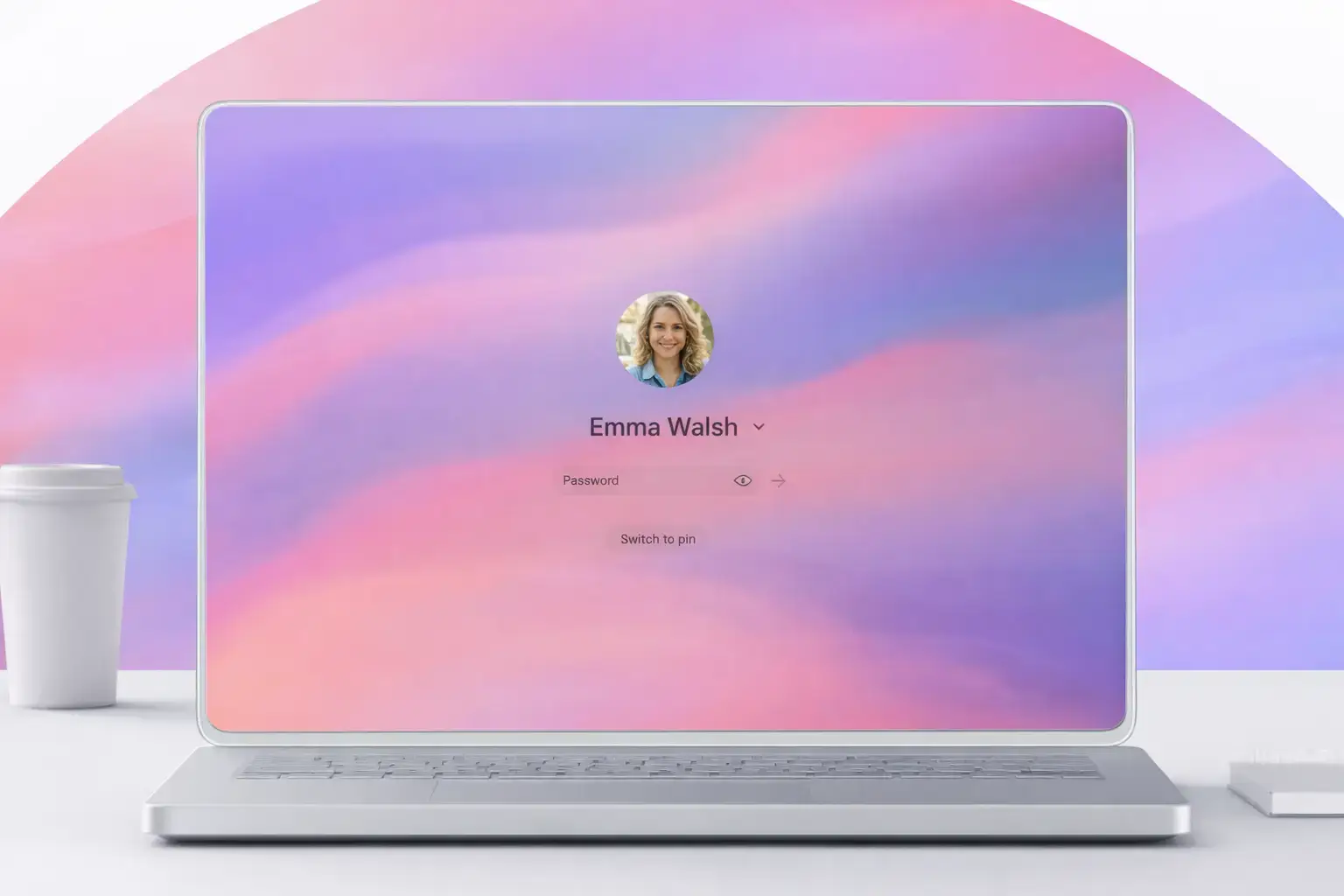
Login to your ChromeOS Flex PC
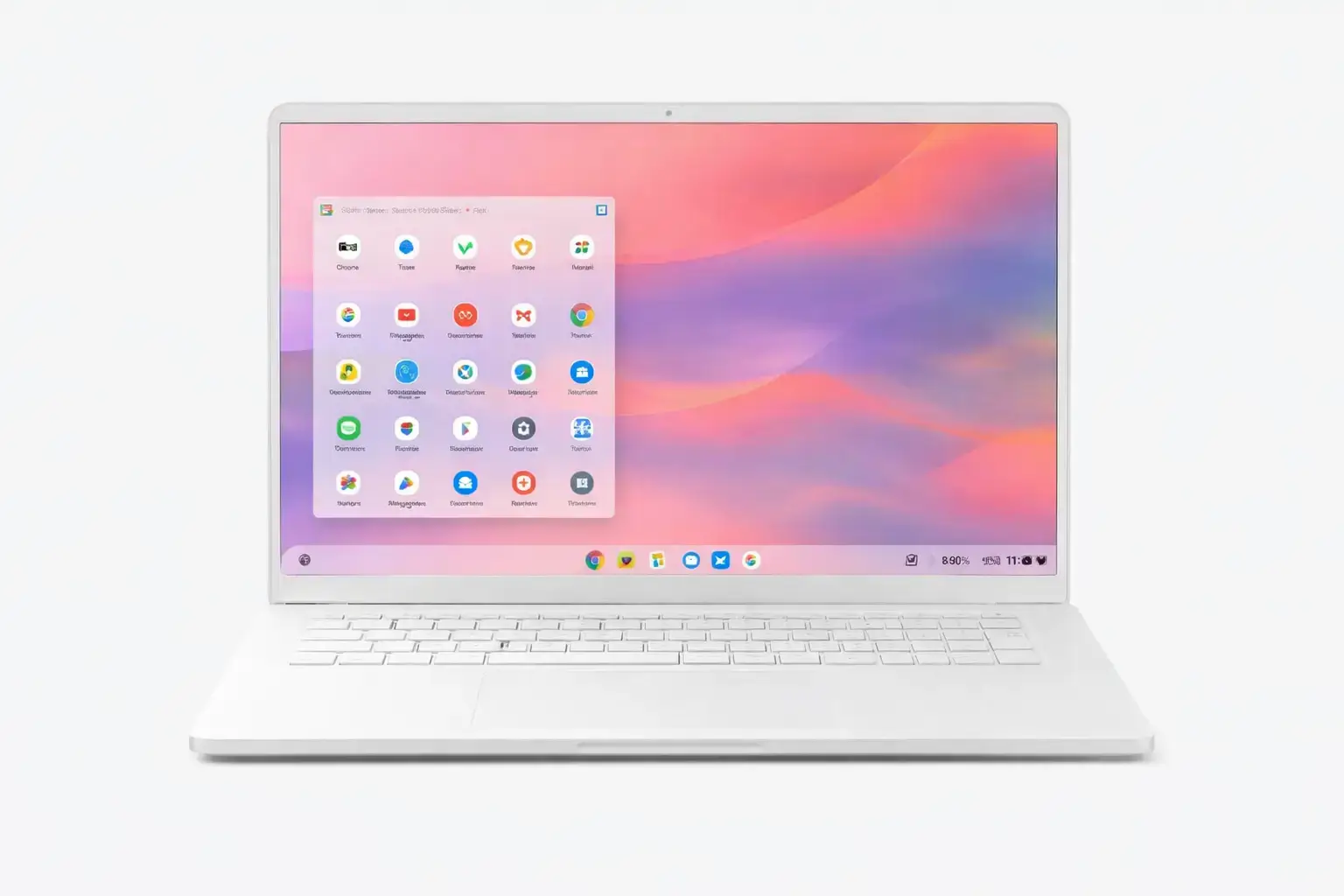
The App Launcher (Start Menu).
🤔 What is ChromeOS Flex?
Think of it like swapping the engine in an old car. We take out the heavy, slow Windows engine and replace it with the lightweight, fast engine from a Chromebook. It looks and feels exactly like a new Chromebook, but it runs on the hardware you already own (Mac or PC).
Why switch in 2026?
It’s Fast
Boots up in seconds. Doesn’t slow down over time like Windows.
It’s Secure
Built-in virus protection. No more expensive antivirus subscriptions.
Better Battery
Lighter OS means less power drain on your old battery.
AI Ready
Perfect interface for Gemini and ChatGPT.
Will it run on my laptop?
ChromeOS Flex is designed for old hardware, but it needs a few basics:
- Processor: Intel or AMD x86-64-bit compatible (Most laptops made after 2010).
- RAM: 4GB or more.
- Storage: 16GB of free space.
- Access: Full administrator access to the BIOS (to boot from USB).
- Note: It will NOT work on old PowerPC Macs or 32-bit only processors.
Is it right for you?
✅ Perfect For:
- ✓ Web Browsing & Streaming
- ✓ Students & Writers
- ✓ Cloud Gaming (Boosteroid/Xbox)
- ✓ Reviving 2015-2024 laptops
❌ NOT For:
- ✕ Adobe Creative Cloud users
- ✕ Heavy PC Gamers (Local gaming)
- ✕ Android Apps (No Play Store!)
- ✕ 32-bit processors
🎮 “Can I still play games?”
Yes. Your computer is too weak to run modern games, but your internet is fast enough to stream them.
We use Boosteroid on our Flex machines. It lets you play Cyberpunk 2077 or Fortnite right in the Chrome browser.
How to Install (Step-by-Step)
Ready to switch? Warning: This will erase your old laptop. Back up your photos first!
Step 1: Create Installer
- Get an 8GB+ USB Stick.
- Install the Chromebook Recovery Utility on a working PC.
- Select “Google ChromeOS Flex” inside the app.
- Follow the prompts to write to the USB.

Step 2: Boot & Install
- Plug the USB into the old laptop (while off).
- Turn it on and tap the Boot Key (F12, F9, or ESC) immediately.
- Select “USB Device.”
- Follow the on-screen instructions to install.
Prefer to watch a video?
Frequently Asked Questions
📂 Will I lose my files?
Yes. Installing ChromeOS Flex wipes the entire hard drive. You should back up your documents and photos to Google Drive or an external hard drive before you start.
📱 Can I install Android Apps?
No. ChromeOS Flex does not natively support the Google Play Store or Android APKs. However, you can use the web versions of most apps (like Instagram.com or TikTok.com) which work perfectly.
🍎 Does it work on MacBooks?
Yes! ChromeOS Flex works surprisingly well on older MacBooks (Intel-based models from 2010–2019). It will not work on the newer M1, M2, or M3 Macs.
📶 Does Bluetooth and Wi-Fi work?
Usually, yes. ChromeOS Flex has drivers for most common laptops. However, some very old or obscure Wi-Fi cards might not be detected. This is why we recommend the “Try it first” mode (Step 3) to test your hardware before installing.
📚 Learn More
Need more help or want to check if your specific model is supported?
- Google Certified Models List: Check if your specific laptop has been officially tested by Google.
- What is a Chromebook?: Learn about Chromebooks and what features they offer.
- Official Install Guide: The technical documentation from the Google support team.
- r/ChromeOSFlex on Reddit: A great community for troubleshooting obscure hardware issues.
Discover more from Chrome Geek
Subscribe to get the latest posts sent to your email.